How do you use drawing tablet express keys and pen buttons on a Mac?
 InputConfig is completely free on the Mac App Store. You don't have to make an account, there are no subscriptions, and nothing is locked. Optimized for Apple silicon.
With the maker's driver, which on a Mac is Wacom Center, the Huion driver or the XPPen driver. Each one lets you give every express key and pen button a keyboard shortcut or a mouse click, and the driver then sends that to macOS when you press the key. That covers one job per button. If you want a hold, a double tap, a macro, an app that opens or text that types, the trick is to have the driver send a key nothing else uses, such as F13, and give that key the real job in InputConfig, the free Mac app I make.
Wacom's part is from its Customize your Wacom device help page and Huion's from its macOS install guide, both of which I read on October 21, 2026. I have not tested a drawing tablet myself, so where I could not confirm how a model reports a button, this page tells you to press Scan and see.
On this page: 11 sections
Steps
- Install your tablet maker's Mac driver and give it the Accessibility permission it asks for.
- In the driver, set each express key you want to a spare function key such as F13, F14 and so on.
- Open InputConfig, add a keyboard row, press Scan and press the express key.
- Choose the output you want, such as a shortcut, a macro, Open App or Type Text, and press Activate.
Know what the driver does and what reaches macOS
A tablet needs its driver on a Mac for more than a plain pointer. The driver is also where the express keys and the pen buttons get their jobs, and that matters for everything below, because a button the driver keeps to itself never reaches another app.
- Wacom. Wacom Center is the settings app. Wacom's help says you pick the device, pick the control, and then choose an action such as a mouse click, a keyboard shortcut or a navigation action like scrolling. The page also says the actions on offer vary by device, and that a change applies right away.
- Huion. The Mac driver is called HuionTablet. Huion's install guide says it needs the Accessibility permission, and that once the tablet shows in the driver you set its Press Keys, working area and pen. The driver's Press Keys are the express keys.
- XP-Pen. XPPen's Mac install guides for Ventura and later ask for Accessibility and Screen Recording permission for its driver, and its FAQ has a page on setting up Express Keys on a Mac.
What reaches macOS in each case is what the driver chose to send, usually a keyboard shortcut that the driver makes up for you. Whatever you set in the driver is what the Mac sees, so the driver is where the plan starts.
Find out what each button sends
Press Scan to see it for yourself. The pen buttons and the express keys can arrive in different ways, depending on the brand, the model and what you set in the driver, and I could not confirm how every model reports them.
- You: Open InputConfig, add a row, set the input device to This Mac's mouse or trackpad for the pen buttons or to the keyboard for express keys, press Scan, and press the button on the tablet.
- InputConfig: Names whatever arrived: a mouse button such as Button 4, or a key.
- Check: If a name appears, that button can carry a job. If nothing appears, the driver is keeping that button for itself.
| Control | What to expect | Where to look |
|---|---|---|
| Express key set to a shortcut | The driver sends that shortcut as keys, so it types or runs the shortcut in the app | Scan as a keyboard key |
| Express key set to a single key such as F13 | One key press, and nothing else on a Mac uses F13 | Scan as a keyboard key |
| Pen barrel button set to a mouse click | A right or middle click can arrive as a mouse button | Scan on the mouse device |
| Touch ring, wheel or dial | The driver turns it into scroll, zoom or brush size, so it may send nothing a mapper can read | Press Scan and turn it to see |
| Buttons for the driver's own screens, such as a display toggle | Nothing reaches macOS | Not readable |
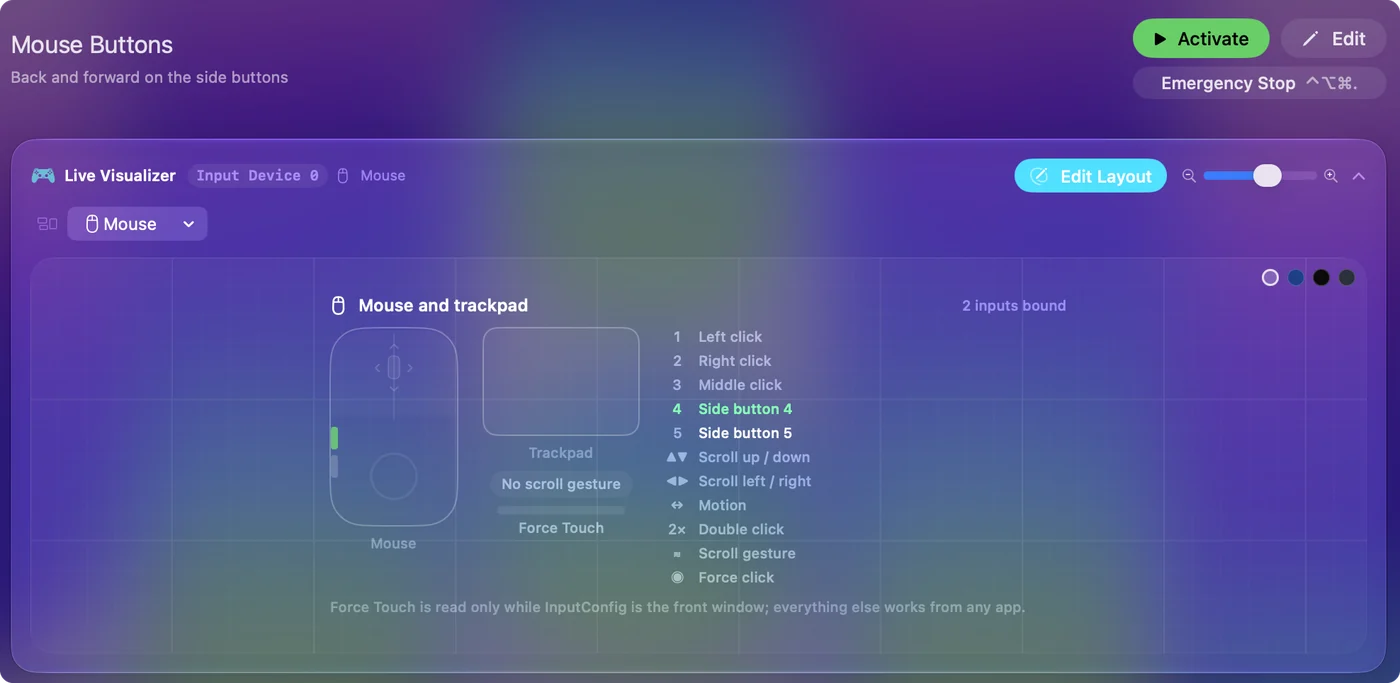
Send function keys from the tablet
InputConfig listens to the keyboard alongside macOS. It cannot block a key or change it, so an express key that sends Command Z still undoes in your app, and a second job added in InputConfig would run on top of that. The fix is the one I use for any device that sends keys: in the driver, give each express key a key that does nothing, F13 to F20. F21 to F24 are not passed to apps by macOS, so they are no use.
- You: Open the driver, choose the express key, pick its keyboard shortcut action, and press F13 as the shortcut.
- InputConfig: Nothing yet. The driver now sends only F13 when you press the key.
- Check: Press the express key in a text field. Nothing is typed.
I could not confirm which function keys every driver's shortcut box accepts. If one refuses F13, try F14 to F20, and tell me if yours does not work. If the driver gives you eight keys, F13 to F20 gives you eight keys that do nothing else. The F13 to F19 page has more on these keys.
Bind the keys in InputConfig
- You: Add a new bind, set the input to Keyboard Key, press Scan and press the express key on the tablet.
- InputConfig: Shows the row as F13, on Any keyboard.
- Check: Choose an output, press Save, then Activate, and press the key in your drawing app.
Outputs worth putting on a tablet key are a Keyboard Key with modifiers, Open App for a reference image viewer, Type Text for a layer name, a Siri Shortcut that exports or posts, and the media and screenshot system functions.
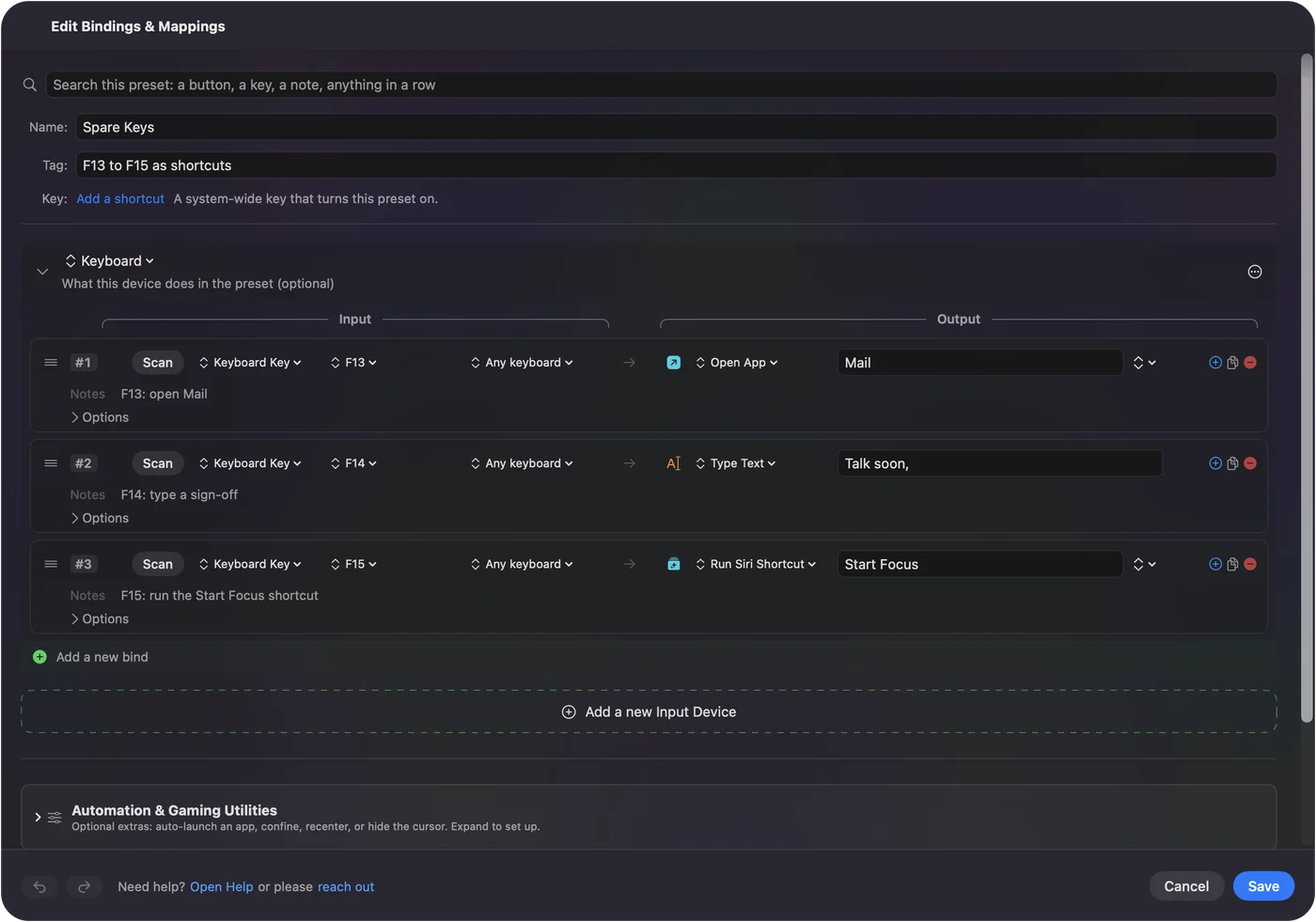
Turn eight keys into twenty four jobs
A tablet has few buttons, so this is where InputConfig earns its place. Each row can have a hold action and a double tap action, which are full second outputs, so one express key can do three things:
- Tap. Undo, the thing you use most.
- Hold. Redo, or hold to keep stepping back.
- Double tap. Save, or flip the canvas.
A macro in the row's Options can chain key presses, such as copy, wait, paste, flatten a layer. Eight express keys with a tap, a hold and a double tap each are twenty four jobs without buying a bigger tablet. Hold and double tap and how to make a macro on a Mac have the steps.
Give each drawing app its own layout
The same key can mean brush size in one app and rotate canvas in another. A preset can list apps under Automation & Gaming Utilities, Activate when these apps are in front, and with Settings, Advanced, Switch presets when the front app changes, the layout follows the app you are using. Only one preset runs at a time. Control Option Command period is the emergency stop. Tie one preset to each app you draw in, and the tablet never needs a driver profile switch.
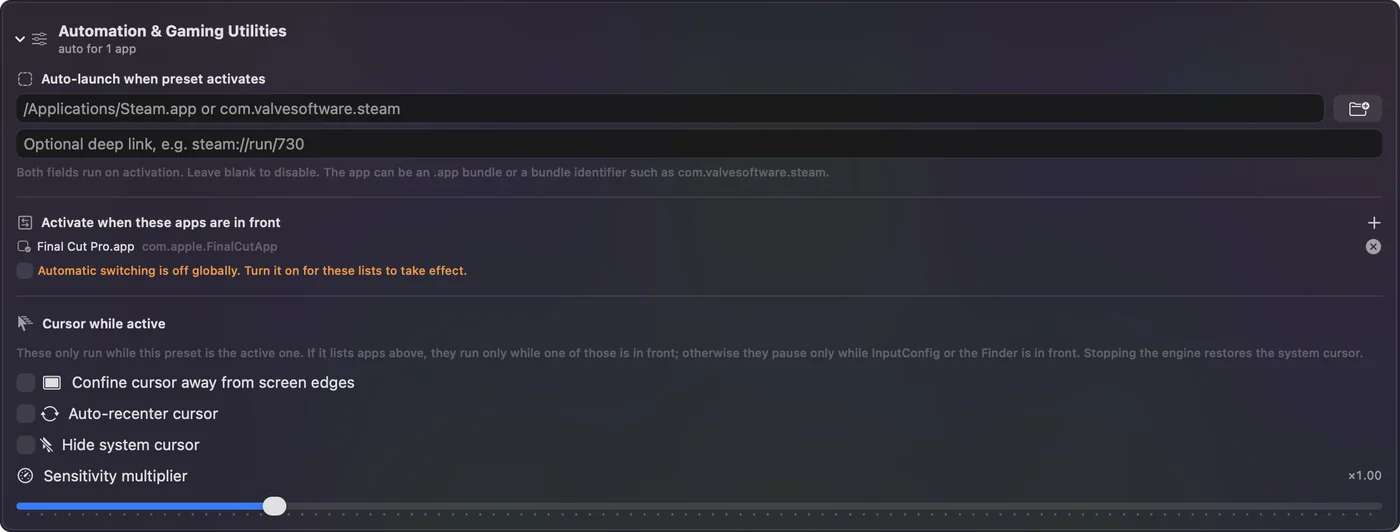
The drawing and photo editing guide goes further, and per-app keyboard shortcuts explains the switching.
If a tablet button does nothing
Climb this ladder, smallest step first:
- Check the driver is running. Wacom Center, HuionTablet or the XPPen driver must be open or running in the menu bar, with the tablet showing in it.
- Check the permissions. The drivers ask for Accessibility, and XP-Pen also asks for Screen Recording. Without them, express keys can do nothing at all. InputConfig needs Accessibility too, in System Settings, Privacy & Security, Accessibility.
- Press Scan. If a name appears, the button is readable. If not, the driver is using that button for something of its own.
- Test the key in a text field. If F13 types nothing, the driver is sending it. If a shortcut runs instead, the driver is still on its old setting.
- Reconnect the tablet. Wacom suggests unplugging and replugging when a device does not appear in Wacom Center.
What it cannot do
- Pressure, tilt and pen position. These belong to the driver and the drawing app. InputConfig does not change them.
- Rings, wheels and dials that only talk to the driver. If nothing scans, no Mac app can read them.
- Blocking a driver shortcut. InputConfig does not block keys, so a key set to Command Z still sends it.
- Telling two keyboards apart. Every keyboard counts as one device, so an express key set to F13 and a keyboard key set to F13 are the same input.
The short version
- Driver first. It owns the express keys and the pen buttons, so set them there.
- Function keys. Set each key to F13 to F20, so nothing else on the Mac reacts.
- InputConfig second. Bind those keys to shortcuts, macros, holds, double taps and a layout per app.
Spend two minutes setting the driver to function keys, and the tablet becomes the cheapest macro pad you own.
Questions
Do Wacom express keys work on a Mac?
Yes, with Wacom Center, which lets you give each ExpressKey a mouse click, a keyboard shortcut or a navigation action. Press Scan to see what a model sends.
How do I set Huion press keys on a Mac?
Install the HuionTablet driver, give it Accessibility permission, and set the Press Keys in the driver once the tablet shows in it.
Can I use a drawing tablet button for more than one shortcut?
Yes. Set the key to F13 in the driver, then give the F13 row a hold action and a double tap action in InputConfig.
Why do my tablet buttons do nothing on a Mac?
Usually the driver is not running or lacks Accessibility permission. Check both, then press Scan.
Can a Mac app read the pen barrel buttons?
If the driver sends them as mouse buttons, InputConfig can scan them. If the driver keeps them, no app can.
Related
This page in other languages: العربية, Čeština, Dansk, Deutsch, Español, Suomi, Français, עברית, Magyar, Bahasa Indonesia, Italiano, 日本語, 한국어, Norsk, Nederlands, Polski, Português, ไทย, 繁體中文, 简体中文
Completely free. You don't have to make an account, there are no subscriptions, and nothing is locked. Optimized for Apple silicon. Open source on GitHub.
Updated