How do you set up a Wacom ExpressKey Remote on a Mac?
 InputConfig is completely free on the Mac App Store. You don't have to make an account, there are no subscriptions, and nothing is locked. Optimized for Apple silicon.
Install the Wacom driver, plug in the ExpressKey Wireless receiver, and open Wacom Center, where the remote shows up as EK Remote. Every button gets its job there. The driver is the only way to set the remote up on a Mac, and what it can do per button is one action: a keystroke, a click or something similar. If you want a hold, a double tap, a macro, an app that opens or text that types, the trick is to have the driver send a key that nothing else uses, then give that key the real job in InputConfig, the free Mac app I make.
The Wacom facts are from Wacom's own help pages for the ExpressKeys, for assigning functions and for keystrokes, which I read on October 21, 2026, and from retail listings and a Wacom community thread I found the same day. I have not tested an ExpressKey Remote myself. Wacom's pages do not say whether a key typed in the keystroke window can be F13, so check that first, and press Scan to see what reaches your Mac.
On this page: 12 sections
- Steps
- Know what the remote is and what it needs
- Set the buttons in Wacom Center
- Find out what each button sends
- Send function keys from the remote
- Bind the keys in InputConfig
- Turn 17 buttons into more jobs
- Give each drawing app its own layout
- If the remote does nothing
- What it cannot do
- The short version
- Questions
Steps
- Install the Wacom driver from Wacom, plug the ExpressKey Wireless receiver into a USB port, and open Wacom Center.
- Choose EK Remote in the Devices list, then the Outer, Inner or Ring tab.
- Give each button the keystroke F13 to F20 in the Keystroke window, and press Apply.
- In InputConfig, add a keyboard row, press Scan, press a remote button, and choose the output.
- Press Save and Activate, and test the remote in your drawing app.
Know what the remote is and what it needs
The ExpressKey Remote is a small palm-sized pad for artists. Retail listings give it 17 customizable buttons and a touch ring, and say the touch ring has three modes: auto zoom and scroll, brush size and rotate. It is paired through the ExpressKey Wireless Receiver, which goes in a USB 2.0 port, and one listing says up to five remotes can connect at once. It has a rechargeable battery and, according to a retailer, works with Mac OS X 10.12 or later.
- It needs the driver. Wacom Center is the settings app, and Wacom's help pages describe customizing the remote there and nowhere else.
- It is sold with Wacom tablets in mind. Wacom's Australian store says the remote is compatible with a list of Wacom products, the Cintiq and Intuos Pro models. Two retailers say it also works as a standalone device. The sources disagree, so I would check with Wacom before buying one for use without a Wacom tablet.
- It is an older product. The model number in listings is ACK411050, and newer Wacom devices have their own ExpressKeys, so some Wacom help pages describe other devices.
The ExpressKey Remote also pairs with the same driver as a tablet, so if your Mac already runs Wacom Center for a tablet, the remote is one more device in its list. On a Mac the remote is a driver device first and a keyboard second.
Set the buttons in Wacom Center
Wacom's help says you open Wacom Center, select EK Remote in the Devices sidebar, and pick the Outer, Inner or Ring tab. You click the action shown for a button, or the blue dot on the picture of the remote, and choose a replacement from the Action sidebar.
- You: Open Wacom Center, choose EK Remote, open the Outer tab, and click the first button's action.
- InputConfig: Wacom Center lists the actions, which vary by device, including a keyboard shortcut and a mouse click.
- Check: The name of the action next to the button changes right away.
For a keystroke, choose Keyboard in the Action sidebar, then Keystroke. A window opens with a Keys box where you press the combination, a Delete and a Clear button, and a Name box. Wacom's page says you can use letters, numbers, function keys such as F2 and F3, and modifier keys, and it has an Add special keys menu. It does not mention F13, so I could not confirm that the box accepts it. Try it, and if F13 is refused, try F14 to F20. Wacom also says you can set different keystrokes for the same button in different applications, which is the driver's own version of a per app layout.
Find out what each button sends
Whatever the driver sends is what a Mac app receives. A button set to a shortcut sends that shortcut, and a button set to something only the driver understands, such as a ring mode, may send nothing readable.
- You: Open InputConfig, add a row, set the input to Keyboard Key, press Scan, and press a button on the remote.
- InputConfig: Names the key that arrived, for example F13.
- Check: If a name appears, the button can carry a job. If nothing appears, the driver keeps that button for itself, or this driver does not post its keys in a way InputConfig can hear. I have not tested which.
| Control | What to expect | How to check |
|---|---|---|
| A button set to a keystroke | The driver sends that keystroke | Scan as a keyboard key |
| A button set to F13 to F20 | One key that nothing else on a Mac uses | Scan as a keyboard key |
| A button set to a click | A mouse click, which may arrive on the mouse device | Scan on This Mac's mouse or trackpad |
| The touch ring | The driver turns it into scroll, zoom, brush size or rotate | Probably nothing readable |
| A mode or switch action | Handled by the driver | Not readable |
Send function keys from the remote
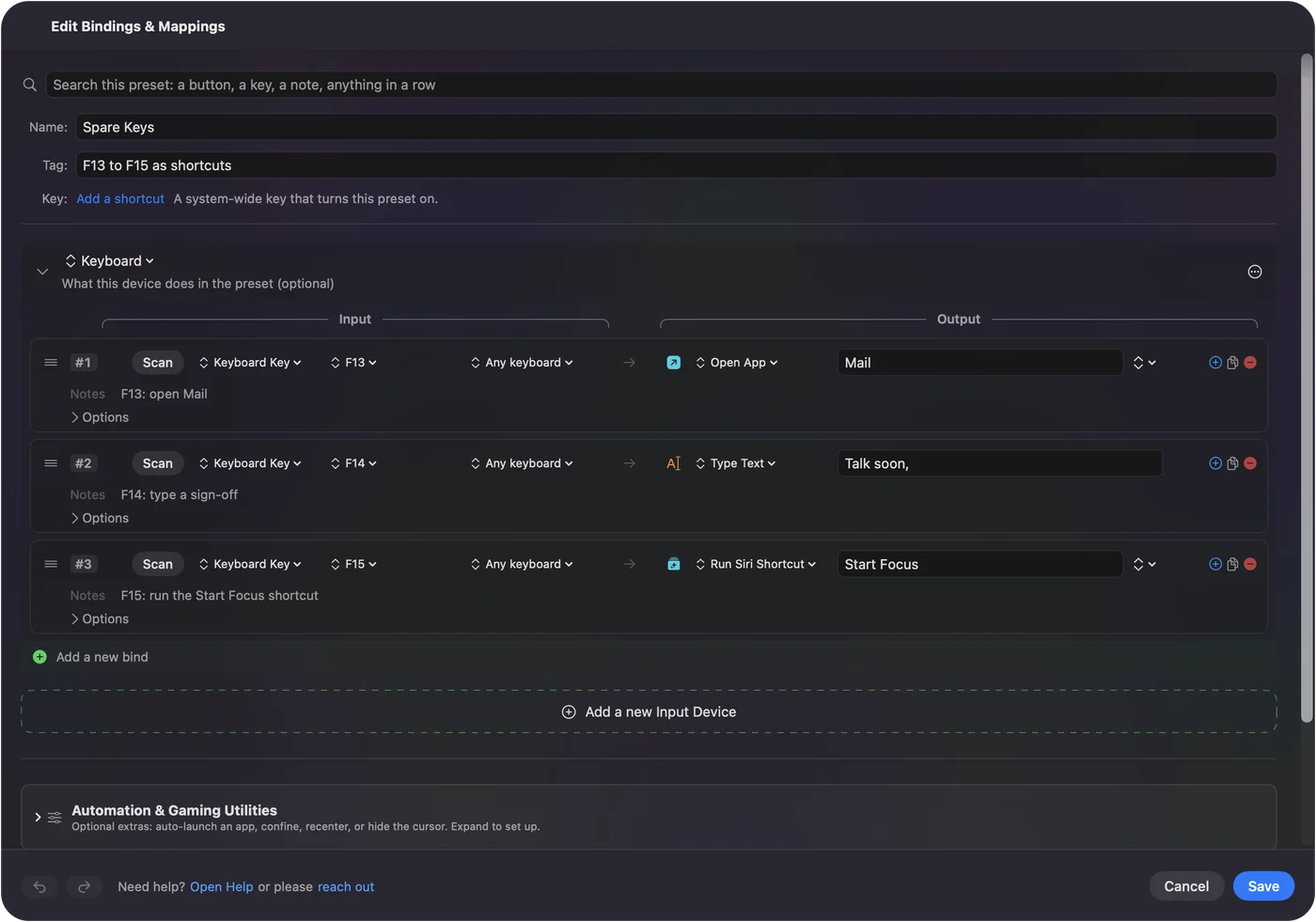
InputConfig listens to the keyboard alongside macOS and does not block a key. A button that sends Command Z still undoes in your app, and a job you add runs on top. So the fix is the one I use for any device that sends keys: set the remote's buttons to F13 to F20. macOS gives them no job, and apps leave them alone. F21 to F24 are not passed to apps, so skip those.
That gives you eight keys. The remote has 17 buttons, so the other nine keep ordinary shortcuts, the ones your drawing app already takes, such as brush size and undo. Give the eight buttons that need more than one job to F13 to F20, and let the rest do the plain shortcuts. The F13 to F19 page has the details.
Bind the keys in InputConfig
- You: Add a new bind, set the input to Keyboard Key, press Scan and press the remote button, then choose what it does.
- InputConfig: Shows the row as F13 on Any keyboard.
- Check: Press Save, then Activate, and press the button in your drawing app.
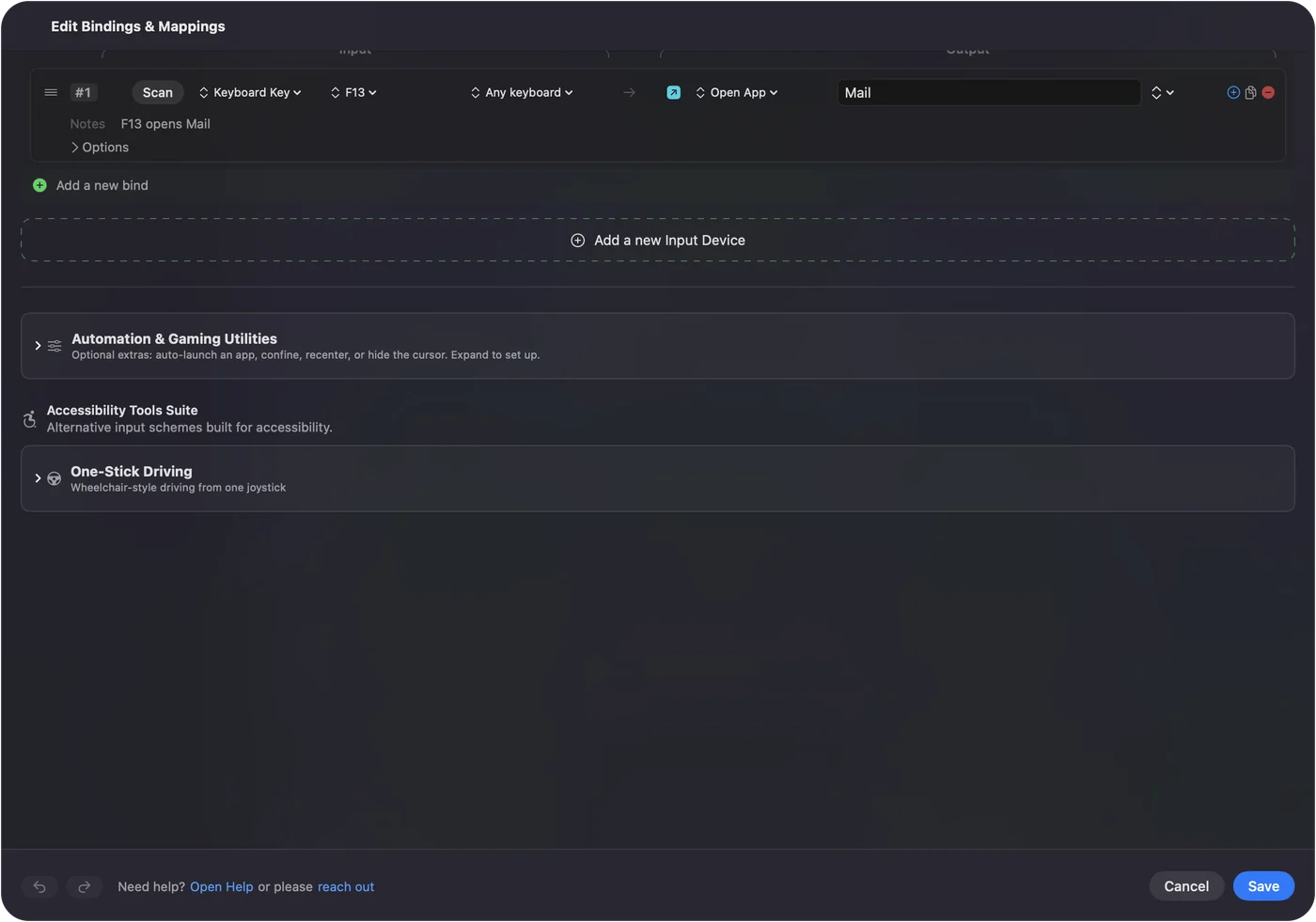
Outputs worth putting on a remote button are a Keyboard Key with modifiers, Open App for a reference image viewer, Type Text for a layer name, a Siri Shortcut that exports or posts, and the screenshot and media System Functions. Every keyboard counts as one device in InputConfig, so the remote's F13 and your main keyboard's F13 are the same input, which is fine because nobody presses F13 by accident.
Turn 17 buttons into more jobs
Each row can have a hold action and a double tap action, which are full second outputs. A remote button can be three things:
- Tap. Undo, the thing you use most.
- Hold. Redo, or a longer step back.
- Double tap. Save, or flip the canvas.
A macro in the row's Options can chain a copy, a wait, a paste and a layer merge. Eight buttons with a tap, a hold and a double tap each give twenty four jobs. Hold and double click actions and how to make a macro on a Mac have the steps.
Give each drawing app its own layout
The same button can mean brush size in Photoshop and rotate in Clip Studio Paint. A preset can list apps under Automation & Gaming Utilities, Activate when these apps are in front, and with Settings, Advanced, Switch presets when the front app changes, the layout follows the app you are using. Only one preset runs at a time, and Control Option Command period is the emergency stop. The drawing tablet buttons page covers tablets in general.
If the remote does nothing
Climb this ladder, smallest step first:
- Check the remote is awake. A Wacom support thread asks whether the remote's light comes on when it is powered. Charge it first.
- Plug the receiver straight in. The same thread asks whether it connects when the receiver is plugged directly into the Mac, so take out any hub.
- Look in Wacom Center. A connected remote should appear there. If it does not, the driver is the problem, not InputConfig.
- Reinstall the driver. One person on an Adobe forum cleared an old driver and installed the right one for their model, and that fixed missing ExpressKeys. A thread about an ExpressKey Remote that vanished on macOS 12.7.4 after an update has no answer yet.
- Press Scan. If a name appears, the button is readable.
- Check InputConfig. Accessibility permission, the preset active, and the emergency stop.
What it cannot do
- Replace the driver. Wacom Center owns the remote's buttons, and without it a Mac may see nothing.
- Read the touch ring. It talks to the driver, so unless Scan shows something, no Mac app can read it.
- Block a driver shortcut. A button left on Command Z still sends it.
- Tell two keyboards apart. Every keyboard counts as one device.
The short version
- Driver first. Set the buttons in Wacom Center.
- F13 to F20 next. Give the eight buttons you want to extend a key that does nothing.
- InputConfig last. Holds, double taps, macros and a layout per drawing app.
Spend two minutes setting eight buttons to function keys, and the remote becomes a twenty four job macro pad.
Questions
Does the Wacom ExpressKey Remote work on a Mac?
Retail listings give Mac OS X 10.12 or later, and Wacom's help describes setting it up in Wacom Center. It needs the Wacom driver.
How do I program the ExpressKey Remote on a Mac?
Open Wacom Center, choose EK Remote, pick the Outer, Inner or Ring tab, click a button's action and choose a keystroke or other action.
Can the ExpressKey Remote work without a Wacom tablet?
Two retailers say it works as a standalone device, but Wacom's Australian store lists only Wacom tablets as compatible. Check with Wacom before you buy it for use alone.
Why is my ExpressKey Remote not showing in Wacom Center on a Mac?
Check that the remote is charged, plug the receiver directly into the Mac, and reinstall the driver for your model. A Wacom community thread describes the same problem after a driver update.
Can I use the ExpressKey Remote buttons for shortcuts in any app?
Yes, in the Keystroke window, and Wacom says you can set different keystrokes per application. For holds and macros, set the buttons to F13 to F20 and bind them in InputConfig.
Related
This page in other languages: العربية, Čeština, Dansk, Deutsch, Español, Suomi, Français, עברית, Magyar, Bahasa Indonesia, Italiano, 日本語, 한국어, Norsk, Nederlands, Polski, Português, Русский, Slovenčina, Svenska, ไทย, Türkçe, Українська, Tiếng Việt, 繁體中文, 简体中文
Completely free. You don't have to make an account, there are no subscriptions, and nothing is locked. Optimized for Apple silicon. Open source on GitHub.
Updated