How do you set up Xencelabs Quick Keys on a Mac?
 InputConfig is completely free on the Mac App Store. You don't have to make an account, there are no subscriptions, and nothing is locked. Optimized for Apple silicon.
Install the Xencelabs driver, plug in the wireless dongle or the cable, and the Quick Keys work on a Mac with their own shortcut sets. Xencelabs says the driver is required, and the remote does not pair through the Mac's Bluetooth settings. The remote has no macros, so InputConfig, the free Mac app I make, is a good second tool for it. You have the driver send a key nothing else uses, then give that key a macro, a hold, a double tap or an app to open.
The Quick Keys facts are from Xencelabs' product page, its macOS driver release notes and a few support threads, which I read on October 21, 2026. I have not tested a Quick Keys remote myself. One Xencelabs thread says choosing function keys on a Mac is a known issue in the driver, so I could not confirm that F13 to F20 can be sent, and this page shows what to do if they cannot.
On this page: 12 sections
- Steps
- Know what the Quick Keys are and what they need
- Know what the driver does for you
- Find out what each control sends
- Set the keys to something nothing else uses
- Bind the keys and add what the driver lacks
- Ideas for creative work
- Give each app its own layout
- If the Quick Keys do not work
- What it cannot do
- The short version
- Questions
Steps
- Install the Xencelabs driver, choosing the Quick Keys only option if you do not have a Xencelabs tablet.
- Plug in the wireless dongle or the USB cable, and open the driver to see the remote.
- Set a key to a keystroke that nothing else uses, such as F13, in the driver's key editor.
- In InputConfig, add a keyboard row, press Scan, press that key, and choose an output.
- Press Save and Activate, then test the key in your app.
Know what the Quick Keys are and what they need
The Xencelabs Quick Keys remote is a small pad for creative work. Xencelabs' product page lists eight programmable keys across five key sets, which makes up to 40 shortcuts per application, and a physical dial with up to four functions. A small OLED screen shows the assignments, and a color ring shows the active function. Here is what a Mac owner needs to know:
- A driver is required. Xencelabs says Quick Keys does not work without it. You can install only the Quick Keys part if you use it next to another brand's tablet, and the page suggests installing the Xencelabs driver first.
- The dongle is the wireless link. Xencelabs says the remote does not pair through your computer's Bluetooth settings. It uses the included dongle, or a USB-C cable, and both need a USB-A port, with a Type-C adapter in the box.
- Mac support. macOS 10.13 or later, with driver support for current or near current releases.
- Battery. 25 to 53 hours of use, about 1.5 hours to charge, with a sleep timer you can change.
The page also lists limits worth knowing before you plan around the remote: it has no macros, scripting or plugin integration, text entry is capped at 244 characters, and it works with one device at a time. Those limits are the reason a second app makes sense.
Know what the driver does for you
The driver gives each application its own shortcut sets. It can switch layouts when an app comes to the front, Xencelabs says it works with apps such as Photoshop, Premiere, DaVinci Resolve, Blender and Clip Studio Paint, and you can export settings and import them on another computer. The Set button changes the key set, and the dial scrolls through up to four functions. All of that is the driver's work and a Mac app does not touch it.
Find out what each control sends
A key set to a shortcut arrives on the Mac as that shortcut, and a key set to a driver action, such as changing the key set, sends nothing. The dial arrives as the shortcuts you gave its functions.
- You: Open InputConfig, add a row, set the input to Keyboard Key, press Scan, and press a Quick Keys key.
- InputConfig: Names the key that arrived.
- Check: If the name is the shortcut you set, the key is readable. If nothing appears, the driver keeps that key for itself, or does not post it in a way InputConfig can hear. I have not tested which.
| Control | What to expect | How to check |
|---|---|---|
| One of the eight keys | The keystroke set in the driver | Scan as a keyboard key |
| A dial turn | The shortcut set on the active dial function | Turn it while Scan listens |
| The Set button | Changes the key set or dial function, which the driver keeps | Probably nothing readable |
| The OLED label and the color ring | Drawn by the driver | Not readable |
Set the keys to something nothing else uses
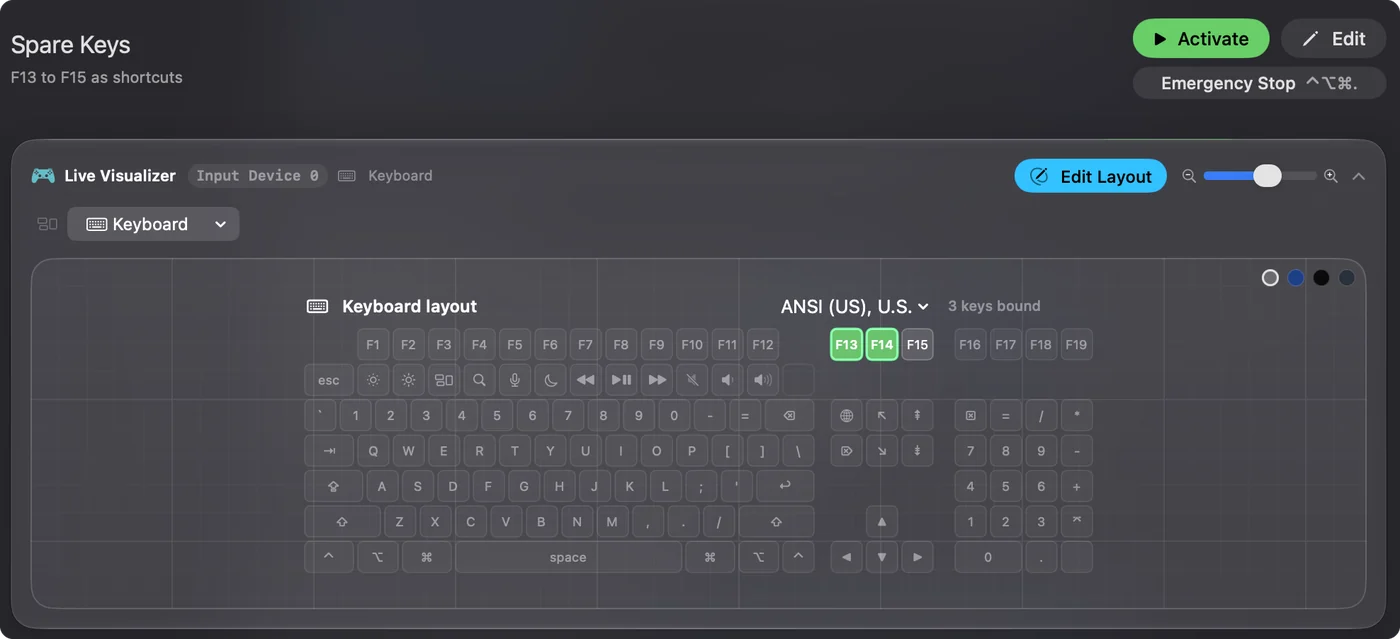
InputConfig listens to the keyboard alongside macOS and does not block a key, so a Quick Keys key that sends Command Z still undoes, and a job added in InputConfig would run on top. The way around it is to have the driver send a key that does nothing, F13 to F20. macOS passes those to apps and gives them no job. F21 to F24 are not passed on, so skip them.
Here is the catch for this remote. A user on macOS 14 reported that the driver's key command editor had no option for the fn or globe key, and Xencelabs staff acknowledged that selecting function keys on a Mac is an issue in the Quick Keys driver. The thread does not say whether F13 works. So try it in the key editor before you plan around it:
- You: Open the Xencelabs driver, choose a Quick Keys key, and enter F13 in its key command editor.
- InputConfig: Nothing yet, because this is the driver's job.
- Check: Open a text field and press the key. If nothing types, the driver is sending a key that does nothing, and you are ready to bind it.
If the editor refuses F13 to F20, I would use a shortcut your apps do not use and press Scan to see what arrives. Keep in mind that InputConfig reads keys as keys, so a chord that nothing else on your Mac uses is the next best choice.
Bind the keys and add what the driver lacks
- You: Add a new bind, set the input to Keyboard Key, press Scan and press the Quick Keys key, then choose what it does.
- InputConfig: Shows the row as the key you set, on Any keyboard.
- Check: Press Save, then Activate, and press the key.
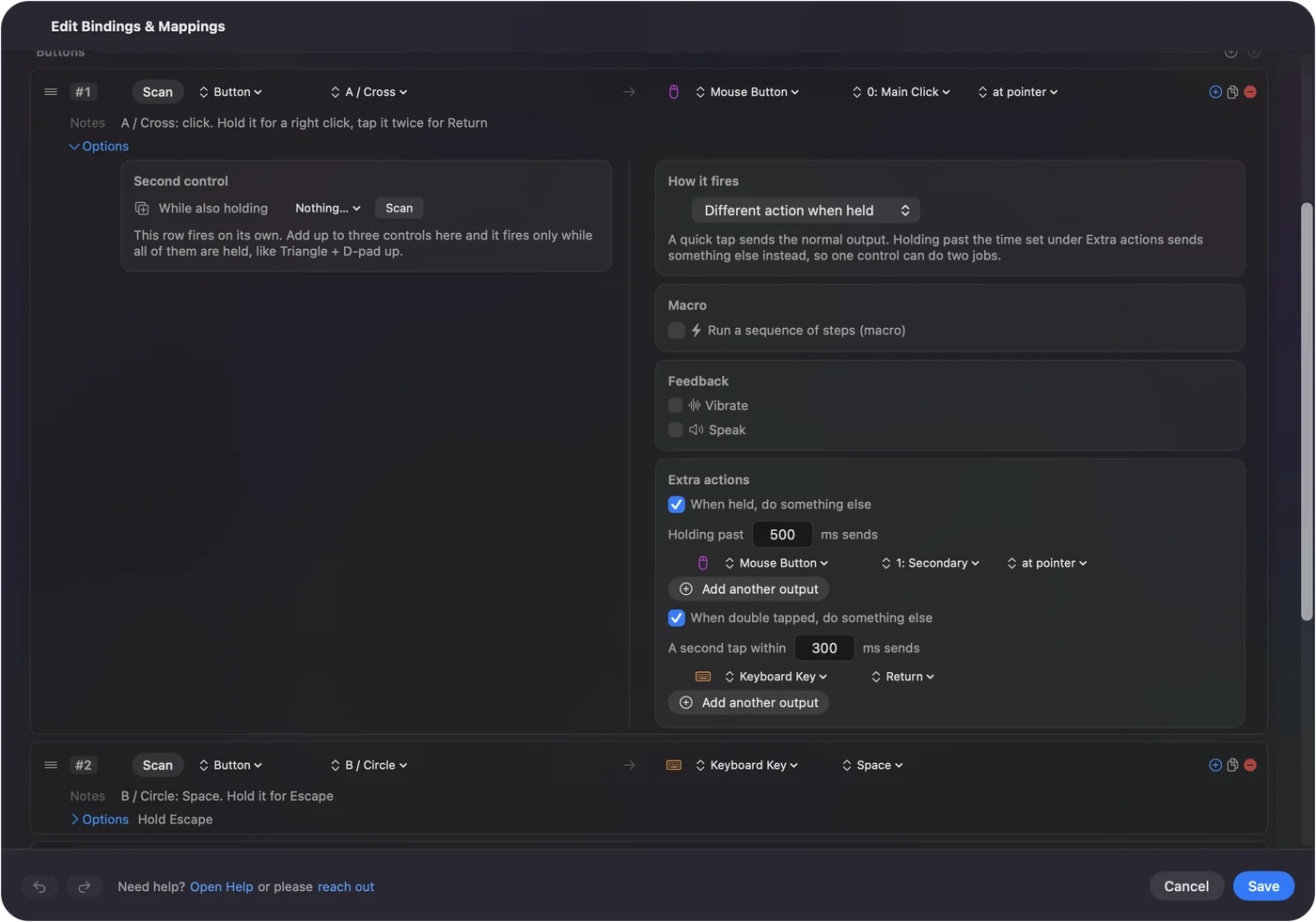
The driver gives each key one shortcut and has no macros. In InputConfig a row can run a macro, which you turn on in Options with Run a sequence of steps (macro), with a wait and a hold time on every step. Type Text is a second answer to the driver's 244 character limit, since a row can type a long reply or a signature. Open App, Open URL and Run Siri Shortcut are others.
Ideas for creative work
- A photo editor. Keep the driver's Lightroom or Photoshop sets, and use a spare key for an export macro: your export shortcut, a wait, then a folder name through Type Text.
- A video editor. Put a macro on one key that selects, trims and ripples in DaVinci Resolve or Premiere, with a wait between steps so the app can keep up.
- A digital painter. The driver covers brush size on the dial, and a hold on a key can swap to the eraser.
- Someone who streams or records. Start Dictation, a screenshot and Open URL for a chat window, as System Functions on spare keys.
The drawing tablet buttons page and the MX Creative Console page cover close relatives of this remote.
Give each app its own layout
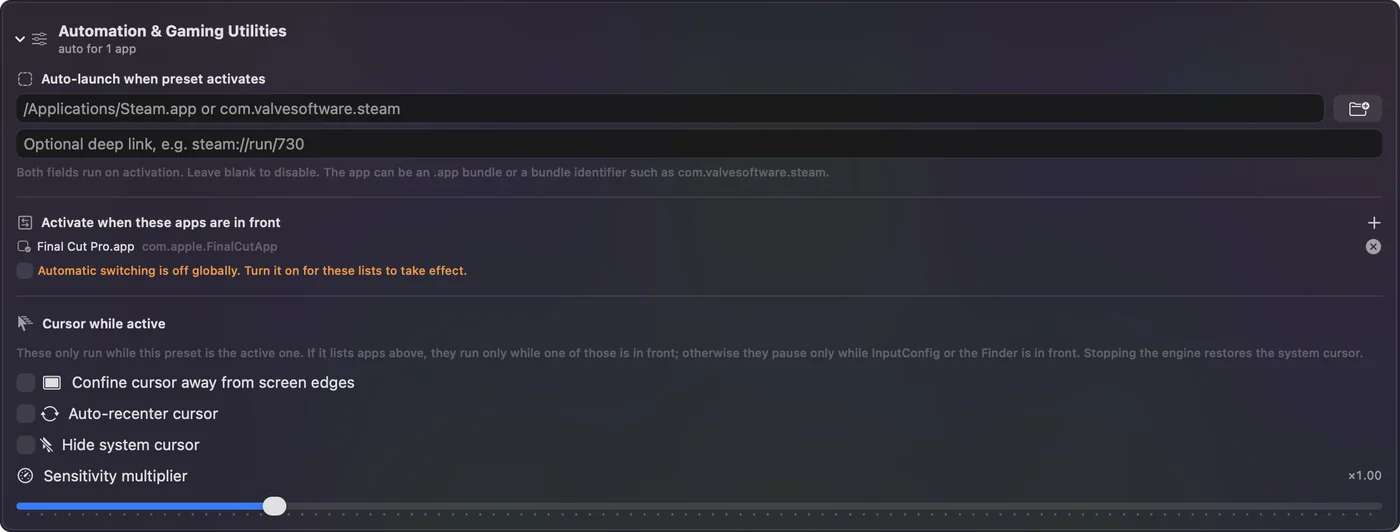
A preset can list the apps it belongs to under Automation & Gaming Utilities, Activate when these apps are in front, and with Settings, Advanced, Switch presets when the front app changes, the layout follows the app you are using. The driver already switches key sets by app, so I would use InputConfig layouts for the extra jobs on top, not for the same ones. Only one preset runs at a time, and Control Option Command period is the emergency stop.
If the Quick Keys do not work
Climb this ladder, smallest step first:
- Check the dongle. Xencelabs says the remote does not use the Mac's Bluetooth, so plug the dongle into a USB-A port, or use the cable, and avoid an unpowered hub.
- Restart the driver and the Mac. A user whose remote showed a Please connect message after the Mac woke from sleep got it working by reinstalling the driver.
- Try another driver version. A support answer for one thread says driver 1.3.0-41 broke a user's remote, and advises going back to 1.2.1-43 from the Older Versions list. Xencelabs' 1.3.5 notes fix a dongle that was not recognized after a reinstall.
- Remove other tablet drivers. Xencelabs support has said other tablet drivers can cause trouble.
- Press Scan. If a name appears, the key is readable.
- Check InputConfig. Accessibility permission, the preset active, and the emergency stop.
What it cannot do
- Replace the driver. Without it the remote does nothing.
- Draw on the OLED screen. The labels are the driver's, so rename a key there to match its job here.
- Block a driver shortcut. A key left on a shortcut sends that shortcut.
- Tell two keyboards apart. Every keyboard counts as one device.
The short version
- Driver first. It is required, and it gives you 40 shortcuts per app.
- A key that does nothing next. Try F13 to F20, and test it before you plan.
- InputConfig last. Macros, long text, holds, double taps and a layout per app.
The Quick Keys are the remote and InputConfig is the macro engine it never shipped with.
Questions
Does Xencelabs Quick Keys work on a Mac?
Yes. Xencelabs lists macOS 10.13 or later and supplies a Mac driver that the remote needs.
Do I need the Xencelabs driver for Quick Keys on a Mac?
Yes. Xencelabs says the driver must be installed, and it offers a Quick Keys only option if you use another brand of tablet.
Why does the Xencelabs Quick Keys not connect by Bluetooth on my Mac?
Xencelabs says it does not use the computer's Bluetooth. It connects through the included dongle or a USB-C cable.
Can Xencelabs Quick Keys run macros?
Xencelabs says it has no macros or scripting. In InputConfig you can set a key to a function key and give it a macro.
Can I set Quick Keys to F13 on a Mac?
I could not confirm it. A Xencelabs thread says choosing function keys on a Mac is a known issue, so test F13 in the driver's key editor.
Related
This page in other languages: العربية, Čeština, Dansk, Deutsch, Español, Suomi, Français, עברית, Magyar, Bahasa Indonesia, Italiano, 日本語, 한국어, Norsk, Nederlands, Polski, Português, Русский, Slovenčina, Svenska, ไทย, Türkçe, Українська, Tiếng Việt, 繁體中文, 简体中文
Completely free. You don't have to make an account, there are no subscriptions, and nothing is locked. Optimized for Apple silicon. Open source on GitHub.
Updated