How do you use a cheap USB macro keypad on a Mac?
 InputConfig is completely free on the Mac App Store. You don't have to make an account, there are no subscriptions, and nothing is locked. Optimized for Apple silicon.
Plug it in, and it works as a small keyboard, because nearly all of these keypads show up to a Mac as one. What they type depends on how the keypad was programmed, and the programming is the hard part on a Mac, because many of the cheap ones are set up with a tool made for Windows. The way around it is to program the keys once to F13 through F20, then give those keys their jobs in InputConfig, the free Mac app I make.
The programming facts are from a Newegg listing for a 3-key pad that says it uses QMK and Vial, and a Gadgeteer review of a DOIO KB03 pad, both of which I read on October 21, 2026. I have not tested a macro keypad, and there are hundreds of models, so this page is about the pattern and how to check yours.
On this page: 12 sections
Steps
- Plug the keypad into the Mac and open a text field to see what each key types.
- Program each key to F13 through F20 with the keypad's own tool, or hold on to the keys as they are.
- In InputConfig, add a keyboard row, press Scan and press a key on the keypad.
- Choose the output, then press Save and Activate.
Know what a mini keypad is to a Mac
These are the 3-key, 4-key and 12-key mini keyboards, often with a knob, that sell on Amazon under many names. A Mac treats them as a plain USB keyboard. macOS may open the Keyboard Setup Assistant the first time, which asks you to press keys so it can name the layout, and you can close it. The keys type their default shortcuts straight away, and the knob usually sends volume or scroll keys, though I could not confirm that for every model.
- What it types. Whatever is stored in the keypad, often a letter or a shortcut such as Command C and Command V.
- Where it is stored. Many keep the map in the keypad itself, so it comes with you to a Mac.
- What changes it. The maker's tool, or QMK and VIA based programming, which some keypads use.
Program the keypad on a Mac
This is where most owners get stuck. Two things I read:
- QMK, VIA and Vial pads. The Newegg listing I read says one 3-key pad supports QMK and Vial remapping and keeps up to six layers in its own memory. These can be programmed from a Mac with the Vial or VIA app.
- A review that is a warning. The Gadgeteer review of the DOIO KB03 pad says its documentation is poor for Mac users, that the web version of VIA did not detect the pad on a MacBook, and that the macOS VIA app plus a JSON definition file did work. I read it as a reminder that VIA needs a file that matches your exact pad.
Before buying, check the listing for the words Mac, VIA or Vial, and a link to the software. If the only download is a Windows program, you may need a Windows PC for one session, because the map is saved to the keypad. Program it once, and the keypad carries the keys to the Mac.
Find out what each key sends
- You: Open InputConfig, add a row, set the input to Keyboard Key, press Scan and press a key on the keypad.
- InputConfig: Names the key that arrived, such as A or F13.
- Check: If the name is the one you set, the keypad is ready. Press the knob and turn it as well.
| Control | What it often sends | How to check |
|---|---|---|
| A key | A letter, a number, or a shortcut such as Command C | Scan the key |
| Knob turn | Volume up and down, arrow keys or scroll, which depends on the pad | Turn it while Scan listens |
| Knob press | Mute, play or pause, or Enter | Press it while Scan listens |
| A layer or mode key | Nothing, because the keypad uses it itself | Not readable |
Set the keys to F13 through F20
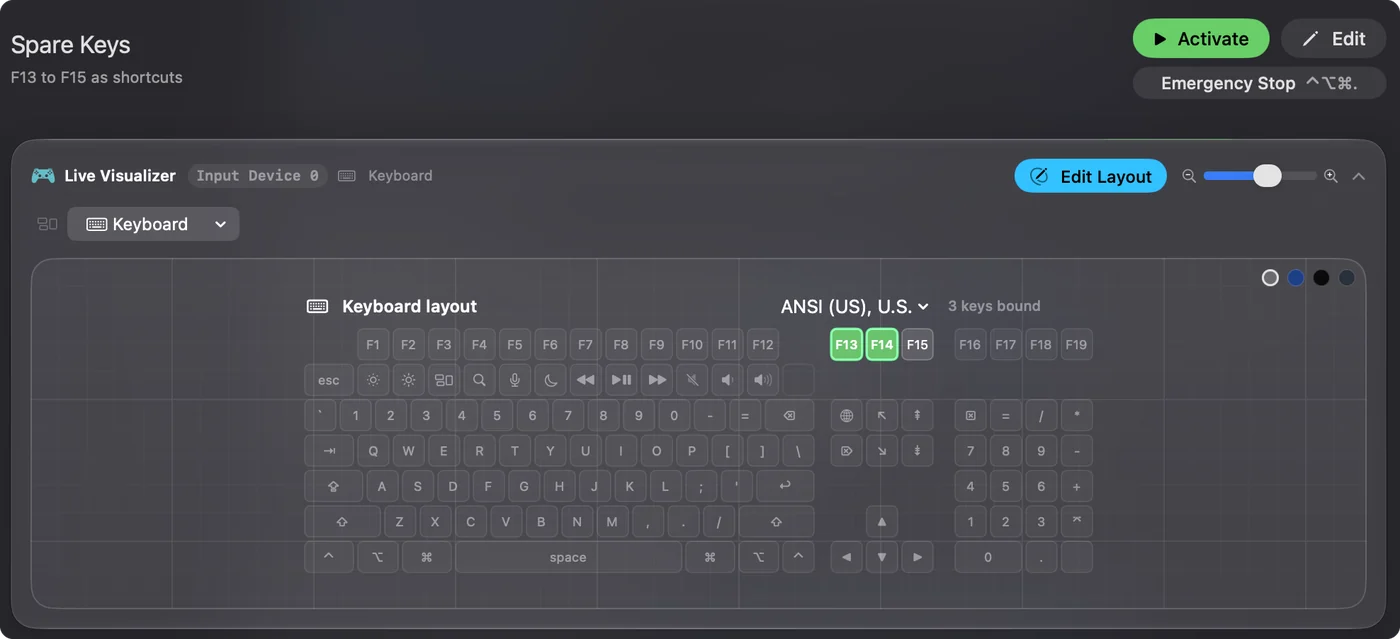
InputConfig listens to the keyboard alongside macOS and does not block a key. A pad whose keys type A, B and C will still type them while a preset runs. So program the pad with keys that type nothing. F13 to F20 work, because macOS passes them to apps and gives them no job. F21 to F24 are not passed on, so skip them.
- You: Open the keypad's tool and set key one to F13, key two to F14, and so on.
- InputConfig: Nothing yet. This is the keypad's own job.
- Check: Open a text field, press each key, and see nothing typed.
A 12-key pad with a knob has up to 15 inputs: twelve keys, two knob turns and the knob press. F13 to F20 is only eight keys. If a pad has more controls than eight, use the extra keys for plain letters and bind the first eight to function keys. The F13 to F19 page has the details, and the spare keyboard macro deck guide shows the same idea on a whole keyboard.
Bind the keys
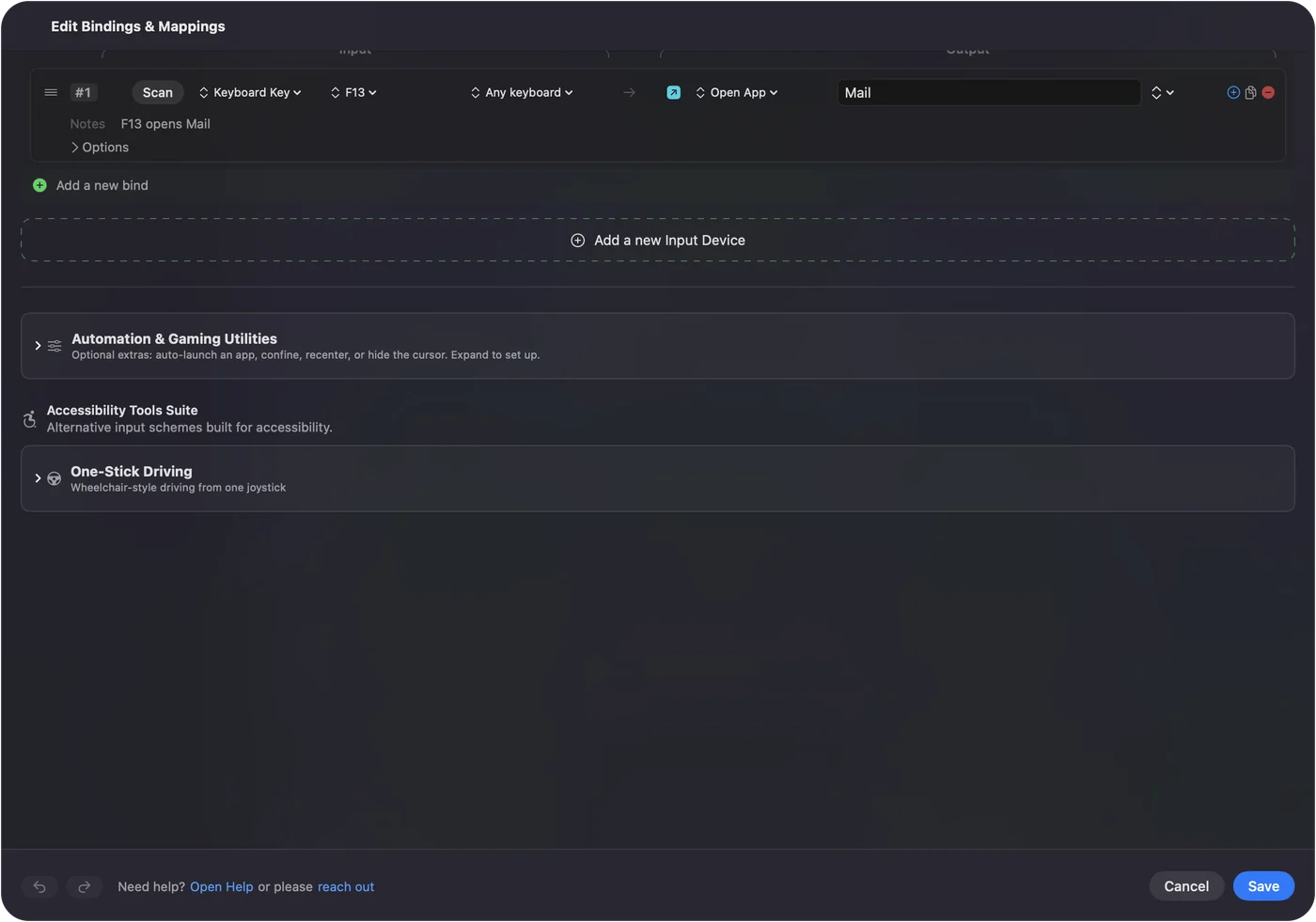
- You: Add a new bind, set the input to Keyboard Key, press Scan and press the keypad key, then choose what it does.
- InputConfig: Shows the row as F13 on Any keyboard.
- Check: Save, Activate, and press the key.
Every keyboard counts as one device in InputConfig, so the keypad's F13 and your main keyboard's F13 are the same input. That is fine, because no one presses F13 by accident.
Ideas for a 3-key, 4-key or 12-key pad
- Three keys. Copy, paste, and a third key that is Command Z, then give each a hold action. That is six jobs.
- Four keys. Four apps for a meeting day: Open App for mail, calendar, notes and a browser.
- Twelve keys and a knob. One page of presets per app, with the knob on volume through a System Function.
- Mute and push to talk. One key to Start Dictation, one to the screenshot function.
- Typing. Type Text for an email address, a reply you send every day, or a sign-off.
A row can also run a macro, with a wait and a hold time on each step, which is where a three-key pad turns into an editing board. How to make a macro on a Mac and type text with one key have the steps.
Add holds, double taps and a layout for each app
Each row has a hold action and a double tap action, and a preset can switch itself in when an app comes to the front. A pad that pastes in one app can paste as plain text in another. Three keys with a tap, a hold and a double tap each give nine jobs, and a layout per app multiplies that again.
If the keypad does nothing
Climb this ladder, smallest step first:
- Test it in a text field. If nothing types, the keypad is not sending, so try another cable or port, and avoid hubs.
- Close the Keyboard Setup Assistant. If macOS asked for it, finish or close it.
- Press Scan. If a name appears the key is readable.
- Check the key is a function key. If a letter is typed, the keypad is still on its old map.
- Check InputConfig. Accessibility permission, preset active, and Control Option Command period as the emergency stop.
What it cannot do
- Program the keypad. That is the keypad's own tool or Vial.
- Change a key it hears. It adds a job and does not remove the old one.
- Read a layer key. If the pad keeps it, nothing reaches the Mac.
- Tell two keyboards apart. Every keyboard counts as one.
The short version
- Program once. Set the keys to F13 to F20 with the keypad's own tool.
- Scan. See each key arrive.
- Bind. Give each a job, a hold and a double tap.
A keypad that costs the price of lunch can run the whole of your day, as long as its keys type nothing.
Questions
Do cheap macro keypads work on a Mac?
Most work as a plain USB keyboard with no driver. The hard part is programming them, which some do only with Windows software.
How do I program a mini macro keypad on a Mac?
If it supports VIA or Vial, use that app on the Mac. Otherwise program it once with the maker's tool, since the map is stored in the keypad.
Why does my macro keypad type letters on a Mac?
Because it is still on its stored map. Set its keys to F13 to F20, then bind them in InputConfig.
Can a knob on a macro keypad control volume on a Mac?
Often it sends volume keys already. Press Scan and turn it to see, and bind it if you want a different job.
What keys should a macro keypad send?
F13 to F20, because macOS gives them no job. F21 to F24 are not passed to apps.
Related
This page in other languages: العربية, Čeština, Dansk, Deutsch, Español, Suomi, Français, עברית, Magyar, Bahasa Indonesia, Italiano, 日本語, 한국어, Norsk, Nederlands, Polski, Português, ไทย, 繁體中文, 简体中文
Completely free. You don't have to make an account, there are no subscriptions, and nothing is locked. Optimized for Apple silicon. Open source on GitHub.
Updated