How to type a saved phrase with one key on a Mac
 InputConfig is completely free on the Mac App Store. You don't have to make an account, there are no subscriptions, and nothing is locked. Optimized for Apple silicon.
A Mac has two ways to do this. Text Replacements, built into macOS, swaps a short code you type for a longer phrase. To type the phrase from a single press, with no code to remember, use InputConfig: its Type Text output types a saved phrase from a spare key, a mouse side button, a controller button or a MIDI pad.
I make InputConfig, a free Mac app. I use this for my email address and a few replies I type every day, because typing is slow for my hands.
On this page: 8 sections
Steps
- Open a preset in InputConfig and click Add a new bind.
- Press Scan and press a spare key or button, such as F13.
- Set the output to Type Text.
- Type the phrase in the field.
- Click Save and Activate, then press the key in any text field.
Try Text Replacements first
- You: Open System Settings, Keyboard, and click Text Replacements. Add a short code under Replace and the full phrase under With.
- macOS: Swaps the code for the phrase when you type it and press Space.
- Check: Type the code in Notes.
It is built in and syncs through iCloud. Its limits: you still type the code, and some apps do not expand it.
Put the phrase on one key
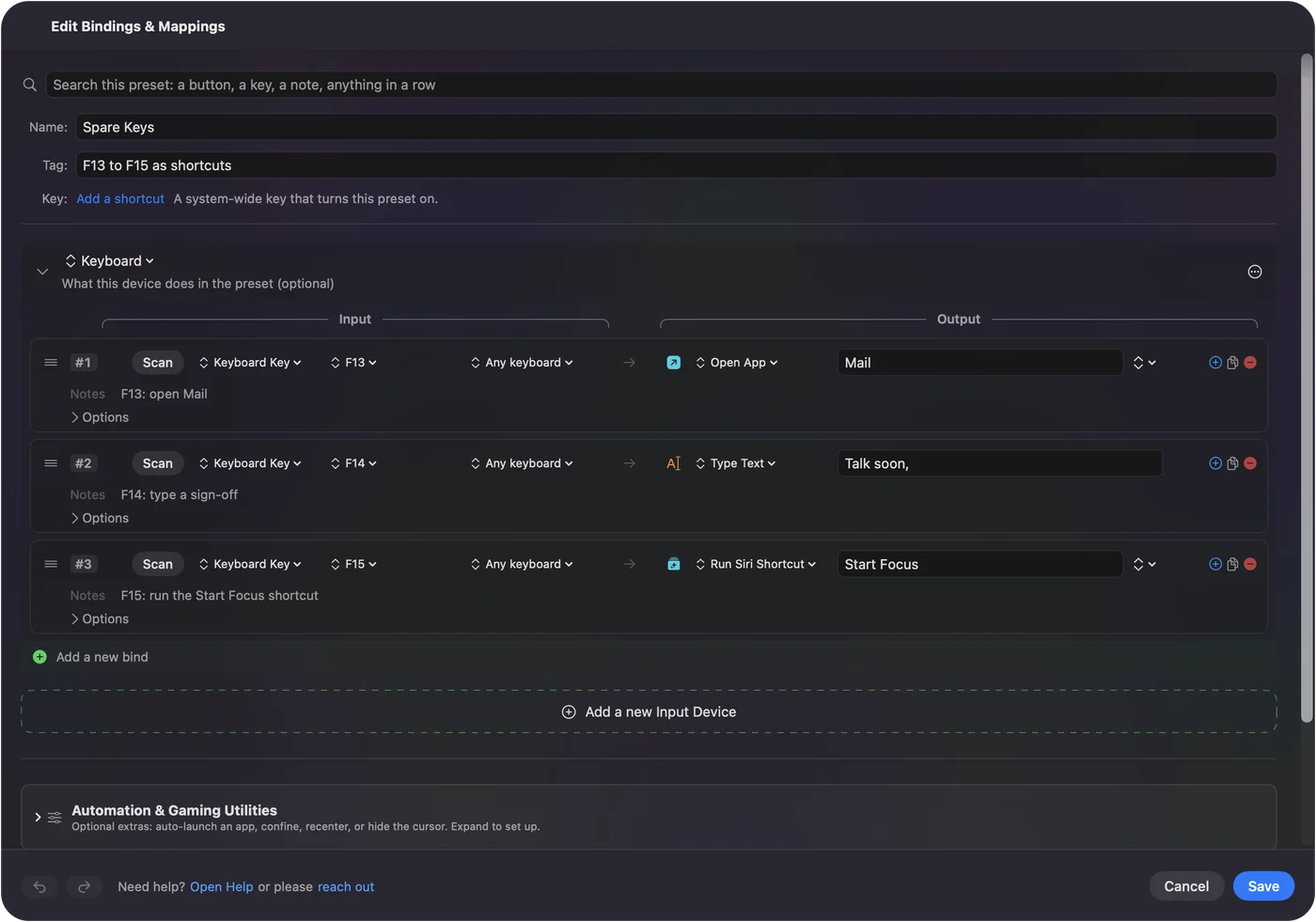
- You: In InputConfig, open a preset and click Add a new bind. Press Scan and press the key or button to use. Set the output to Type Text and type the phrase in the field.
- InputConfig: Types the whole phrase each time you press it, into whatever app is in front.
- Check: Click Save and Activate, click into a text field, and press the key.
Pick a key that types nothing on its own
InputConfig listens to the keyboard and does not block a key, so a letter key would type its own letter as well as the phrase. Use something with no job of its own:
- F13 to F19. On a full-size keyboard these do nothing until you give them a job. See F13 to F19 on a Mac.
- A mouse side button. See mouse side buttons.
- A controller button, a foot pedal or a MIDI pad. Any of them can type.
- A second keyboard. A cheap numpad makes a row of phrase keys. See the macro pad guide.
What it can type
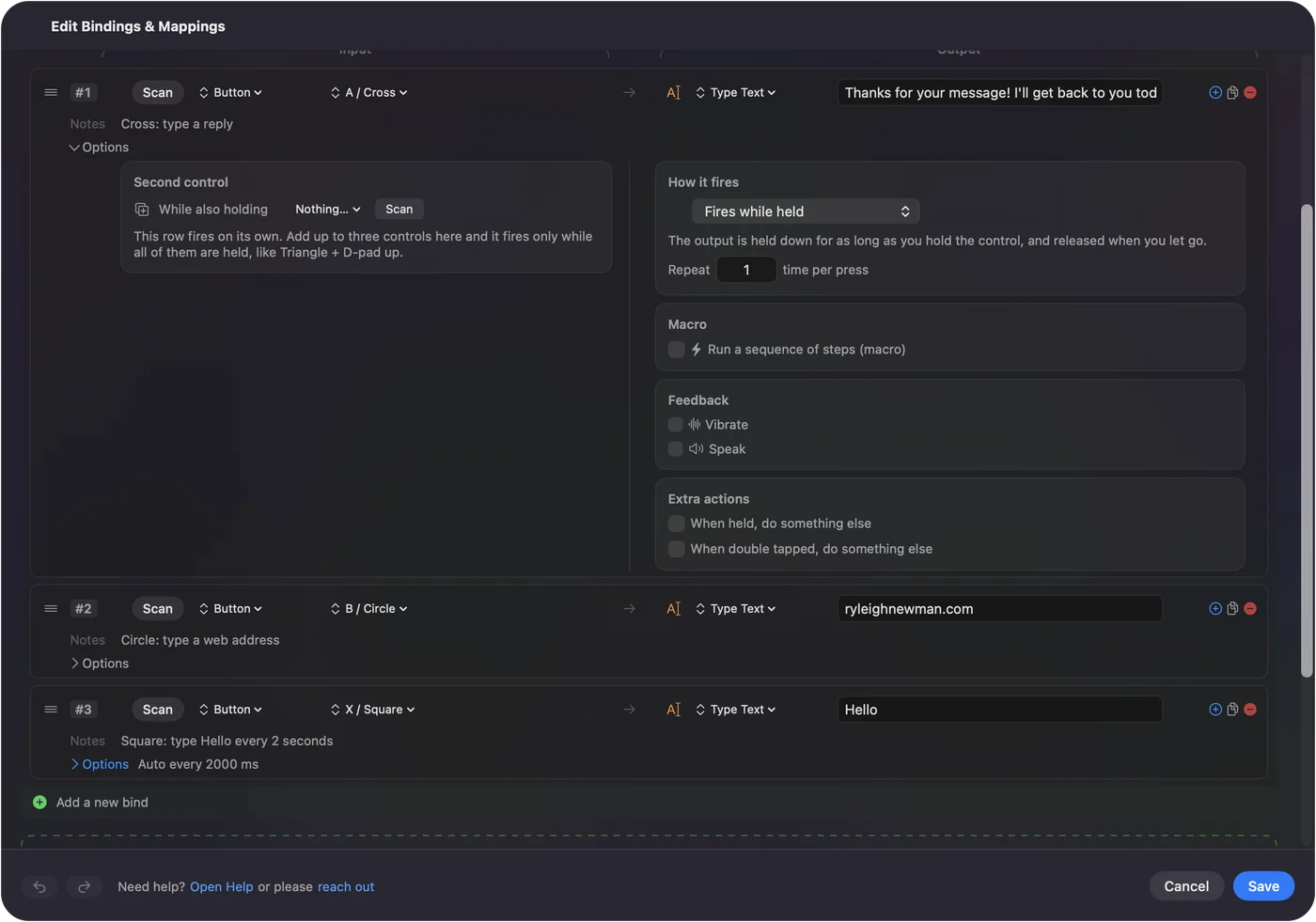
- Anything you can paste. An address, a phone number, a sign-off, a line of code, an emoji.
- More than one line. For a reply with steps in between, make the row a macro and add a Type Text step, a Return, and another Type Text step.
- The same phrase again and again. See auto typer for Mac.
Do not store passwords this way
A preset is a plain file on your Mac, and the phrase is saved in it as ordinary text. That is fine for an address or a greeting. Keep passwords in the Passwords app or a password manager.
The short version
- Built in. Text Replacements, if you do not mind typing a short code.
- One press. A Type Text row in InputConfig on a spare key or button.
- Not for passwords. The phrase is stored as plain text.
One key for the thing you type ten times a day is worth the two minutes.
Questions
How do I type my email address with one key on a Mac?
Add a row in InputConfig with a spare key or button as the input and Type Text as the output, and enter the address. Or add a Text Replacement in System Settings, Keyboard, and type its short code.
Is this a text expander?
It does the same job from a different trigger. A text expander watches for a code you type. InputConfig types the phrase when you press a key, button or pad.
Can a mouse button or a game controller type text?
Yes. Any input InputConfig reads can have a Type Text output, including mouse side buttons, controller buttons, foot pedals and MIDI pads.
Can it type emoji?
Yes. Put the emoji in the Type Text field.
Related
Completely free. You don't have to make an account, there are no subscriptions, and nothing is locked. Optimized for Apple silicon. Open source on GitHub.
Updated