Does the Logitech MX Creative Console work on a Mac?
 InputConfig is completely free on the Mac App Store. You don't have to make an account, there are no subscriptions, and nothing is locked. Optimized for Apple silicon.
Yes. The MX Creative Console is a Mac device: retail listings and Logitech's own page give macOS 13 or later, and Logi Options+ is the app that sets it up. It is a keypad with nine LCD keys and a separate dialpad, and Options+ decides what each key and the dial do. InputConfig, the free Mac app I make, cannot draw on the LCD keys, but it can add the jobs that a keypress cannot do alone, such as holds, double taps, macros and a layout for each app.
The product details are from review and retail pages and Logitech's support page about the Actions Ring, which I read on October 21, 2026. I have not tested the MX Creative Console or a Loupedeck, and I could not measure which has more search interest, so I lead with the MX Creative Console and cover Loupedeck below.
On this page: 11 sections
Steps
- Install Logi Options+ on the Mac and connect the keypad by USB-C and the dialpad by Bluetooth or a Logi Bolt dongle.
- In Options+, set each LCD key and dial action, using the Show Actions Ring action if you want the ring.
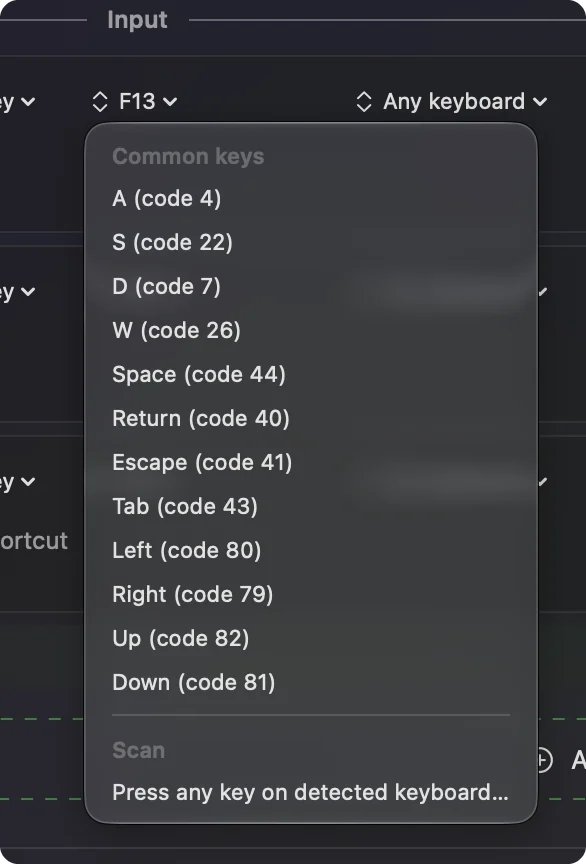
- For jobs Options+ cannot do, set a key to send F13 to F20.
- In InputConfig, press Scan on a row, press that key, and choose an output.
Know what the console does on a Mac
- The keypad. A review describes nine LCD keys that you program for macros and app tasks, with paging buttons for more pages, and it connects by a USB-C cable.
- The dialpad. It has a dial, a roller and four buttons, and connects over Bluetooth LE or a Logi Bolt dongle.
- The software. Logi Options+ manages it, and Logitech says it is for recent versions of Windows and macOS.
- The Actions Ring. An on-screen ring of eight bubbles. Logitech's support page says you click a bubble to run an action, or hover an adjustment bubble and turn the dial.
I could not confirm the exact number of pages per app, so check Logitech before buying. Options+ owns the LCD keys, the dial and the ring, and a Mac app cannot take them over.
Know where Loupedeck fits
The Loupedeck Live and Loupedeck CT are earlier consoles of the same kind, and Loupedeck's support site still lists Loupedeck software for Windows and Mac. I could not confirm how Loupedeck's software relates to Logi Options+ today, and I found nothing saying a Loupedeck works in Options+, so check Loupedeck's support site for your model. Everything below that depends on a key, a dial turn or a button arriving as a key works the same for a Loupedeck, as long as its software can send one.
Find out what each control sends
The LCD keys and the dial are Options+ controls, so what arrives on a Mac depends on the action you gave each one. A key set to a keyboard shortcut arrives as that shortcut, and a key set to something that only Options+ understands, such as switching a page or opening the ring, arrives as nothing.
- You: Open InputConfig, add a row, set the input to Keyboard Key, press Scan, and press an LCD key or turn the dial.
- InputConfig: Names the key that arrived.
- Check: If a key name appears, it can carry a job. If nothing appears, the control is for Options+ itself.
| Control | What to expect | How to check |
|---|---|---|
| An LCD key set to a keyboard shortcut | Arrives as that shortcut | Scan the key |
| An LCD key set to an Options+ action or a page change | Nothing reaches the Mac | Not readable |
| Dial turn | A key per click, if you set it to a shortcut, such as brush size | Turn it while Scan listens |
| Dialpad buttons | Depend on the action set | Scan |
| The Actions Ring | Drawn on screen by Options+ | Not readable |
Send function keys from Options+
InputConfig listens to keys alongside macOS and does not block them, so an LCD key sending Command Z still undoes in the app. The fix I use for any device that sends keys: set the Options+ action to a keystroke of F13 to F20, which macOS gives no job. F21 to F24 are not passed to apps. I did not test the keystroke action on this console, and I could not confirm every Options+ version offers one, so try it and press Scan.
- You: In Options+, pick an LCD key, choose a keystroke action, and press F13.
- InputConfig: Nothing yet.
- Check: Press the LCD key in a text field. Nothing is typed.
The F13 to F19 page has more.
Bind the keys
- You: Add a bind, set the input to Keyboard Key, press Scan and press the LCD key.
- InputConfig: Shows the row as F13 on Any keyboard.
- Check: Choose an output, Save, Activate, and press the key.
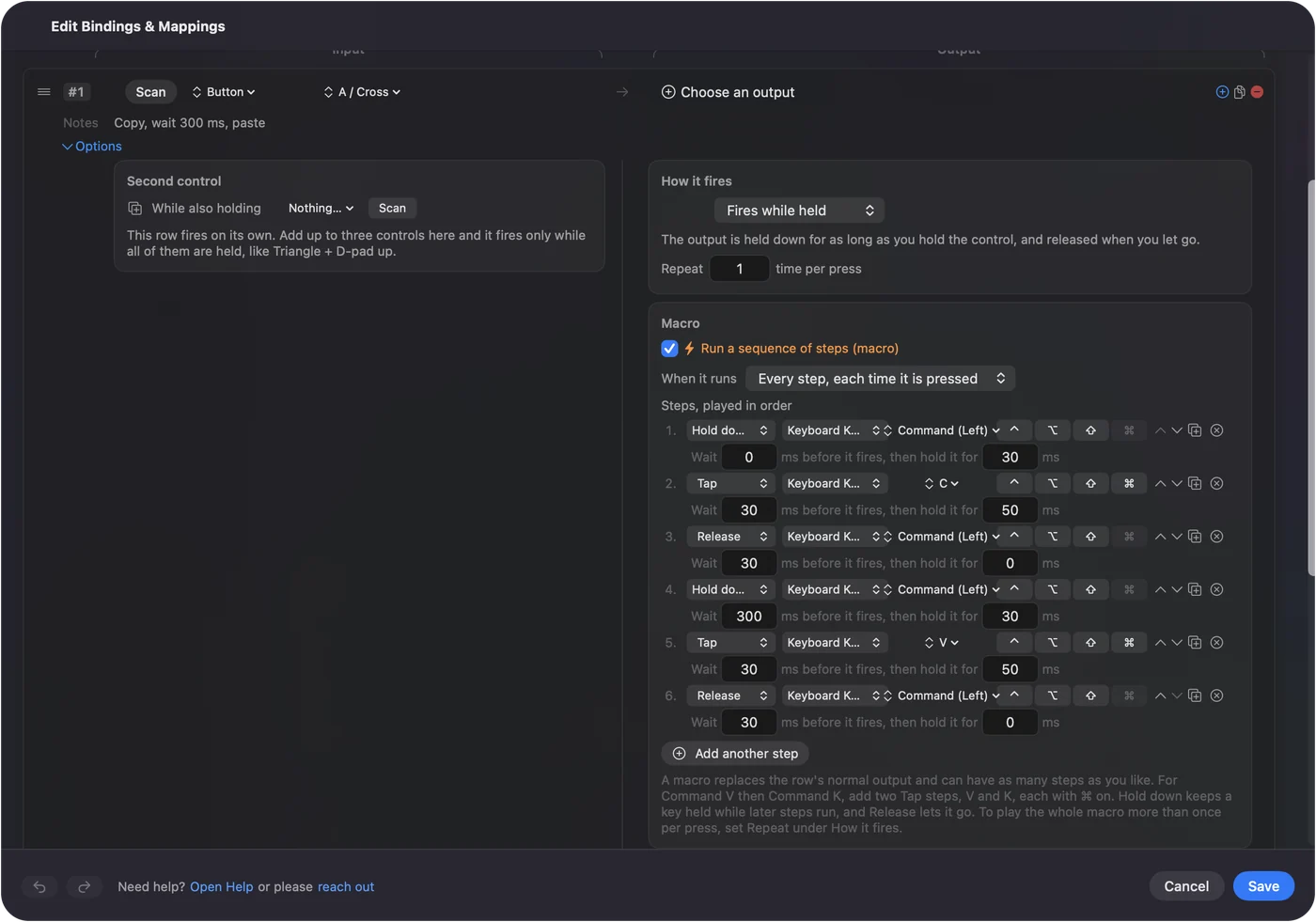
What a Mac app adds is a macro with a wait between steps, Type Text, Open App and Open URL, a Siri Shortcut, system functions, and MIDI out. Each row also has a hold action and a double tap action, so one LCD key carries three jobs. The LCD shows the name Options+ gave the key, so label it to match the job you bound.
Ideas for creators who buy one
- Photo and video editors. Options+ handles app plugins, and InputConfig adds an export macro or a button that opens a folder.
- Streamers. Start Dictation, a screenshot, Open URL for a chat window.
- People who share a Mac. One preset per app, so the keys change with the app in front.
- Accessibility. A bigger button with a hold and a double tap is easier on hands than a three key chord.
The Stream Deck without Elgato software page has a similar plan, and per-app auto switch explains the layouts.
If a key does nothing
Climb this ladder, smallest step first:
- Check Options+ is running. It has to be open for the keys to do anything.
- Check the permissions. Options+ asks for several, so grant what it lists.
- Check the connection. Keypad cable, dialpad Bluetooth or the Logi Bolt dongle.
- Press Scan. If no name appears, that key is for Options+.
- Check InputConfig. Accessibility permission, active preset, and Control Option Command period as the emergency stop.
What it cannot do
- Draw on the LCD keys. Options+ owns those images.
- Read the Actions Ring. It is drawn by Options+.
- Block a key. A key left on a shortcut sends that shortcut.
- Tell two keyboards apart. Every keyboard counts as one device.
The short version
- Options+ first. It sets up the keypad, the dial and the ring.
- F13 to F20 next. Set the keys you want to extend to function keys.
- InputConfig last. Macros, text, apps, holds and a layout per app.
Treat the console as a set of nine and then some function keys, and bind the ones that need more than a shortcut.
Questions
Does the Logitech MX Creative Console work on a Mac?
Yes. Retail pages and Logitech give macOS 13 or later, and Logi Options+ sets it up.
Does the MX Creative Console need Logi Options+?
Logitech describes Options+ as the app that manages it. I did not find a way to use it fully without.
Does Loupedeck work on a Mac?
Loupedeck's support site lists software for Windows and Mac. Check it for your model.
Can I add macros to the MX Creative Console with InputConfig?
Yes, if you set a key to F13 to F20 in Options+, then bind it in InputConfig. I have not tested the console myself.
What is the Logi Actions Ring?
An on-screen ring of eight bubbles in Options+ that you click, or adjust with the dial.
Related
This page in other languages: العربية, Čeština, Dansk, Deutsch, Español, Suomi, Français, עברית, Magyar, Bahasa Indonesia, Italiano, 日本語, 한국어, Norsk, Nederlands, Polski, Português, ไทย, 繁體中文, 简体中文
Completely free. You don't have to make an account, there are no subscriptions, and nothing is locked. Optimized for Apple silicon. Open source on GitHub.
Updated