Questions
Using an iPad as a drawing tablet for a Mac
Yes, with Sidecar, built into macOS: it uses the iPad as a second display, and the Apple Pencil draws in Mac apps on that screen. If you own an iPad and a Pencil, you already have a drawing tablet for your Mac.
What Sidecar does not have is the row of shortcut buttons a drawing tablet has. That is where a game controller in the other hand comes in, through InputConfig, the free Mac app I make.
On this page: 8 sections
Steps
- Sign the Mac and iPad in to the same Apple Account, or join them with a USB cable.
- In System Settings, Displays, add the iPad as a display.
- Drag your art app onto the iPad screen and draw with the Pencil.
- For shortcut keys, pick your art app's layout in InputConfig's Smart Preset Maker.
Set up Sidecar
Sidecar needs a Mac and an iPad that support it, both signed in to the same Apple Account, with Bluetooth, Wi-Fi and Handoff turned on, or the two joined by a USB cable.
- You: In System Settings, Displays, use the add display menu and choose the iPad, or pick it from Screen Mirroring in Control Center.
- macOS: Extends the desktop onto the iPad.
- Check: Drag your art app's window onto the iPad screen and draw on it with the Pencil.
A cable is steadier than a wireless connection, and it charges the iPad during a long session.
 InputConfig is free on the Mac App Store. macOS 14 or later, no account, no tracking, open source.
Know what works, and what does not
- Mac apps, on the iPad screen. The Pencil works in Mac apps that accept a stylus. How much of the Pencil's pressure a brush uses depends on the app, so test your own brushes before a big piece.
- A sidebar of modifiers. Sidecar puts Command, Option, Control and Shift, Undo, and buttons for the menu bar, the Dock and a keyboard down the edge of the iPad screen.
- No iPad apps. Sidecar shows Mac apps on the iPad, not the other way round. Procreate is an iPad app and does not run on the Mac this way.
- No shortcut keys you can feel. The sidebar is on glass. There is nothing to rest a thumb on, which is the gap the next section fills.
Test your own brushes first: pressure support is up to each Mac app.
Add the shortcut keys with a controller
A drawing tablet's ExpressKeys are a handful of shortcuts under the off hand. A game controller is that, with more buttons and two sticks. InputConfig sends the keys to the Mac, and the Mac app on the iPad screen gets them, the same as if you pressed them on the keyboard.
- Brush and eraser. B and E on two face buttons.
- Brush size. The bracket keys on the bumpers. Turn on turbo or Repeat keys while held so holding a bumper keeps resizing.
- Undo and redo. Command Z and Command Shift Z.
- Held modifiers. Option on a trigger for the eyedropper in Photoshop and most painting apps, Space on the other for the hand tool. A plain row holds its key for as long as you hold the trigger.
- Zoom. Command Plus and Command Minus on the D-pad.
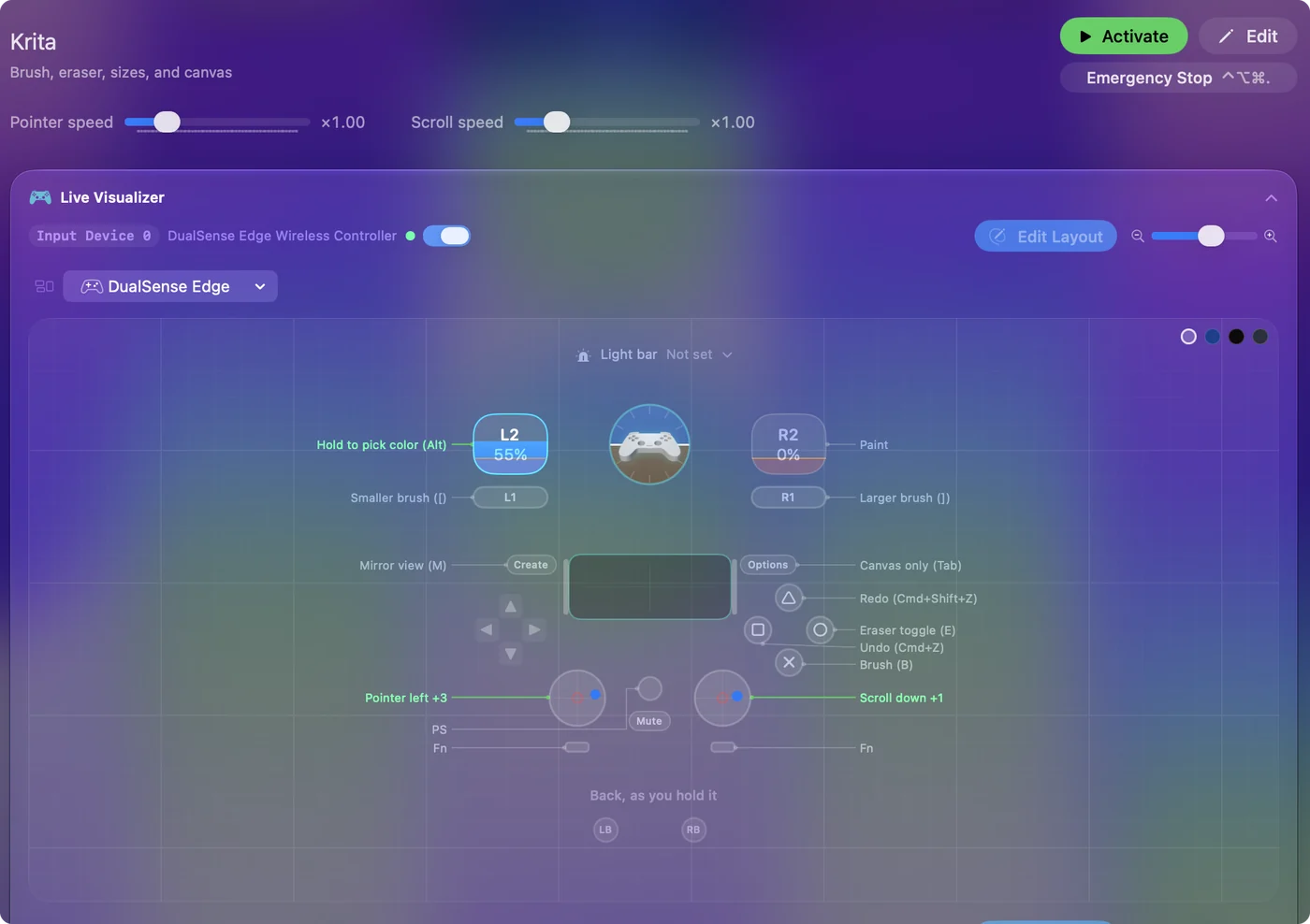
Ready decks for Photoshop, Krita, Clip Studio Paint, Affinity and the rest are in the Smart Preset Maker, and the drawing and photo editing guide explains the layout. A single Joy-Con held sideways is small enough to rest beside the iPad.
If the shortcuts do nothing on the iPad screen
Climb this ladder, smallest step first:
- Click the art app. Keys go to the Mac app in front, and that app is what Sidecar shows on the iPad.
- Activate the preset. Rows only work while it runs.
- Check the app's keys. If your art app uses different shortcuts, change the rows to match.
InputConfig runs on the Mac and sends keys to Mac apps, never to an iPad app.
Know when a dedicated tablet is the better buy
A pen display or a screenless tablet plugs in, has its own driver and keys, and has no wireless display in between. If you draw every day and do not already own an iPad and a Pencil, a dedicated tablet is less fuss. If you do own them, Sidecar plus a controller costs nothing extra, and the controller keeps working with a tablet later.
The short version
- The tablet. Sidecar, with the art app's window on the iPad.
- The keys. A controller layout from the Smart Preset Maker in your off hand.
- The limit. Mac apps only; Procreate stays on the iPad.
An iPad you already own and a controller you already own make a full drawing setup.
Questions
Can I use Procreate on my Mac with Sidecar?
No. Sidecar shows Mac apps on the iPad. Procreate is an iPad app; on the Mac, use a Mac painting app such as Krita, Photoshop, Affinity or Clip Studio Paint.
Does Apple Pencil pressure work in Sidecar?
The Pencil works in Mac apps that accept a stylus, and how much pressure a brush uses depends on the app. Test your own brushes.
Do controller shortcuts work while I draw on the iPad?
Yes. The keys go to the Mac app in front, and that app is what Sidecar shows on the iPad.
Can InputConfig send keys to an iPad app?
No. It runs on the Mac and sends keys to Mac apps.
Related
Free. macOS 14 or later. No account, nothing leaves your Mac. Open source on GitHub.