Can pen pressure and tilt do something other than draw on a Mac?
 InputConfig is completely free on the Mac App Store. You don't have to make an account, there are no subscriptions, and nothing is locked. Optimized for Apple silicon.
Yes. Pen pressure and tilt normally go only to drawing apps that read them, but since version 1.8 InputConfig, the free Mac app I make, reads the pen as an input of its own: the tip, the side buttons, the eraser end, Pen pressure and Pen tilt, and whether the pen is within range of the tablet. Each one can press a key, scroll, click, run a macro or open an app, in any app.
Keep the maker's driver installed: Wacom's driver, HuionTablet or the XPPen driver is what makes the pen a pen on a Mac, and InputConfig reads what comes through. I have not tested a tablet myself, so Scan is how you check what your pen sends.
On this page: 9 sections
Steps
- Install the tablet maker's driver and give it the permissions its setup guide asks for.
- Check the pen draws with pressure in the driver's own test area or a drawing app.
- In InputConfig, add a row, press Scan and press the pen tip, a side button or the eraser end.
- For pressure or tilt, pick the Pen input on the row and choose the axis and direction.
- Give each row an output, Save and Activate, then try it in the app you want it for.
Know what the pen can send
InputConfig's 1.8 help lists the pen's parts this way. The tip, side buttons and eraser end bind as Pen inputs, Pen pressure and Pen tilt are axes, and a pen within range of the tablet is a control of its own. The pen still moves the pointer like a mouse.
| Pen part | What it is in InputConfig | What it is good for |
|---|---|---|
| Tip | A button | A second job on a press, such as spoken feedback |
| Side buttons | Buttons | Shortcuts, macros, apps |
| Eraser end | A button | Undo, or a tool key in an app with no eraser support |
| Pen pressure | An axis | Press harder to fire a row |
| Pen tilt | An axis | Lean the pen to steer or scroll |
| In range | A control that is on while the pen hovers | A row that fires as you pick the pen up |
Express keys are separate: they work when the tablet's own software sets them to send keystrokes, and drawing tablet buttons on a Mac covers them. Pressure and tilt stop being drawing only features once a row can read them.
Keep the maker's driver working first
Every brand needs its driver and a few macOS permissions before the pen behaves. What their own support pages say, read on October 23, 2026:
- Wacom. Wacom's page on tablets not working on macOS says recent macOS security settings must be accepted before pen and touch input work correctly, and it links a setup guide for each macOS version, from 10.14 to macOS 27.
- Huion. Huion's article on a stylus that moves the cursor but cannot click or draw says the usual macOS cause is HuionTablet missing from Privacy & Security, Accessibility, and that some drivers also need Input Monitoring.
- XP-Pen. XPPen's Mac install guides for Ventura and later ask for Accessibility and Screen Recording permission for its driver.
If pressure works in the driver's test area but not in your app, the app's own pressure setting is often the cause, as Wacom's pressure FAQ notes. Get pressure working in the driver first, because InputConfig can only read what the driver passes on.
Bind the pen in InputConfig
Step 1: The tip, buttons and eraser
- You: Add a row, press Scan, and press the side button you mean, or flip the pen and touch down with the eraser.
- InputConfig: Binds the row to that Pen input and shows its name.
- Check: Give it an output, Save, Activate, and press it again. The output fires.
Step 2: Pressure and tilt
- You: Make a row whose input is Pen pressure or Pen tilt and give it an output.
- InputConfig: Treats it as an axis. The row's deadzone decides how far you have to press or lean before it counts.
- Check: Press lightly and nothing happens. Press hard and the row fires.
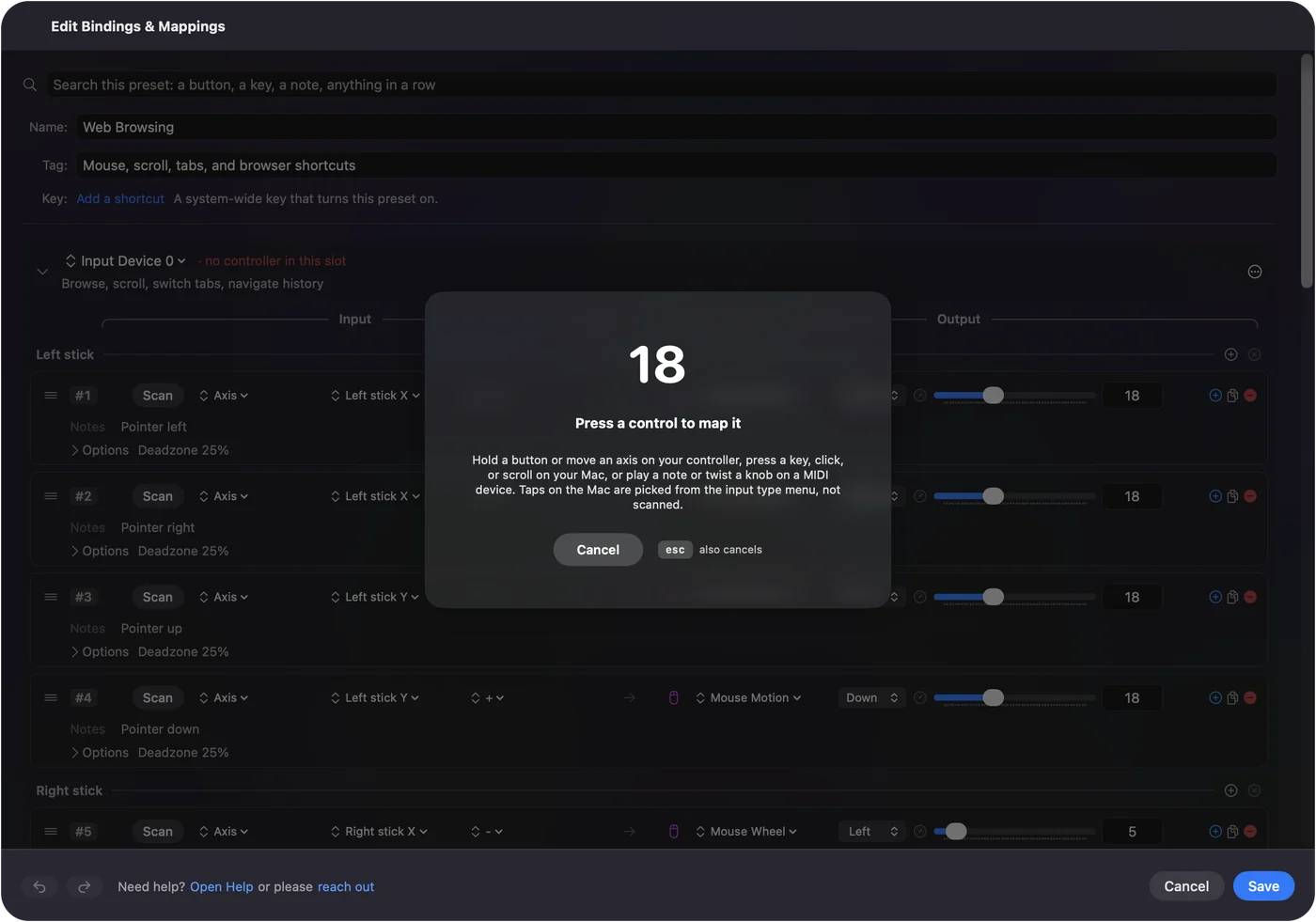
A pen button set in the driver to a right click may arrive as that click rather than as a pen button, so Scan is the honest test. Bound inputs keep their own job too: I would not count on a row stopping the tip from clicking. Pick parts that do nothing on their own first: a spare side button, the eraser in an app without one, and a hard press.
Use the pen outside a drawing app
These are uses I would try. None needs a drawing app.
- A hard press as a second click. A Pen pressure row with a high deadzone sends a right click or holds Shift only when you press firmly, for anyone who finds the small barrel buttons hard to reach.
- Tilt to scroll. A Pen tilt row on Mouse Wheel, with Variable Sensitivity on, scrolls a long page as you lean the pen, slowly for a small lean and faster for a big one.
- Tilt to steer. Lean left and right on the A and D keys, or the arrow keys, in a simple driving or platform game that reads the keyboard.
- Pressure to run. A hard press holds Shift, the run key in many games, while the pen aims or moves the pointer.
- The eraser as undo. Flip the pen and tap, and Command Z fires, in any app.
- In range as a cue. A row on in range fires as the pen comes near the tablet, such as Play/Pause to stop a reference video. It fires on every approach, so a toggle flips each time.
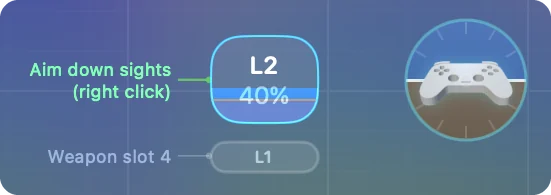
Hold and double tap actions work on pen buttons like on any button, and since 1.8 a triple tap too. Tilt to scroll is the one I would set up first, because it works in every app.
Run InputConfig beside the driver
The driver stays in charge of the pen itself: its area mapping, pressure curve and button settings. InputConfig adds rows on top. Climb this ladder, smallest step first:
- Check the pen in the driver. If pressure does not show there, fix the permissions above first.
- Scan again. Scan takes the first control it hears, so a moved pen or a stray key can bind the wrong thing.
- Clear the driver's job. If a side button does two things, the driver gave it a shortcut too. Set it to a click, or to F13 to F20, and bind that.
- Make it per app. List the apps that should use the rows under Activate when these apps are in front, so your drawing app keeps the pen to itself.
A drawing app should never see a pen row it did not ask for, so leave it off the app list.
What it cannot do
- Replace the driver. Pressure curves, tablet area, display mapping and express key setup stay in Wacom Center, HuionTablet or the XPPen driver.
- Change pressure inside a drawing app. InputConfig sends keys, clicks, scrolling and pointer movement, not pressure.
- Block the pen's own action. A bound tip or button still does its normal job as well.
- Promise every tablet. I have not tested a tablet myself. Scan tells you what yours sends.
The short version
- Driver first. Pressure working in the maker's driver, with its permissions on.
- Buttons and eraser. Scan them and give them shortcuts or macros.
- Pressure and tilt. Axes in InputConfig 1.8, with a deadzone for how firm or how far.
- In range. A cue that fires when you pick the pen up.
Start with tilt to scroll and the eraser as undo, then add pressure once you know how firm you press.
Questions
Can pen pressure be used as a button on a Mac?
With InputConfig 1.8, Pen pressure is an axis, so a row with a high deadzone fires only on a firm press and can send any key, click or macro.
Does InputConfig work without the Wacom driver?
Keep the driver. Wacom, Huion and XPPen all need their driver and its macOS permissions for the pen to work properly, and InputConfig reads what comes through.
Why does my Huion pen move the cursor but not draw on a Mac?
Huion's support page says the usual cause is HuionTablet missing from Privacy & Security, Accessibility. Turn it on, add Input Monitoring if asked, and restart.
Can I use a drawing tablet to play games on a Mac?
The pen moves the pointer, and in InputConfig its tilt and pressure can press keys, so leaning can steer and a hard press can run in games that read the keyboard.
Can the eraser end of a pen do something else?
In InputConfig the eraser end is a Pen input of its own, so it can send Command Z or any other output.
Related
Completely free. You don't have to make an account, there are no subscriptions, and nothing is locked. Optimized for Apple silicon. Open source on GitHub.
Updated