Can you use Krita on an iPad?
 InputConfig is completely free on the Mac App Store. You don't have to make an account, there are no subscriptions, and nothing is locked. Optimized for Apple silicon.
No, not on its own: Krita has no iPad version. Its download page, which I read on October 27, 2026, offers Windows, macOS, Linux and Android, and says "Apple iPads and iPhones are not supported." What does work is running Krita on a Mac and drawing on the iPad: Sidecar, built into macOS, uses the iPad as a second display, and the Apple Pencil draws in the Krita window on that screen.
The piece Sidecar leaves out is a set of shortcut buttons under your other hand. That is where InputConfig, the free Mac app I make, comes in: a game controller becomes Krita's brush, eraser, undo and brush size keys.
On this page: 11 sections
- Steps
- Know what runs where
- Put Krita on the iPad with Sidecar
- Draw with the Pencil, and know what a finger does
- Check pen pressure in Krita
- Try a third-party app when Sidecar is not enough
- Add Krita's shortcut keys with a controller
- If strokes or shortcuts misbehave
- What it cannot do
- The short version
- Questions
Steps
- Install Krita on the Mac from krita.org.
- Sign the Mac and the iPad in to the same Apple Account, or join them with a USB cable.
- In System Settings, Displays, add the iPad as a display and drag the Krita window onto it.
- Draw a stroke with the Apple Pencil and check pressure in Krita's Tablet Tester.
- For shortcut keys, activate the Krita layout in InputConfig and hold a controller in your other hand.
Know what runs where
- Krita on the Mac. The download from krita.org is free, Krita is free and open source, and the page lists macOS 10.15 as the requirement. Paid store versions exist too, the Mac App Store among them.
- Krita on Android. There is a Google Play listing and separate APK builds, which is why you see Krita on some tablets but not on an iPad.
- The iPad. With Sidecar it is a screen and a pen for the Mac. Krita still runs on the Mac, with the Mac's files, brushes and memory.
The iPad draws, and the Mac runs Krita. If you came here hoping for a native iPad app, there is none to find.
Put Krita on the iPad with Sidecar
Apple's Sidecar support page, which I read on October 27, 2026, lists what you need: macOS Catalina or later on the Mac, iPadOS 13 or later on the iPad, and a supported model of each, including every iPad Pro, iPad 6th generation or later, iPad mini 5th generation or later and iPad Air 3rd generation or later.
- You: Sign both devices in to the same Apple Account with two-factor authentication. For wireless, keep them within 10 meters with Bluetooth, Wi-Fi and Handoff on. Then, in System Settings, Displays, add the iPad as a display.
- macOS: Extends the desktop onto the iPad and puts a sidebar of Mac controls down one edge: modifier keys, undo and an onscreen keyboard.
- Check: Drag Krita's window onto the iPad and move the Pencil over the canvas. The brush outline follows the tip.
Apple suggests a USB connection to keep the iPad charged, and the iPad must be set to trust the Mac for that. For a long painting session, use the cable.
Draw with the Pencil, and know what a finger does
Apple says the Apple Pencil can take the place of the Mac's mouse or trackpad on the iPad screen, for drawing, photo editing and markup. That is the part that makes Sidecar a drawing tablet for Krita.
- The Pencil. It points, clicks and draws in the Krita window. Double-tapping the side of an Apple Pencil 2nd generation or later can run a custom action in apps that support it, once Enable double tap on Apple Pencil is on in the Sidecar settings.
- Fingers on earlier systems. Apple lists a limited set of gestures: scrolling with two fingers, plus cut, copy, paste and undo.
- Fingers on iPadOS 27 and macOS 27. Apple describes greatly expanded touch for Mac windows and menus. Its page does not say a finger draws strokes in a Mac app, so I will not promise that.
Plan on the Pencil for drawing, and treat finger touch as a way to scroll and reach menus. If you only have fingers, try it in Krita before you count on it.
Check pen pressure in Krita
Apple's Sidecar guide for Mac says pressure and tilt for Apple Pencil only work in apps with advanced stylus support. Krita's site does not say whether Krita gets pressure through Sidecar, so test it on your own Mac rather than taking anyone's word, mine included.
- You: Open Krita's settings from the Krita menu at the top left, as on any Mac app, go to Tablet Settings and open the Tablet Tester. Draw in its drawing area with the Pencil on the iPad.
- Krita: Draws tablet events as a blue line and mouse events as a red line, according to its tablet settings manual.
- Check: A blue line means Krita reads the Pencil as a tablet. Only red means it arrives as a mouse, and a pressure brush will paint at one width.
If the strokes are there but feel too soft or too hard, the Input pressure global curve on the same Tablet Settings page changes how the pressure maps for every brush. The Tablet Tester answers the pressure question in a minute.
Try a third-party app when Sidecar is not enough
Two apps come up whenever people ask this. I have not tested either with Krita, so test before you commit.
- Astropad Studio. Its product page, read on October 27, 2026, says it turns an iPad into a drawing tablet for Mac and PC and names Krita among the apps you can draw in. It lists hard and soft pressure curves or your own, finger tap and Pencil gestures for changing tools, sidebar shortcuts that match the app you are using, and a USB, Wi-Fi or peer-to-peer connection. It is a yearly subscription with a 14-day free trial.
- Weylus. A free, open-source project on GitHub that uses the iPad's browser, with no app to install. Its page says it works best on Linux: pen pressure, tilt and multi-touch are Linux features, and on a Mac it only controls the mouse.
For pressure in Krita, Sidecar and Astropad Studio are the two to test, and Weylus on a Mac is a pointer, not a pen.
Add Krita's shortcut keys with a controller
A drawing tablet has buttons under the off hand, and the iPad has only glass. A game controller fills that gap. InputConfig runs on the Mac and sends keys to the app in front, which is Krita even while its window sits on the iPad. The built-in Krita layout uses Krita's default shortcuts:
- Brush and eraser. Brush, B, on the bottom face button, and the eraser toggle, E, on the right one.
- Undo and redo. On the left and top face buttons.
- Brush size. Smaller and larger, the bracket keys, on the bumpers.
- Pick a color. The left trigger holds Option, which samples a color in Krita while held.
- The view. Mirror view, M, and canvas only, Tab, on the two center buttons.
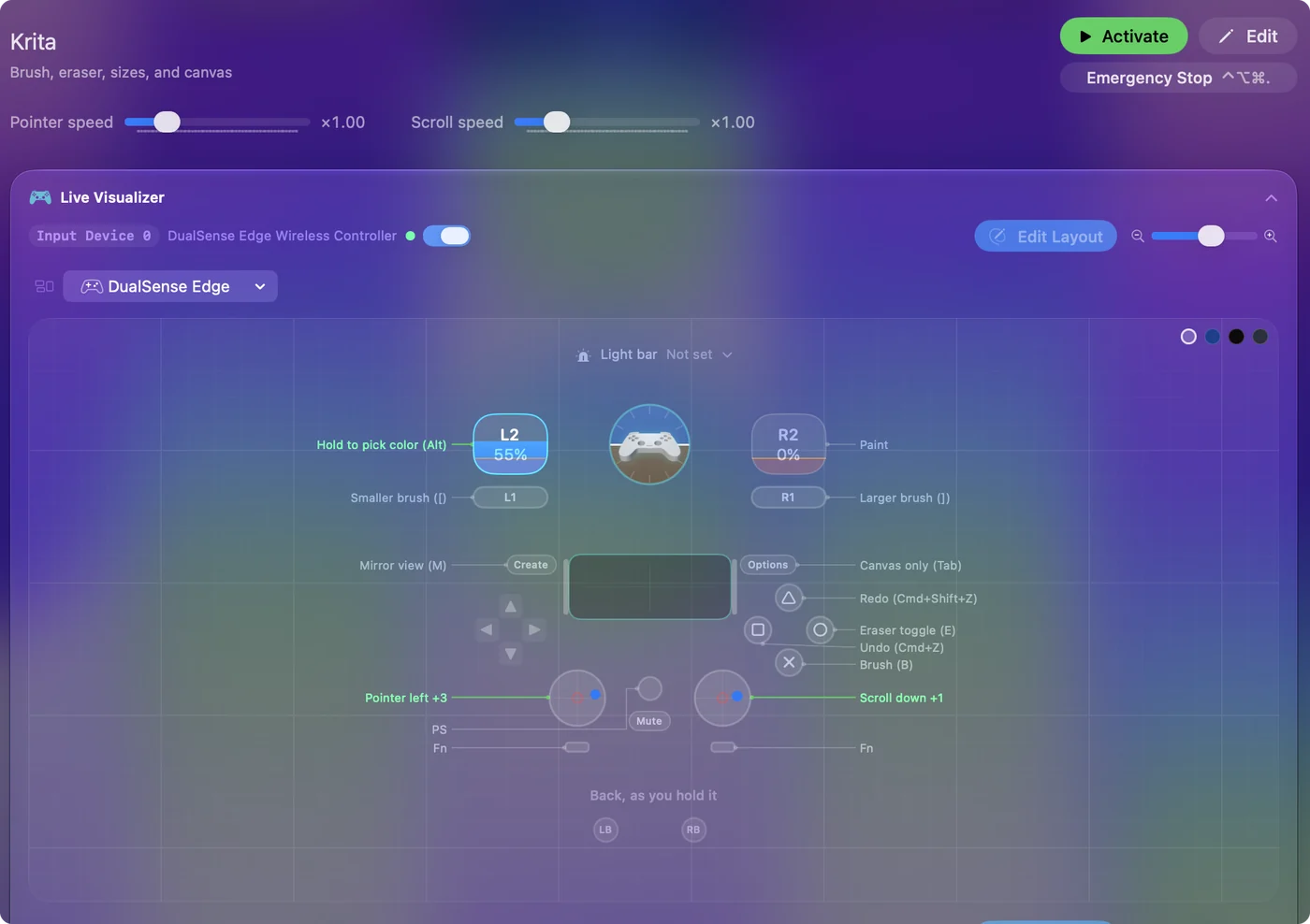
Two additions painters ask for first: rotate the canvas with 4 and 6 on D-pad left and right, with 5 to reset, and zoom with Plus and Minus on D-pad up and down. Turn on Repeat keys while held on the bumper rows, so holding one keeps resizing the brush.
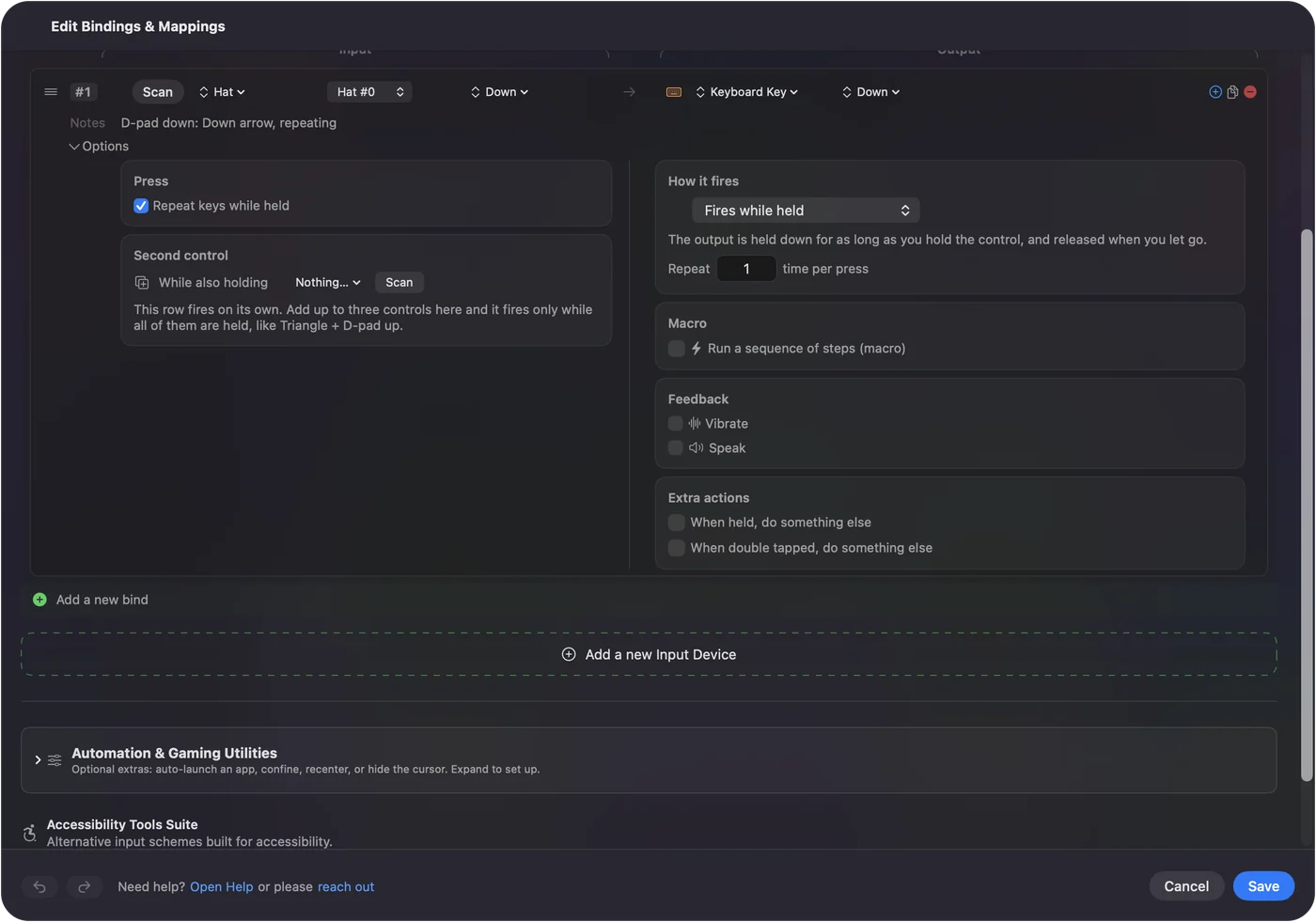
The Krita layout is also in the Smart Preset Maker. A single Joy-Con held sideways is small enough to rest beside the iPad. The drawing and photo editing guide explains the layout in full.
If strokes or shortcuts misbehave
Climb this ladder, smallest step first:
- Use the cable. A cable is steadier than a wireless link, and it charges the iPad.
- Click the Krita window. Keys go to the app in front. If another Mac app is in front, the shortcuts land there instead.
- Open the Tablet Tester. A red line only means the Pencil arrives as a mouse, which explains strokes with no pressure.
- Adjust the pressure curve. If pressure works but feels wrong, change the Input pressure global curve in Tablet Settings.
- Check InputConfig. The preset must be active, and the app needs the Accessibility permission in System Settings, Privacy & Security. Control Option Command period stops everything at once.
- Check Sidecar. If the iPad will not connect, confirm the same Apple Account on both, Handoff on, and the two within 10 meters.
Most dead shortcuts are a different app in front, not a broken layout.
What it cannot do
- Run Krita on the iPad by itself. No setup does that, because Krita does not support iPads.
- Send keys to an iPad app. InputConfig runs on the Mac and sends keys to Mac apps, never to an iPad app such as Procreate.
- Add pressure Sidecar does not pass. InputConfig sends keys, clicks and pointer movement, so it cannot give a Pencil stroke pressure that Krita does not receive.
- Promise finger drawing. Apple does not say a finger draws in a Mac app through Sidecar, so I do not either.
The pen and the pressure come from Sidecar and Krita, and the buttons come from the controller.
The short version
- No iPad app. Krita runs on Windows, macOS, Linux and Android.
- Sidecar. Run Krita on the Mac and drag its window onto the iPad.
- Pressure. Test it in Krita's Tablet Tester. Blue means the Pencil reads as a tablet.
- Shortcuts. Hold a controller with InputConfig's Krita layout in your other hand.
An iPad and a Pencil you already own can be Krita's drawing tablet tonight.
Questions
Is Krita available on iPad?
No. Krita's download page says Apple iPads and iPhones are not supported. It runs on Windows, macOS, Linux and Android, so on an iPad the way in is Sidecar with Krita running on a Mac.
Can I draw in Krita with my finger on an iPad?
Apple's Sidecar page describes finger gestures such as two-finger scrolling, and expanded touch for windows and menus on iPadOS 27 and macOS 27, but it does not say a finger draws. Plan on an Apple Pencil, and try your finger in Krita before you rely on it.
Does Sidecar need an Apple Pencil?
Sidecar works as a second display without one. For drawing, Apple describes the Pencil as the thing that replaces the Mac's mouse or trackpad on the iPad screen.
Does pen pressure work in Krita through Sidecar?
Apple says Pencil pressure and tilt only work in apps with advanced stylus support. Check yours in Krita's Tablet Tester: a blue line means Krita reads the Pencil as a tablet.
Do I need InputConfig for this?
No. Sidecar and Krita are enough to draw. InputConfig adds shortcut buttons, so a game controller in your other hand can change brushes, erase, undo and resize.
Related
This page in other languages: Deutsch, Español, Français, Italiano, 日本語, 한국어, Polski, Português, Русский, ไทย, 繁體中文, 简体中文
Completely free. You don't have to make an account, there are no subscriptions, and nothing is locked. Optimized for Apple silicon. Open source on GitHub.
Updated