Questions
How to scroll with a game controller on a Mac
Push the right stick. With InputConfig running its built-in Mouse + Scroll or Desktop Navigation preset, the right stick scrolls up, down, left and right in every app, faster the further you push. On a PlayStation controller, two fingers on the touchpad scroll as well.
macOS does none of this by itself: it pairs the controller, but only games with controller support read it, and each game decides what its sticks do. Everything below is the part the free app adds.
On this page: 9 sections
Steps
- Connect the controller and open InputConfig.
- Select Mouse + Scroll or Desktop Navigation and press Activate.
- Push the right stick to scroll; drag Scroll speed on the preset's page if it is too fast or too slow.
Scroll with the right stick
Every built-in pointer preset scrolls from the right stick. They differ in direction and speed:
| Preset | Right stick scrolls | Row speed |
|---|---|---|
| Mouse + Scroll | Up, down, left, right | 6 |
| Desktop Navigation | Up, down, left, right | 5 |
| Easy Browse | Up and down, with a wide deadzone so a resting stick never scrolls | 4 |
| Motion Cursor | Up and down, while tilt moves the pointer | 4 |
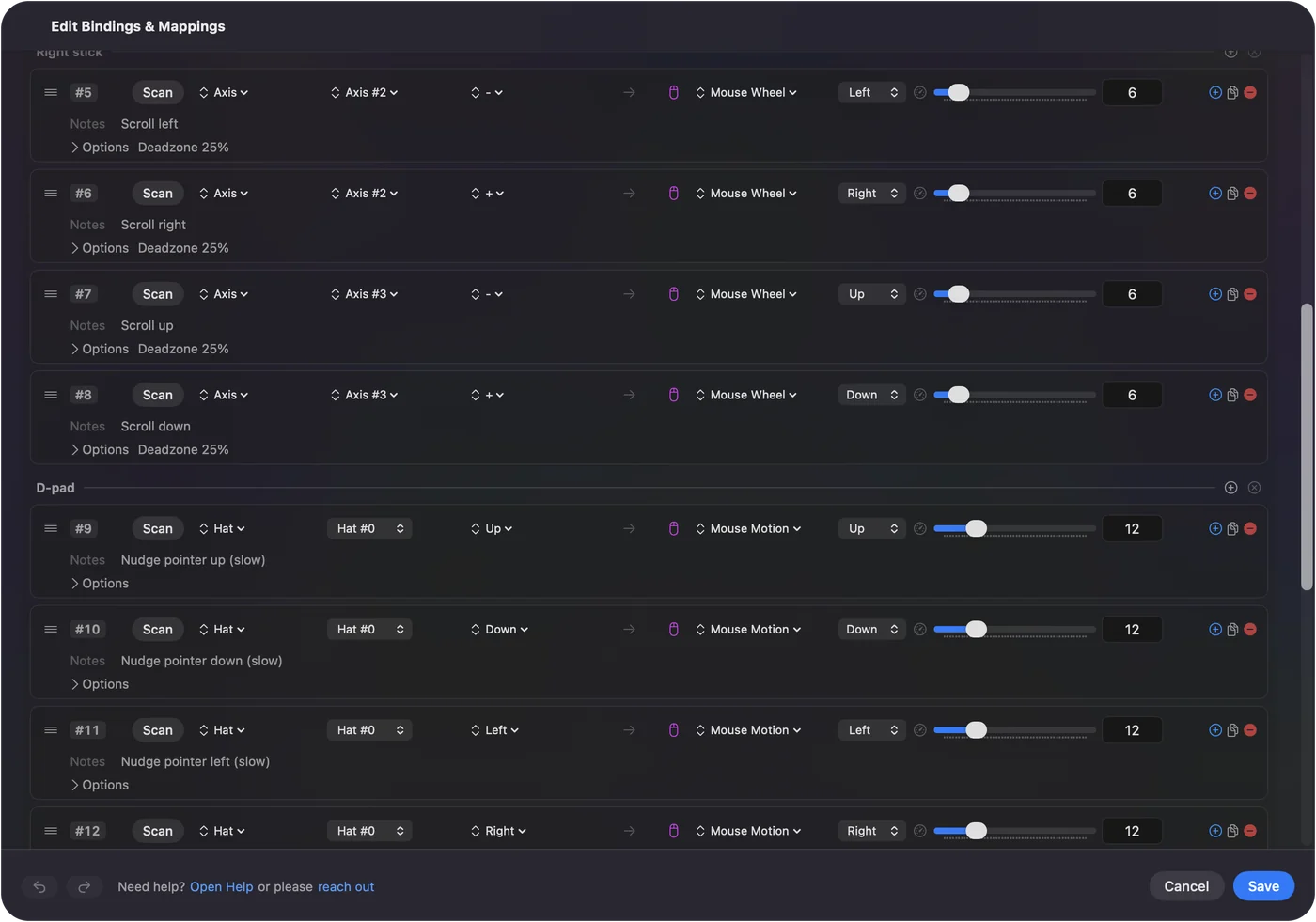
This is smooth scrolling, a few pixels at a time like a trackpad, and with Variable on in the row's Options the speed follows how far you push. In 1.6 Motion Cursor scrolls the same way round as the other pointer presets. Activate one of these presets and the right stick scrolls in every app.
 InputConfig is free on the Mac App Store. macOS 14 or later, no account, no tracking, open source.
Make it faster or slower
- You: Drag Scroll speed on the preset's page, beside Pointer speed. It appears whenever the preset has a Mouse Wheel row.
- InputConfig: Scales every scroll row in the preset at once, from ×0.10 to ×5.00.
- Check: Scroll a long page and drag again until it feels right.
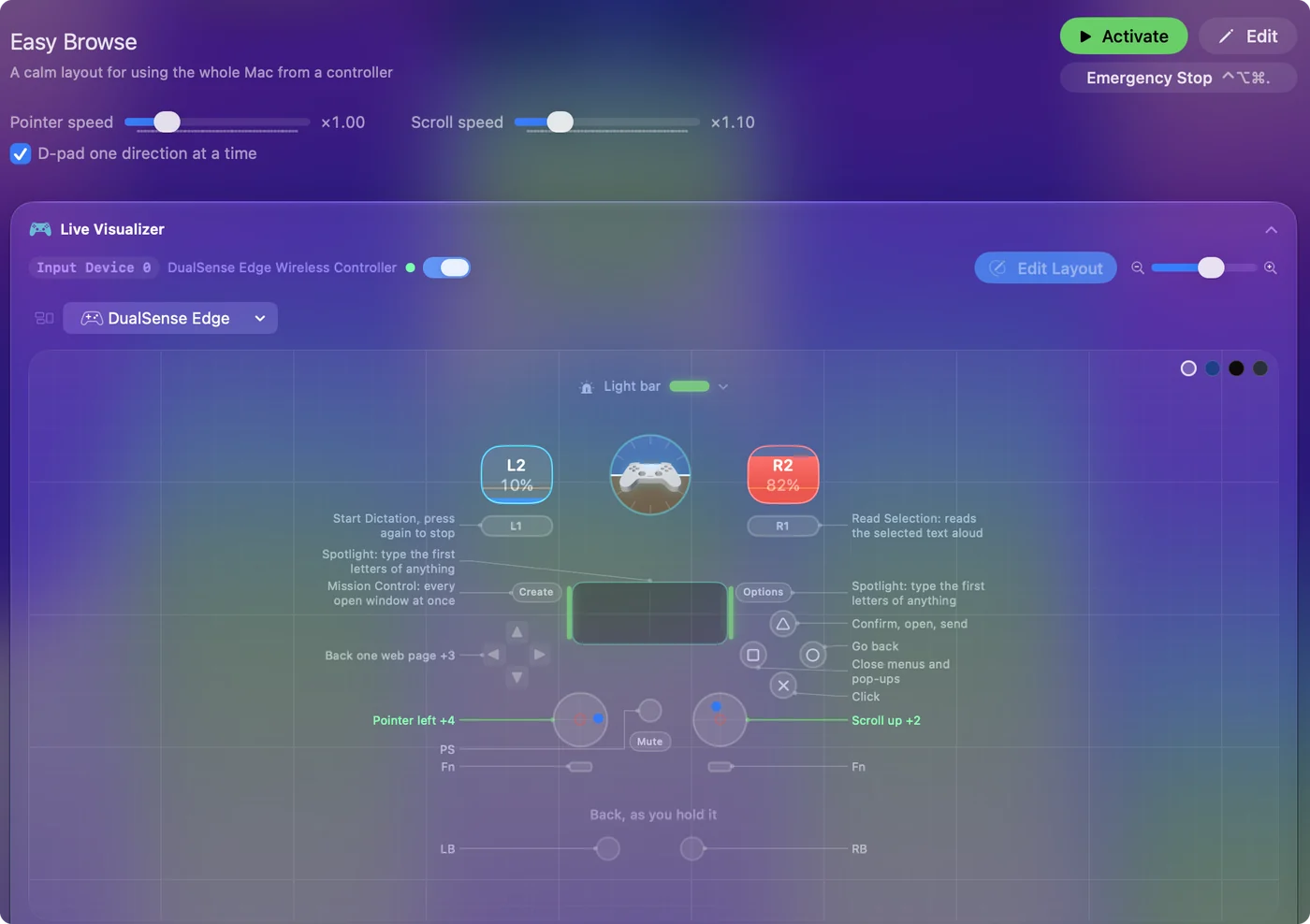
For one direction only, change Speed on that row, from 1 to 50. If small pushes scroll too eagerly, the Smooth curve keeps the first part of the stick gentle. Changing controller mouse speed covers the pointer side of the same settings. Scroll speed first, row speed only when one direction should differ.
Scroll with two fingers on the PS5 or PS4 touchpad
In the Touchpad Mouse preset, one finger moves the pointer and a second finger scrolls: rest one finger, slide the other up or down. It works on the DualSense, DualSense Edge and DualShock 4, over Bluetooth or a cable.
- Sideways. The preset scrolls up and down only. Add two rows with the input type Touchpad, Finger 2, X plus and X minus, and give them Mouse Wheel Right and Left.
- A scroll strip. To make the whole pad scroll, bind finger 1 Y plus and minus to Mouse Wheel and leave X unbound.
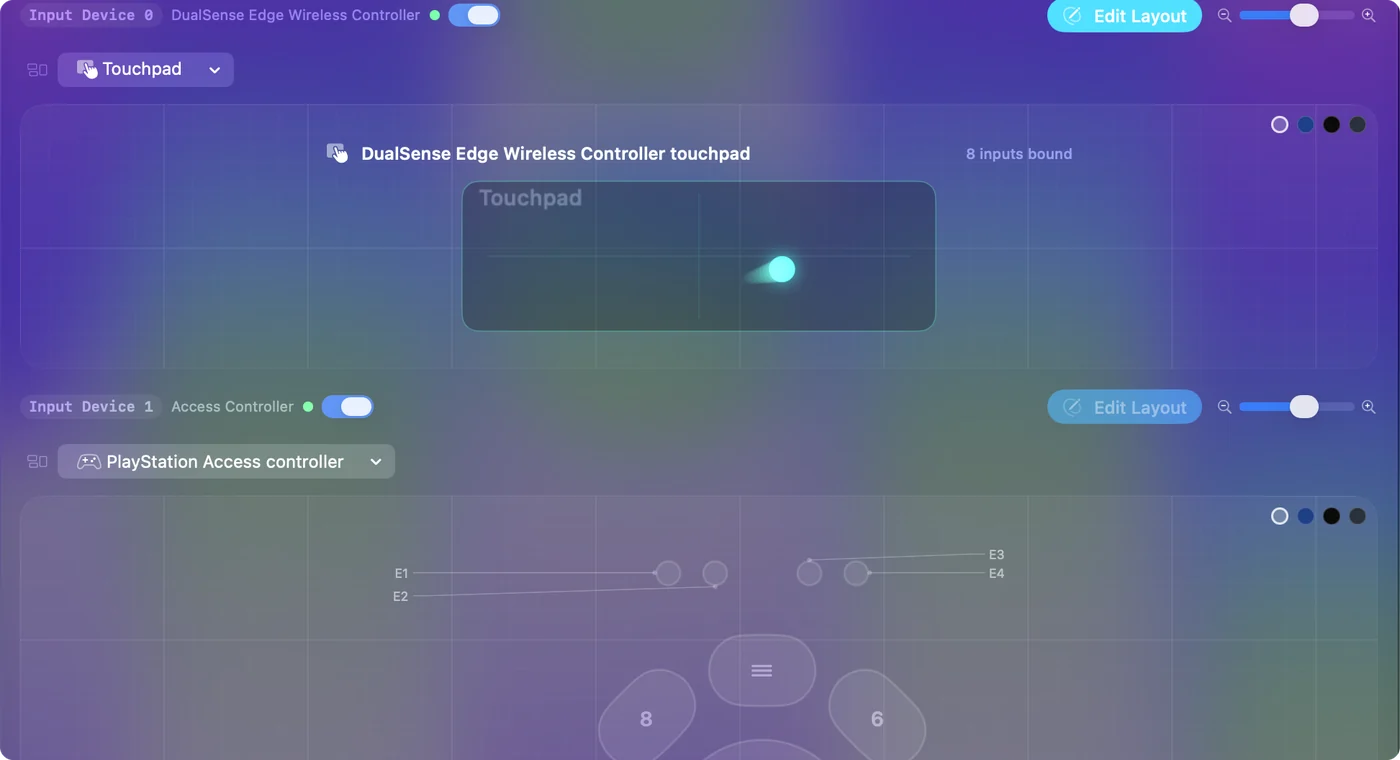
The touchpad page has the rest. Two fingers on the PS5 touchpad scroll the way two fingers do on a MacBook.
Scroll one notch per press
Mouse Wheel Step sends one wheel notch per press, the way a clicky mouse wheel does, instead of a smooth scroll.
- Who it suits. Long documents, a hand that cannot hold a stick steady, and games that count wheel notches, such as weapon switching, which ignore smooth scrolling.
- A ready layout. The Accessibility Pointer layout in the Smart Preset Maker puts it on the D-pad in all four directions.
- With Scroll speed. In 1.6 Scroll speed applies here too, as lines per press: at ×2 each press scrolls two lines.
Use notches when a game switches weapons on the wheel; smooth scrolling does nothing there.
If scrolling misbehaves
Climb this ladder, smallest step first:
- Raise the deadzone. The page keeps scrolling on its own: the right stick rests a little off center. Raise the deadzone on the scroll rows; Adjust live in the row's Options shows where the stick rests.
- Flip the direction. It scrolls the wrong way: each scroll row has a direction picker next to its speed, Up, Right, Down or Left. Swap Up and Down on the Scroll up and Scroll down rows, or switch on Invert direction in each row's Options. It is per row, so you can flip vertical scrolling and leave sideways alone.
- Stop the double reader. A game that reads the controller itself may also see the stick. Stop the preset for that game or give it a preset of its own.
A page that scrolls by itself needs a deadzone, not a slower speed.
Scroll with something other than a stick
Any input can send Mouse Wheel:
- A trigger. Scrolls faster the further you pull it.
- A D-pad direction. Scrolls at a steady speed while held.
- A MIDI knob. Can scroll from its center.
- A button for whole pages. Bind it to Page Down, or to Space, which pages down in Safari, Chrome and most documents. Shift with Space pages back up.
The binding editor explains rows and outputs. Whatever you can press or pull can scroll.
The short version
- Stick. Activate Mouse + Scroll or Desktop Navigation and push the right stick.
- Touchpad. Touchpad Mouse, second finger slides.
- Speed. Scroll speed on the preset's page.
InputConfig sends ordinary scroll events, so every app that scrolls with a mouse scrolls with the controller.
Questions
Which stick scrolls on a controller on Mac?
The right stick, in every built-in pointer preset. Any stick, trigger or button can be set to scroll in the editor.
Can I scroll sideways with a controller?
Yes. Push the right stick left or right in Mouse + Scroll or Desktop Navigation. On a PlayStation touchpad, add Finger 2 X rows sending Mouse Wheel Left and Right.
Why does the page keep scrolling on its own?
The right stick rests a little off center. Raise the deadzone on the scroll rows; Adjust live in the row's Options shows where the stick rests.
Does controller scrolling work in every app?
Yes. InputConfig sends ordinary scroll events, the same as a mouse, so Safari, Chrome, Finder, Mail and documents all scroll. A game that reads the controller itself may also see the stick; stop the preset for that game or give it a preset of its own.
Does scrolling work when the Mac is locked?
Yes, with a limit. In 1.6, while the Mac sleeps or is locked, InputConfig sends no keys, and at the lock screen only the pointer, clicks and scrolling work.
How do I scroll one page at a time?
Bind a button to the Page Down key, or to Space, which pages down in Safari, Chrome and most documents. Shift with Space pages back up.
Related
Free. macOS 14 or later. No account, nothing leaves your Mac. Open source on GitHub.