How to invert a controller stick on a Mac
 InputConfig is completely free on the Mac App Store. You don't have to make an account, there are no subscriptions, and nothing is locked. Optimized for Apple silicon.
If the game reads the controller itself, invert the Y axis in the game's own settings. If the stick is mapped through InputConfig, open the stick row's Options and tick Invert direction. That flips the axis for whatever the row sends: camera look, the pointer or scrolling.
I make InputConfig, a free Mac app that maps a controller to keys and mouse. Which of the two you need depends on who is reading the stick.
Steps
- Check the game's settings for Invert Y first, if the game supports controllers.
- For a stick mapped in InputConfig, open the preset and click Edit.
- Find the stick's up and down rows and expand Options on each.
- Tick Invert direction.
- Click Save and try the stick.
Work out who reads the stick
- The game reads it. A game with controller support has its own Invert Y or Invert Look setting. Use that, because InputConfig does not change what the game sees from the controller.
- InputConfig reads it. When the stick moves the mouse or presses keys through a preset, the setting is in InputConfig.
Invert it in InputConfig
- You: Click Edit, find the stick's rows, expand Options on the up row and the down row, and tick Invert direction on each.
- InputConfig: Flips that axis. Up now sends what down sent.
- Check: Click Save and push the stick up. The view, the pointer or the page moves the other way.
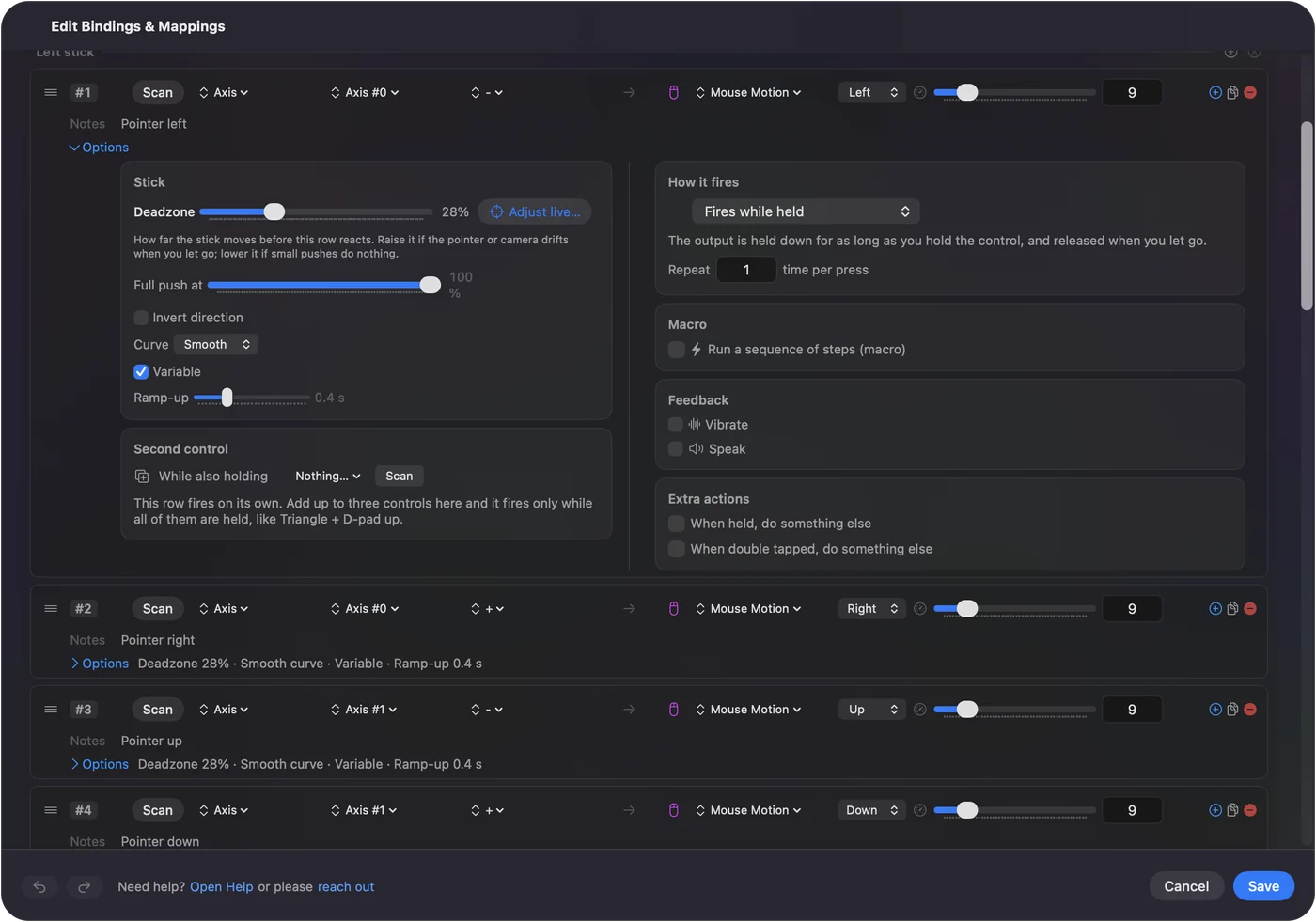
Invert only the up and down rows for an inverted look, and leave left and right alone.
Or swap the two outputs
There is a second way that some people find clearer: leave Invert direction off and swap what the two rows send. Stick up sends Mouse Motion down, and stick down sends Mouse Motion up. The result is the same.
Invert scrolling only
The same switch works on scroll rows. If the right stick scrolls the wrong way for you, tick Invert direction on its two scroll rows. This changes the controller's scrolling and nothing else, so your trackpad and mouse keep their own direction.
What it cannot do
InputConfig sends keys and mouse movement. It does not hand the game a changed controller, so it cannot invert a stick for a game that reads the controller directly. The game's own setting is the place for that.
The short version
- Game reads the pad. Use the game's Invert Y setting.
- Mapped in InputConfig. Options on the stick row, then Invert direction.
Flip the up and down rows together, or the stick will only work one way.
Questions
How do I invert the Y axis on a controller on a Mac?
In a game with controller support, use the game's Invert Y setting. For a stick mapped in InputConfig, tick Invert direction in the Options of the stick's up and down rows.
Can I invert the right stick only?
Yes. Invert direction is set on each row, so you can flip the right stick's rows and leave the left stick as it is.
Can I reverse controller scrolling without changing my trackpad?
Yes. Tick Invert direction on the stick's scroll rows in InputConfig. It changes only the controller's scrolling.
Related
Completely free. You don't have to make an account, there are no subscriptions, and nothing is locked. Optimized for Apple silicon. Open source on GitHub.
Updated