Questions
How to make a controller mouse faster or slower on a Mac
Select the preset in InputConfig and drag Pointer speed. That one slider, on the preset's page above the Live Visualizer, makes every pointer movement in the preset faster or slower, from ×0.10 to ×5.00, whether the pointer comes from a stick, the PS5 touchpad, or the gyroscope. ×1.00 leaves each row as it was set.
It is new in InputConfig 1.6, and it is the right first move almost every time. The rest of this page is for when one slider is not enough: a pointer that crosses the screen nicely but cannot land on a small button, or one that creeps when you let go.
On this page: 11 sections
Steps
- Select the preset in InputConfig's sidebar.
- Drag Pointer speed on the preset's page: left is slower, right is faster, and 1.00 leaves the rows as they are.
- For finer control, open the editor and set Speed, the curve, and Ramp-up on the stick rows.
Pick the fix, smallest first
Climb this ladder, smallest step first, and stop when the pointer feels right:
- Pointer speed. Everything too fast or too slow. See drag Pointer speed.
- Speed on one row. One control should differ from another. See set Speed on one row.
- The curve. Fast enough, but hard to aim. See slow near the middle, fast at the edge.
- Ramp-up. Overshoots small targets. See add Ramp-up for small moves.
- A slow mode. One speed cannot do both a big display and a checkbox. See add a slow mode for small targets.
Nothing in System Settings helps here. The Tracking speed slider, under Mouse or Trackpad, changes your real mouse and trackpad. It does not touch a controller, because macOS never turns a controller into a pointer in the first place. The app that moves the pointer also sets its speed, so the fix is in that app.
 InputConfig is free on the Mac App Store. macOS 14 or later, no account, no tracking, open source.
Drag Pointer speed
- You: Select the preset and drag Pointer speed on its page: left is slower, right is faster.
- InputConfig: Multiplies every pointer row in that preset at once: both sticks, the touchpad, motion rows. It saves the value a moment after you stop dragging, and a running preset picks it up then.
- Check: Move the pointer with the controller in your other hand, and drag again until it feels right.
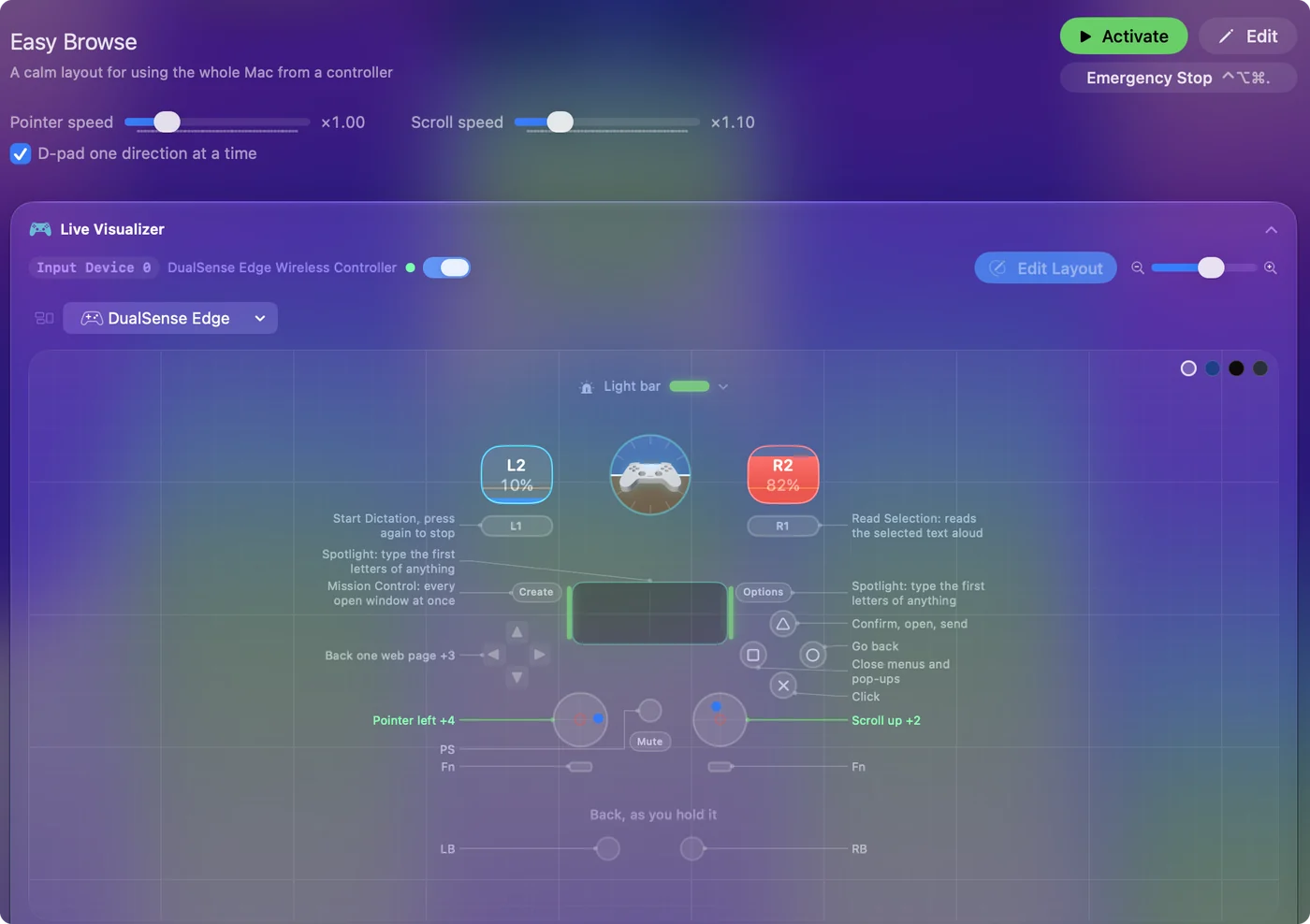
- Where it shows. On the preset's page whenever the preset has a row that moves the pointer, with Scroll speed next to it when the preset scrolls.
- Per preset. A sofa preset for the TV can run slower than the one at your desk.
- The same setting in the editor. Under Automation & Gaming Utilities, Cursor while active, as Sensitivity multiplier.
InputConfig moves the pointer by a set number of pixels, which is why its Settings say the speed multiplies its own pointer rows, not the Mac's pointer speed. A game with its own controller support has its own look sensitivity in its menus; use that there. You can tune it while the preset runs, with no need to stop anything.
Set Speed on one row
Each row that sends Mouse Motion has its own speed: the slider beside the speedometer icon, with a number box, from 1 to 50. It is the top speed, reached at a full push. A stick is four rows, one per direction, so change all four by the same amount or the pointer runs faster one way than the other.
For a sense of scale, the built-in presets use:
- 20. The stick in Mouse + Scroll.
- 16. Desktop Navigation.
- 12. The touchpad in Touchpad Mouse.
- 9. Easy Browse, the calmest of them.
Use row speed when one control should differ from another; use Pointer speed when everything is simply too fast or too slow.
Slow near the middle, fast at the edge
Open Options on a stick row. With the Variable checkbox on, the speed follows how far you push: a small push is slow and a full push reaches the row's speed. With it off, the pointer jumps to full speed as soon as the stick leaves the deadzone, which is hard to aim with. The curve shapes that push:
- Linear. Follows your thumb one to one.
- Smooth. Stays gentle for most of the travel and speeds up near the edge.
- Aggressive. Gets to full speed early.
The built-in Variable Sensitivity preset puts Smooth on the right stick and Aggressive on the left, so you can feel both before choosing. Variable sensitivity has the detail. Smooth is the one to try for precision, and the kindest curve for a tremor.
Add Ramp-up for small moves
New in 1.6, a pointer row's Options have Ramp-up, from Off to 1.5 seconds.
- You: Open Options on a stick row and set Ramp-up.
- InputConfig: Starts the pointer at a fifth of its speed when the stick leaves the deadzone and builds to full speed over the time you set.
- Check: A short push makes a small move you can stop on a target; a held push still crosses the screen.
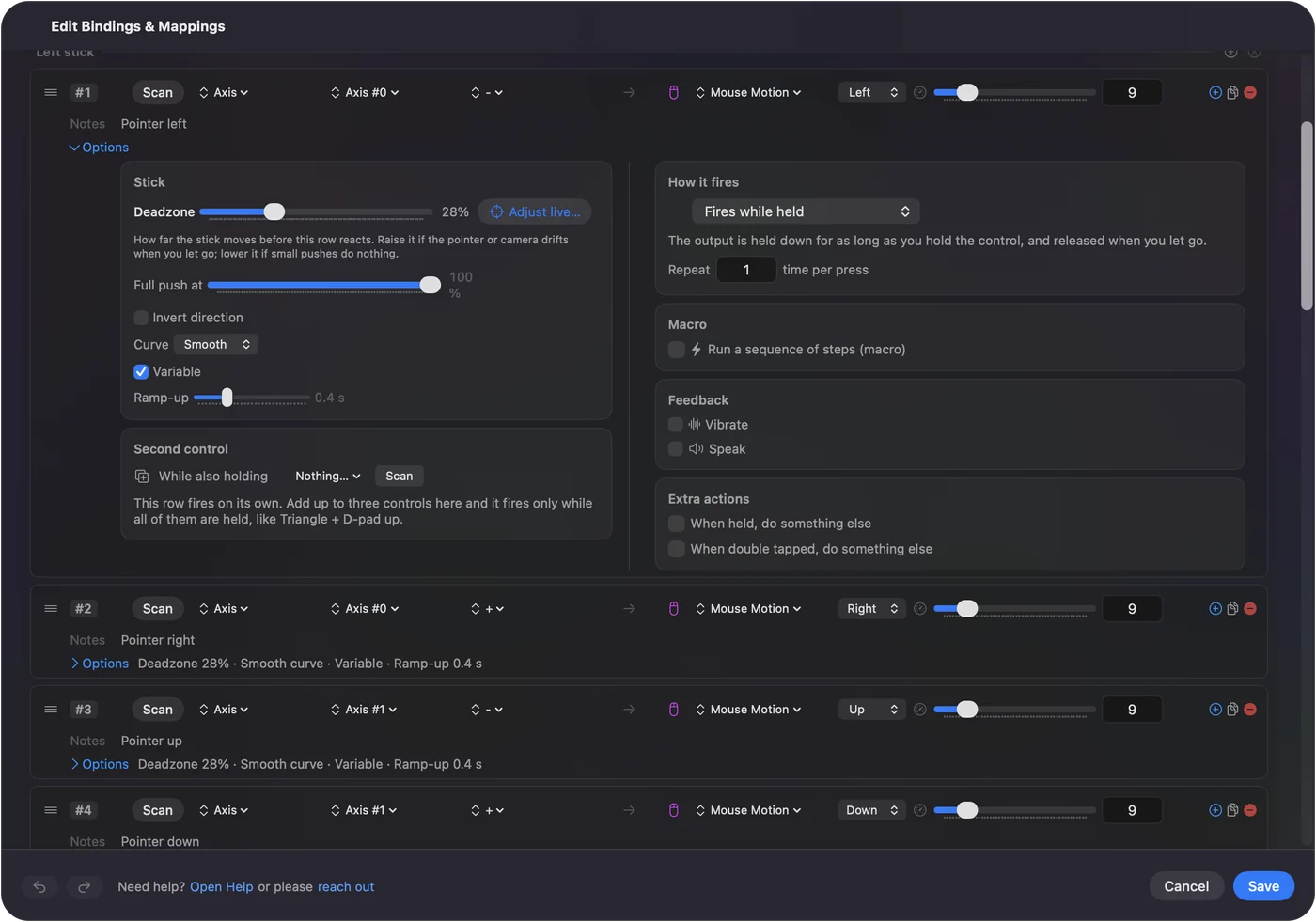
Easy Browse, the new built-in preset for using the whole Mac from a controller, uses 0.4 seconds with the Smooth curve and a generous deadzone. The Smart Preset Maker offers the same thing as a checkbox, Pointer ramp-up. Ramp-up acts on stick rows; the touchpad and the gyroscope already follow your hand directly. In 1.6 the pointer also stops the moment you let go of the stick.
Add a slow mode for small targets
Any one speed is a compromise between crossing a large display and hitting a checkbox. Two built-in layouts split the job:
- Mouse + Scroll. Puts a slow pointer on the D-pad, speed 12 against 20 on the stick, for the last few pixels.
- Accessibility Pointer. The Accessibility Pointer layout in the Smart Preset Maker makes the left stick precise at 10 and the right stick fast at 26.
Either idea copies into your own preset: add Mouse Motion rows to a second control and give them a lower speed.
Change every preset at once
Settings, Advanced, has a Gaming utilities section with its own Speed slider, labeled Pointer speed for stick and gyro motion, also ×0.10 to ×5.00. It multiplies every Mouse Motion row in every preset, on top of each preset's Pointer speed.
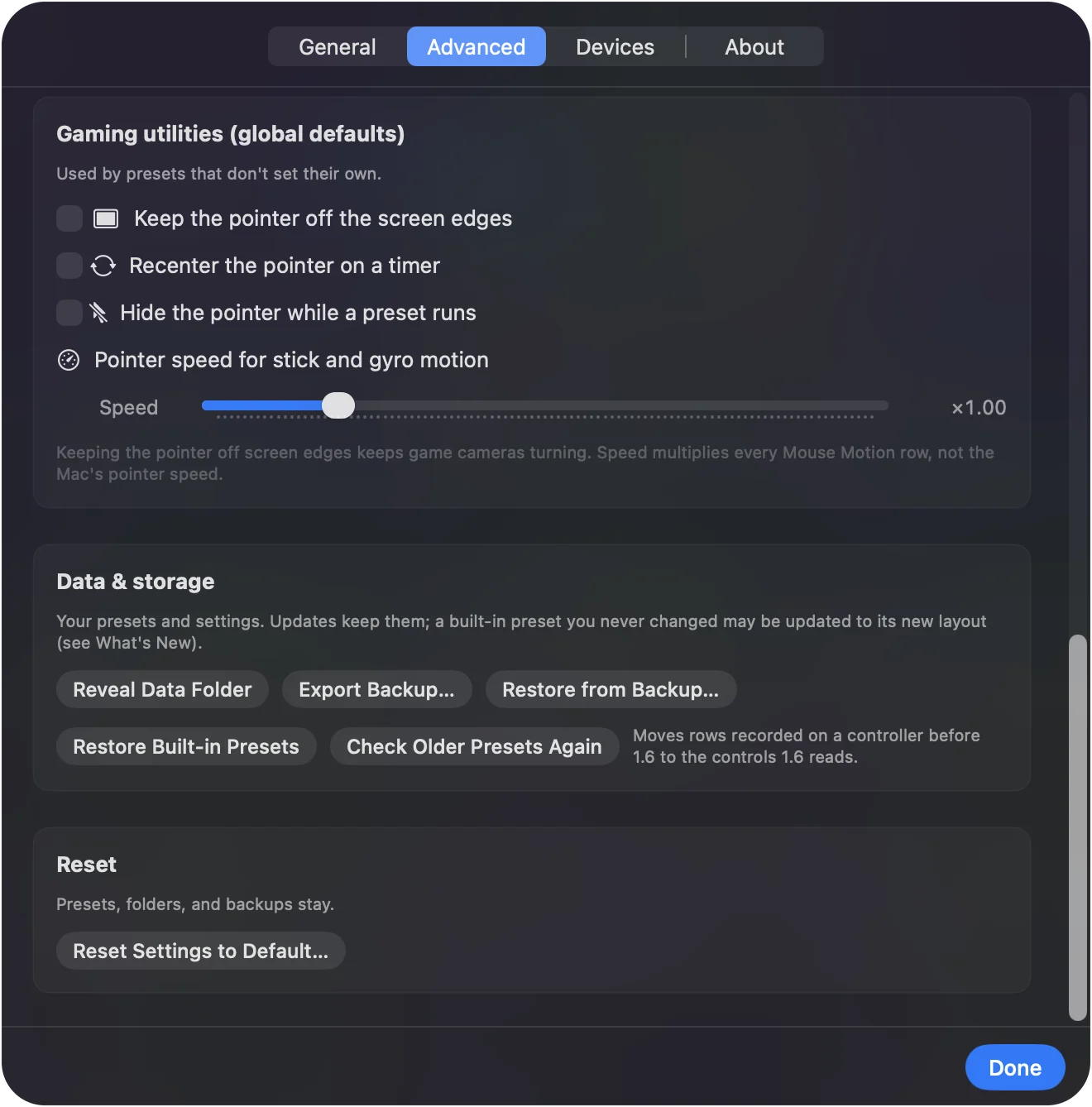
Leave it at ×1.00 unless every preset you own feels wrong the same way; it is easy to forget it is there when you are puzzling over one preset later.
If the problem is not speed
Climb this ladder, smallest step first:
- Raise the deadzone. The pointer moves when you are not touching the stick. That is drift, not speed. Every stick row shows its deadzone, and Adjust live in the row's Options draws the stick while you set it. Fixing stick drift walks through it.
- Try a cable. The pointer stutters or jumps. Usually that is Bluetooth: try a cable, or move the Mac out of a cabinet. Settings also has a Controller poll rate; 120 Hz is the default, and the app itself notes that 60 Hz saves battery but can make gyro aim feel a touch slower.
- Allow Accessibility. The pointer does not move at all. InputConfig needs the Accessibility permission. In 1.6 the menu bar icon turns orange when a running preset needs it, and rows start working the moment you allow it.
A pointer that moves on its own needs a deadzone, not a lower speed.
The short version
- First. Pointer speed on the preset's page.
- Then. The Smooth curve and a little Ramp-up on the stick rows.
- For tiny targets. A slow pointer on the D-pad.
Drag one slider, move the pointer, drag again: two minutes beats any default.
Questions
Why is my controller mouse so fast on a Mac?
Usually because the preset is set for crossing a large display. Drag Pointer speed on the preset's page to the left a little at a time, or switch the stick rows to the Smooth curve so a small push stays slow.
Does the Mac's Tracking speed setting change the controller pointer?
No. Tracking speed in System Settings is for the mouse and trackpad. InputConfig sets the controller pointer's speed itself, with Pointer speed on the preset's page and Speed on each row.
How do I slow down the PS5 touchpad pointer?
Pointer speed slows it along with everything else in the preset. To slow only the touchpad, lower Speed on the four finger 1 rows; Touchpad Mouse ships at 12. Since 1.6, new touchpad rows move the pointer as far up and down as side to side, and rows made before 1.6 keep the speed they had.
How do I change gyro sensitivity?
Speed on the motion rows sets how far the pointer travels per degree of tilt. At 6, one degree is roughly 17 pixels. Pointer speed on the preset's page scales tilt too. The gyro aim page has the rest.
Can a game use a different pointer speed from the desktop?
Yes. Give the game its own preset with its own Pointer speed and list the game in that preset's Automation panel. Then turn on Switch presets when the front app changes in Settings, Advanced, and the preset changes when the game comes to the front.
Do I have to stop the preset to change the speed?
No. Pointer speed and Scroll speed save a moment after you let go of the slider, and a running preset uses the new value right away.
Related
Free. macOS 14 or later. No account, nothing leaves your Mac. Open source on GitHub.