Does a cheap gaming mouse work on a Mac?
 InputConfig is completely free on the Mac App Store. You don't have to make an account, there are no subscriptions, and nothing is locked. Optimized for Apple silicon.
Yes, almost always as a mouse: a no-name gaming mouse with six to eight buttons and a DPI button plugs into a Mac and the pointer, both main buttons and the wheel work at once. What you buy is a handful of extra buttons, and what a Mac does with them depends on what each button sends. The DPI button works inside the mouse and the Mac never sees it, the side buttons usually arrive as Button 4 and Button 5, and the rest vary from mouse to mouse.
I make InputConfig, a free Mac app that reads a mouse's extra buttons and binds each one, so this page shows how to find out what a cheap mouse sends and what to do about each button. I have not tested any specific cheap mouse myself. What I describe about them comes from forum threads and reviews I read on October 21, 2026.
On this page: 12 sections
- Steps
- Know what a cheap gaming mouse does on a Mac
- Find out what each button sends
- Bind the buttons that arrive
- What if the button types a key
- Run longer jobs on a cheap mouse
- Add hold, double click and per-app layouts
- Ideas for people who bought a cheap gaming mouse
- If a button does nothing
- What it cannot do
- The short version
- Questions
Steps
- Plug in the mouse or its USB dongle. A USB-A plug needs a small adapter on a Mac with USB-C ports.
- Press the DPI button to cycle the speed steps stored inside the mouse.
- Open InputConfig, add a row, press Scan and press each extra button in turn.
- Bind every button that records a Button number, and save and activate the preset.
- Leave alone any button that records nothing, because the mouse keeps it for itself.
Know what a cheap gaming mouse does on a Mac
Most of these mice are sold with a Windows driver on a disc or a download link, and a Mac gets none of it. The mouse itself is a standard one, so what you get is:
- The basics. Pointer, left and right click and the wheel work with nothing installed.
- The DPI button. It steps through speed levels stored in the mouse. The mouse changes speed and the Mac is not told.
- Side buttons. They usually arrive as Button 4 and Button 5. Whether anything happens is up to the app in front.
- Lighting. Set by a button on the mouse, or by the Windows driver, so a Mac cannot change it.
- Macros from the box. A macro button in the listing means a Windows driver feature, so a Mac does not get it.
A forum thread I read had a Mac user whose side buttons did nothing, and who also found that two common remapping tools did not see the extra buttons of that gaming mouse. A cheap mouse is a fine Mac mouse for pointing, and its extra buttons are a matter of what each one sends.
Find out what each button sends
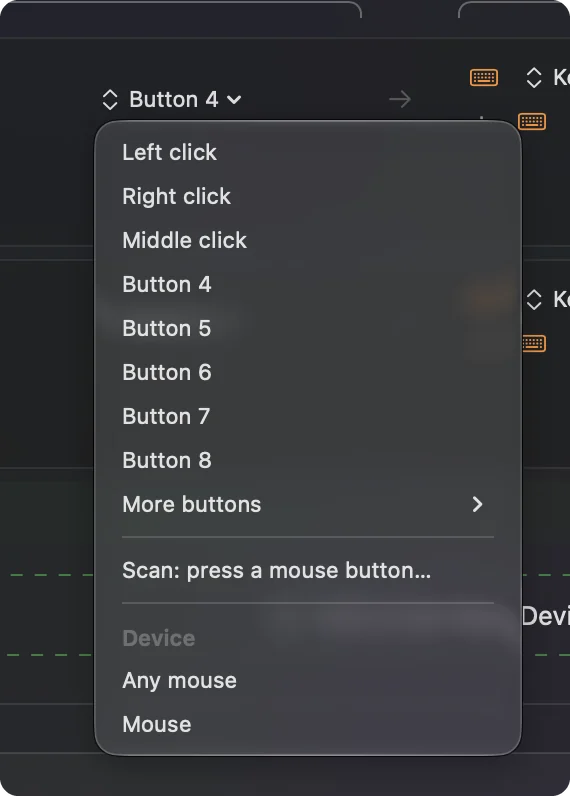
Open InputConfig, add a row and press Scan, then press each button once. The table shows what to expect from a typical six to eight button mouse.
| Button | What it usually does | What to do |
|---|---|---|
| Left, right and wheel click | Left click, Right click, Middle click | Leave alone, or bind the wheel click |
| Two side buttons | Button 4 and Button 5 | Bind them. They are the ones you bought it for |
| DPI button on top or under the wheel | Changes DPI inside the mouse, and may send nothing | Press Scan. If a row appears, bind it. If not, it is not for a Mac app |
| Extra buttons near the wheel | Button 6 and up, or nothing | Scan each one |
| A mode or media button | On some mice it makes the buttons act as music controls | If your side buttons suddenly send media keys, press it again |
That last row comes from an Apple Community thread where the cause of dead extra buttons turned out to be a small button that switched the mouse buttons to music control. If a button does nothing, check for a mode button before you blame the Mac.
Bind the buttons that arrive
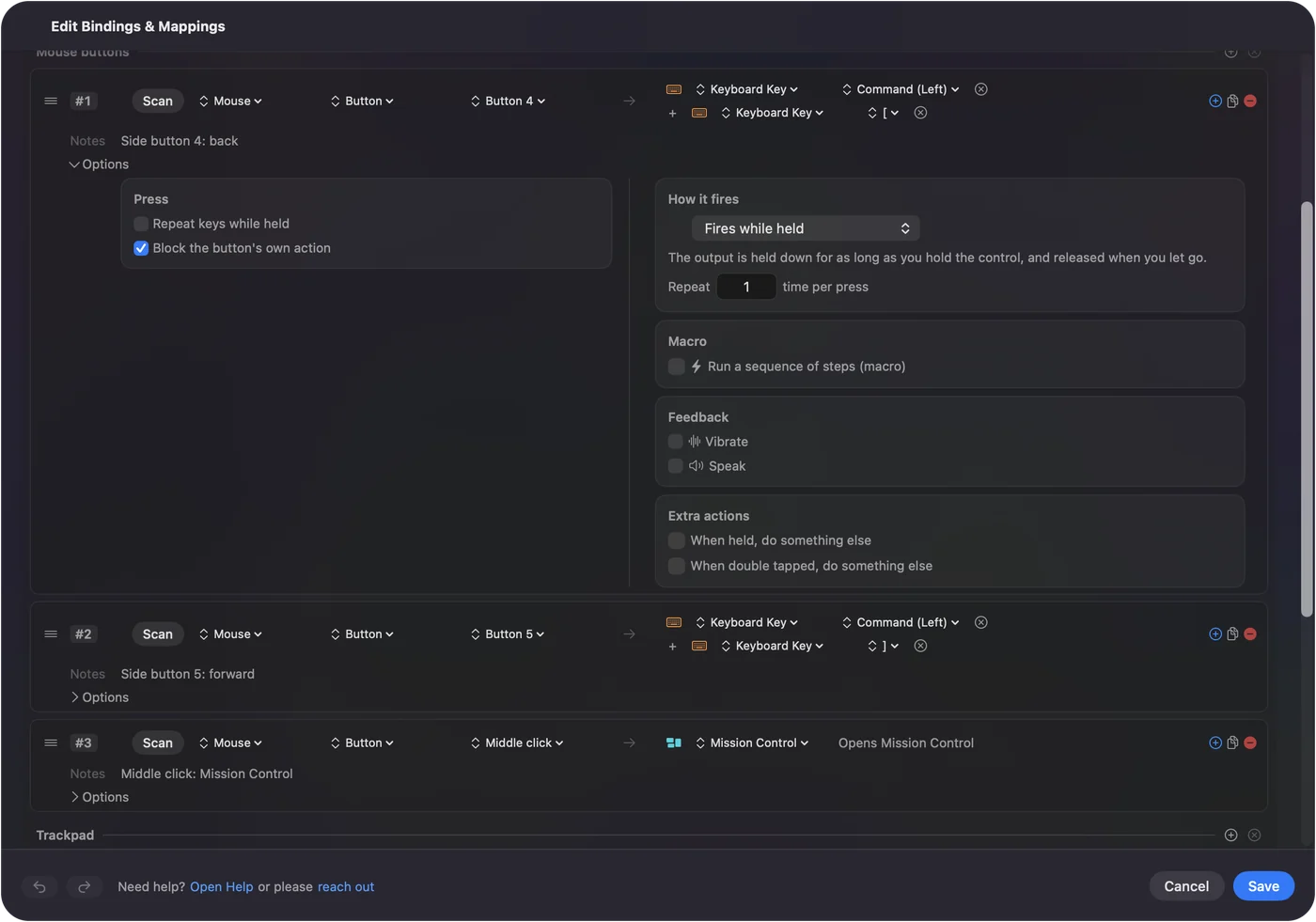
- You: Add a row, choose Mouse, press Scan and press a side button. Choose Keyboard Key, pick Command, then the left bracket for Back or the right bracket for Forward.
- InputConfig: Records the button and presses those keys on every press, in any app that understands them.
- Check: Save and Activate, open Safari, visit two pages and press the button.
Free single-purpose tools exist for Back and Forward on a Mac, and a forum thread recommends one called Simple Side Buttons. InputConfig does that and more: any button can run any shortcut, macro or System Function. If an app already uses the raw side button, tick Block the button's own action on that row so it does not go back twice.
What if the button types a key
Some cheap mice send keyboard keys from their extra buttons, so a Mac sees typing. Scan on the mouse row records nothing, but a keyboard row picks it up. InputConfig listens to the keyboard alongside macOS and does not block the key, so the character still types. The fix is on the mouse, which usually means the Windows driver once:
- Set the button to a key nothing uses. F13 to F20 are free on a Mac. F21 to F24 are not passed to apps.
- Then bind that key. Add a Keyboard Key row, press Scan, press the button, and give it a job.
- Skip it if you cannot. If there is no way to change the key, leave that button out.
See F13 to F19 on a Mac for the details. A button that types a letter needs a different key before a Mac app can use it.
Run longer jobs on a cheap mouse
A six button mouse can do a lot more once each button has a macro. In a row's Options, tick Run a sequence of steps (macro) and add key, shortcut and click steps, each with a wait and a hold time.
- Copy, wait, paste. Command C, a 300 millisecond wait, then Command V.
- A screenshot. One System Function row, no macro needed.
- A reply. Type Text for a sentence you send every day.
- A quick launch. Open App for your editor or browser.
Steps are in mouse macros on a Mac.
Add hold, double click and per-app layouts
- Hold. A hold action turns two side buttons into four jobs.
- Double tap. Each row also has a double tap action.
- Repeat while held. Keeps stepping tabs while a button is down.
- Per app. A preset can list apps under Automation & Gaming Utilities and follow the app in front.
Only one preset runs at a time, and Control Option Command period is the emergency stop.
Ideas for people who bought a cheap gaming mouse
- A student. Back and Forward for research, with a hold on one for a screenshot.
- A first gamer on a MacBook. Leave the main buttons alone and put a quick-save on a side button.
- A spare mouse for a shared Mac. Every connected mouse counts as one, so keep the jobs simple.
- An office worker. Copy and paste on the side buttons, and a mute key for calls on a third.
A cheap mouse with real jobs on its buttons beats an expensive one with none.
If a button does nothing
Climb this ladder, smallest step first:
- Press Scan on the button. If a Button number arrives, the Mac receives it and the issue is the preset.
- Look for a mode button. Some mice switch their buttons to media control.
- Plug the dongle into a port directly. Use an adapter, not a hub, and keep it away from other 2.4 GHz gadgets.
- Activate the preset and check Accessibility. System Settings, Privacy & Security, Accessibility must list InputConfig.
- Quit other mouse tools. They may already take the button.
If Scan sees nothing, the button belongs to the Windows driver. Mouse back button not working covers the causes.
What it cannot do
InputConfig does not change DPI, polling rate, lighting or scroll feel, and it cannot read a button that sends nothing to macOS, such as a DPI button. It cannot block a keyboard key a button sends, and it cannot give two mice different jobs for the same button. The mouse handles speed and lighting, and InputConfig handles what the buttons do.
The short version
- Works. Pointer, clicks and wheel on any cheap mouse.
- DPI button. Works inside the mouse and the Mac never sees it.
- Side buttons. Scan, and bind Back, Forward or a macro.
Scan every button, and bind the ones that arrive.
Questions
Do cheap gaming mice work on a Mac?
Yes for the pointer, clicks and wheel. Extra buttons depend on what each one sends, and the Windows driver on the box does not run on a Mac.
Why do my gaming mouse side buttons not work on a Mac?
macOS hands Button 4 and Button 5 to the app in front, and many apps ignore them. A mapper such as InputConfig gives them a job.
Does the DPI button work on a Mac?
It changes the speed inside the mouse, so it works, but the Mac is not told and a Mac app cannot read it.
Can I use a cheap mouse macro button on a Mac?
Macro buttons in the listing are a Windows driver feature. Bind the button in an app on the Mac instead.
Why do my mouse buttons act like music controls?
Some mice have a mode button that switches the buttons to media control. Press it again.
Related
This page in other languages: العربية, Čeština, Dansk, Deutsch, Español, Suomi, Français, עברית, Magyar, Bahasa Indonesia, Italiano, 日本語, 한국어, Norsk, Nederlands, Polski, Português, ไทย, 繁體中文, 简体中文
Completely free. You don't have to make an account, there are no subscriptions, and nothing is locked. Optimized for Apple silicon. Open source on GitHub.
Updated