How to change a keyboard shortcut on a Mac
 InputConfig is completely free on the Mac App Store. You don't have to make an account, there are no subscriptions, and nothing is locked. Optimized for Apple silicon.
Open System Settings, choose Keyboard, then Keyboard Shortcuts, and double-click the shortcut you want to change. macOS lets you change or turn off its own shortcuts there, and App Shortcuts gives any menu command, in any app, a new key binding. That covers most of it with nothing to install.
What macOS cannot do is put a shortcut somewhere new: on F13, a mouse side button, a foot pedal, a controller or a MIDI pad, or on one key that opens an app or types a whole sentence. That part is InputConfig, the free Mac app I make. Pressing two or three keys at once is hard for my hands, so I honestly use this every day.
On this page: 10 sections
Steps
- Open System Settings and choose Keyboard.
- Click Keyboard Shortcuts and pick a group, such as Screenshots.
- Double-click the shortcut and press the new keys.
- For a menu command, choose App Shortcuts, click plus, and type the exact menu name.
- To put a shortcut on one key or button, add a row in InputConfig, press Scan and pick the keys.
Change or turn off a shortcut macOS already has
- Open System Settings and choose Keyboard.
- Click Keyboard Shortcuts.
- Pick a group on the left, such as Mission Control, Screenshots or Spotlight.
- Double-click the shortcut on the right and press the new keys.
- Click Done.
- You: Change Save picture of selected area as a file, under Screenshots, to a shortcut you can reach.
- macOS: Uses the new keys at once, in every app.
- Check: Press the new shortcut. The crosshair appears.
Untick the box beside a shortcut to turn it off, which is handy when a game or an app wants the same keys. Restore Defaults, at the bottom of each group, puts that group back the way it came. If two shortcuts clash, macOS marks them with a yellow warning sign, and only one of them will work.
Apple's own steps are in use macOS keyboard shortcuts.
Give a menu command a new shortcut
App Shortcuts reaches any command that sits in a menu, so you can give Export, Paste and Match Style or Merge All Windows the keys you want:
- In Keyboard Shortcuts, choose App Shortcuts.
- Click the plus button and choose the app, or All Applications.
- Type the menu command's name exactly as it appears in the menu, including any three dots at the end.
- Click the Keyboard Shortcut field, press the keys, and click Done.
The name has to match the menu letter for letter, or the shortcut silently does nothing. To give the same key a different job in each app, beyond menu commands, see per-app keyboard shortcuts.
Swap modifier keys and the function row
- Modifier Keys. Changes what Caps Lock, Control, Option, Command and Globe do, per keyboard. Caps Lock to Escape is in this list.
- Function Keys. Makes F1 to F12 act as standard function keys, so you hold fn for brightness and volume instead.
To turn one letter key into another key everywhere, macOS has no setting, and that is the job of Karabiner-Elements. Which key remapper you need sorts out the three tools.
Put a shortcut on a key or button you are not using
Changing a shortcut still leaves you pressing two or three keys. InputConfig moves the whole shortcut to one press of something you already own. It listens alongside macOS, so a key keeps its own job and gets a second one on top, and that makes keys that do nothing the best choice:
- F13 to F19. Full-size keyboards have them and macOS gives them no job. See F13 to F19 on a Mac.
- A held right-hand modifier. The built-in Modifier Holds preset makes a held Right Option start Dictation, and a plain press stays an ordinary Option.
- Mouse side buttons. Button 4 and Button 5 can send Command W, Command Z or anything else. See mouse side buttons on a Mac.
- A foot pedal, a MIDI pad or a controller. Each button or pad becomes a shortcut key. See foot pedal shortcuts.
- A knock on a MacBook. Tap the Mac reads the built-in motion sensor and runs a binding on two to five knocks. It is tested on M4 MacBooks, it did not work on an M1 Pro in our testing, and the calibrator's status chip tells you whether yours listens.
- You: Open a preset, click Add a new bind, press Scan and press the key or button. Set the output to Keyboard Key, pick Command under Modifier Keys, then click the plus button on the row and pick the letter.
- InputConfig: Presses the keys together each time you press the button.
- Check: Click Save and Activate, then press it in an app. The shortcut runs.
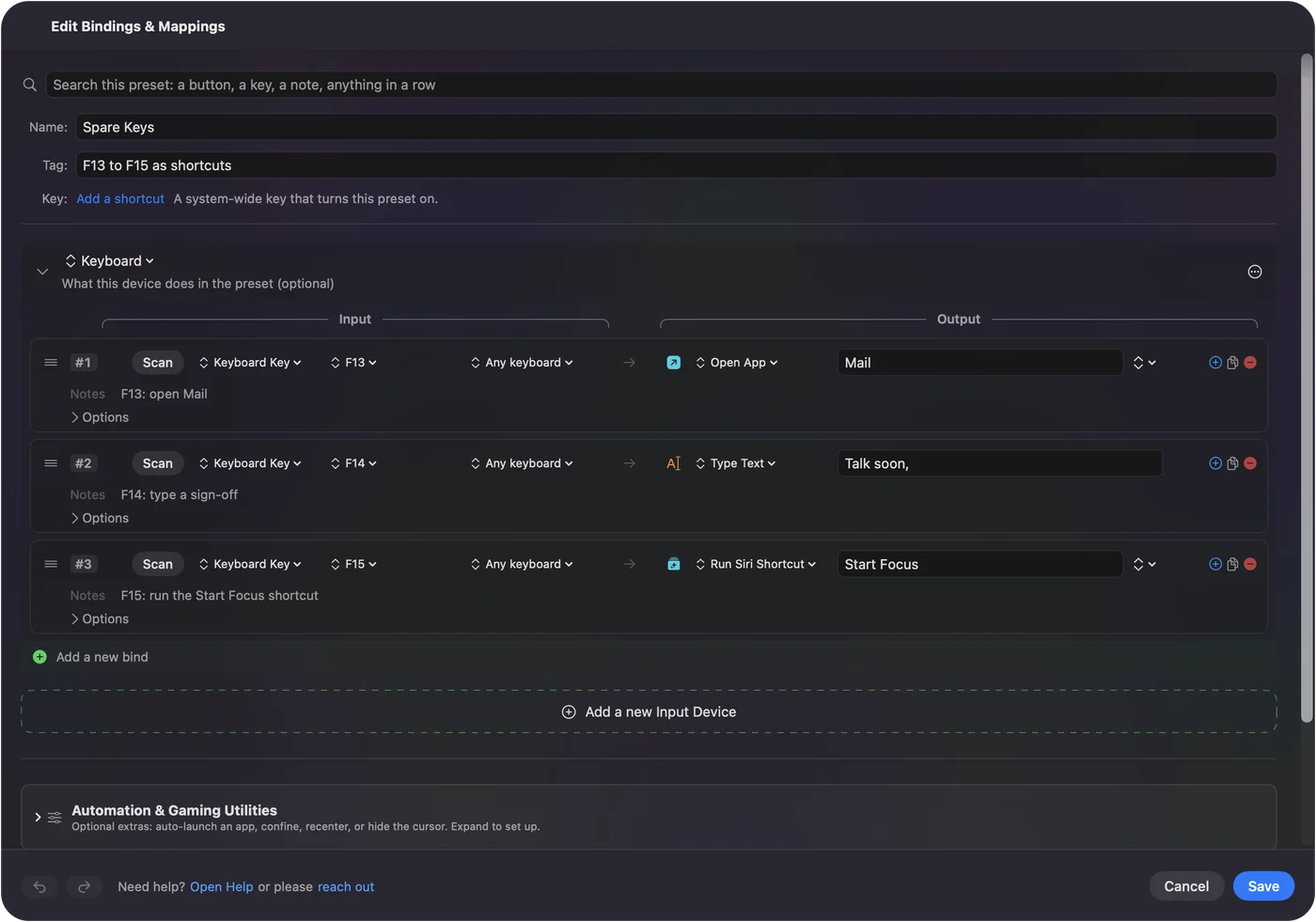
A shortcut on one button has the full steps and a table of shortcuts people put on buttons.
Do more than a shortcut can
This is where it gets fun. A key binding in macOS can only press other keys, and a row in InputConfig can do a lot more:
| One press that | How |
|---|---|
| Opens an app, or brings it to the front | System Function, Open App |
| Opens a website or a link | System Function, Open URL |
| Types your email address or a reply you send every day | Type Text |
| Copies, waits, then pastes | A macro, in the row's Options |
| Runs anything you built in the Shortcuts app | Run Siri Shortcut |
| Starts Dictation, opens Mission Control or takes a screenshot | System Function |
| Keeps undoing while you hold it | Repeat, in the row's Options |
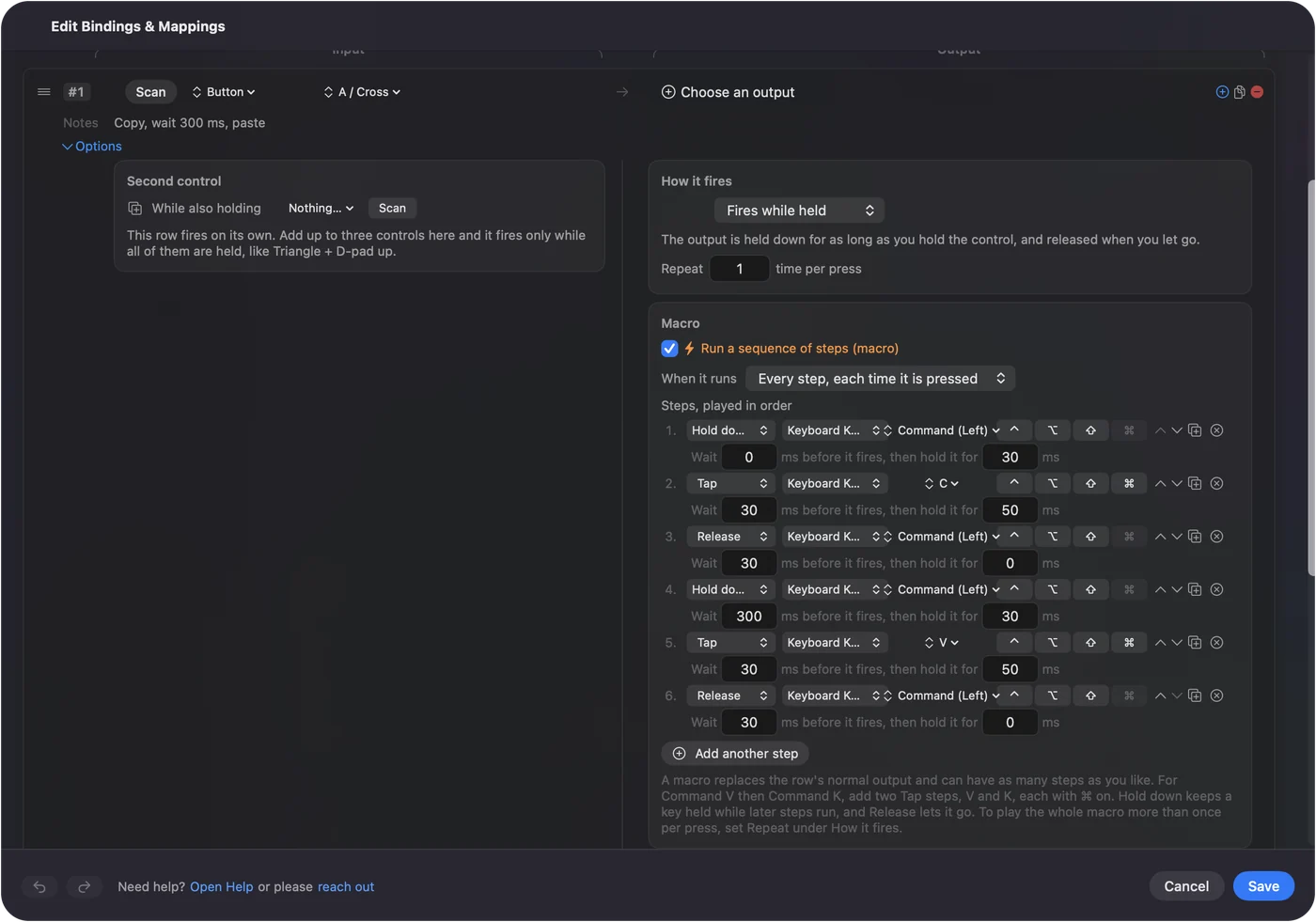
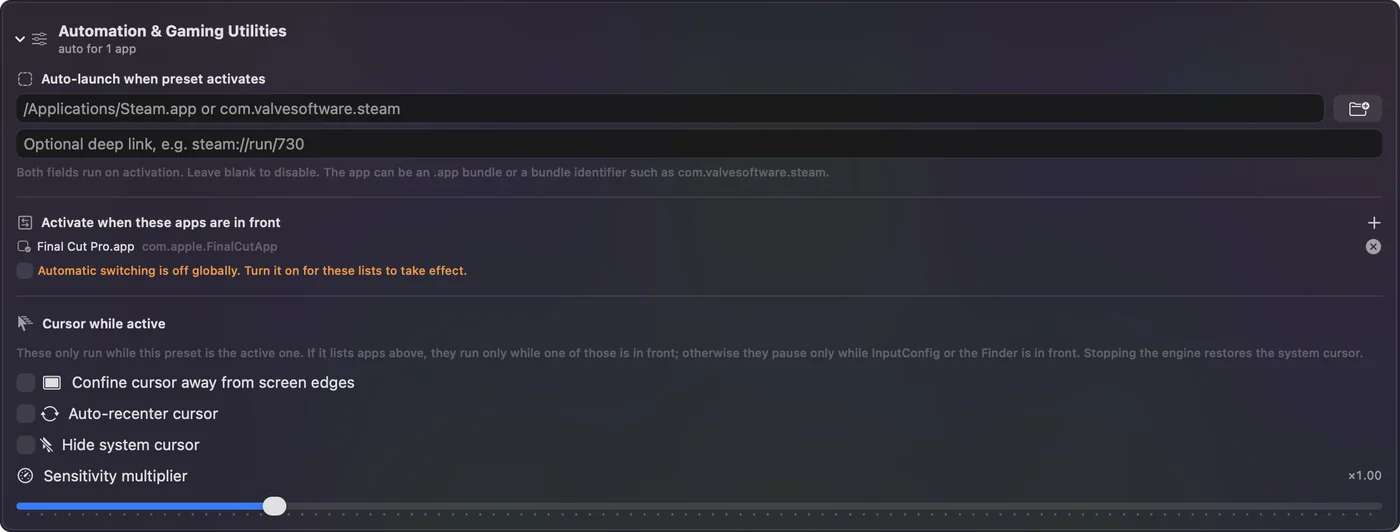
Each row can also have a hold action and a double-tap action, so one key carries three jobs: a tap undoes, a hold redoes, a double tap saves. The same key can even do a different job in each app, because a preset can switch itself in when that app comes to the front. See hold and double tap and per-app keyboard shortcuts.
If the new shortcut does nothing
Try these in order, smallest fix first:
- Look for the yellow warning sign. In Keyboard Shortcuts, it means another shortcut already uses those keys. Pick other keys or untick the other one.
- Check the menu name. An App Shortcut needs the exact menu title, three dots included.
- Check the app is not taking the keys. Some apps, games most of all, read keys before macOS does. Test in TextEdit or Notes first.
- For InputConfig, check Accessibility. It needs the Accessibility permission to press keys, in System Settings, Privacy & Security, Accessibility.
- Check the preset is running. Rows do nothing until you click Activate. Control Option Command period is the emergency stop, and it turns everything off.
What it cannot do
- It does not change the key itself. InputConfig adds a job and never removes one, so a letter key still types its letter. Use the spare keys above, or Karabiner-Elements for a true key-to-key swap.
- It does not tell two keyboards apart. Every keyboard reports to it as one device, so F13 is F13 on any of them.
- Some system shortcuts are fixed. macOS does not list Command Tab in Keyboard Shortcuts, so it cannot be changed there.
The short version
- Change a macOS shortcut. System Settings, Keyboard, Keyboard Shortcuts, then double-click it.
- A new shortcut for a menu command. Use App Shortcuts, with the exact menu name.
- A shortcut on one key, button, pedal or knock. Use an InputConfig row, which can also open apps, type text and run macros.
Start with F13 or a mouse side button, because a key that does nothing can take any job you give it.
Questions
How do I change a key binding on macOS?
Open System Settings, Keyboard, Keyboard Shortcuts, pick the group, double-click the shortcut and press the new keys. For a menu command, add it under App Shortcuts.
How do I turn off a keyboard shortcut on a Mac?
In System Settings, Keyboard, Keyboard Shortcuts, untick the box beside it. Restore Defaults puts a whole group back.
Can I make one key run a keyboard shortcut on a Mac?
Yes. InputConfig, a free app, puts a whole shortcut on one press of a spare key such as F13, a mouse side button, a foot pedal, a MIDI pad or a controller button.
Why does my new Mac shortcut not work?
Usually another shortcut uses the same keys, shown by a yellow warning sign, or an App Shortcut's name does not match the menu exactly. Some apps also read keys before macOS does.
Can a Mac shortcut open an app?
Not from Keyboard Shortcuts on its own. An InputConfig row with the Open App system function opens or brings forward any app from one key or button.
Related
This page in other languages: العربية, Čeština, Dansk, Deutsch, Español, Suomi, Français, עברית, Magyar, Bahasa Indonesia, Italiano, 日本語, 한국어, Norsk, Nederlands, Polski, Português, Русский, Slovenčina, Svenska, ไทย, Türkçe, Українська, Tiếng Việt, 繁體中文, 简体中文
Completely free. You don't have to make an account, there are no subscriptions, and nothing is locked. Optimized for Apple silicon. Open source on GitHub.
Updated