How to take a screenshot with a mouse button on a Mac
 InputConfig is completely free on the Mac App Store. You don't have to make an account, there are no subscriptions, and nothing is locked. Optimized for Apple silicon.
You can take a Mac screenshot with a mouse button, and the quickest way is to bind a button to the screenshot function in InputConfig, the free Mac app I make. One press brings up the same screenshot toolbar as Command Shift 5, and a second row can send Command Shift 4 for a dragged area. macOS has no setting that puts a screenshot on a mouse button by itself.
I would put the button on a side button or a thumb button, because both hands stay where they are and the pointer does not move.
On this page: 10 sections
The shortcuts a button has to press
Apple's page on screenshots, which I read on October 21, 2026, lists the shortcuts the button will press for you:
- Shift Command 3. The whole screen.
- Shift Command 4. A crosshair for dragging over an area. Press Space while the crosshair is up to switch to a window grab, and hold Option while you click to leave out the window's shadow.
- Shift Command 5. The Screenshot toolbar, with its Options menu for the timer, the save location, the floating thumbnail and the pointer.
- Control added to any of them. The picture goes to the clipboard instead of a file.
A mouse button does not need to learn any of this, because it only has to press the same keys for you.
Find out what your button sends
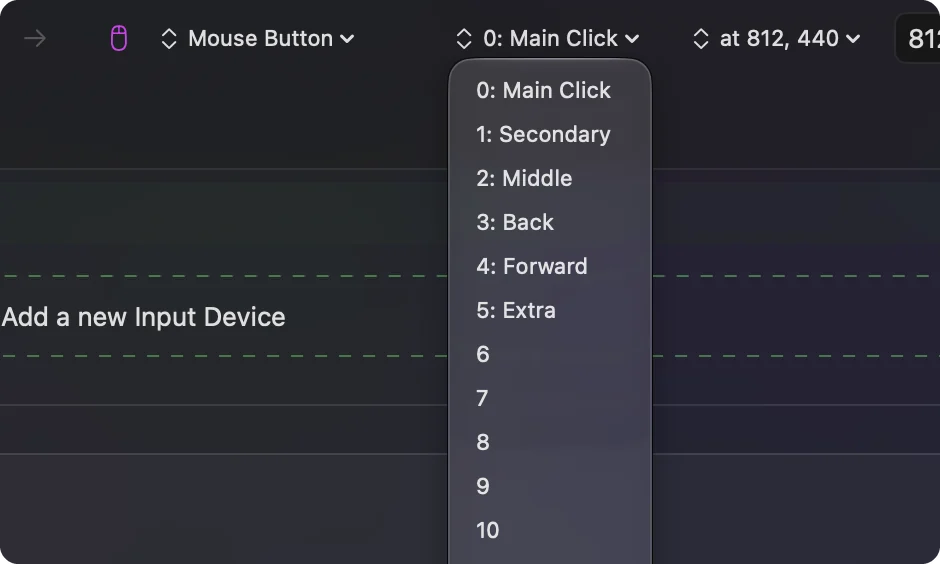
Press Scan on a row, then click the button, and the row names it. Here is how the usual buttons suit a screenshot:
| Button | How good it is | Why |
|---|---|---|
| Button 4 or Button 5 | Best | A thumb button, and the other hand can stay on the mouse for the drag. |
| Button 6 and higher | Best | Nothing else uses them, and a thumb grid has room for several screenshot kinds. |
| Middle click | Good | The wheel press. Block the original so it does not open a link in a new tab. |
| Left and right click | Avoid | They cannot be blocked and every ordinary click would take a picture. |
A button that scans as a key has to be set to F13 to F20 in the mouse maker's software first, and a DPI or profile button that sends nothing cannot be bound. If you are not sure what a button sends, press Scan and see.
Bind the screenshot
Step 1: The toolbar on one button
- You: Add a row, set the device to This Mac's mouse or trackpad and the input to Mouse, press Scan and click the button. Set the output type to System Function and pick the screenshot toolbar.
- InputConfig: Opens the Mac's screenshot toolbar each time the button fires.
- Check: Press the button. The bar with the capture buttons appears at the bottom of the screen.
Step 2: A dragged area on another button
- You: Add a second row for another button. Set the output to Keyboard Key and pick Command under the modifiers, click the plus button and add Shift, click it again and add 4.
- InputConfig: Presses the three keys together and the crosshair appears.
- Check: Press the button, drag across the screen with the left button, and a picture lands on the desktop with a thumbnail in the corner.
Choose where the picture goes
The row decides when the picture is taken, and macOS decides where it goes. Adding Control to the chord sends the picture to the clipboard, which is useful when you are going to paste it into a message. You can also change the save folder in the toolbar's Options menu. Here is the setup I would try:
- Button 4. Shift Command 4, a dragged area, saved as a file.
- Button 5. Control Shift Command 4, a dragged area copied to the clipboard.
- A thumb button. The screenshot toolbar, for a timer, a window or a recording.
One button for a window grab
A window picture is Shift Command 4, then Space, then a click. A macro can send the first two for you. In the row's Options, tick Run a sequence of steps (macro), then add a step that taps Shift Command 4, a second step that waits a moment and taps Space, and finish with the click yourself.
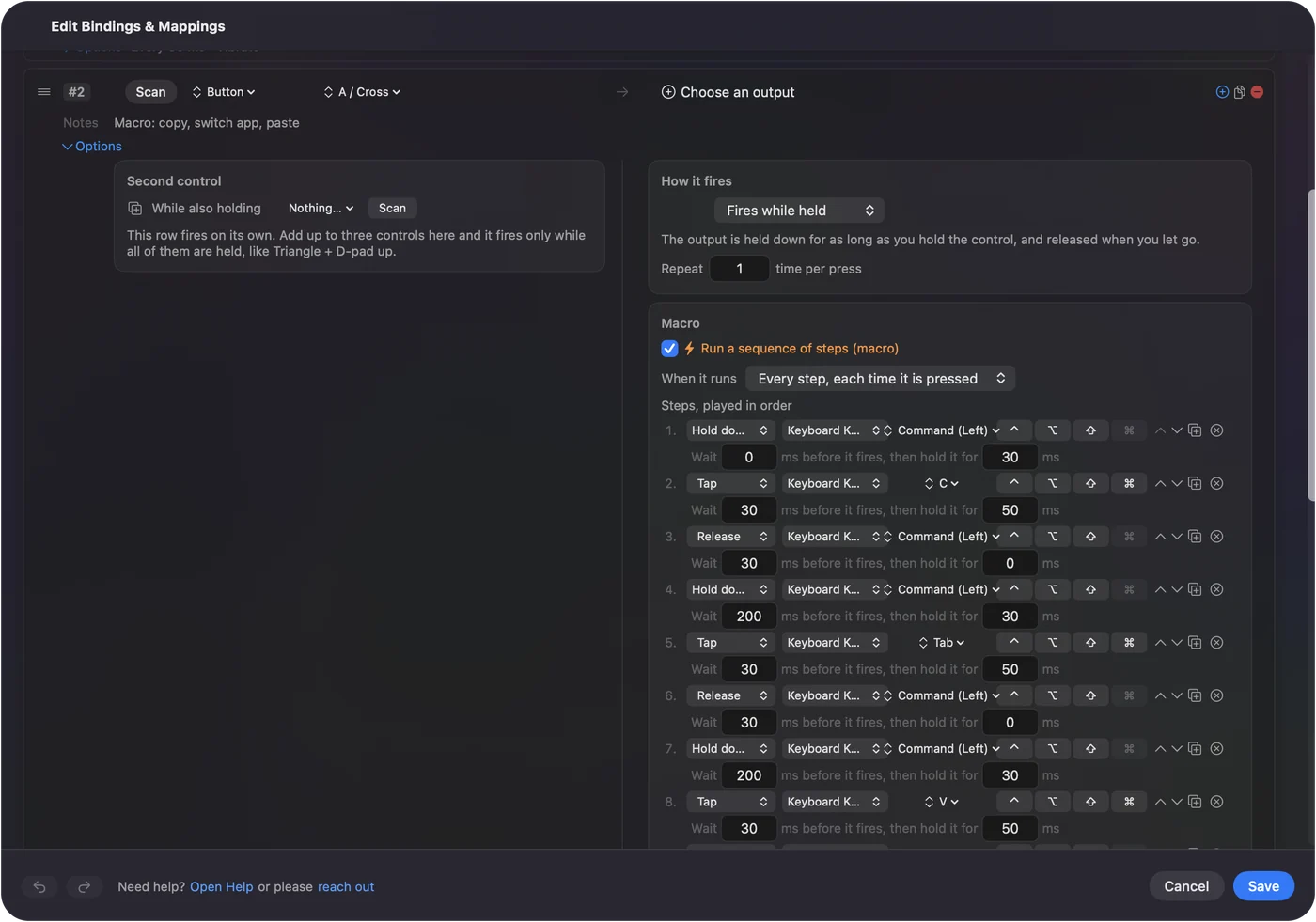
I would give the macro its own button, because a row that runs a macro cannot also carry a hold or a double tap. Wait long enough that the crosshair is on screen before the Space step fires.
Use hold and double click for more kinds
One button can carry three jobs. In Options, Extra actions lets a press do one thing and a hold do another: a tap on Button 5 can be a dragged area, and a hold past about 400 ms can open the toolbar. A double tap can take the whole screen, but a double tap makes the single press wait for the window to close, so I would keep the window short. See double click and hold actions on a mouse button.
If the screenshot does nothing
Climb this ladder, smallest step first:
- Press the keys on the keyboard. If Shift Command 4 does nothing there, check System Settings, Keyboard, Keyboard Shortcuts, Screenshots.
- Check the preset is on. Rows do nothing until you click Activate, and InputConfig needs Accessibility in System Settings, Privacy & Security.
- Check the button scans. If Scan shows a key, move that button to F13 to F20 in the maker's software.
- Look in the right place. A picture taken to the clipboard saves no file, and the save location may have been changed in the toolbar's Options.
- Watch for the thumbnail. The floating thumbnail holds the picture for a few seconds, and you can click it to mark it up.
What it cannot do
- Replace the dragging. A drag still uses the left button, so the screenshot button must not be the left button.
- Change the file format. The format and the folder belong to macOS and the Screenshot toolbar.
- Tell two mice apart. Every mouse and trackpad counts as one.
- Read a private button. A DPI button that never reaches the Mac has nothing to scan.
The short version
- The toolbar. A System Function row opens the Command Shift 5 bar.
- An area. A Keyboard Key row with Shift Command 4.
- The clipboard. Add Control to the chord.
An area on Button 4 and the clipboard version on Button 5 covers most days.
Questions
How do I take a screenshot with a mouse button on a Mac?
Bind a button to the screenshot toolbar system function in InputConfig, or to Shift Command 4 for a dragged area. macOS has no mouse button setting for it.
What is the Mac screenshot shortcut for an area?
Shift Command 4 shows a crosshair you drag over the area. Shift Command 5 opens the Screenshot toolbar, and Shift Command 3 takes the whole screen.
How do I copy a screenshot to the clipboard instead of saving it?
Add Control to the shortcut, such as Control Shift Command 4. The picture is copied and no file is saved.
Can one mouse button take a window screenshot?
Yes, with a macro that taps Shift Command 4 and then Space. You still click the window yourself.
Related
This page in other languages: العربية, Čeština, Dansk, Deutsch, Español, Suomi, Français, עברית, Magyar, Bahasa Indonesia, Italiano, 日本語, 한국어, Norsk, Nederlands, Polski, Português, Slovenčina, ไทย, 繁體中文, 简体中文
Completely free. You don't have to make an account, there are no subscriptions, and nothing is locked. Optimized for Apple silicon. Open source on GitHub.
Updated