How to take a screenshot on a Mac with a controller
 InputConfig is completely free on the Mac App Store. You don't have to make an account, there are no subscriptions, and nothing is locked. Optimized for Apple silicon.
On a PlayStation or Xbox controller, the Share or Create button can already take a Mac screenshot: macOS has that built in for controllers it recognizes. To put a screenshot on any other button, or on a mouse button, a MIDI pad or a foot pedal, bind it in InputConfig.
I make InputConfig, a free Mac app that maps controllers and other inputs to anything on a Mac.
Steps
- Try the Share, Create or Capture button first. macOS may already take a screenshot with it.
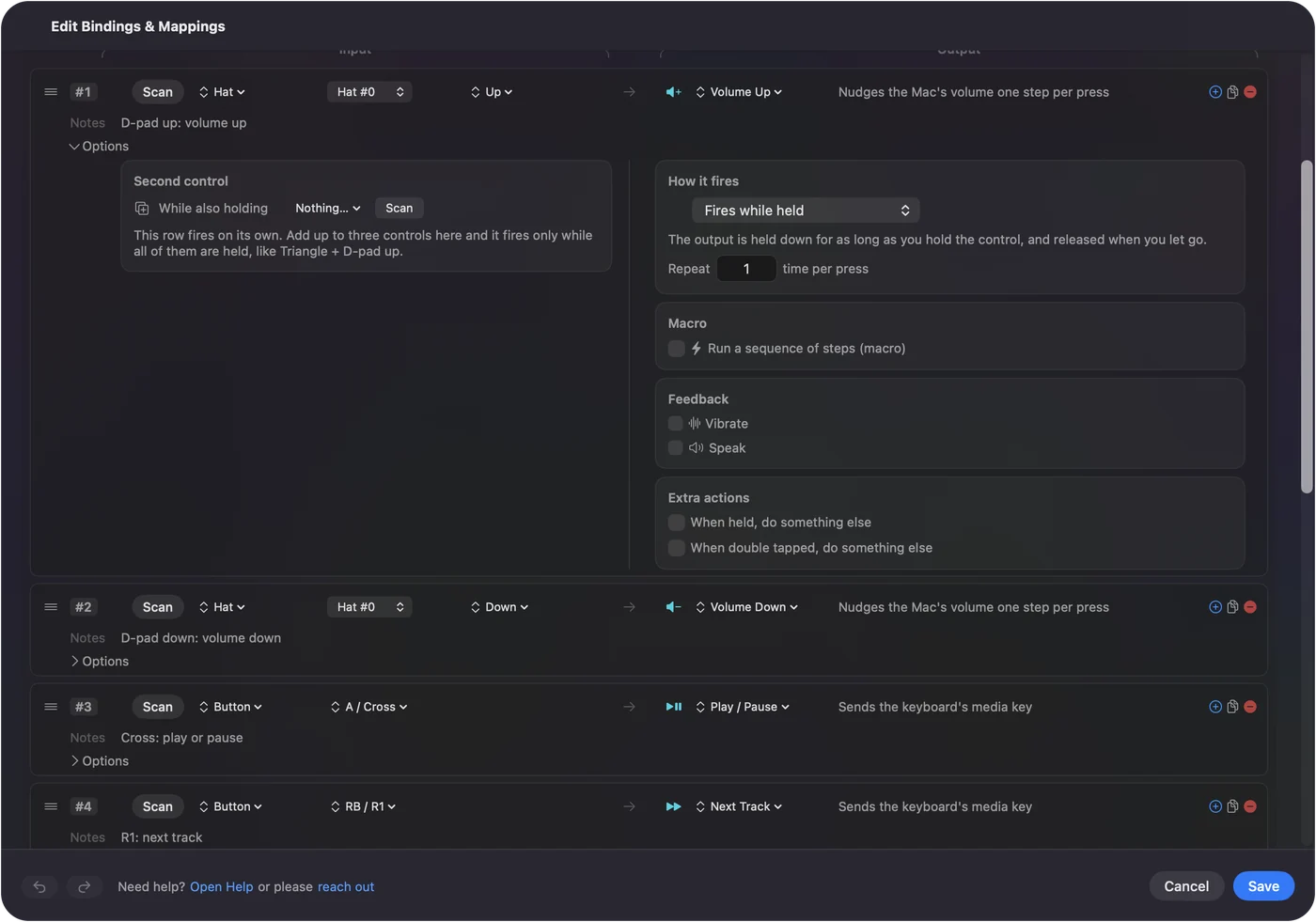
- For another button, open a preset in InputConfig and click Edit.
- Add a row, press Scan and press the button.
- Set the output to System Function and pick the screenshot toolbar, or send Shift Command 3 as a keyboard shortcut.
- Click Save, then Activate.
Use the button macOS already gives you
macOS takes a screenshot from a supported controller's Share, Create or Capture button, and a longer press records the screen. The options are on the controller's page in System Settings, Game Controllers. InputConfig leaves that button alone unless the running preset uses it.
The PS5 Create button page covers that button in detail.
Put a screenshot on any button
There are two ways, and they do different things.
- The screenshot toolbar. It is a System Function. It opens the same toolbar as Shift Command 5, where you choose a window, an area or a recording.
- A keyboard shortcut. Send Shift Command 3 for the whole screen at once, or Shift Command 4 to drag an area.
Shift Command 3 is the one to bind if you want a screenshot with no second step.
Copy it instead of saving it
Add Control to either shortcut and the screenshot goes to the clipboard and no file is saved. So Control Shift Command 3 on a button gives you a screenshot ready to paste.
What it cannot do
Some games and video apps block screenshots of their own windows, and no button changes that. A screenshot shortcut that you turned off in System Settings, Keyboard, Keyboard Shortcuts does nothing from a button either.
The short version
- Already there. Share, Create or Capture on a supported controller.
- Any button. The screenshot toolbar as a System Function, or Shift Command 3 as a shortcut.
- To the clipboard. Add Control.
Questions
Can I take a Mac screenshot with a PS5 controller?
Yes. macOS takes a screenshot from the Create button on its own. InputConfig can also put a screenshot on any other button.
How do I screenshot on a Mac without the keyboard?
Bind a controller button, a mouse button or a foot pedal to the screenshot toolbar system function in InputConfig, or to the Shift Command 3 shortcut.
Can a button record the screen?
The screenshot toolbar has the recording choices, so a button that opens it gets you there. On a supported controller, a longer press of Share or Create starts a recording in macOS.
Related
Completely free. You don't have to make an account, there are no subscriptions, and nothing is locked. Optimized for Apple silicon. Open source on GitHub.
Updated