How to use the controller buttons a Mac game ignores
 InputConfig is completely free on the Mac App Store. You don't have to make an account, there are no subscriptions, and nothing is locked. Optimized for Apple silicon.
A Mac game with controller support uses the sticks, the triggers and the main buttons, and usually ignores the rest: Share or Create, the DualSense Mute button, the touchpad, and an Edge's or Elite's back paddles. InputConfig can give each of those a job, such as a screenshot or a push-to-talk key, while the game keeps reading the controller as normal.
I make InputConfig, a free Mac app that maps a controller to keys and mouse. It listens to the controller alongside the game. It does not take the controller away from the game, and that is what makes this work.
Steps
- Find a button the game ignores, such as Share, Mute, the touchpad or a back paddle.
- In InputConfig, make a new preset and click Add a new bind.
- Press Scan and press the spare button.
- Pick what it sends, such as a screenshot.
- Click Activate and go back to the game.
Bind only what the game does not use
InputConfig does not hide the controller from a game. A button you bind still reaches the game too, so if the game uses that button, both things happen. The rule is simple:
- Bind. Buttons the game ignores.
- Leave alone. Everything the game already uses.
Start from an empty preset and add one row per spare button.
Find your spare buttons
- Share or Create. Many Mac games do nothing with it.
- The DualSense Mute button. Most apps ignore it.
- The touchpad. Few Mac games read it. It can be one button, or tap zones that each do a job.
- Back paddles and FN buttons. On a DualSense Edge, most Mac games ignore them.
To check a button, press it in the game and see whether anything happens.
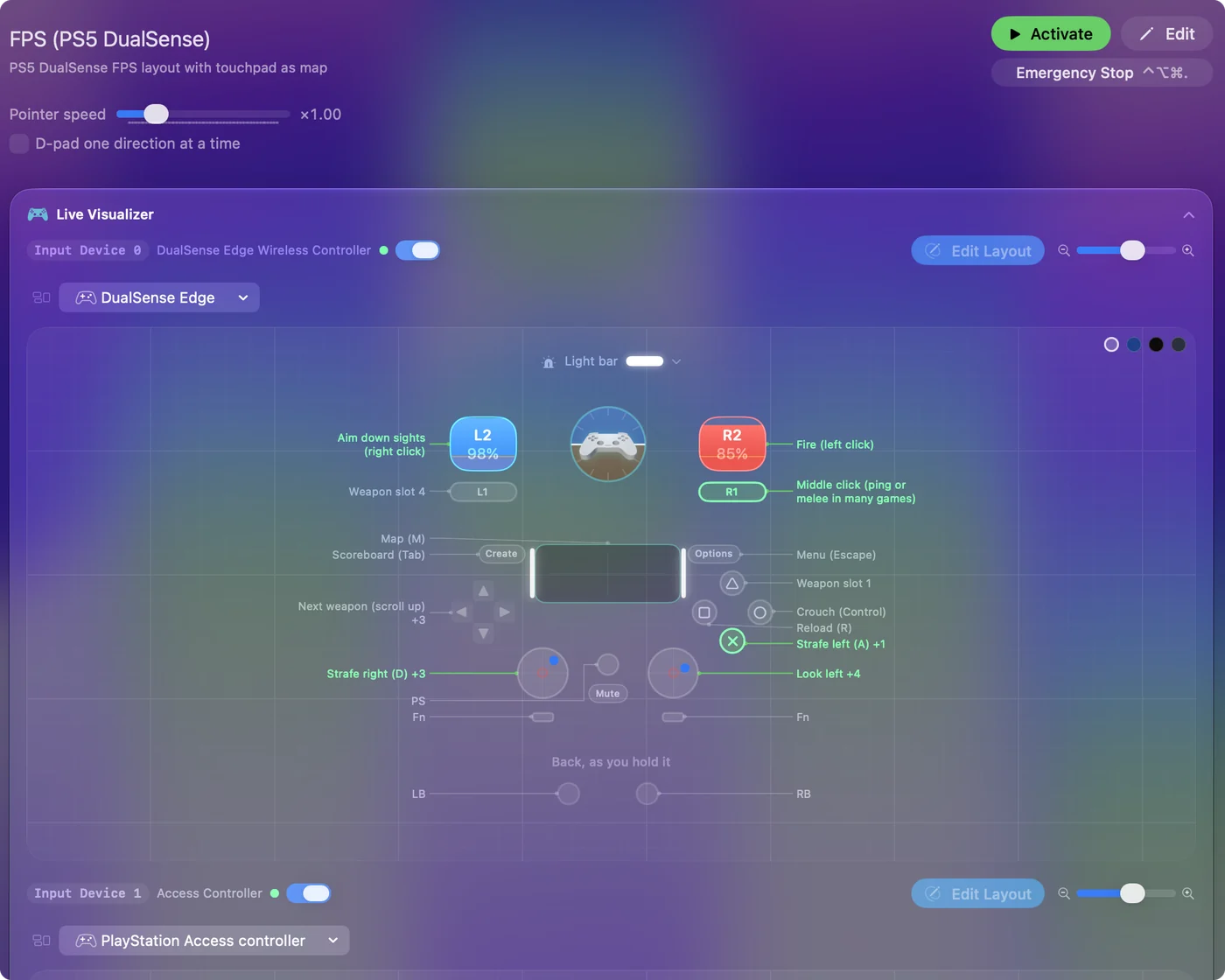
Add a row for each one
- You: Make a new preset. Click Add a new bind, press Scan, and press the spare button. Pick what it sends.
- InputConfig: Sends that output whenever you press the button, in the game or anywhere else.
- Check: Click Activate, go back to the game, and press it.
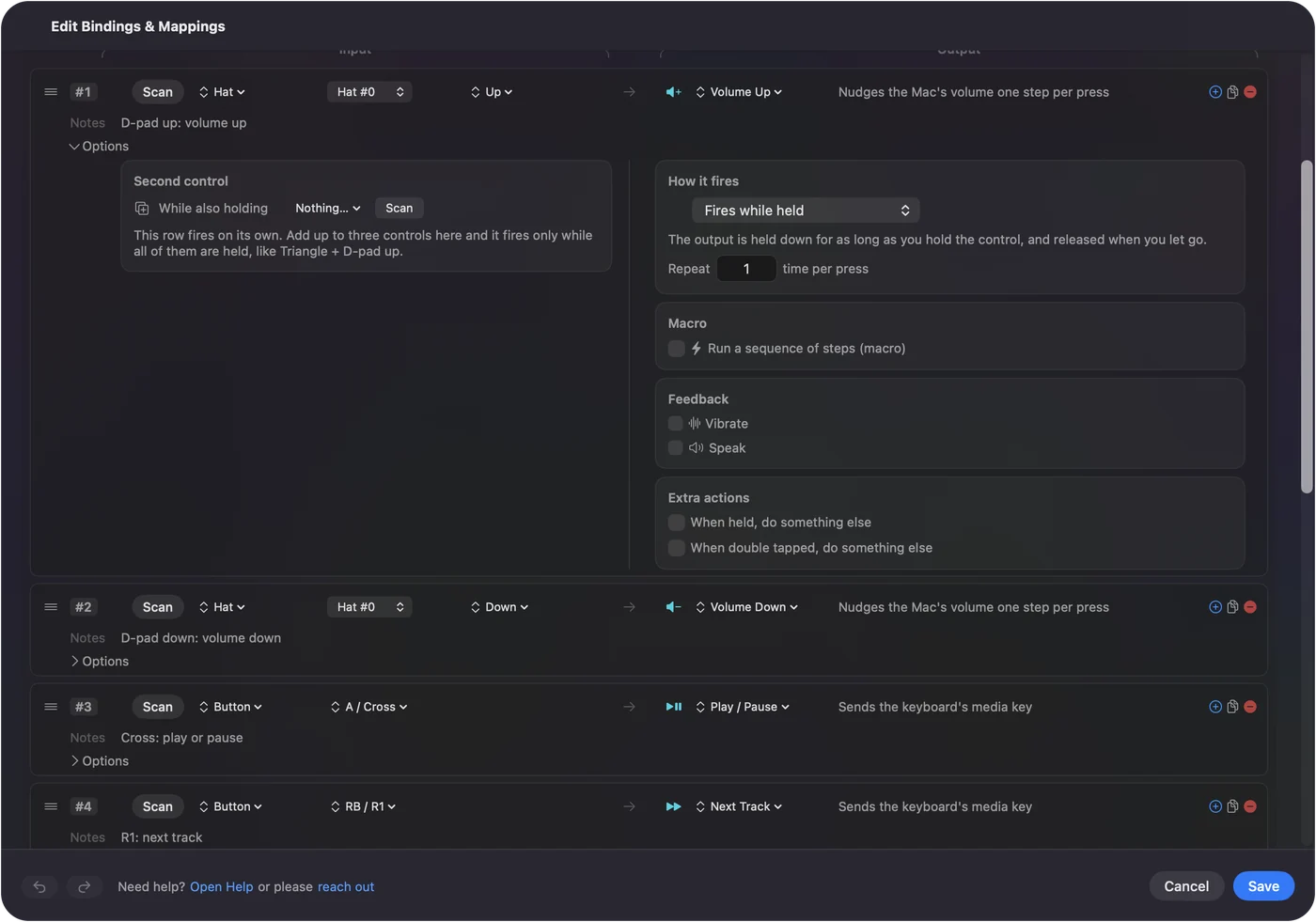
Ideas that work well
- A screenshot. See take a screenshot with a controller.
- Volume and music. See volume from a controller.
- Mute in a voice chat. See a physical mute button.
- A key the game only takes from the keyboard. Such as a quick save or a map key.
Turn it on only for that game
List the game under Activate when these apps are in front, and turn on automatic preset switching in Settings, Advanced. The spare buttons then do their jobs in the game and go quiet when you leave. Per-app switching has the steps.
What it cannot do
It cannot change what a button does inside the game, and it cannot stop the game from seeing a button. For a game that reads the controller itself, use the game's own settings to rebind its buttons. InputConfig adds jobs to the buttons the game leaves free.
The short version
- The game keeps the controller. InputConfig listens alongside it.
- Bind the spare ones. Share, Mute, touchpad, paddles.
- Leave the rest. Or both the game and the Mac will react.
The buttons a game ignores are free buttons.
Questions
Can I use the Share button for a screenshot while playing a Mac game with a controller?
Yes. Bind the Share or Create button to the screenshot system function in InputConfig. The game keeps reading the controller, and the button takes the screenshot.
Does InputConfig block the controller from the game?
No. It listens to the controller alongside the game. Bind only the buttons the game ignores, or both will react to the same press.
Can I use the DualSense Mute button on a Mac?
Yes. Most apps ignore it, and InputConfig can bind it like any other button.
Can I change what a button does inside the game?
Not with InputConfig when the game reads the controller itself. Use the game's own controller settings for that.
Related
Completely free. You don't have to make an account, there are no subscriptions, and nothing is locked. Optimized for Apple silicon. Open source on GitHub.
Updated