Questions
A physical mute button for video calls on a Mac
Give any button your call app's mute shortcut: every call app on the Mac already has one, so the button only has to press it. A mute button you can find without looking is worth more than any setting in a call app.
I make InputConfig, a free Mac app that turns a game controller button, a foot pedal, a MIDI pad, a mouse side button or even the DualSense's own microphone button into that press. Here is the shortcut for each app, the one catch that trips everyone up, and the hardware that makes a good button.
On this page: 9 sections
Steps
- Find your call app's mute shortcut in the table below.
- In InputConfig, add a row, press Scan and press the button you want.
- Set the row's output to that app's mute shortcut.
- In Zoom or Discord, turn on the global shortcut option; in other apps keep the call in front.
- Activate the preset and press the button once to check the microphone icon.
Find the mute shortcut for your app
| App | Mute and unmute | Works when the app is not in front? |
|---|---|---|
| Zoom | Command Shift A (video: Command Shift V) | Yes, once you tick Enable Global Shortcut next to it in Zoom's settings, Keyboard Shortcuts |
| Microsoft Teams | Command Shift M (camera: Command Shift O) | Not that I can find; keep the meeting window in front |
| Google Meet | Command D (camera: Command E) | No, the Meet tab needs to be the front tab of the front browser window |
| Slack huddles | Command Shift Space | No, Slack needs to be in front |
| Discord | Command Shift M (deafen: Command Shift D) | Yes, once you add the same keys under Settings, Keybinds |
These are each app's defaults as their makers list them. If you changed a shortcut inside the app, use yours.
FaceTime has no mute key that I can point to, so a button there can only click the microphone control on screen: a Mouse Button output can click at a fixed point, chosen from its click menu, but it misses the moment the window moves. For FaceTime, the button on the screen is the honest answer.
 InputConfig is free on the Mac App Store. macOS 14 or later, no account, no tracking, open source.
Know the catch: most call apps listen only while in front
A keyboard shortcut goes to the app in front. If you are taking notes in Pages while a Teams call runs behind it, Command Shift M reaches Pages, not Teams.
- Zoom and Discord. They offer a global option, so the button works from any app.
- Teams, Meet and Slack. Keep the call window in front, or click it first.
- A toggle, not a state. InputConfig sends the same toggle as the app's shortcut. It cannot tell if you are muted, so glance at the app's microphone icon after the first press of a call.
This is a limit of the call apps, not of the button, and it is the usual reason a mute button seems to work only some of the time.
Pick a button
- The DualSense microphone button. Every DualSense has one under the PS button. On a Mac it does nothing by default, and InputConfig can bind it like any other button.
- Any controller button. An Xbox, Switch Pro, 8BitDo or Joy-Con button works the same. A back paddle on an Edge or Elite is good because nothing else uses it.
- A foot pedal. A pedal that sends F13, a sustain pedal on a MIDI keyboard, or a switch on an adaptive controller. Hands stay on the keyboard. The foot pedal page says which pedals work.
- A MIDI pad. A pad types nothing on its own, so every pad is free for a shortcut.
- A mouse side button. Add a row with the Mouse input and press the side button. In the row's options, turn on Block the button's own action so it does not also go Back in a browser while the preset runs.
- A double tap on the MacBook. Tap the Mac turns a knock on the case into a button. It was tested on M4 MacBooks and did not work on an M1 Pro in our testing; the calibrator's status chip tells you whether yours can.
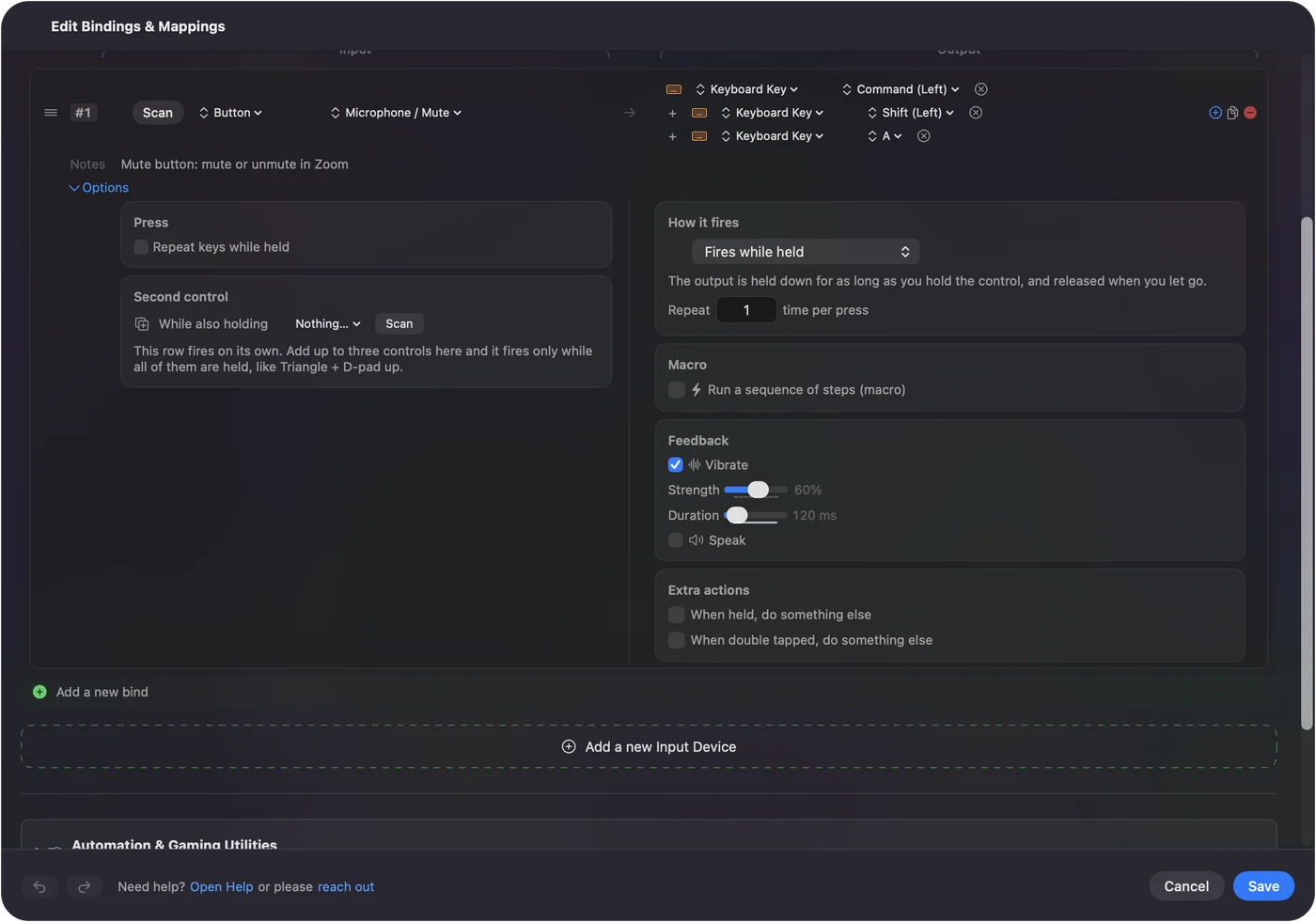
The DualSense's mute button finally does what it looks like it should.
Use one button for every call app
Teams wants Command Shift M and Meet wants Command D, but you only want one button.
- You: Make a small preset per call app with the same button bound to that app's shortcut, and list the app under Activate when these apps are in front. For Meet, list your browser. Then turn on Switch presets when the front app changes in Settings, Advanced.
- InputConfig: Lets the call app's preset take over when the app comes to the front, and brings back the preset you had before when you leave it.
- Check: Switch to Teams and press the button, then switch to the browser with Meet and press it again. Each call mutes.
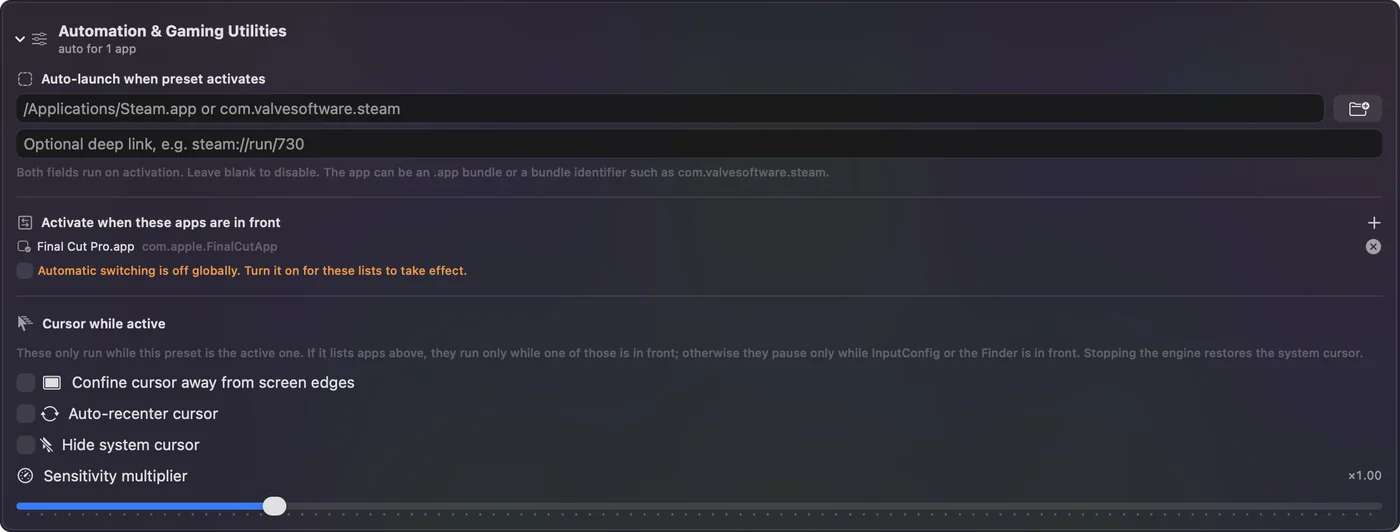
Copy the mute row into your other presets too, and the button works everywhere you are, without losing a game or desktop layout.
Feel and hear the press
- A rumble. A shortcut gives no feedback. A short rumble on the mute row, set under Feedback in the row's Options, gives the click a hardware switch would.
- A spoken word. Spoken feedback can say a word on each press, through the Mac's sound output, which can be a DualSense's own speaker. Pick a neutral word such as "mic", since the row toggles and cannot know which way it went.
A buzz on every press tells you it landed without looking away from the call.
If the button does not mute
Climb this ladder, smallest step first:
- Bring the call to the front. In Teams, Meet and Slack the shortcut only reaches the call while it is in front.
- Turn on the global option. In Zoom, tick Enable Global Shortcut; in Discord, add the keys under Settings, Keybinds.
- Check the shortcut. If you changed it inside the app, the row has to send yours.
- Allow Accessibility. Without it no app can press keys for you. The menu bar icon turns orange when a running preset needs it.
Check that the call window is in front before anything else.
The short version
- The shortcut. Zoom Command Shift A, Teams and Discord Command Shift M, Meet Command D, Slack Command Shift Space.
- The button. The DualSense mic button, a pedal, a pad or a side button.
- The catch. Only Zoom and Discord listen from behind; keep the others in front.
A button you can find with your eyes closed is the whole point.
Questions
Does macOS have a system-wide microphone mute shortcut?
Not one that call apps follow. Each app has its own mute shortcut, which is why a mute button has to send the right one for the app you are in.
Can the PS5 controller's mute button mute Zoom on a Mac?
Yes, with InputConfig. Bind the DualSense microphone button to Command Shift A and tick Zoom's global shortcut option, and it mutes Zoom from any app.
Why does my mute button work in Zoom but not in Teams?
Zoom can make its mute shortcut global and Teams cannot, so Teams needs its meeting window in front when you press the button.
Can one button be push to talk instead?
Yes. A row holds its key down for as long as you hold the button, so it works with Zoom's hold Space to talk and with Discord's push-to-talk key.
Is InputConfig free?
Yes, free on the Mac App Store, with no account and nothing sent off your Mac.
Related
Free. macOS 14 or later. No account, nothing leaves your Mac. Open source on GitHub.