How to use a Kensington trackball on a Mac
 InputConfig is completely free on the Mac App Store. You don't have to make an account, there are no subscriptions, and nothing is locked. Optimized for Apple silicon.
Yes, a Kensington trackball works on a Mac as a plain pointing device with nothing installed, and Kensington's own app, KensingtonWorks, adds button jobs, chords, scrolling options and single axis movement. The Expert Mouse, the SlimBlade Pro and the Orbit are all sold as Mac and PC trackballs. What a Mac does not do on its own is give the buttons new jobs.
I make InputConfig, a free Mac app that reads whatever buttons your trackball sends to macOS and lets each one run a shortcut, a macro, an app or a system function. It runs alongside KensingtonWorks, so you can use both.
On this page: 11 sections
Steps
- Plug in or pair the trackball and move the ball to check that the pointer follows it.
- Download KensingtonWorks from Kensington if you want its own button, chord and scrolling settings.
- Open InputConfig, add a row, choose This Mac's mouse or trackpad as the input device, press Scan, and press a trackball button.
- Pick what the button sends, such as a shortcut, a macro, Mission Control or an app.
- Click Save and Activate, then press the button in an app to check it.
- If a button never scans, set it to an F13 to F20 key in KensingtonWorks and scan that instead.
Know what works with nothing installed
Kensington sells these trackballs for Mac and PC, so I expect each to present itself to a Mac as an ordinary mouse. The ball moves the pointer, the two big buttons click, and the scroll ring or the twist of the ball scrolls. That is enough to work all day, and many people never install anything.
- The Expert Mouse. Retailers and Kensington describe four buttons and a scroll ring around the ball, in wired and wireless versions. The wireless one connects over Bluetooth or a 2.4 GHz dongle.
- The SlimBlade Pro. It has a 55 mm ball that you twist to scroll, four buttons, and Bluetooth, 2.4 GHz or wired connections, with a rechargeable battery that charges over USB-C.
- The Orbit. It is the small one, with two buttons and a scroll ring. Kensington's listings say it is for Mac and PC.
KensingtonWorks is the free software for all of this. I read Kensington's KensingtonWorks page on October 21, 2026. It lists macOS 10.14 Mojave through macOS 15 Sequoia, a separate legacy download for older systems, and features that include assigning a key combination or a preset function to a button, assigning a shortcut to two buttons pressed at once, locking pointer movement to one axis, scrolling speed and direction, an inertial scroll option and settings per application. The page does not name each trackball model, so check that your model is supported before you buy.
You may also meet TrackballWorks in old search results and manuals. It was Kensington's earlier software, and Kensington's January 2020 announcement says KensingtonWorks replaces it and covers all Kensington trackballs and mice. A current trackball uses KensingtonWorks. Kensington's KensingtonWorks page also says it is transitioning to Kensington Konnect, with a beta for mice and trackballs, and its software page lists Konnect for Trackballs and Mice for macOS 13 and above, naming the Expert Mouse TB800 EQ. I read these pages on October 21, 2026. Some older product listings still mention TrackballWorks for the Mac, so check which program your model's own support page names. The trackball works without KensingtonWorks, and the software only matters for the extras.
Find out what each button sends
Press Scan in InputConfig and press the button. A button that reaches macOS as a mouse button shows up by number, and one that does not reach macOS shows up as nothing. The layouts differ, so here is how I would expect each control to behave and what to check.
| Control | What to expect | What to check |
|---|---|---|
| The two large buttons | Left click and right click | They scan as Left click and Right click. These two can be bound, but not blocked. |
| The other buttons on the Expert Mouse and SlimBlade Pro | Usually Middle click or higher button numbers | Scan each one. The number that arrives depends on the model and on what KensingtonWorks has assigned. |
| The scroll ring or the twisted ball | Scrolling | It reaches the Mac as scrolling, so it can be a scroll input, and it keeps scrolling at the same time. |
| A chord, two buttons pressed together | Handled in KensingtonWorks | If KensingtonWorks assigns the chord a key, scan that key. Otherwise nothing arrives. |
I have not tested every Kensington model, so treat the middle column as a starting point and trust Scan. The mouse tester shows every button the Mac receives, in a browser, and the Live Visualizer in InputConfig does the same with its Mouse template. If neither one sees a button, that button talks only to KensingtonWorks.
Give a button a job
- You: Install InputConfig from the Mac App Store and allow Accessibility. Make a preset, add a row, choose This Mac's mouse or trackpad as the input device, press Scan, and press the button you want.
- InputConfig: Records the button as Middle click, Button 4 or whichever number arrived, and waits for you to choose the output.
- Check: Choose a Keyboard Key such as Command W, click Save and Activate, then press the button in an app. The shortcut runs.
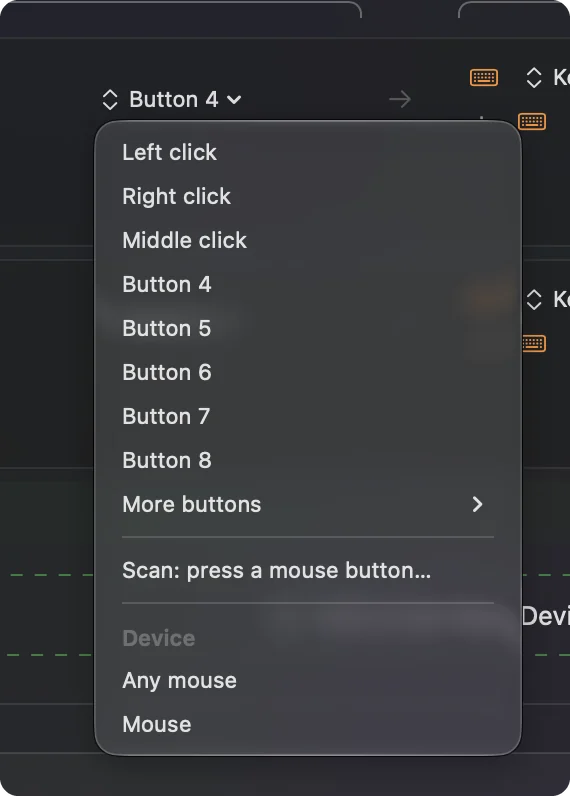
A button above Button 8 is under More buttons in the menu, which goes up to Button 32. If your trackball sends one of those, Scan finds it for you.
Run several steps from one button
A trackball is a tool for long sessions, so the jobs that pay back are the ones you repeat. Open the row's Options and tick Run a sequence of steps (macro). Each step is a key, a shortcut or a click, with its own wait and hold time. A few that suit a trackball:
- Copy, wait, paste. Command C, a short wait, then Command V, on the button under your ring finger.
- Screenshot to clipboard. A shortcut step, then a wait for the Mac to finish.
- Close and go back. Command W, then Command Shift Tab, to close a tab and land on the one before it.
If a key is dropped, lengthen that step's wait. How to make a macro on a Mac has the full steps. A trackball leaves one hand free, so a macro on one button saves the other hand a reach.
Use hold, double click and the block option
A trackball has few buttons, so each one has to carry more than one job. Every row can have a hold action and a double tap action, each a full second output, and a Mouse row of the kind Double click fires on the second click of a pair.
- Hold. A tap on a side button goes Back, and holding it past the time you set sends Command W.
- Double click. A single click on the middle button stays a click, and a double click opens Mission Control.
- While also holding. A second control in the row makes a combo of the button and another control, held together.
- Block the button's own action. For the middle button and the side buttons, tick it in the Press box so apps stop seeing that button while the preset runs. Left and right click cannot be blocked.
- Per app. A preset can list the apps it belongs to, and with Switch presets when the front app changes turned on in Settings, Advanced, the layout follows the app in front.
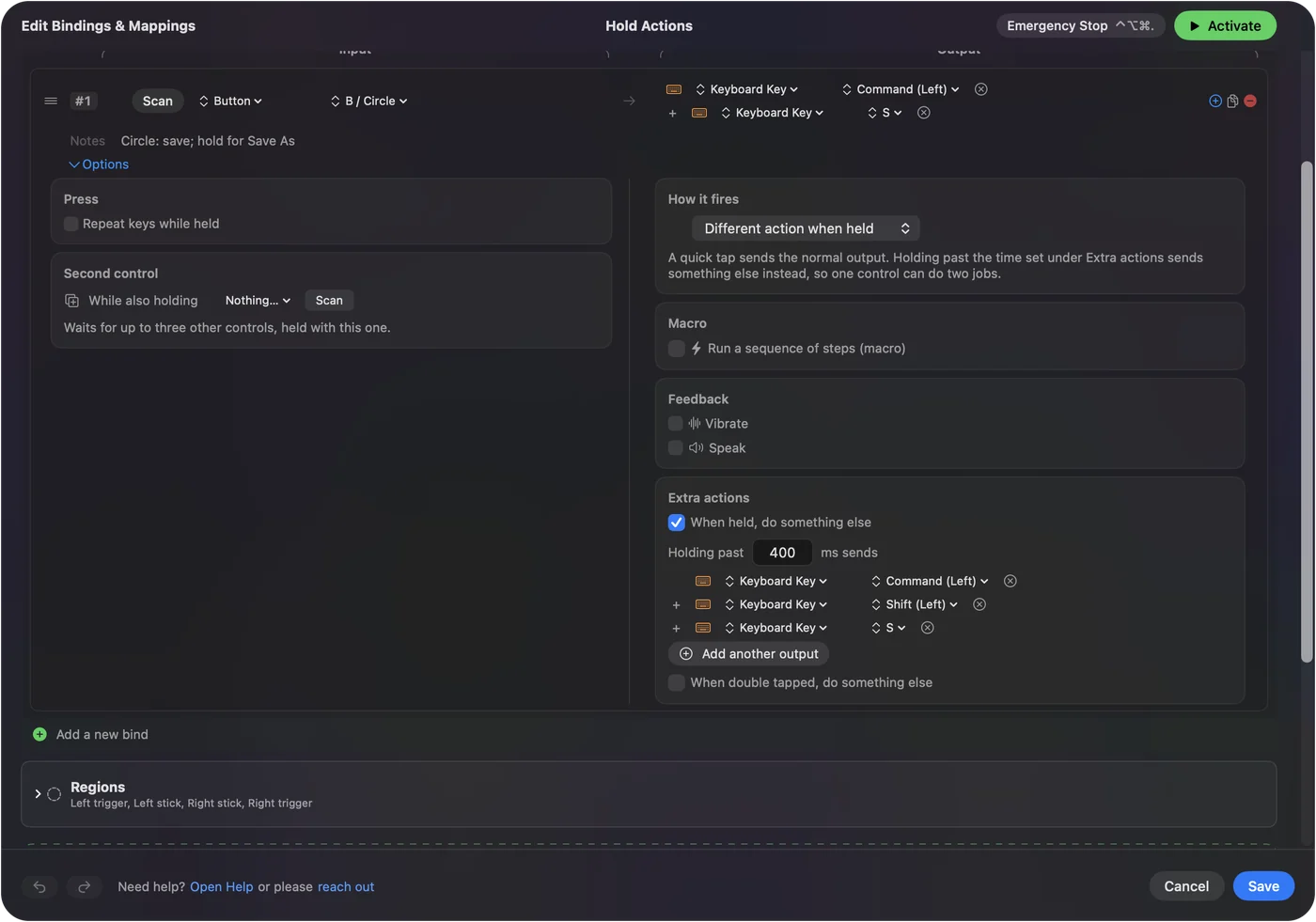
Kensington's chords are a good partner to these. A chord gives you a button that does not exist, and a hold gives each real button a second job. Between them, four buttons can cover a dozen jobs.
Ideas for people who use a trackball
- Hands that need to stay still. A trackball does not move, so the forearm can rest while the thumb or fingers steer. If you have a tremor or limited range, a button that holds a drag is a big help, and drag lock on a Mac shows how to build one.
- Editing. Put Undo on one button and Redo on its hold, with a double click for Save, so the other hand stays on the keys.
- Browsing. Back and Forward on the side buttons, with Block the button's own action on, so a browser does not go back twice.
- Spreadsheets and timelines. The scroll ring covers vertical scrolling, and a macro that holds Shift can cover sideways.
For the wider picture, the trackball guide compares thumb and finger designs, and mouse alternatives for carpal tunnel and RSI covers the rest of the hardware. I am not a clinician, and a trackball is not a cure for pain. If it hurts, see someone who can examine your hands.
If a button does nothing
Climb this ladder, smallest step first:
- Watch it arrive. Open the Live Visualizer, pick Mouse, and press the button. If it lights, the Mac receives it and a row can use it.
- Check KensingtonWorks. The button may be assigned there to something that never reaches an app. Set it to a plain button or a key and try again.
- Give it an F key. If Scan hears nothing, assign the button F13 to F20 in KensingtonWorks, then Scan that key. F21 to F24 are not passed to apps by macOS.
- Activate the preset. Rows only fire while their preset runs.
- Check Accessibility. InputConfig reads clicks and keys through that permission, in System Settings, Privacy & Security.
If the Live Visualizer cannot see a button, no preset can bind it.
What it cannot do
- Change the ball. InputConfig does not change cursor speed, acceleration or scroll feel. KensingtonWorks and System Settings, Mouse do that.
- Read a button that only speaks to the software. A button that sends nothing to macOS cannot scan.
- Tell two mice apart. Every mouse connected counts as one, so a trackball and a mouse cannot give the same button different jobs.
- Hold back scrolling. A row can read the scroll ring, but the page still scrolls.
I have not tested a Kensington trackball with InputConfig myself, and I checked the model details above against Kensington's KensingtonWorks page and retailer listings. Press Scan, and your own trackball will tell you what it sends.
The short version
- Works already. A Kensington trackball is a normal mouse on a Mac.
- KensingtonWorks. It adds button jobs, chords, axis lock and scroll settings, and lists macOS 10.14 to 15.
- InputConfig. It adds macros, hold, double click and per app layouts to every button the Mac can see.
Start by scanning each button once and writing down what arrives.
Questions
Does a Kensington trackball work on a Mac?
Yes. It works as an ordinary pointing device with no software, and KensingtonWorks adds button, chord and scrolling settings. Kensington's page for the software lists macOS 10.14 through macOS 15.
Does KensingtonWorks work on Mac?
Yes, there is a Mac version. I read Kensington's page on October 21, 2026, and it listed macOS 10.14 Mojave through macOS 15 Sequoia, with a legacy download for older systems.
Can I remap the Kensington Expert Mouse buttons on a Mac?
Yes, in KensingtonWorks, and also with InputConfig for any button the Mac can see. Press Scan in InputConfig and press the button to find out.
Can I change what the scroll ring does on a Mac?
InputConfig can read the ring as scrolling, but the page still scrolls at the same time. Scroll speed and direction are set in KensingtonWorks and System Settings.
Does the Kensington SlimBlade Pro work on a Mac?
Yes. Kensington sells it for Mac and PC with Bluetooth, 2.4 GHz and wired connections, and you scroll by twisting the ball. KensingtonWorks has a Mac version for the four buttons.
Is TrackballWorks still used for Kensington trackballs on a Mac?
It is the older software. Kensington says KensingtonWorks replaced it in 2020, and the company is now moving to Kensington Konnect, so check your model's support page for which one it names.
Related
This page in other languages: العربية, Čeština, Dansk, Deutsch, Español, Suomi, Français, עברית, Magyar, Bahasa Indonesia, Italiano, 日本語, 한국어, Norsk, Nederlands, Polski, Português, ไทย, 繁體中文, 简体中文
Completely free. You don't have to make an account, there are no subscriptions, and nothing is locked. Optimized for Apple silicon. Open source on GitHub.
Updated