How to use an Elecom trackball on a Mac
 InputConfig is completely free on the Mac App Store. You don't have to make an account, there are no subscriptions, and nothing is locked. Optimized for Apple silicon.
Yes, an Elecom trackball works on a Mac as a pointing device, and Elecom publishes a Mac version of its utility, Mouse Assistant, for button assignment. The HUGE, the DEFT Pro and the EX-G Pro are known for having many buttons, and the question on a Mac is which of them reach macOS and what to do with them. InputConfig, the free Mac app I make, reads each button that does reach the Mac and gives it a job.
Button counts and Mac support vary by model and by year, so I have named where each fact came from, and I have left out what I could not confirm.
On this page: 11 sections
- Steps
- Know what works with nothing installed and what Mouse Assistant adds
- Find out what each button sends
- Give each extra button a job
- Run macros from a spare button
- Use hold, double click and per app layouts
- Ideas for the people who buy these
- If a button does nothing
- What it cannot do
- The short version
- Questions
Steps
- Connect the trackball by cable, 2.4 GHz receiver or Bluetooth, and check that the ball moves the pointer.
- Download Elecom Mouse Assistant for Mac from Elecom if your model is on its list and you want its button settings.
- In InputConfig, add a row, choose This Mac's mouse or trackpad as the input device, press Scan, and press a button.
- Pick the output you want, such as a shortcut, a macro or Mission Control.
- Save and Activate the preset, then press the button in an app to check it.
- For a button that never scans, assign it an F13 to F20 key in Mouse Assistant or the trackball's own memory, then scan that key.
Know what works with nothing installed and what Mouse Assistant adds
Every Elecom trackball is sold for Windows and Mac, and the pointer, the main buttons and the wheel work without a driver. The extra buttons are the reason people buy these, and on a Mac they need a job given to them.
- The HUGE. A finger trackball with a 52 mm ball. Listings describe the older HUGE as having 2.4 GHz wireless and eight buttons, and the newer HUGE Plus as having Bluetooth, 2.4 GHz and wired connections and ten buttons.
- The DEFT Pro. Another finger trackball. Listings give it wired, 2.4 GHz and Bluetooth, eight programmable buttons and a DPI button with three steps.
- The EX-G Pro. A thumb trackball. Listings give it wired, 2.4 GHz and Bluetooth connections and eight buttons, including forward and back and three function buttons.
Elecom's Mouse Assistant for Mac is the maker's utility for assigning functions to buttons. Elecom's download page would not open for me on October 21, 2026, so what I know of it comes from the search listing for that page. It showed Mouse Assistant 6.3.0 for macOS 13 Ventura through macOS 15 Sequoia, and it named the EX-G Pro series (M-XPT) and the DEFT series (M-DT) among the supported trackballs. I could not see the HUGE on the part of the list I could read, so check Elecom's page for your exact model and macOS version. If Mouse Assistant does not list your model, the trackball still works, and the extra buttons need another way in.
Find out what each button sends
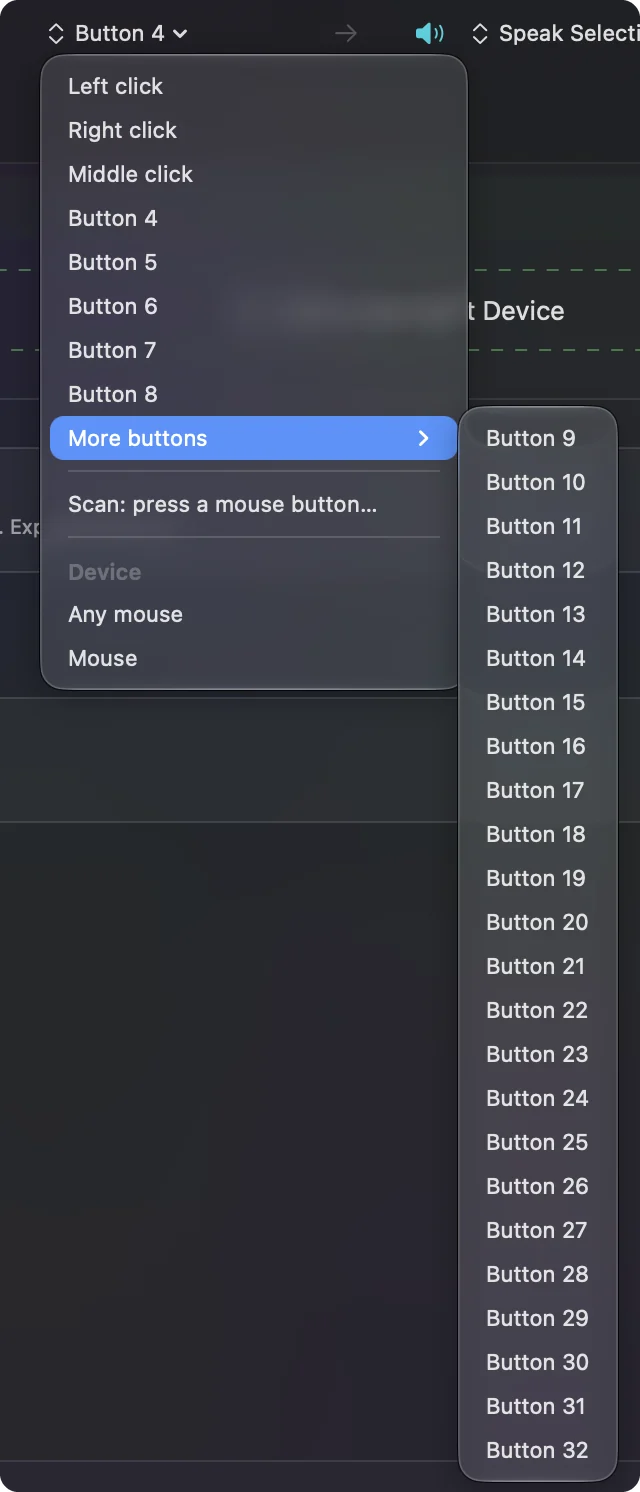
A trackball with eight or ten buttons is where Scan earns its keep. Press Scan and press each button in turn, and note what name arrives. The layout below is what I would expect, and your own model can differ.
| Button | Often reported as | Notes |
|---|---|---|
| Left and right | Left click and Right click | Can be bound, cannot be blocked. |
| Wheel click | Middle click | Can be blocked, and so can the side buttons. |
| Back and forward | Button 4 and Button 5 | Browsers use them for Back and Forward. |
| The extra function buttons | Button 6 and up, or nothing | Scan each one. Higher numbers are under More buttons, up to Button 32. |
| The tilt wheel, if the model has one | Sideways scrolling | It scans as Scroll X. See the tilt wheel page. |
| The DPI button | Nothing | It changes speed inside the trackball and does not reach macOS. |
Where a button reports nothing, macOS never hears it and no app can use it. The Live Visualizer's Mouse template and the mouse tester show the same thing from two directions. Write the table for your own trackball once, and every later binding gets easier.
Give each extra button a job
- You: Make a preset in InputConfig, add a row for each button you want, press Scan on each row, and press the matching button on the trackball.
- InputConfig: Records the button by name and number, so Button 6 stays Button 6 even if you plug the trackball into another port.
- Check: Choose an output, Save and Activate, then press each button in an app. The job runs.
With that many buttons, group them by what your hand does. On a DEFT Pro or HUGE the buttons sit around the ball, so the ones under the ring finger and little finger are good for things you do all day, such as Copy and Paste, and the ones near the thumb for navigation. Here are jobs people give them:
- Navigation. Mission Control, Show Desktop, next and previous Space.
- Editing. Undo, Redo, Copy, Paste and Select All.
- Apps. Open App for the three programs you open most.
- Text. Type Text for an email address or a reply you send every day.
Run macros from a spare button
Because an Elecom trackball has buttons to spare, one of the best uses is a macro on a button you would never otherwise press. Open the row's Options and tick Run a sequence of steps (macro). Each step is a key, a shortcut or a click, with its own wait and hold time.
- Sign off. A macro that types a closing line, waits, and presses Return.
- Screenshot and paste. A screenshot shortcut, a wait, then Command V.
- Save and close. Command S, a wait, then Command W.
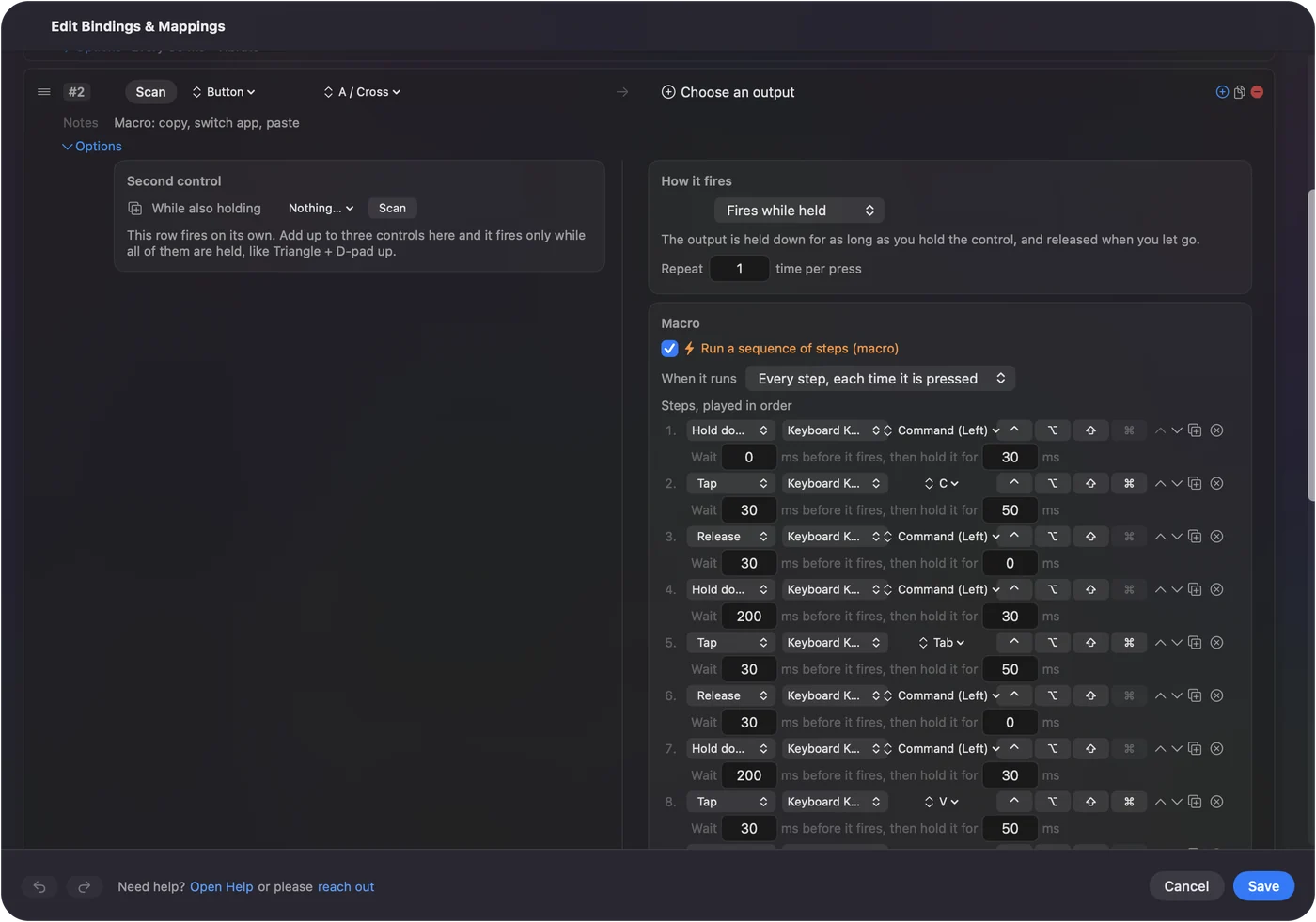
How to make a macro on a Mac has every step. The point of a spare button is that a long job costs one press.
Use hold, double click and per app layouts
Eight buttons are a lot, and the same trackball can still run out of reach. Each row has a hold action and a double tap action, so a single button can carry three jobs, and presets can follow the app in front.
- Hold. A tap on a side button runs Back, and a hold runs Close Tab.
- Double click. A Mouse row of the kind Double click fires on the second click of a pair, so one click on the button keeps its own job.
- Block the original. Turn on Block the button's own action for a side or middle button so a browser does not also go back.
- Per app. List an app under Automation & Gaming Utilities, and with Switch presets when the front app changes on, the buttons change jobs when the app does.
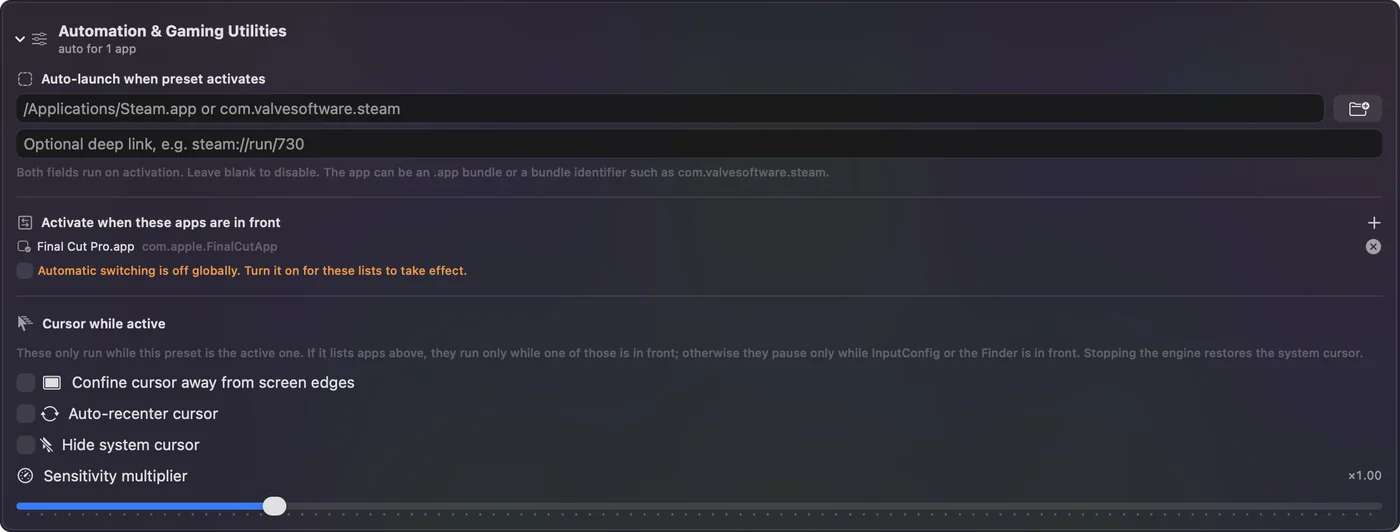
Per app layouts are how a handful of buttons covers a whole day's work.
Ideas for the people who buy these
- A big ball for shoulder and wrist comfort. The HUGE and the DEFT Pro put the ball under the fingers, and the EX-G Pro puts it under the thumb. Which one suits depends on your hand, and the trackball guide compares them.
- Editing and design. Undo, Redo, Zoom and tool shortcuts on the buttons you can reach without lifting your hand.
- Reduced hand movement. With the arm resting, drag lock on one button saves holding a button while the ball moves.
- Presentations. Next slide and Previous slide on two buttons.
The most useful button on a trackball is the one that holds a click for you.
If a button does nothing
Climb this ladder, smallest step first:
- Watch it arrive. Open the Live Visualizer, pick Mouse, and press the button. If it lights, InputConfig can bind it.
- Check the connection mode. A trackball with a mode switch only talks over the mode it is set to. Wired, 2.4 GHz and Bluetooth each work separately.
- Check Mouse Assistant. If it assigns the button a function the Mac handles itself, the button may never reach an app. Set it back to a plain button.
- Give it an F key. If Scan hears nothing, assign the button F13 to F20 in Mouse Assistant, then scan the key. F21 to F24 are not passed to apps.
- Activate the preset. Rows only fire while it runs.
If the visualizer cannot see a button, only Elecom's own software can use it.
What it cannot do
- Change DPI or speed. InputConfig does not touch DPI, polling rate or acceleration. The trackball's DPI button, Mouse Assistant and System Settings do.
- Read buttons that only talk to the software. They send nothing to macOS.
- Give two mice different jobs for the same button. Every mouse counts as one.
- Replace Mouse Assistant for every feature. If your model is on its list, its settings and InputConfig can run together.
I have not tested an Elecom trackball with InputConfig myself, and the button counts above come from retailer listings, which sometimes disagree. Scan is the test, and it takes a minute.
The short version
- Works already. Elecom trackballs are normal mice on a Mac.
- Mouse Assistant. Elecom's Mac version listed macOS 13 to 15 when I looked, and not every model is on its list.
- InputConfig. Scan each button, then give it a shortcut, a macro, an app or a hold.
Write down what each button sends, and bind from that list.
Questions
Does the Elecom HUGE trackball work on a Mac?
Yes, as a pointing device. Check Elecom's Mouse Assistant page for your exact model, because I could not confirm the HUGE on the part of the list I could read.
Does Elecom Mouse Assistant work on Mac?
Elecom publishes a Mac version. Its page listed version 6.3.0 for macOS 13 Ventura through macOS 15 Sequoia in the listing I saw on October 21, 2026.
How many buttons does the DEFT Pro have?
Listings say eight programmable buttons, plus a DPI button. Retailer counts vary by model, so scan yours to see what the Mac receives.
Why does one of my Elecom buttons not scan?
It probably talks only to Elecom's software, or to the trackball itself, and sends nothing to macOS. Set it to an F13 to F20 key there and scan that key.
Does the Elecom DEFT Pro work over Bluetooth on a Mac?
Listings say it offers Bluetooth as well as 2.4 GHz and wired, so it can pair in System Settings, Bluetooth. Its extra buttons need a job from Mouse Assistant or an app such as InputConfig.
Related
This page in other languages: العربية, Čeština, Dansk, Deutsch, Español, Suomi, Français, עברית, Magyar, Bahasa Indonesia, Italiano, 日本語, 한국어, Norsk, Nederlands, Polski, Português, ไทย, 繁體中文, 简体中文
Completely free. You don't have to make an account, there are no subscriptions, and nothing is locked. Optimized for Apple silicon. Open source on GitHub.
Updated