How to use a trackball on a Mac
 InputConfig is completely free on the Mac App Store. You don't have to make an account, there are no subscriptions, and nothing is locked. Optimized for Apple silicon.
Plug it in or pair it and a trackball works on a Mac straight away, as a normal pointing device, with no driver. Moving the ball moves the pointer, the two main buttons click, and the rest is a matter of choosing a design and giving its buttons jobs. InputConfig, the free Mac app I make, does that last part for any button the Mac can see.
This page covers the choice between thumb and finger trackballs, the Mac settings that matter, how to drag and scroll with a ball, and who gets the most from one. I am not a clinician, and nothing here is a treatment.
On this page: 11 sections
- Steps
- Choose between a thumb and a finger trackball
- Set up the trackball on a Mac
- Drag without holding the button
- Scroll with a trackball
- Find out what each button sends and bind it
- Use a trackball when your hands have limited movement
- If the trackball is misbehaving
- What it cannot do
- The short version
- Questions
Steps
- Pick a thumb or a finger trackball, and connect it by cable, receiver or Bluetooth.
- Open System Settings, Mouse, and set tracking speed so a short roll crosses the screen.
- Turn on drag lock or add a drag button, so you never have to hold a click while rolling.
- In InputConfig, press Scan on a row and press each spare button to see what it sends.
- Give the buttons jobs: Back, Forward, Mission Control, copy, paste, or a macro.
- Use it in short sessions at first and notice which hand and finger feel it.
Choose between a thumb and a finger trackball
The two designs put the ball under different digits, and that decides what you do all day.
- Thumb trackballs. The ball sits at the side and the thumb rolls it, while the fingers rest on the buttons. The Logitech MX Ergo and the Elecom EX-G are examples. The hand stays still and the thumb does the work.
- Finger trackballs. The ball sits in the middle and two or three fingers roll it, with the buttons by the thumb or the palm. The Kensington Expert Mouse, the Kensington Orbit and the Elecom HUGE and DEFT Pro are examples. A bigger ball is a bigger movement for the fingers and less for the wrist.
Neither is better for everyone. If your thumb already aches, I would try a finger design, and if your fingers ache, the other way round. The choice is about which digit you want to do the pointing.
For the makers whose Mac software I looked at, Kensington trackballs and Elecom trackballs each have their own page.
Set up the trackball on a Mac
Trackballs are sold for Mac and PC, so setup is the same as any mouse. A wired one needs a port, a wireless one needs its receiver or a Bluetooth pairing, and many have all three. Two settings matter more than anything else.
- You: Open System Settings and choose Mouse. Set Tracking speed, and Natural scrolling if you scroll with a ring or a twist.
- macOS: Applies the speed to every mouse, and a separate scroll direction to the mouse and the trackpad.
- Check: Roll the ball across the display with one gentle push. If the pointer stops short, raise the speed.
A fast tracking speed is the thing that lets a ball do its job, because it turns a short roll into a long move. The trackball's own DPI button, where it has one, changes speed inside the device. Set the speed so the pointer crosses the screen without your hand moving.
Drag without holding the button
Dragging is the hard part of a trackball, because you have to hold a button down with one finger while another rolls the ball. There are two fixes, and neither needs anything beyond what you own.
- Use the trackpad setting if you also have a trackpad. Drag lock in System Settings, Accessibility, Pointer Control, Trackpad Options does it for a trackpad only.
- Give a trackball button a click lock. In InputConfig, add a click row set to Toggles on and off. One press holds the mouse button down, and the next press lets go.
The full steps are in drag lock on a Mac. A side button is a good choice for the lock, because it leaves the main button as a normal click. A drag can be two presses and no holding.
Scroll with a trackball
A ball has no wheel, so scrolling comes from somewhere else. Different trackballs solve it differently, and the Mac only sees scrolling.
- A scroll ring. A ring around the ball that you turn with a finger. Kensington's Expert Mouse and Orbit have one.
- A twist. The Kensington SlimBlade Pro scrolls when you twist the ball.
- A wheel or a tilt wheel. Elecom's EX-G and DEFT Pro listings mention a wheel with sideways tilt.
- A button and the ball. Some trackballs scroll while a button is held. That is handled in the maker's software.
Scroll wheel on a Mac covers speed and direction, and a tilt wheel covers sideways. If you can only scroll in small steps, set the scroll speed in the maker's app. The Mac cannot tell a ring from a wheel, so its scroll settings apply to both.
Find out what each button sends and bind it
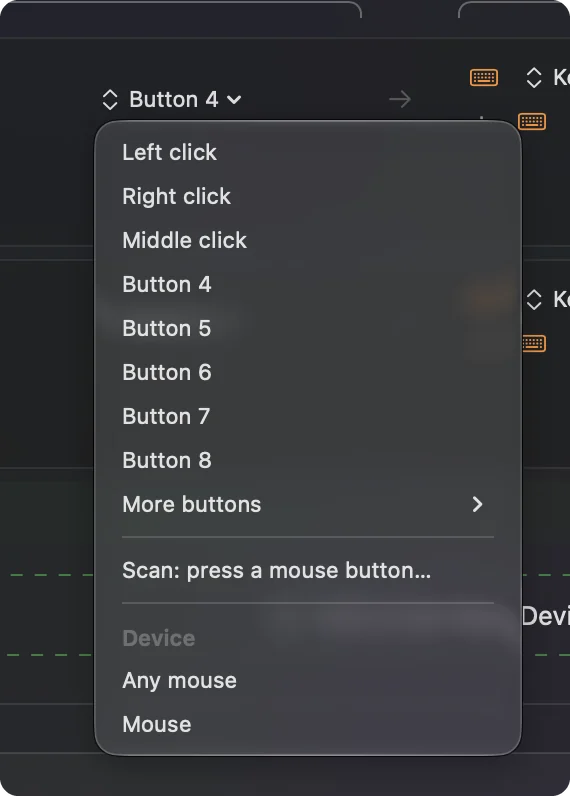
Most trackballs have two main buttons and between two and eight others. Press Scan in InputConfig and press each one. A button that reaches macOS as a mouse button gets a name, such as Middle click or Button 4, and a button that does not gets nothing.
- You: Add a row, choose This Mac's mouse or trackpad as the input device, press Scan, and press the button.
- InputConfig: Records which button it was, from Left click through Button 32 under More buttons.
- Check: Choose an output, Save and Activate, then press the button in an app.
Good jobs for the spare buttons on a trackball are Back and Forward, Mission Control, Copy and Paste, and Undo. Each row can also have a hold action and a double tap action, and a Mouse row of the kind Double click fires on the second click of a pair. The side buttons and the middle button can have their own action blocked, so apps stop seeing them while the preset runs. Left and right click cannot be blocked.
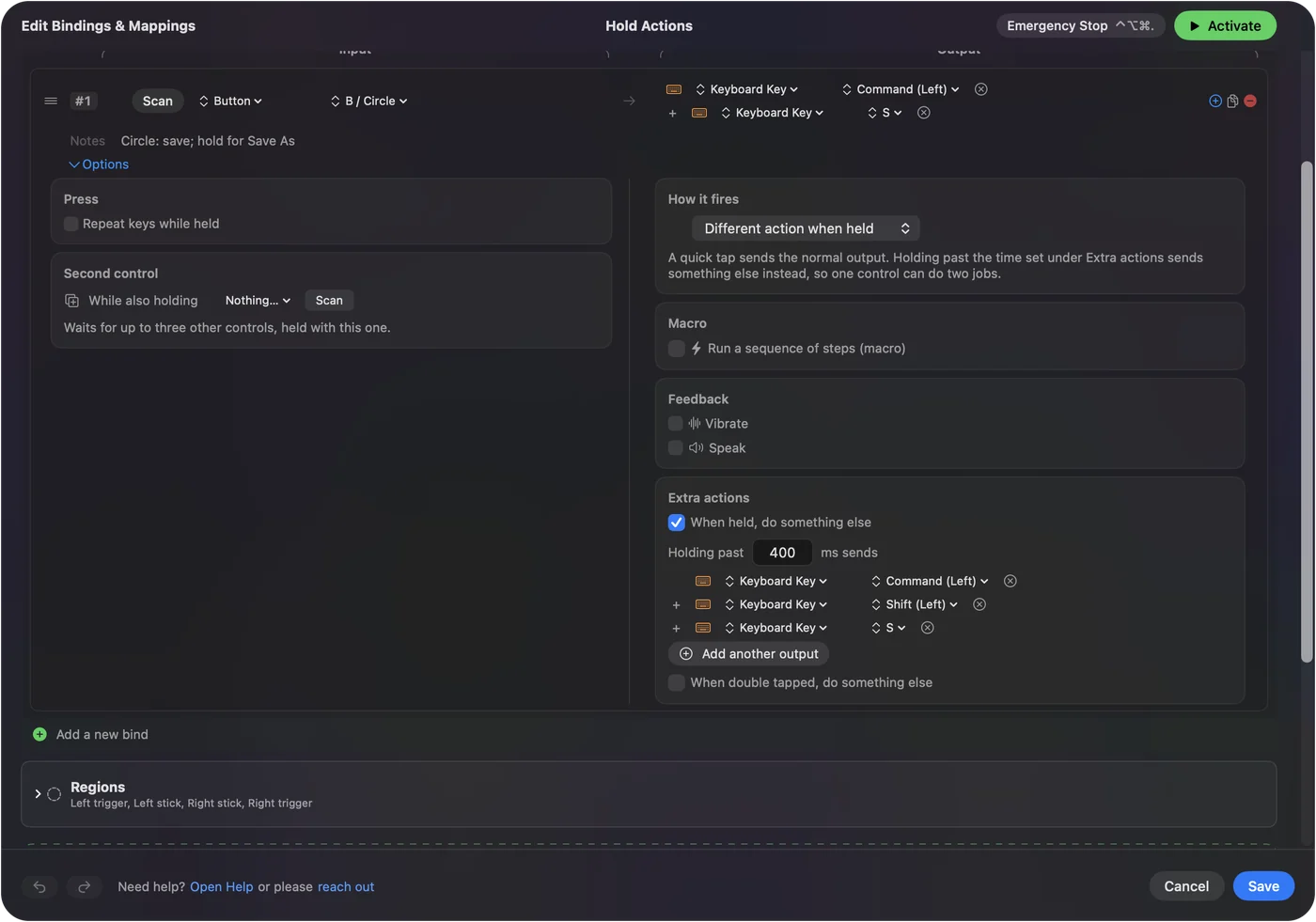
A trackball with only two spare buttons can run six jobs with hold and double click.
Use a trackball when your hands have limited movement
This is the group I think about most. A trackball stays put, so the hand and forearm do not have to travel across a desk, and the pointing is done by one thumb or a few fingers. People with arthritis, tremor, limited range or a recovering injury often try one for that reason.
- Ball size. A larger ball may need less precision from the fingers, and a lighter one rolls more easily. I cannot say which is right for you.
- A click lock. It replaces a held button, which is a common problem.
- Buttons you can reach. Put the clicks you need on the buttons your hand rests on.
- Macros and holds. One press that does three things takes three presses off the hand.
These pages go further: mouse alternatives for carpal tunnel and RSI, the easiest mouse for an older person, and tremor mouse options. I am not a clinician. If a trackball hurts, stop and see someone who can look at your hands.
If the trackball is misbehaving
Climb this ladder, smallest step first:
- Clean the ball. Lift it out, wipe it and the three bearings, and put it back. Dust makes the pointer jump.
- Check the connection. Try another port, change the battery, or pair it again in System Settings, Bluetooth.
- Check its mode. A trackball with a mode switch only talks over one connection at a time.
- Watch the buttons arrive. The mouse tester shows every button the Mac receives.
- Try the maker's software. Some buttons only work there.
If the pointer moves, the trackball is fine, and what is left is a setting.
What it cannot do
- Change the ball. InputConfig does not change DPI, pointer acceleration or scroll feel. System Settings and the maker's software do.
- Read buttons that talk only to the maker's software. DPI and profile buttons send nothing to macOS.
- Tell two mice apart. A trackball and a mouse count as one device together.
- Treat pain. I am not a clinician.
It gives the trackball's buttons new jobs, and the maker's app handles everything about the ball.
The short version
- Choose. A thumb trackball moves one digit, and a finger trackball spreads the work over several.
- Set. Tracking speed in System Settings, and a click lock for dragging.
- Bind. Scan each button in InputConfig and give it a job.
Try it in short sessions first, and keep the old mouse nearby for a week.
Questions
Does a trackball work on a Mac?
Yes. Any trackball works as a normal pointing device on a Mac with no driver. The maker's software and InputConfig only matter for the extra buttons.
Is a thumb or a finger trackball better?
Neither is better for everyone. A thumb trackball keeps the hand still and uses the thumb, and a finger trackball spreads the work over several fingers. Which one suits you depends on which digit is the problem.
How do I drag with a trackball on a Mac?
Use a click lock. In InputConfig, set a click row to Toggles on and off, and one press holds the button down until the next press.
How do I scroll with a trackball on a Mac?
It depends on the model. Some have a scroll ring or a wheel, and the SlimBlade Pro scrolls when you twist the ball. The Mac sees it as ordinary scrolling.
What is the best trackball for a Mac?
It depends on whether you want a thumb or a finger ball. Popular ones are the Kensington Expert Mouse and SlimBlade Pro, the Logitech MX Ergo S and the Elecom trackballs. Check that the maker's software supports your macOS version and Apple silicon before you buy.
Related
This page in other languages: العربية, Čeština, Dansk, Deutsch, Español, Suomi, Français, עברית, Magyar, Bahasa Indonesia, Italiano, 日本語, 한국어, Norsk, Nederlands, Polski, Português, ไทย, 繁體中文, 简体中文
Completely free. You don't have to make an account, there are no subscriptions, and nothing is locked. Optimized for Apple silicon. Open source on GitHub.
Updated