How to use a Magic Trackpad and a mouse together on a Mac
 InputConfig is completely free on the Mac App Store. You don't have to make an account, there are no subscriptions, and nothing is locked. Optimized for Apple silicon.
Yes, a Magic Trackpad and a mouse work together on a Mac, and the Mac lets you set speed and scroll direction for each. The trackpad does gestures and fine control, and the mouse does the precise clicking and the buttons a trackpad does not have. InputConfig, the free Mac app I make, can give extra jobs to both.
The Magic Trackpad has no buttons beyond its clickable surface, so the common reason to add a mouse is a middle click, side buttons, or a hand that does better on a mouse for some work. This page covers the settings, the tricks, and what to watch for when both are connected.
On this page: 12 sections
- Steps
- Set each device separately
- Stop the built-in trackpad from getting in the way
- Make dragging easier
- Find out what each device sends
- Give the mouse buttons the jobs a trackpad lacks
- Use hold, double click and macros
- Know the traps of using both
- If one of them stops working
- What it cannot do
- The short version
- Questions
Steps
- Pair the Magic Trackpad and the mouse in System Settings, Bluetooth, or connect them by cable.
- Set each one's tracking speed and Natural scrolling in System Settings, Trackpad and Mouse.
- If you use a MacBook, check Pointer Control in Accessibility for the option that ignores the built-in trackpad when another one is present.
- Turn on Drag Lock or Three Finger Drag for the trackpad if holding a click is hard.
- In InputConfig, add a row, press Scan, and click or swipe to see what each device sends.
- Give the mouse buttons and trackpad gestures the jobs you want, and save the preset.
Set each device separately
macOS keeps one set of settings for the trackpad and another for the mouse, which is why using both is easy.
- You: Open System Settings, click Trackpad, and set Tracking speed, Natural scrolling and the gestures you want. Then click Mouse and set the same for the mouse.
- macOS: Applies each set to its own device, so a scroll direction that feels right on the trackpad does not have to match the mouse wheel.
- Check: Scroll a long page with each one. If the direction feels backwards on one, change only that one.
Many people prefer natural scrolling on the trackpad and the opposite on a wheel mouse, and macOS allows it. How to change scroll direction on a Mac has the details. You never have to pick one set of settings for both.
Stop the built-in trackpad from getting in the way
A MacBook has its own trackpad as well, and a palm resting on it while you use a mouse can move the pointer. Apple's Accessibility settings include a Pointer Control option to ignore the built-in trackpad when a mouse or wireless trackpad is present. I would check it in System Settings, Accessibility, Pointer Control, because the exact wording and place can change between versions of macOS.
- With a mouse. The built-in trackpad is switched off while the mouse is connected, and comes back when it is not.
- With a Magic Trackpad. The same option covers a wireless trackpad, which matters if you set a Magic Trackpad on your desk and want the one under the keyboard silent.
If the pointer jumps while you type, a palm on the built-in trackpad is the usual cause.
Make dragging easier
Holding a click while the finger moves is the hardest trackpad gesture, and the mouse makes it worse for some hands. The trackpad has two settings for it, in System Settings, Accessibility, Pointer Control, Trackpad Options: Use trackpad for dragging with Drag Lock, and Three Finger Drag.
For the mouse, macOS has no click lock. In InputConfig, set a click row to Toggles on and off, and one press of a side button holds the mouse button down until you press again. The steps are in drag lock on a Mac. The trackpad has a built-in drag lock, and the mouse needs one added.
Find out what each device sends
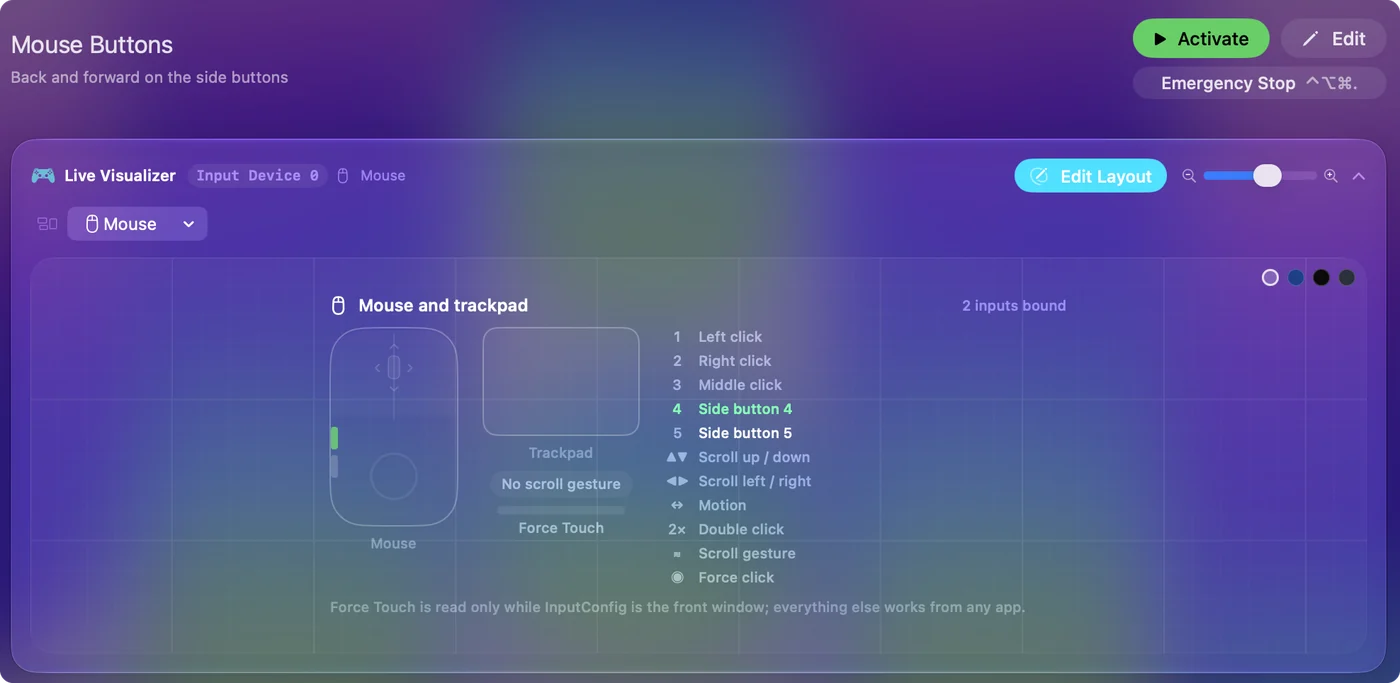
InputConfig reads the Mac's mouse and trackpad as one input device, This Mac's mouse or trackpad. Every mouse and trackpad connected counts as one, so it cannot give the trackpad and the mouse different jobs for the same input. It can see these inputs from either one:
| Input | From the trackpad | From the mouse |
|---|---|---|
| Left, Right and Middle click | Clicks and tap to click, plus a secondary click if you have switched it on | The buttons and the wheel click |
| Button 4 to Button 32 | None | Side and extra buttons, where the mouse sends them |
| Scroll up, down, left, right | Two finger scroll | The wheel and a tilt wheel |
| Double click | A double tap, with tap to click | A double click on a button |
| Scroll gesture | On while fingers touch the pad until momentum stops | Not applicable |
| Pressure and Deep Press | Force click | Not applicable |
Force Touch is read only while InputConfig is the front window, and everything else works from any app. Open the Live Visualizer's Mouse template to see the clicks, scrolling, double clicks and a Force Touch gauge live. Check what arrives in the visualizer before you build a preset around it.
Give the mouse buttons the jobs a trackpad lacks
- You: Add a row in InputConfig, choose This Mac's mouse or trackpad as the input device, press Scan, and press a mouse button.
- InputConfig: Names it, and you choose the output.
- Check: Save and Activate, then press the button in an app.
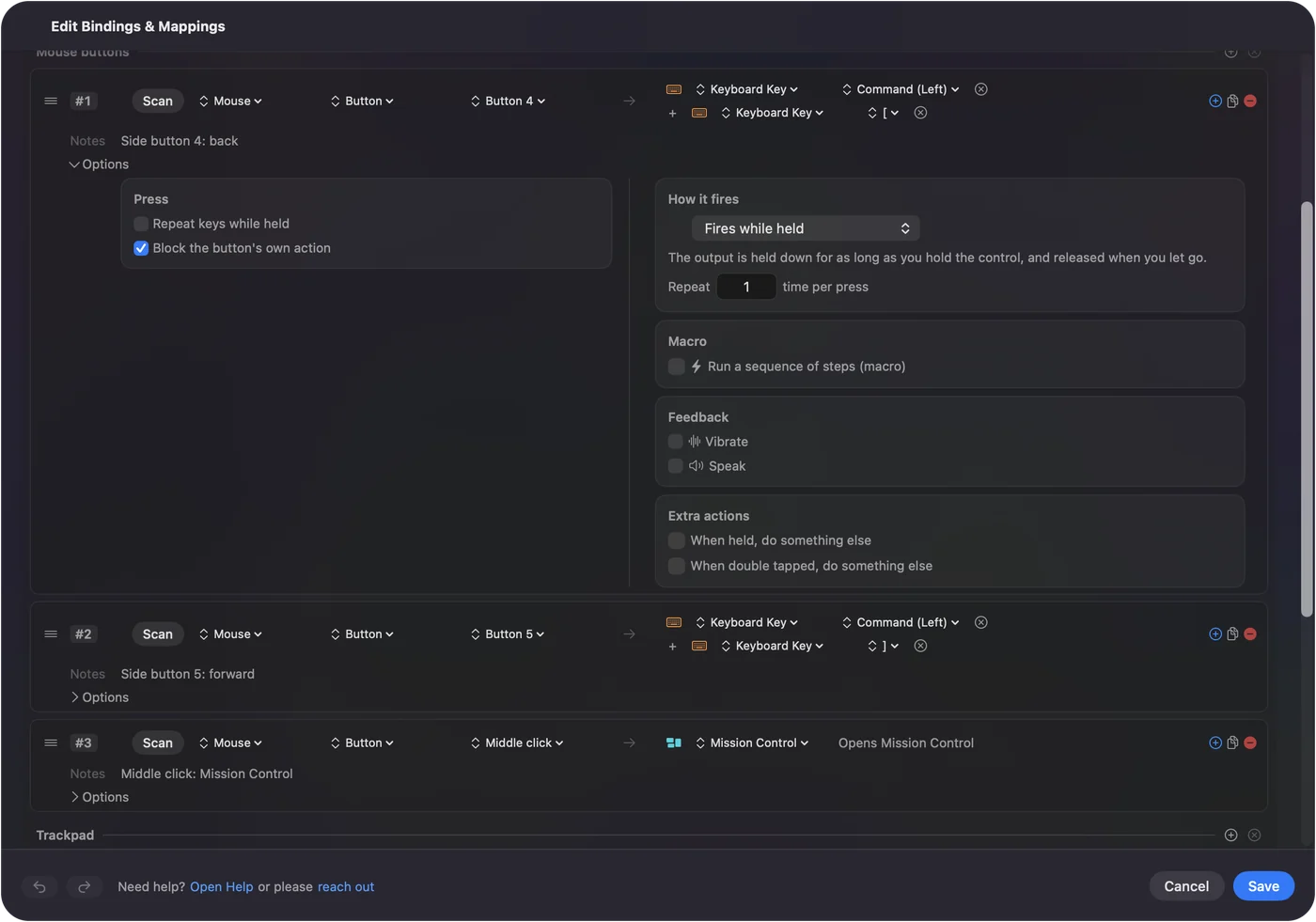
A trackpad has no side buttons, so the mouse can take them. The built-in Trackpad & Mouse preset sends Command Left Bracket and Command Right Bracket from the side buttons for Back and Forward, and the middle click for Mission Control. A middle click matters because a Magic Trackpad has none, and how to middle click on a Mac has the other ways to get one. The Magic Mouse is its own case, covered in Magic Mouse buttons.
Let the trackpad do the pointing and the mouse buttons do the shortcuts.
Use hold, double click and macros
Each row can have a hold action and a double tap action, and a row can run a macro. A Mouse row of the kind Double click fires on the second click of a pair, so a single click keeps its job. For the middle button and the side buttons, Block the button's own action in the row's Options stops apps seeing that button while the preset runs. Left and right click cannot be blocked.
- Hold. A tap on a side button goes Back, and a hold closes the tab.
- Macro. Copy, wait, paste, from a side button.
- Per app. A preset can list apps under Automation & Gaming Utilities, and with Switch presets when the front app changes on, the buttons follow the app in front.
Only one preset runs at a time, and Control Option Command period is the emergency stop. Do the hard clicking on the mouse, and the soft gestures on the trackpad.
Know the traps of using both
- A sideways swipe fires tilt rows. macOS reports a two finger sideways swipe and a tilt wheel as the same sideways scrolling, so a row on Scroll X fires from either one. The tilt wheel page says more.
- Scroll gesture rows fire during every scroll. It is on from the moment fingers touch the pad until momentum stops.
- Two pointing devices, one pointer. A nudge of either moves the pointer.
Gestures that stop working are covered in trackpad gestures not working, and the trackpad test shows whether the trackpad sees your fingers. Keep rows that read scrolling out of presets you use with the trackpad all day.
If one of them stops working
Climb this ladder, smallest step first:
- Check the battery. A low battery on a Magic Trackpad or a wireless mouse drops gestures and clicks first.
- Check Bluetooth. Pair the device again in System Settings, Bluetooth.
- Check the Ignore option. If a MacBook's own trackpad stopped, the Pointer Control option to ignore it may be on.
- Watch it arrive. The Live Visualizer and the mouse tester show what the Mac receives.
- Check Accessibility. InputConfig reads clicks through that permission.
If the visualizer sees it, the device is fine, and the problem is a setting.
What it cannot do
- Give each device its own jobs for the same input. Every mouse and trackpad counts as one.
- Change tracking speed or scroll feel. System Settings and apps such as LinearMouse or Mac Mouse Fix do that, and they run alongside InputConfig.
- Read force click in other apps. Force Touch is read only while InputConfig is the front window.
- Add buttons the Magic Trackpad does not have. A mouse can.
It adds jobs to the inputs the Mac already receives from both devices.
The short version
- Set. Speed and scroll direction for each device in System Settings.
- Silence. Ignore the built-in trackpad in Pointer Control if a palm moves the pointer.
- Bind. Give the mouse's side and middle buttons jobs in InputConfig.
Use the trackpad for gestures, and keep the mouse for buttons.
Questions
Can I use a Magic Trackpad and a mouse at the same time on a Mac?
Yes. macOS keeps separate speed and scroll settings for each, and the pointer follows whichever you move.
How do I disable the built-in trackpad when I use a mouse?
Look for the option to ignore the built-in trackpad when a mouse or wireless trackpad is present in System Settings, Accessibility, Pointer Control. Its place can change between macOS versions.
Can I give a Magic Trackpad and a mouse different jobs in InputConfig?
Not for the same input. Every mouse and trackpad connected counts as one, so a sideways scroll from either fires the same row.
How do I drag with a Magic Trackpad and a mouse?
The trackpad has Drag Lock and Three Finger Drag in Accessibility, Pointer Control, Trackpad Options. For the mouse, set a click row to Toggles on and off in InputConfig.
Do a Magic Trackpad and a mouse conflict on a Mac?
No. Apple's Bluetooth pairing handles both at once, and each has its own speed and scroll settings. If the pointer jumps while you type, a palm on the built-in trackpad is the usual cause.
Related
This page in other languages: العربية, Čeština, Dansk, Deutsch, Español, Suomi, Français, עברית, Magyar, Bahasa Indonesia, Italiano, 日本語, 한국어, Norsk, Nederlands, Polski, Português, ไทย, 繁體中文, 简体中文
Completely free. You don't have to make an account, there are no subscriptions, and nothing is locked. Optimized for Apple silicon. Open source on GitHub.
Updated