How to use a Microsoft mouse on a Mac
 InputConfig is completely free on the Mac App Store. You don't have to make an account, there are no subscriptions, and nothing is locked. Optimized for Apple silicon.
A Microsoft mouse pairs with a Mac and does the basics, the pointer, the main buttons and the scroll, but Microsoft Mouse and Keyboard Center, the software that sets its buttons, is Windows only. Microsoft's download page offers it for Windows 10 and Windows 11 and for no Mac. So on a Mac the extra buttons need another app, and some of them do not reach macOS at all.
InputConfig is the free Mac app I make. It reads whichever of the mouse's buttons macOS receives and gives each a job. This page covers the Bluetooth Mouse, the Arc and Surface Arc Mouse, the Sculpt Ergonomic Mouse and the Bluetooth Ergonomic Mouse, and says what I could and could not confirm.
On this page: 11 sections
- Steps
- Know what works with nothing installed
- Find out what each button sends
- Bind the buttons that do arrive
- Add macros and multi-step jobs
- Use hold, double click and per app layouts
- Ideas for the people who buy these
- If the mouse will not pair or a button does nothing
- What it cannot do
- The short version
- Questions
Steps
- Pair the mouse in System Settings, Bluetooth, and check that the pointer and scroll work.
- Do not look for a Mac version of Mouse and Keyboard Center, because Microsoft offers it for Windows only.
- In InputConfig, add a row, press Scan, and press each extra button on the mouse.
- Pick what each button that scans should send, such as Back, Forward, Mission Control or a shortcut.
- If a button sends nothing, accept that it never reaches the Mac.
- Save and Activate the preset, then press the buttons in an app to check them.
Know what works with nothing installed
Microsoft mice are Bluetooth or receiver mice, and the Mac treats a working one as an ordinary mouse. The Mouse and Keyboard Center is the problem. Microsoft's download page for it, which I searched on October 21, 2026, offers Windows 11 and Windows 10 versions, and a Microsoft Community reply about the Arc says the Center has no version for iOS devices. I found no Mac download on any page I read.
- Bluetooth Mouse and Microsoft Bluetooth Mouse. A basic mouse. Expect a pointer, two buttons and a wheel on a Mac.
- Arc Mouse and Surface Arc Mouse. A flat, folding mouse with a scroll plane for vertical and horizontal scrolling. Microsoft's own listing names Windows 11, 10, 8.1 and 8, and a Microsoft Community answer says the mouse needs a host with Bluetooth 4.0 or higher. Retailers say it works with Macs, but Microsoft does not list macOS.
- Sculpt Ergonomic Mouse. A shaped mouse with a 2.4 GHz receiver and a Windows button and a Back button on the thumb side. A retailer listing for the Microsoft designed version says the Back and Windows buttons are not supported on macOS, and one reviewer who uses it on a Mac says the Back button does not work.
- Ergonomic Mouse, Bluetooth. A shaped mouse with Back and Forward thumb buttons. A retailer listing says it is not compatible with Mouse and Keyboard Center, and that some functions are limited on macOS.
Microsoft does not offer its mouse software for a Mac, and a Microsoft mouse still works as a mouse.
Find out what each button sends
Microsoft's own pages are Windows pages, so I cannot tell you what each model reports on macOS. Scan can, and it takes a few seconds per button.
| Mouse | Extra controls | What I could and could not confirm |
|---|---|---|
| Bluetooth Mouse | Wheel click | Expect Middle click. Scan to check. |
| Arc and Surface Arc | A scroll plane, and a pairing button underneath | The plane is scrolling, so it reaches the Mac as scrolling. No Mac button details found. |
| Sculpt Ergonomic Mouse | Windows button, Back button | One retailer says Back and Windows are not supported on macOS. Scan to find out for your copy. |
| Bluetooth Ergonomic Mouse | Back and Forward thumb buttons | Retailer pages mention the buttons and say some functions are limited on macOS. |
A button that reaches macOS gets a name like Button 4. One that does not gets nothing. The mouse tester shows every button the Mac receives in a browser, and the Live Visualizer in InputConfig shows them too. If nothing on the Mac sees a button, no app can bind it.
Bind the buttons that do arrive
- You: Open InputConfig and allow Accessibility. Make a preset, add a row, choose This Mac's mouse or trackpad as the input device, press Scan, and press a button.
- InputConfig: Records the button as Middle click, Button 4 or Button 5, and waits for you to pick the output.
- Check: Choose Command Left Bracket for a back button and Command Right Bracket for forward, Save and Activate, and press them in Safari.
If the mouse's Back button already works in a browser, you do not need to bind it, and you can give it a second job through hold or double click. Turn on Block the button's own action in the row's Options for a middle or side button, so apps stop seeing the original click while the preset runs.
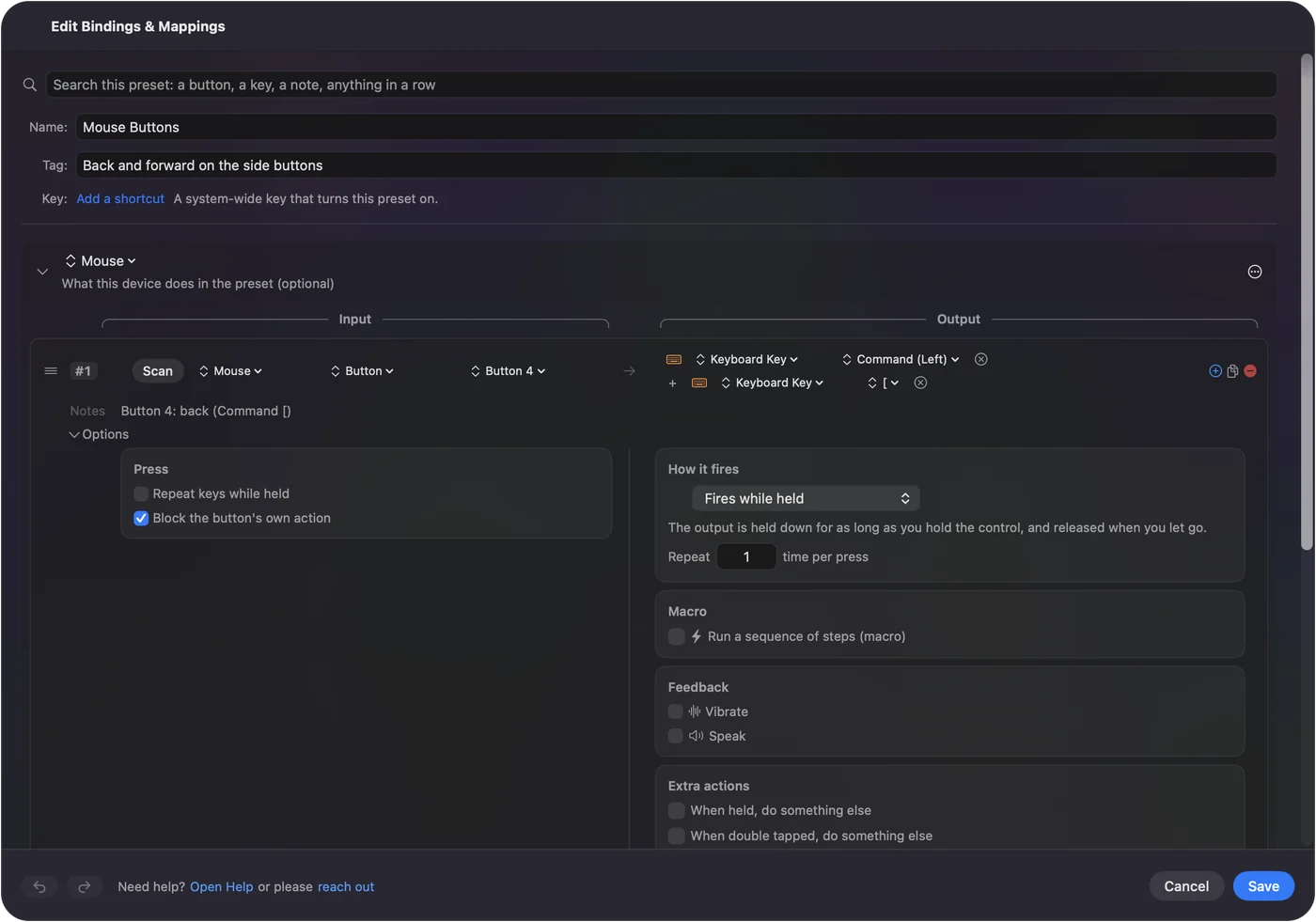
A button that already works only needs a second job, and one that does nothing needs a first.
Add macros and multi-step jobs
A mouse with one or two usable thumb buttons gains the most from a macro. Open the row's Options, tick Run a sequence of steps (macro), and add key, shortcut and click steps with a wait and a hold time for each.
- A reply or a sign off. Type Text does it in one step.
- Copy and paste. Command C, a short wait, Command V.
- Back and close. Command W, then a wait, then Command Shift Tab.
How to make a macro on a Mac has the steps. One button that runs three actions beats three buttons you cannot reach.
Use hold, double click and per app layouts
- Hold. A tap on the Back button goes back, and a hold sends Command W to close the tab.
- Double click. A Mouse row of the kind Double click fires on the second click of a pair, so a single click keeps its job.
- While also holding. A second control in the row makes a combo.
- Per app. List an app under Automation & Gaming Utilities, and with Switch presets when the front app changes on, the layout follows the app in front.
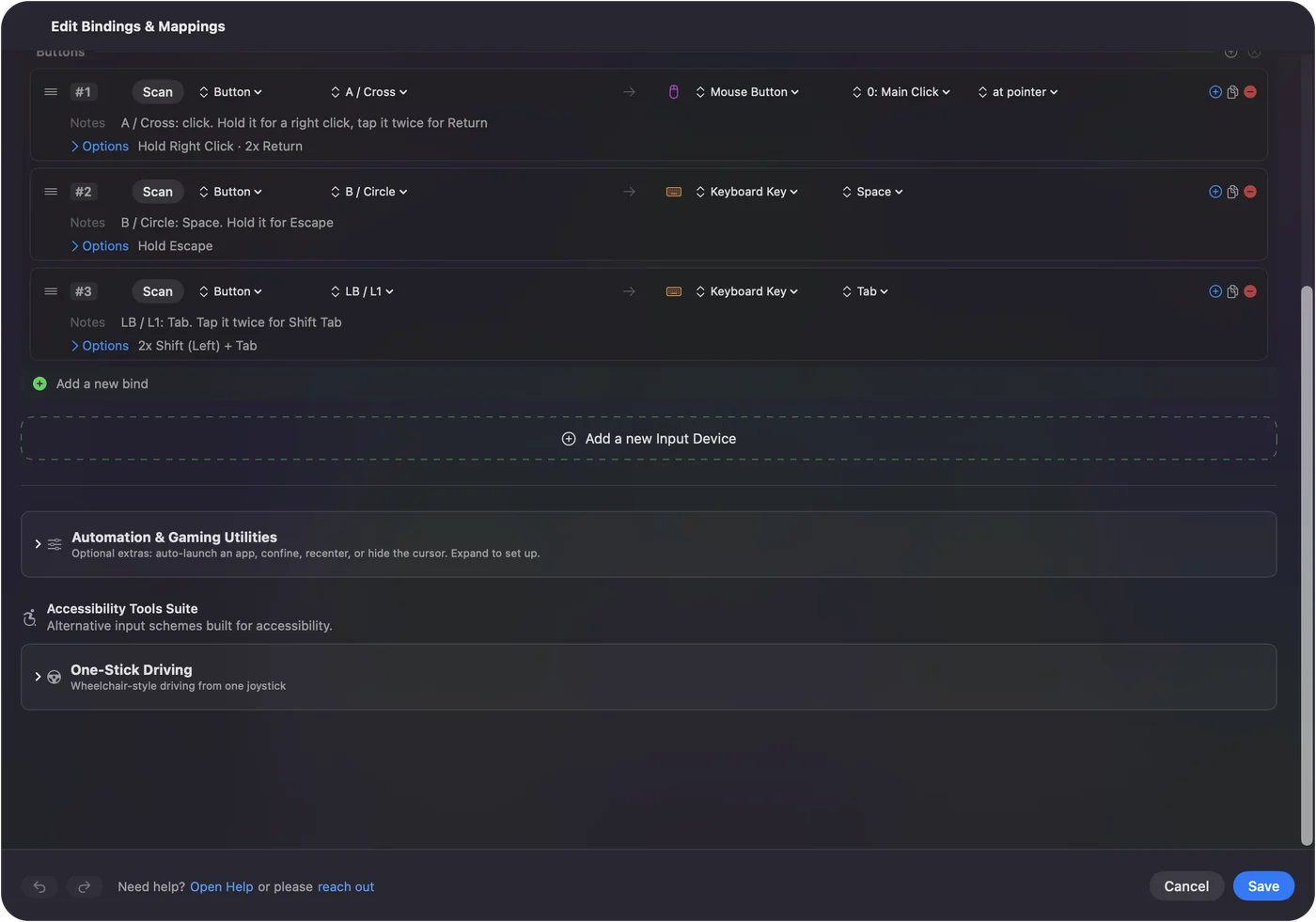
Between them, one thumb button can do what Mouse and Keyboard Center did with three.
Ideas for the people who buy these
- Sculpt and Ergonomic Mouse owners. Both are shaped for a relaxed hand, and a Mac user who likes the shape and loses the Windows button loses little, because a Windows button has no direct macOS equivalent. Put Mission Control or Spotlight there if it scans.
- Arc and Surface Arc owners. It folds flat for a bag. The scroll plane is a scroll input, and a tilt of it can be bound the way a tilt wheel can, if it reports sideways scrolling.
- Older Bluetooth Mouse owners. Give the wheel click a job, and keep the rest as is.
For the ergonomics, vertical mice and mouse alternatives for carpal tunnel and RSI are the next pages. I am not a clinician. If the mouse hurts your hand, stop and see someone who can look at it.
If the mouse will not pair or a button does nothing
Climb this ladder, smallest step first:
- Check Bluetooth. Microsoft says the Arc needs a host with Bluetooth 4.0 or higher. Most current Macs have it.
- Pair it again. Remove it in System Settings, Bluetooth, hold its pairing button until the light flashes, and add it fresh.
- Check the receiver. A Sculpt mouse keeps its 2.4 GHz receiver in the battery compartment.
- Watch the buttons. The Live Visualizer's Mouse template shows each press.
- Accept a Windows only button. If a button never shows, Windows software handled it.
A button that never shows in the visualizer is a Windows feature that does not reach macOS.
What it cannot do
- Run Mouse and Keyboard Center. That is a Windows program.
- Read a button that never reaches macOS. If Scan hears nothing, it stays silent.
- Change DPI, speed or scroll feel. System Settings, Mouse does the pointer and scroll settings.
- Tell two mice apart. Every mouse counts as one.
I have not tested a Microsoft mouse with InputConfig, and what I wrote about each model comes from Microsoft's pages, retailer listings and reviews, so check it against your own. Scan is the one test that settles it.
The short version
- Pairs. A Microsoft mouse works as a mouse on a Mac.
- Software. Mouse and Keyboard Center is Windows only.
- Buttons. Scan each, and bind what arrives.
If a button never scans, spend the effort on the ones that do.
Questions
Does Microsoft Mouse and Keyboard Center work on a Mac?
No. Microsoft's download page offers it for Windows 10 and Windows 11, and I found no Mac version.
Does the Microsoft Arc Mouse work on a Mac?
It can pair over Bluetooth as a mouse, and retailers say it works with Macs, but Microsoft lists only Windows. It needs a host with Bluetooth 4.0 or higher.
Do the Sculpt Ergonomic Mouse buttons work on a Mac?
The pointer and main buttons do. A retailer listing and a reviewer say the Back and Windows buttons do not work on a Mac, so press Scan to see what yours sends.
Why does my Microsoft mouse back button not work on a Mac?
It may be a button that only Microsoft's Windows software handles. If Scan in InputConfig hears it, bind it, and if it hears nothing, the Mac never receives it.
Can I swap the left and right buttons on a Microsoft mouse on a Mac?
Yes, in System Settings, Mouse, where you can choose the primary button. That is a macOS setting, so it needs no Microsoft software.
Related
This page in other languages: العربية, Čeština, Dansk, Deutsch, Español, Suomi, Français, עברית, Magyar, Bahasa Indonesia, Italiano, 日本語, 한국어, Norsk, Nederlands, Polski, Português, ไทย, 繁體中文, 简体中文
Completely free. You don't have to make an account, there are no subscriptions, and nothing is locked. Optimized for Apple silicon. Open source on GitHub.
Updated