How do I set up a Logitech Lift vertical mouse on a Mac?
 InputConfig is completely free on the Mac App Store. You don't have to make an account, there are no subscriptions, and nothing is locked. Optimized for Apple silicon.
Pair it over Bluetooth Low Energy and it works on a Mac with no software, with the pointer, the two main clicks, the wheel and the side buttons. Logitech sells a Lift for Mac, and its software, Logi Options+, is the way to customize the buttons and set app-specific settings. If you would rather the buttons did something specific, such as Mission Control or Start Dictation, InputConfig is the free Mac app I make, and it does that for any button the Mac can see.
Most retailer listings I read on October 21, 2026 say the Lift for Mac has four customizable buttons, while a couple of others say six, which I take to include the standard left and right clicks. Logitech's page for the mouse describes Logi Options+ as the app for assigning shortcuts. Logitech also sells a left-handed version, so check that you bought the one for your hand.
On this page: 11 sections
Steps
- Pair the Lift over Bluetooth, or with a Logi Bolt receiver, which is sold separately.
- Install Logi Options+ only if you want Logitech's own button settings.
- Open InputConfig, add a row, press Scan and press a side button.
- Pick an output, then use Block the button's own action if the button also goes back.
- Save and Activate, then try it.
Know what works with nothing installed
The Lift is a vertical mouse, so you hold it like a handshake, which is why people with wrist or forearm trouble buy it. A Mac treats it like any mouse. The listing I read says it connects to up to three devices, over Bluetooth Low Energy or a separately bought Logi Bolt receiver.
- Pointer and clicks. Work right away. System Settings, Mouse sets tracking speed.
- Wheel. It scrolls like any wheel, and System Settings, Mouse has the scroll direction.
- Side buttons. Usually back and forward. Many Mac apps treat Button 4 and Button 5 that way, but not all.
Logitech has said the Lift suits small to medium hands. If the mouse already feels right in your hand, the buttons are the only thing left to tune.
On the Mac edition, the Logi Bolt receiver is not in the box. A listing says it takes one AA battery that can last up to two years, with a DPI range of 400 to 4000. One reviewer said the buttons felt odd for a day or so before they felt comfortable, and another found the two Logitech apps confusing, which is one more reason to keep the setup simple.
Find out what each button sends
Press Scan in InputConfig and press each button, with Logi Options+ quit.
| Button | How it reports | What to do |
|---|---|---|
| Left and right click | Standard clicks | InputConfig cannot change these |
| Wheel click | Middle click | Bind it |
| Back and forward | Probably Button 4 and Button 5 | Bind them |
| Any other button, and the DPI button | Not sure | Press Scan, and if nothing scans, it stays in the mouse |
| Pairing switch | Handled inside the mouse | Not an input for Mac apps |
I have not tested a Lift myself, so I will not say which of its buttons scan. Press Scan on each one, and trust what the row shows. The mouse tester does the same in a browser.
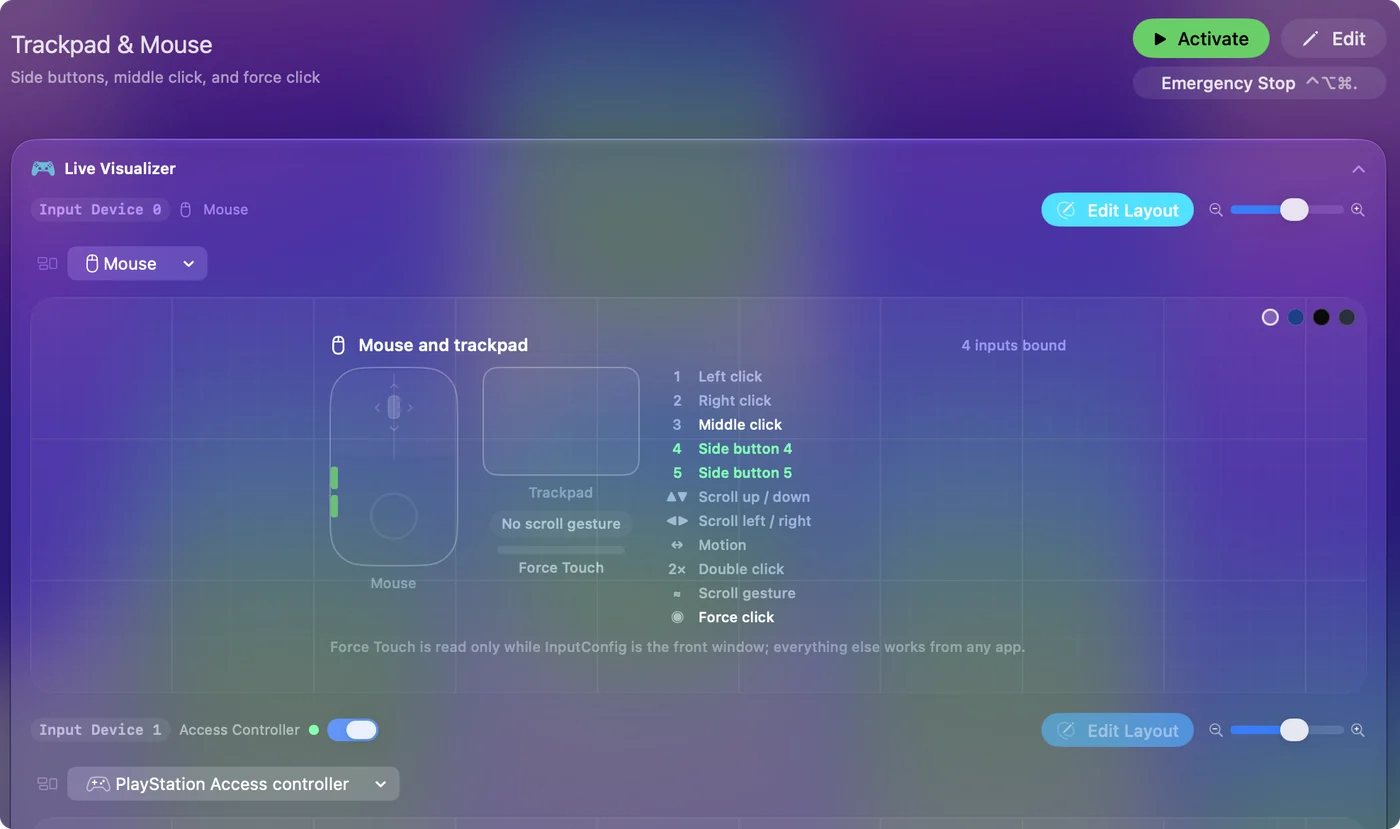
Bind the buttons
- You: Add a row, set the device to This Mac's mouse or trackpad, press Scan and press the lower side button.
- InputConfig: Names it, probably Button 4, and lets you pick an output.
- Check: Choose Mission Control, Save, Activate and press the button. Mission Control opens.
A vertical mouse keeps your hand still, so the side buttons sit under the thumb and are easy to hit. Back and forward are good defaults. A second pair for Mission Control and Start Dictation suits long days at a desk. Mouse side buttons on a Mac has the full setup.
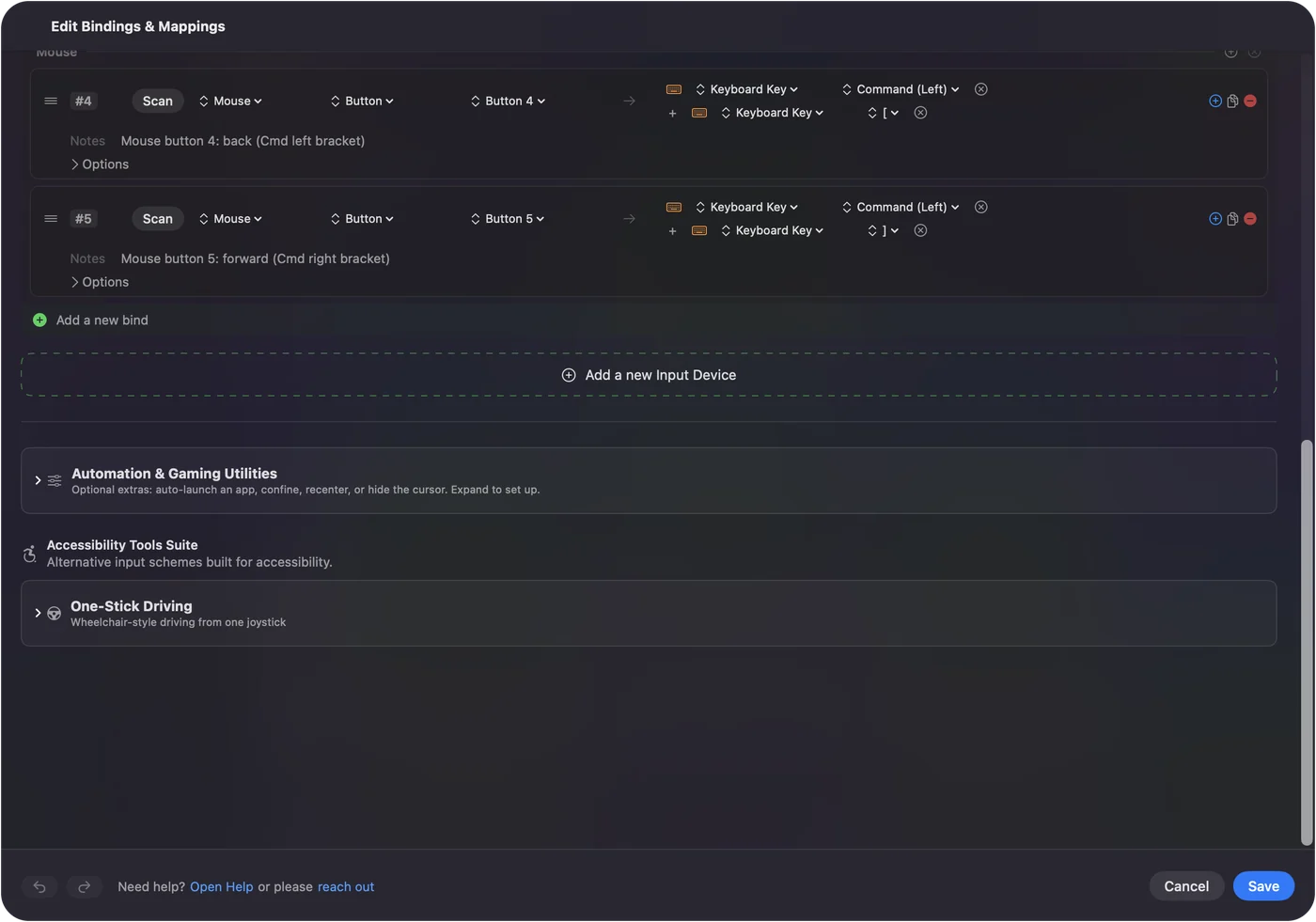
Make the few buttons do more
With four customizable buttons you can use the hold and double tap actions on each row. The thumb button goes back on a tap, closes the tab on a double tap and shows Mission Control on a hold. A Mouse row of the kind Double click fires on the second click of a pair, which can save you a double click when it hurts to click twice. Turn on Block the button's own action for the side buttons and the middle button so apps stop seeing the original press while the preset runs.
For a comfort mouse, fewer physical motions is the goal. Put two or three repeated jobs on the thumb buttons, and leave the finger buttons for plain clicking. Hold and double tap shows the timing.
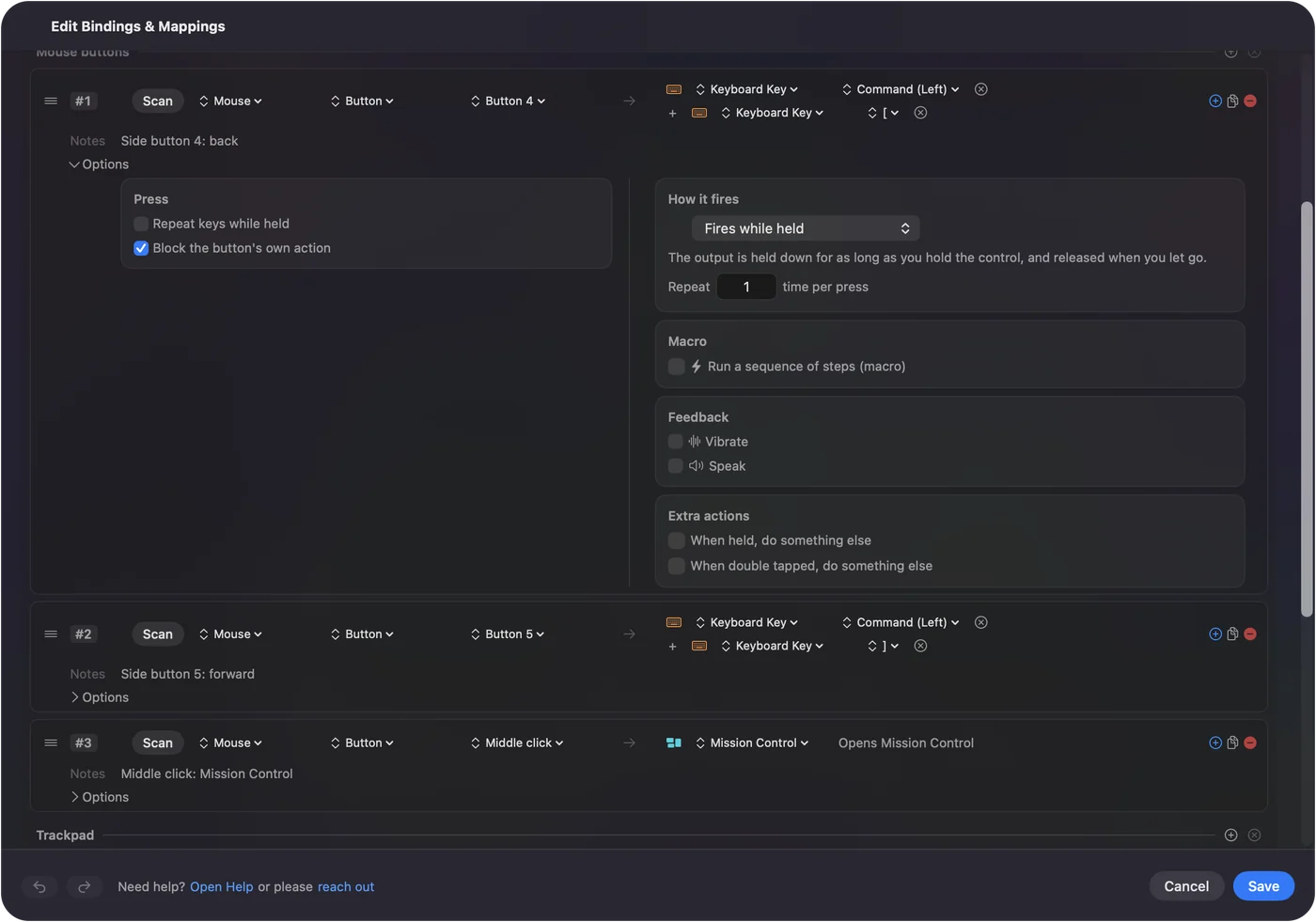
Macros and per-app layouts
A macro runs several steps from one press. In the row's Options, tick Run a sequence of steps (macro) and add key, shortcut and click steps, each with a wait. A copy, wait and paste pair is a good start. A row can also run a Siri Shortcut. For per-app layouts, list an app under Automation & Gaming Utilities and turn on Switch presets when the front app changes in Settings, Advanced. Only one preset runs at a time, and Control Option Command period stops it.
Ideas for Lift users
- Office days. Put Copy and Paste on two thumb buttons so you stop reaching for the keyboard.
- Wrist comfort. Move double click and right click to buttons your thumb already rests on. The carpal tunnel page covers more.
- Meetings. Mute and camera on thumb buttons, in a preset that runs only in Zoom or Meet.
If something is off
Climb this ladder, smallest step first:
- Check the pairing slot. The mouse remembers up to three devices. Make sure it points at your Mac.
- Pair it again. Remove it in System Settings, Bluetooth and pair it fresh.
- Quit Logi Options+ and scan. It may own a button.
- Activate the preset. Rows only fire while it runs.
- Check Accessibility. InputConfig needs it.
For a stuck Logitech app, see G HUB or Logi Options+ not working.
What it cannot do
- Change tracking speed or the angle. Speed is in System Settings or Logi Options+. The angle is the mouse's shape.
- Read buttons that stay in the mouse. Pairing and any DPI control are inside it.
- Tell two mice apart. Every mouse counts as one.
The short version
- Pair and go. No software needed for the basics.
- Buttons. Scan, then bind with tap, hold and double tap.
- Logitech's app. Only for what the Mac cannot see.
A vertical mouse is about comfort, so use the buttons to save you motions.
Questions
Does the Logitech Lift work on a Mac?
Yes. Logitech sells a Lift for Mac that pairs over Bluetooth Low Energy, and it works as a mouse with no software.
How many buttons does the Logitech Lift have?
Most listings say four customizable buttons, and some say six in total. Press Scan in InputConfig to see which reach your Mac.
Do I need Logi Options+ for the Lift on a Mac?
No, not for the basics. It is Logitech's app for button assignment and app-specific settings.
Can I change the Lift buttons without Logitech software?
Yes, for buttons the Mac can see. InputConfig reads them and gives each a press, hold and double tap job.
Is there a left-handed Logitech Lift?
Yes, Logitech sells a left-handed version, so check the box before you buy.
Does the Logitech Lift for Mac come with a receiver?
Logitech's page says the Bolt receiver is not included, so use Bluetooth or buy the receiver separately.
Related
This page in other languages: العربية, Čeština, Dansk, Deutsch, Español, Suomi, Français, עברית, Magyar, Bahasa Indonesia, Italiano, 日本語, 한국어, Norsk, Nederlands, Polski, Português, ไทย, 繁體中文, 简体中文
Completely free. You don't have to make an account, there are no subscriptions, and nothing is locked. Optimized for Apple silicon. Open source on GitHub.
Updated