How do I set up a Logitech Ergo trackball on a Mac?
 InputConfig is completely free on the Mac App Store. You don't have to make an account, there are no subscriptions, and nothing is locked. Optimized for Apple silicon.
Pair it, and the ball moves the pointer and the buttons click, with no software. Logitech's Ergo trackballs are the ERGO M575 line, now sold as the M575S, and the MX Ergo S. Both work with Logi Options+ on macOS for button changes, and the MX Ergo S adds a precision button. If you want the buttons to do things Logitech's app cannot, or you want them to do different things in different apps, InputConfig is the free Mac app I make for that.
Button counts here are from Logitech's pages for the ERGO M575S and the MX Ergo S, which I read on October 21, 2026. The M575S page lists 3 customizable buttons, back, forward and the wheel click. The MX Ergo S page lists 6 customizable buttons and a DPI button that switches between faster tracking and high precision. I did not read a page for the original MX Ergo, so press Scan on it.
On this page: 11 sections
Steps
- Pair the trackball by Bluetooth or its receiver and check the ball and clicks work.
- Install Logi Options+ only if you want Logitech's settings, such as precision speed.
- Open InputConfig, add a row, press Scan and press a side button.
- Pick an output, such as a right click, a shortcut or Mission Control.
- Save and Activate, then try it.
Know what each trackball has
A trackball keeps the body still and moves the pointer with the thumb or fingers, which is why people pick one for wrist, arm or desk space reasons. The two Logitech models differ in a way that matters here.
- The ERGO M575S. Logitech's page lists five buttons, three of them customizable: back, forward and the middle click on the wheel. It does not list a precision button.
- The MX Ergo S. Logitech's page lists six customizable buttons, with a DPI button for precision and Smart Actions in Logi Options+. A retailer listing gives eight buttons in all, including Easy-Switch.
- The original MX Ergo. The MX Ergo S is its successor. I did not read its page, so use Scan for its buttons.
The M575S has fewer buttons, so every one of them is worth a good job.
Setup details from Logitech's getting started page for the M575, read on October 21, 2026: turn it on, remove the pull-tab, and press the connect button to switch between the Unifying receiver (white LED) and Bluetooth (blue LED). If the LED is not blinking fast, hold the button for three seconds to start pairing. Logitech's page says the cursor speed is set in its app, from 100 to 2000 DPI, and a Mac hardware requirement of macOS 12 or later appears on the M575S listing. Logitech Control Center is no longer supported, so use Logi Options+. A Cult of Mac review says the three programmable buttons can run things like a triple click or open the Calculator.
Find out what each button sends
Press Scan in InputConfig and press each button. Quit Logi Options+ first, because it can take over a button.
| Button | How it reports | What to do |
|---|---|---|
| Left and right click | Standard clicks | InputConfig cannot change these |
| Wheel click | Middle click | Bind it |
| Back and forward | Probably Button 4 and Button 5 | Bind them |
| Precision or DPI button (MX Ergo S) | Works inside the mouse | Likely nothing scans. Logi Options+ can reassign it |
| Easy-Switch (MX Ergo S) | Switches the connection inside the mouse | Not an input for Mac apps |
A button that changes tracking speed does it inside the trackball and sends nothing to macOS, as far as I know. If Scan does name it, you can bind it, and that is the answer for your model. Scan answers it in a second, so I would not guess.
Bind the buttons
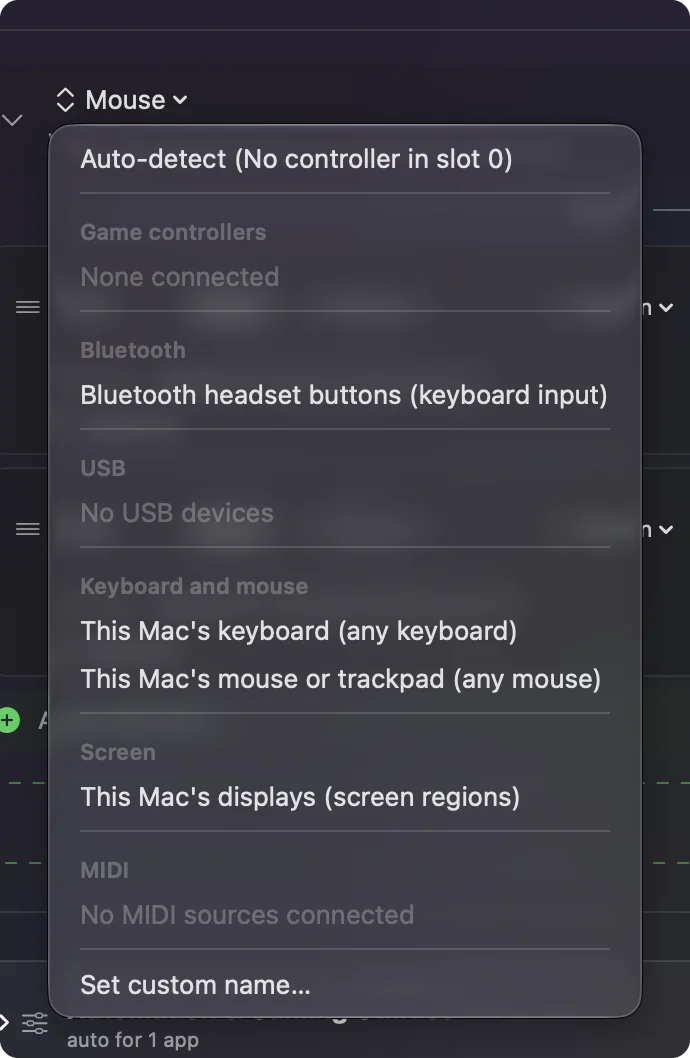
- You: Add a row, set the device to This Mac's mouse or trackpad, press Scan and press the back button.
- InputConfig: Names it Button 4 or Button 5 and lets you pick an output.
- Check: Choose Mission Control, Save, Activate and press it. Mission Control opens.
Then bind the forward button to something you use all day, such as Command Tab or Start Dictation. If your hands tire on the small left and right buttons, you can bind a side button to send a right click, since mouse clicks are among the outputs. Mouse side buttons on a Mac has the long version.
Use hold and double tap to get more from few buttons
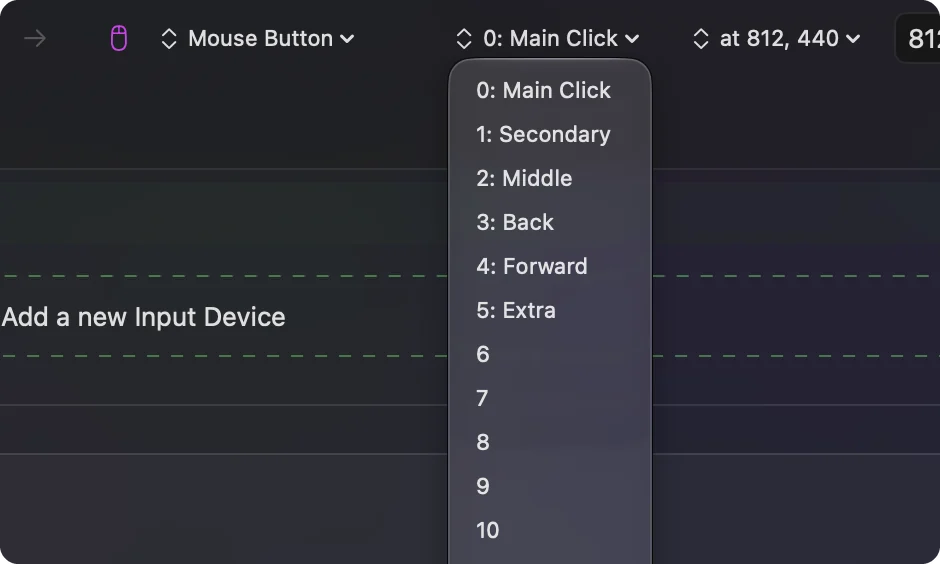
With three programmable buttons, the hold and double tap actions matter. Give the back button back on a tap, close tab on a double tap and Mission Control on a hold. Give the forward button forward, reopen tab and Start Dictation. Turn on Block the button's own action so a browser does not do the original job on top.
One more idea suits a trackball. A clicking motion while rolling the ball is hard for some hands, so a side button can send a click while the thumb stays on the ball. Moving a click to a button your hand already rests on is the single most useful change for many trackball users. Hold and double tap explains the timing.
Macros and per-app layouts
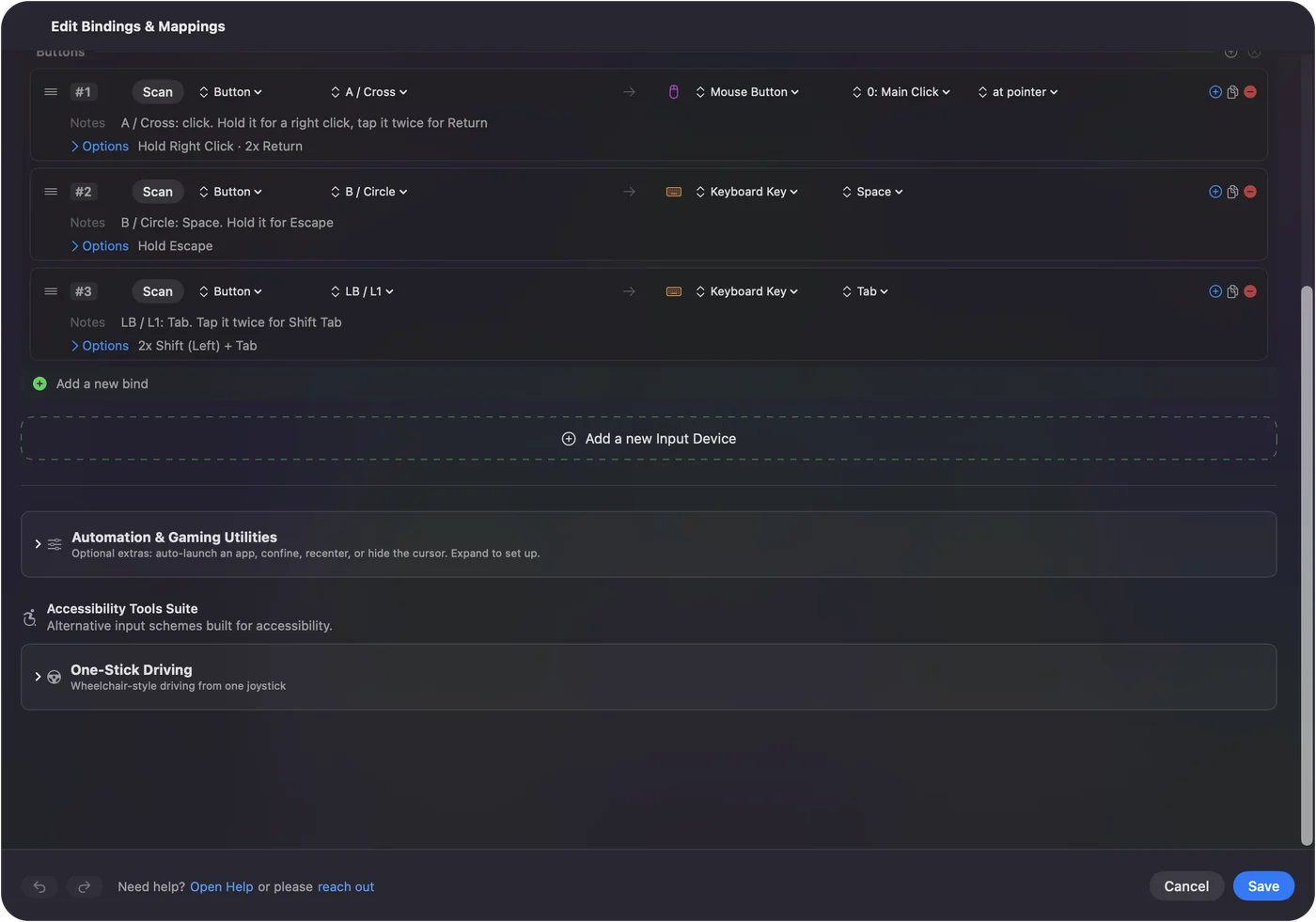
A macro runs several steps from one press. In a row's Options, tick Run a sequence of steps (macro), and add key, shortcut and click steps, each with a wait. A trackball user might put a copy and paste pair on one button. A preset per app, listed under Automation & Gaming Utilities with Switch presets when the front app changes turned on, makes the same button Undo in an editor and Back in a browser. Only one preset runs at a time. Control Option Command period stops it.
Ideas for trackball users
- Accessibility. A trackball asks for less wrist movement. Moving clicks, double clicks and dictation onto a side button can cut effort further. The page on a mouse alternative for carpal tunnel covers other options.
- Designers and CAD users. Hold a button for a modifier while rolling, for pan or orbit, if the app supports it.
- Small desks. Put Mission Control and Spaces on the back and forward buttons, since a trackball does not move.
If something is off
Climb this ladder, smallest step first:
- Clean the ball. A sticky pointer is usually dust under the ball, not software.
- Check the connection. Pair again in System Settings, Bluetooth, or replug the receiver.
- Quit Logi Options+ and scan. It may own a button.
- Activate the preset. Rows only fire while it runs.
- Check Accessibility. InputConfig needs the permission.
For a stuck Logitech app, see G HUB or Logi Options+ not working.
What it cannot do
- Change tracking speed. That belongs to the DPI button, Logi Options+ and macOS.
- Read buttons that stay in the mouse. A precision button may be one.
- Tell two mice apart. Every mouse counts as one.
The short version
- Pair and go. No software is needed for the basics.
- Buttons. Scan, then bind with tap, hold and double tap.
- Precision. Use the DPI button on the MX Ergo S, which works inside the mouse.
A trackball has few buttons, so tap, hold and double tap make them go further.
Questions
Does the Logitech Ergo M575 work on a Mac?
Yes. Logitech's M575S page lists Logi Options+ on macOS, and the trackball works as a mouse without it.
Is there a Logitech MX Ergo S for Mac?
Yes, Logitech sells it and lists Logi Options+ on macOS. It has a DPI button for precision tracking.
Does the M575 have a precision mode button?
Logitech's M575S page lists three customizable buttons, back, forward and middle click, and no precision button.
Can I change what the trackball buttons do on a Mac?
Yes. Logi Options+ can, and so can InputConfig for any button that reaches the Mac.
Why does the precision button not scan?
A DPI button works inside the trackball, so it sends nothing to macOS unless Logi Options+ gives it another job.
How do I pair the Logitech M575 with a Mac?
Remove the pull-tab, turn it on, press the connect button to pick Bluetooth (blue LED), and hold it three seconds if the light is not blinking fast.
Related
This page in other languages: العربية, Čeština, Dansk, Deutsch, Español, Suomi, Français, עברית, Magyar, Bahasa Indonesia, Italiano, 日本語, 한국어, Norsk, Nederlands, Polski, Português, ไทย, 繁體中文, 简体中文
Completely free. You don't have to make an account, there are no subscriptions, and nothing is locked. Optimized for Apple silicon. Open source on GitHub.
Updated