How do I set up a Logitech MX Master on a Mac?
 InputConfig is completely free on the Mac App Store. You don't have to make an account, there are no subscriptions, and nothing is locked. Optimized for Apple silicon.
Pair it over Bluetooth and it works as a mouse with nothing installed: the pointer, both main clicks, the scroll wheel and, in most apps, back and forward. The extras are where the software comes in. Logitech's Logi Options+ is the app for the thumb wheel, the gesture button and the MX Master 4's haptics and Actions Ring, and it runs on macOS. If you would rather not run it, or you only want the buttons to do something specific, InputConfig is the free Mac app I make, and it gives any button the Mac can see a job of your choosing.
The button details below are from Logitech's product pages and a spec listing for the MX Master 3S for Mac, which I read on October 21, 2026. Logitech's MX Master 4 page, read the same day, lists Logi Options+ for Windows and macOS. If you are stuck on the Logitech app itself, G HUB or Logi Options+ not working on a Mac has the fixes in order.
On this page: 13 sections
- Steps
- Know what works with nothing installed
- MX Master 3S or MX Master 3S for Mac: what differs
- The MagSpeed wheel modes and Easy-Switch
- Find out what each button sends
- Bind the thumb buttons
- Use the thumb wheel as an input
- Add macros and stop the old action
- Decide how to use the MX Master 4's extras
- If a button does nothing
- What it cannot do
- The short version
- Questions
Steps
- Pair the MX Master over Bluetooth, or with its receiver on the standard model, and check the pointer and scroll wheel work.
- Decide whether you want Logi Options+ running, because it can take over the thumb wheel and gesture button.
- Open InputConfig, add This Mac's mouse or trackpad as an input, press Scan, and press a thumb button.
- Give the row an output, such as a shortcut, Mission Control or a macro, and turn on Block the button's own action if the button also does something else.
- Save and Activate the preset, then try each button in the app you care about.
Know what works with nothing installed
An MX Master is a standard mouse as far as a Mac is concerned. The pointer, the left and right buttons and the wheel work straight away, and Logitech says the mouse pairs by Bluetooth Low Energy with up to three devices. The machined steel MagSpeed wheel, the 8,000 DPI sensor and the battery are all in the mouse itself, so none of them need software.
- Back and forward. Most mice report these as Button 4 and Button 5, which many Mac apps treat as back and forward. I expect the MX Master to do the same, but press Scan on yours to see.
- The thumb wheel. Logitech's default for it is horizontal scrolling, so in an app with a wide page it scrolls sideways with no setup.
- The gesture button. On the Mac version of the MX Master 3S, Logitech lists defaults that trigger Mission Control and App Exposé, with a click for Launchpad. Those defaults come from the app, so with no software I would not count on them.
Logitech's own spec sheet for the MX Master 3S for Mac, as I read it, lists seven buttons: left, right, back, forward, an app-switch button, a wheel mode-shift button and the middle click, plus the thumb wheel and the gesture button. Everything else a Mac needs from this mouse is already there, so software only matters for the thumb side.
MX Master 3S or MX Master 3S for Mac: what differs
Logitech sells two versions of this mouse, and people often search for the wrong one. The standard MX Master 3S can connect with a Logi Bolt receiver or over Bluetooth, according to Logitech's setup guide. The MX Master 3S for Mac is a separate model with Mac colors, Space Gray and Pale Gray in the listings I read. Its page names Bluetooth Low Energy, mentions only a USB-C charging cable in the box and says nothing about a receiver, so I would plan on Bluetooth only. I read both pages and the guide on October 21, 2026.
- Same mouse where it counts. Both pages describe the MagSpeed wheel, the 8,000 DPI sensor and Logi Options+ for settings.
- Both work on a Mac. The Mac model is listed as made for macOS and iPadOS, and the standard model pairs over Bluetooth like any other. The guide adds that on a Mac the back and forward buttons only work after you install Logi Options+.
- What changes for InputConfig. Nothing. It sees the same buttons from either model, so the rest of this page applies to both. Buy by color and by whether you want a receiver, not for the button layout.
The MagSpeed wheel modes and Easy-Switch
Two features live inside the mouse, so they work with nothing installed. The setup guide describes them like this.
- SmartShift. The MagSpeed wheel moves on its own between line-by-line ratchet scrolling, which suits lists, and a nearly frictionless free spin, which suits long pages, depending on how fast you flick it.
- The button behind the wheel. Pressing the mode shift button on top switches between ratchet and free spin by hand. In Logi Options+ you can turn SmartShift off to stay in one mode, or change how fast you must spin before it frees up.
- Easy-Switch. The mouse pairs with up to three computers. A short press of the Easy-Switch button changes channel, and holding it for three seconds starts pairing, with the light blinking fast. Logitech's Mac page words the same idea as connecting up to three devices, such as a MacBook, an iMac and an iPad.
The mode shift button may handle its job inside the mouse and never reach the Mac, so press Scan and see before you plan around it. A channel change is also the mouse's own business. If a button scans, InputConfig can bind it, and if it does not, it belongs to the mouse.
Find out what each button sends
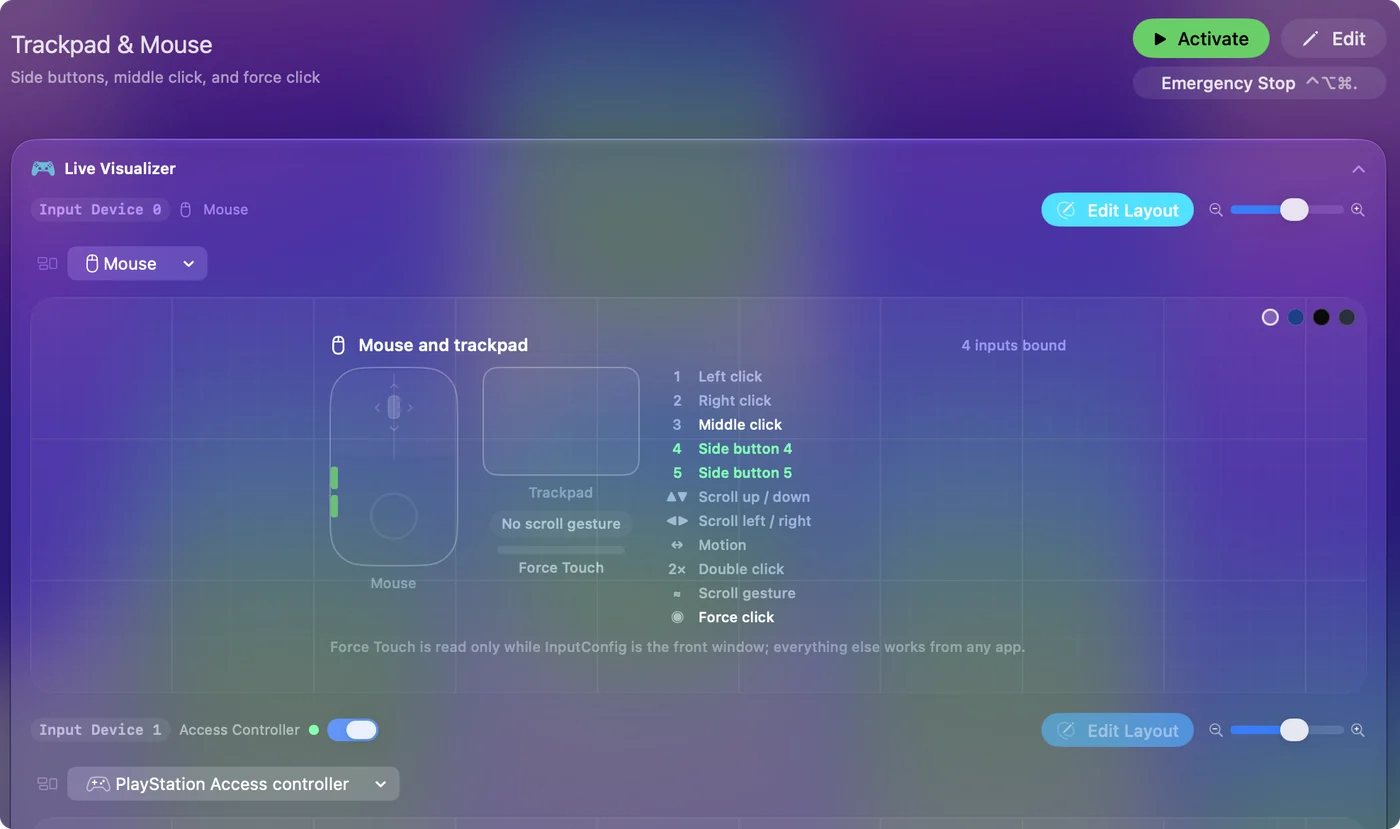
Not every button on this mouse is a mouse button to the Mac, so scan before you plan anything. In InputConfig, add a row, press Scan, and press the button. If Logi Options+ is installed and has given that button its own job, quit it first, because a button it handles may never reach macOS at all.
| Control | What I expect | How to be sure |
|---|---|---|
| Left, right, middle click | Standard clicks | Left and right click cannot be changed in InputConfig |
| Back and forward | Button 4 and Button 5, typically | Scan names the button |
| App-switch and wheel mode-shift | Not sure, may stay inside the mouse | Scan with Logi Options+ quit |
| Thumb wheel | Sideways scrolling, a Scroll X input | Scan, then turn the wheel |
| Gesture button | Not sure, depends on the model and the software | Scan with Logi Options+ quit |
If Scan names nothing, that button talks only to Logitech's software and no other app can read it. Scan is the one test that settles every row of that table for your own mouse. The mouse tester shows the same buttons in a browser.
Bind the thumb buttons
Install InputConfig from the Mac App Store and allow Accessibility access. Then take the thumb buttons one at a time:
- You: Add a row, set the input device to This Mac's mouse or trackpad, press Scan, and press the forward thumb button.
- InputConfig: Names the row, for example Button 5, and shows the output choices on the right.
- Check: Pick Keyboard Key, add Command and the letter you want, then Save and Activate. Pressing the thumb button runs the shortcut.
Good first jobs are Mission Control for one button, Start Dictation for another, and Command W to close a tab for the third. The buttons you reach with your thumb are the ones you press without looking, so give them the jobs you repeat all day. The longer version is mouse side buttons on a Mac.
Use the thumb wheel as an input
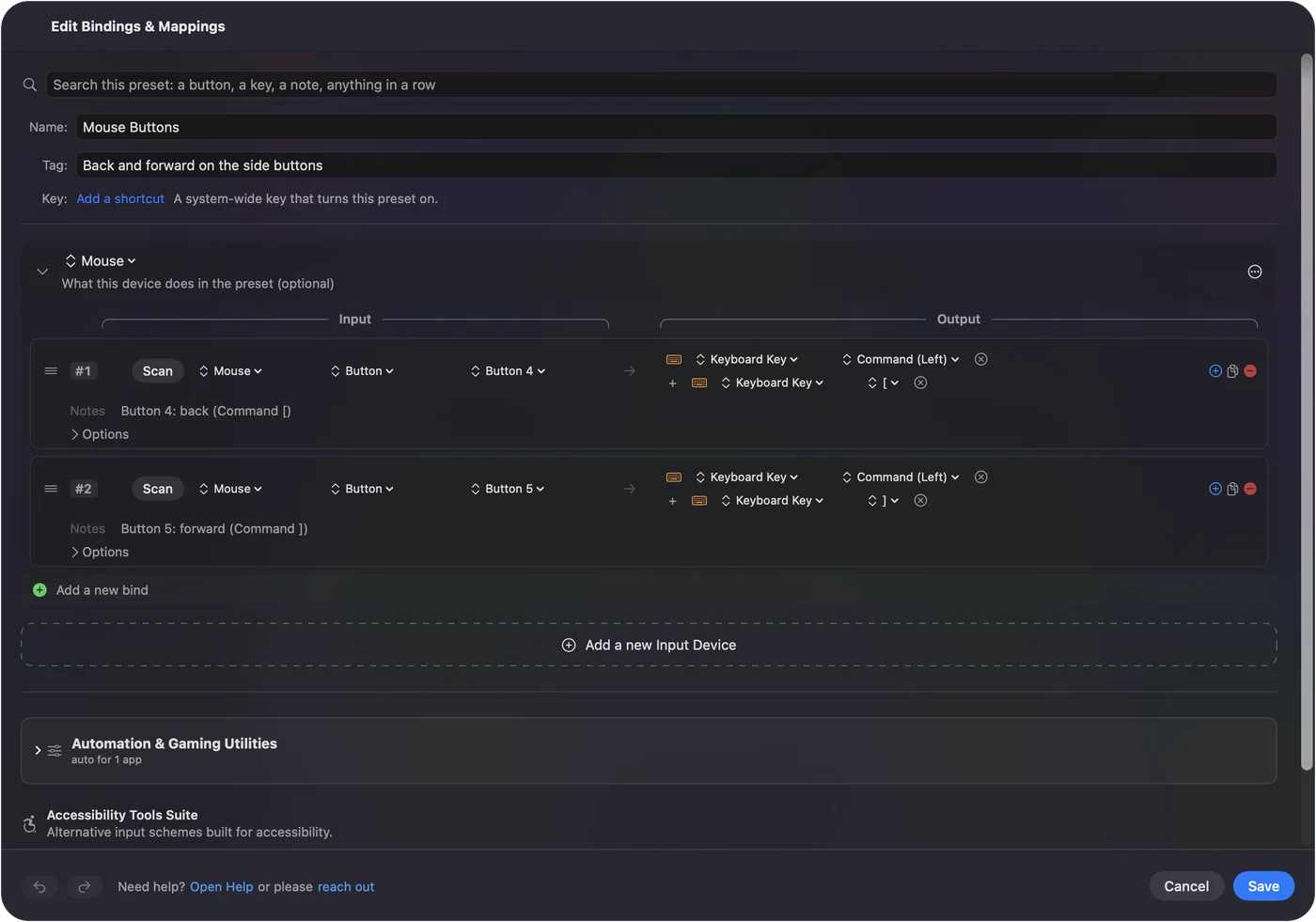
A thumb wheel that reports as sideways scrolling scans as Scroll X, and you can give each direction a row. Turn the wheel one way for Control Left Arrow and the other way for Control Right Arrow, and it moves between desktops. Or put volume up and volume down on it, which is a nice use for a wheel that does nothing in most apps.
One catch: InputConfig listens alongside macOS and cannot hold the scroll back, so in an app with a wide page the wheel still scrolls sideways while its row runs. Give it jobs in apps where that does no harm, or keep it out of the others with a per-app preset. A held wheel can repeat the row, so turn it in small steps. The tilt wheel page explains sideways scroll inputs in detail.
Add macros and stop the old action
A macro runs a short sequence from one press. Open the row's Options and tick Run a sequence of steps (macro), then add key, shortcut and click steps, each with its own wait and hold time. For an MX Master, a handy one is a copy-wait-paste on the button you press most. A row can also run a Siri Shortcut, so a thumb button can start any Shortcut you built.
Each row also has a hold action and a double tap action. That means one thumb button can undo on a tap, redo on a hold and save on a double tap. Three jobs on one button is how a mouse with few buttons gets close to one with many. Macros, turbo and toggle has the details.
If a thumb button already goes back in your browser and you give it a second job, both would happen. Open the row's Options and turn on Block the button's own action in the Press box. Apps then stop seeing that button while the preset runs. It works for the middle button and the side buttons, not for left and right click.
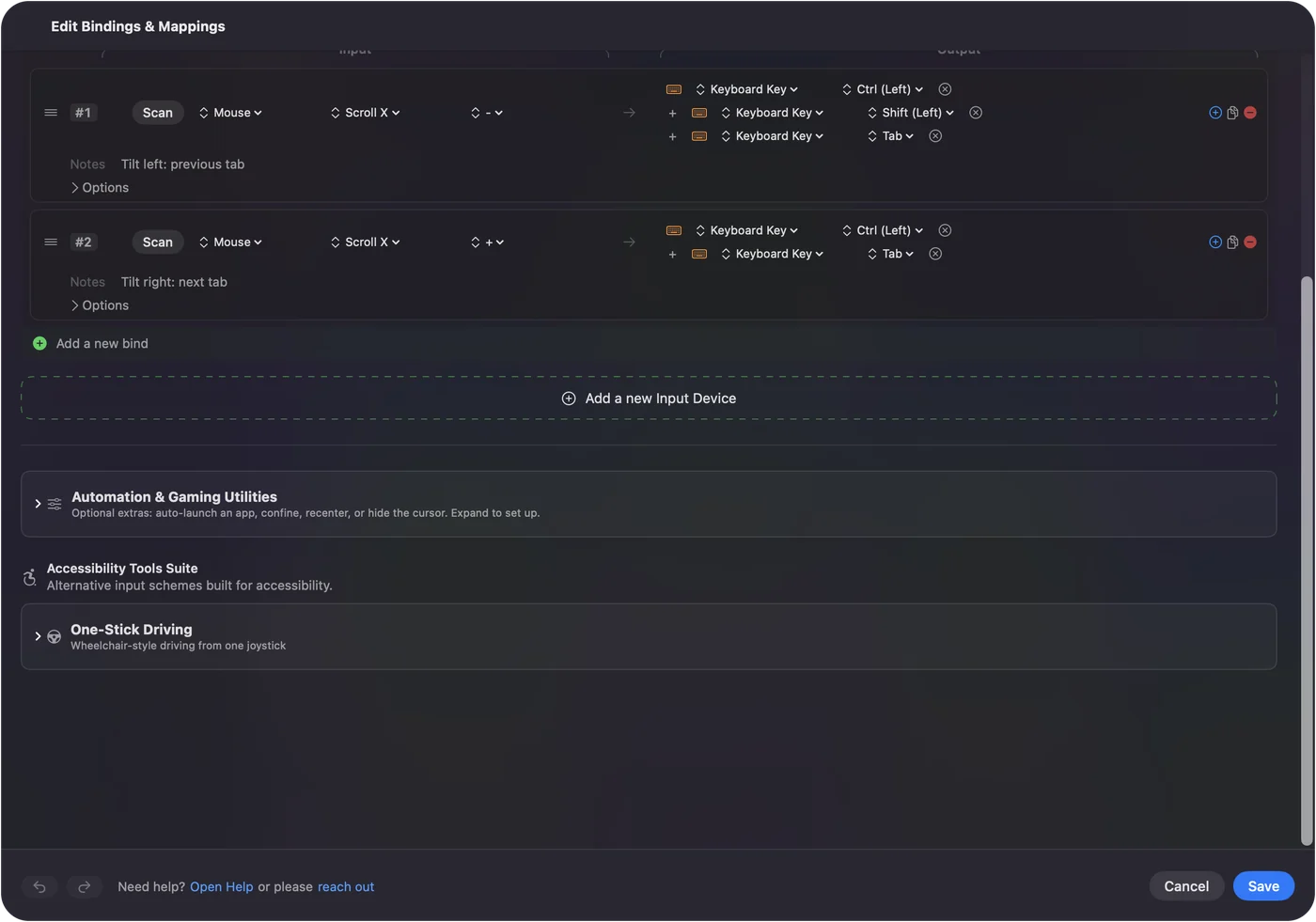
Make a preset for each app you care about too. List the app under Automation & Gaming Utilities, Activate when these apps are in front, and the layout follows the app in front once Switch presets when the front app changes is on in Settings, Advanced. Then the same thumb button is Back in Safari, Undo in Final Cut Pro and Mute in Zoom. This is what Logi Options+ calls app-specific settings, and the Logi Options+ alternative page covers the rest of that comparison.
Decide how to use the MX Master 4's extras
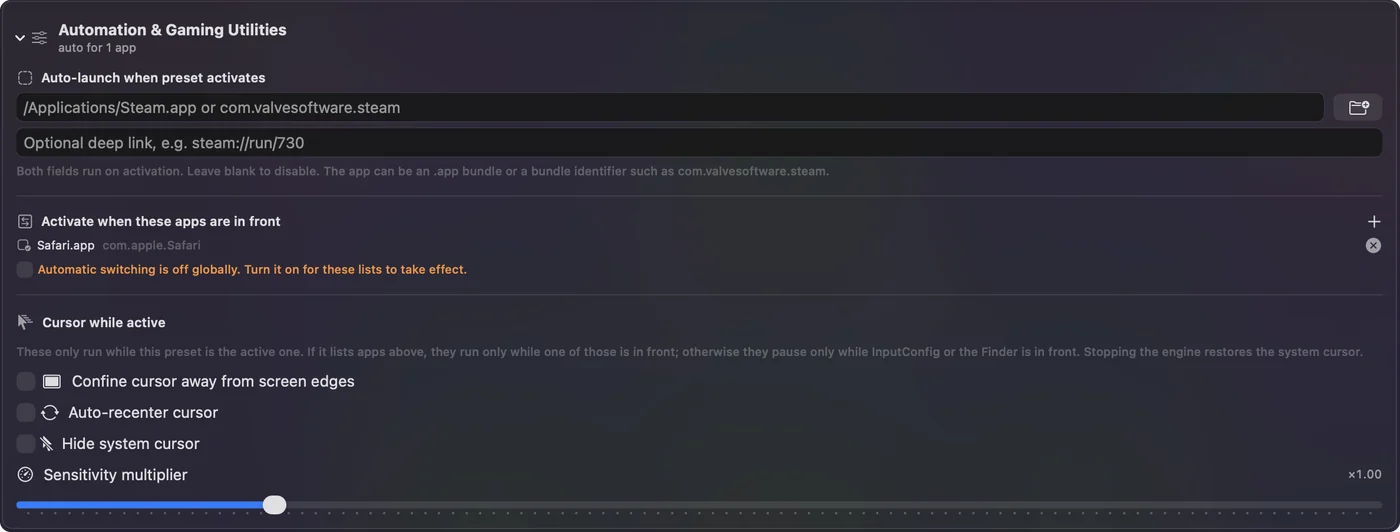
Logitech's MX Master 4 page describes a Haptic Sense Panel under the thumb rest and an Actions Ring that puts tools and shortcuts at the cursor, both set up in Logi Options+. Reviews I read say the Actions Ring has its own button and that the gesture button moved in front of the two side buttons. I have not tested an MX Master 4, so I cannot say what each of those controls reports to a Mac. Press Scan and see.
If you want the haptics and the ring, keep Logi Options+ running. If you want the thumb buttons to run your own shortcuts, a button can be handled in either place but not both. Pick one owner per button. I would give the software the buttons only it can read, and InputConfig the ones the Mac can see.
If a button does nothing
Climb this ladder, smallest step first:
- Activate the preset. Rows only fire while their preset runs.
- Quit Logi Options+. If it assigned the button, the press may not reach macOS. Quit it and scan again.
- Check Accessibility. InputConfig needs it, in System Settings, Privacy & Security, Accessibility.
- Check what Scan names. A key name means set it to F13 to F20 in the maker's app. Nothing means the button belongs to Logitech's software.
- Reconnect the mouse. Remove it in System Settings, Bluetooth and pair it again.
The emergency stop is Control Option Command period, and it turns every preset off.
Forum threads I read on October 21, 2026 add three causes worth checking. First, Logi Options+ can swallow back and forward before an app sees them, and users report the buttons working again once it is quit or removed. Second, Logitech's older Options app needed the Accessibility permission, so check both Logi Options+ and InputConfig there. Third, if a browser shows odd behavior on the thumb buttons, reset the browser's own mouse or gesture settings. Logi Options+ can also hang on a configuring screen after a cold restart, and restarting the app while moving the mouse is the fix people report.
What it cannot do
- Flow and Easy-Switch status. Moving between computers is Logitech's feature, set in its software.
- DPI, scroll feel and haptics. InputConfig does not change them. The Logitech app and macOS settings do, and LinearMouse or Mac Mouse Fix handle scroll feel.
- Two mice apart. Every mouse connected counts as one, so two mice cannot have different jobs on the same button.
The short version
- Works already. Pointer, clicks, wheel and usually back and forward.
- Needs Logitech. Haptics, the Actions Ring, Flow and DPI.
- Needs a mapper. Custom jobs for thumb buttons, per app, with macros.
Scan every button once, give the ones that reach the Mac a job, and leave the rest to Logi Options+.
Questions
Does the Logitech MX Master 3S work on a Mac?
Yes. It pairs over Bluetooth Low Energy and works as a mouse with no software. Logi Options+ adds the thumb wheel, gesture button and app settings.
Do I need Logi Options+ on a Mac?
Not for the pointer, clicks and wheel. You need it for Logitech's own extras. A mapper such as InputConfig can give the buttons the Mac sees their own jobs.
Why do the MX Master back and forward buttons not work on my Mac?
Often Logi Options+ is intercepting them, or the app in front has no job for Button 4 and Button 5. Quit the Logitech app, press Scan, and bind them.
Is the MX Master 3S for Mac different from the regular MX Master 3S?
Yes, it is a separate model in Mac colors. Logitech's page names Bluetooth Low Energy and a charging cable and does not mention a receiver, while the standard 3S can use a Logi Bolt receiver or Bluetooth.
How do I switch the MX Master between SmartShift and free spin?
The wheel switches by speed on its own, and the button on top changes mode by hand. In Logi Options+ you can turn SmartShift off or change how fast you must spin.
How many Macs can an MX Master 3S connect to?
Up to three devices, per Logitech. A short press of the Easy-Switch button changes channel, and holding it for three seconds starts pairing.
Related
This page in other languages: العربية, Čeština, Dansk, Deutsch, Español, Suomi, Français, Magyar, Bahasa Indonesia, Italiano, 日本語, 한국어, Norsk, Nederlands, Polski, Português, 繁體中文, 简体中文
Completely free. You don't have to make an account, there are no subscriptions, and nothing is locked. Optimized for Apple silicon. Open source on GitHub.
Updated