How do I set up the Logitech MX Anywhere 3S on a Mac?
 InputConfig is completely free on the Mac App Store. You don't have to make an account, there are no subscriptions, and nothing is locked. Optimized for Apple silicon.
Pair it over Bluetooth Low Energy and it works on a Mac right away, with the pointer, clicks and wheel. Logitech sells the MX Anywhere 3S for Mac with Logi Options+ for tracking speed, button changes and app-specific settings. It is a small travel mouse with few buttons, so the real question is how to get more out of the ones it has. InputConfig is the free Mac app I make, and it gives each button the Mac can see up to three jobs, on a press, a hold and a double press.
Specs here are from Logitech's MX Anywhere 3S for Mac page and retailer listings, which I read on October 21, 2026. Logitech's page does not state a minimum macOS version in the text I could read, so check the box or the page for yours.
On this page: 11 sections
Steps
- Pair the mouse over Bluetooth, choosing the Mac in System Settings, Bluetooth.
- Install Logi Options+ only if you want Logitech's settings, or skip it for a plain mouse.
- Open InputConfig, add a row, press Scan and press the side button.
- Choose an output, and add a hold and double tap action if you want more jobs on one button.
- Save and Activate, then try it.
Know what the mouse does on its own
The MX Anywhere 3S is a six button mouse in retailer listings, with a MagSpeed wheel Logitech says scrolls about 1,000 lines a second and an 8,000 DPI sensor that tracks on glass. Logitech's comparison table lists no thumb wheel, so this is not a smaller MX Master. It pairs with up to three Apple devices, and a Logi Bolt receiver is a separate purchase. Logitech says the battery lasts up to 70 days.
- Pointer and clicks. Work with nothing installed. System Settings, Mouse sets tracking speed.
- The wheel. It scrolls like any wheel. Whether it ratchets or free-spins is a mouse behavior, and Logitech's app can change how it behaves.
- Easy switching. The pairing between up to three devices happens with a button on the mouse and does not need a Mac app.
Because it has few buttons, each one is worth a good job. The other Logitech pages here cover the heavier models, like the MX Master.
Logitech's page also says Flow, which needs Logi Options+, moves the pointer and copied text, images and files between Macs. A listing gives macOS 10.15 or later as the requirement for the mouse with Logi Options+. A 2024 review of the related MX Master 3S says Logi Options+ sometimes stalled on a configuring screen after a cold restart, and a restart fixed it. InputConfig does not need that app, so if it misbehaves your buttons can still work.
Find out what each button sends
A spec sheet I read on October 21, 2026 lists the six as left and right click, back and forward, a wheel mode-shift button and the middle click. What each one reports to a Mac is a different question, and Scan answers it in a second. Add a row in InputConfig, press Scan, and press each button in turn.
| Button | What to expect | What to do |
|---|---|---|
| Left and right click | Standard clicks | Leave them, InputConfig cannot change these |
| Wheel click | Middle click | Bind it, or block its old job |
| Back and forward | Button 4 and Button 5, typically | Bind them to anything |
| Wheel mode-shift button | Not sure | Press Scan with Logi Options+ quit |
| The pairing button underneath | Handled inside the mouse | Not an input for any Mac app |
A button that gives no result on Scan belongs to the mouse or to Logitech's app. If Scan names it, you can bind it, and if Scan stays empty, no other app can.
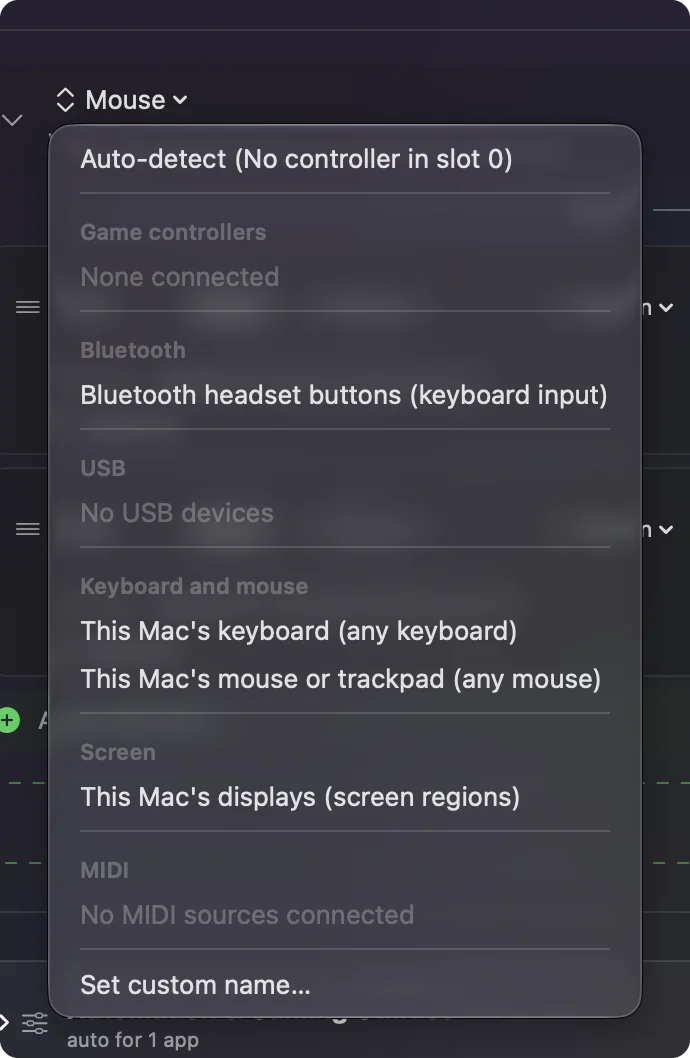
Bind the side buttons
- You: Add a row, press Scan and press the lower side button.
- InputConfig: Names the row Button 4 or Button 5 and lets you pick an output.
- Check: Choose Mission Control, Save, Activate, and press the button. Mission Control opens.
Then bind the other side button to something you use on trips: Start Dictation, Lock Screen, or a screenshot. Those are all System Function outputs. Pick one job per button before you start adding extras. Open Mission Control with a mouse button has more on the first one.
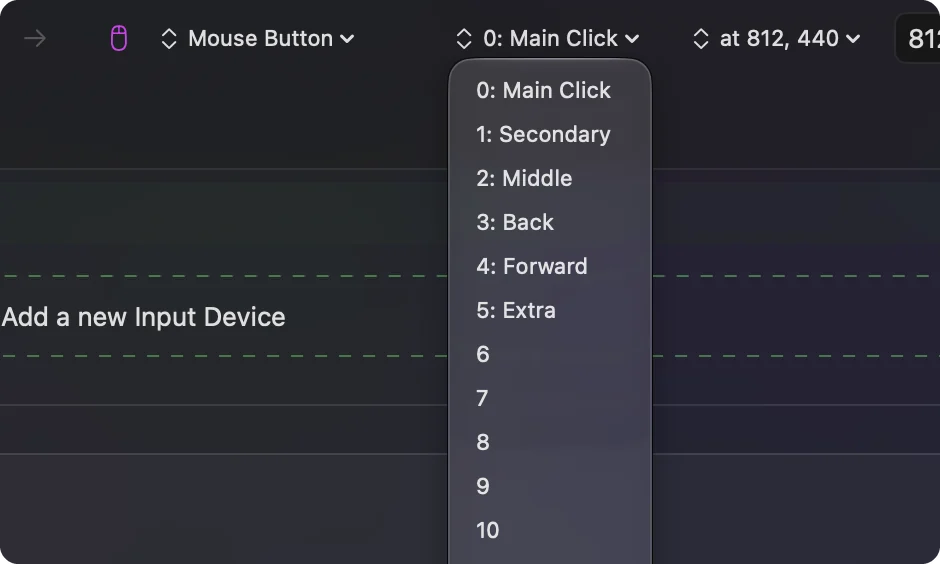
Get more from three or four buttons
A mouse with few buttons runs out of room, and this is where hold and double tap earn their place. Each row can have a hold action and a double tap action, each a full second output. So the back button can go back on a tap, close the tab on a double tap, and reopen it on a hold.
- Tap. Back, using Command left bracket.
- Double tap. Close the tab, using Command W.
- Hold. Reopen the closed tab, using Shift Command T.
Use a Mouse row of the kind Double click if you want the second click of a pair to be the trigger. Hold and double tap explains how the timing works.
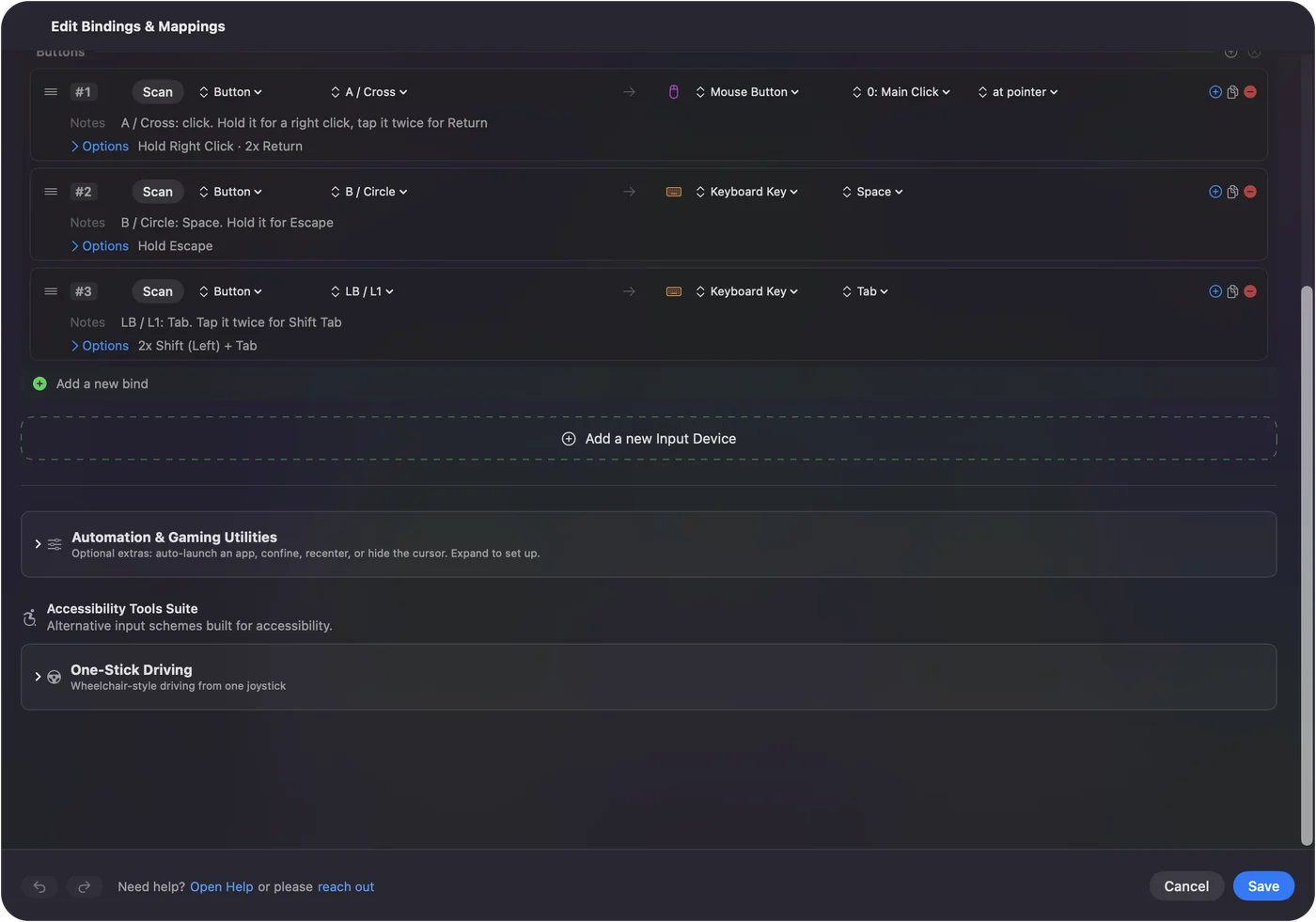
Add a macro and a layout for each app
For a travel mouse, the useful macros are short: copy, wait, then paste, or open the same three apps at once. In the row's Options, tick Run a sequence of steps (macro) and add the steps, each with its own wait and hold time. A row can also run a Siri Shortcut, which reaches anything you built in the Shortcuts app, such as turning on a focus mode. Keep macros short on a travel mouse, because you will be pressing them with the mouse half in your hand.
If you carry the mouse between a laptop for editing and a laptop for meetings, set a preset per app. Under Automation & Gaming Utilities, list the apps in Activate when these apps are in front, and turn on Switch presets when the front app changes in Settings, Advanced. The same side button is then Undo in your editor and Mute in Zoom. Only one preset runs at a time, so keep each one short. Block the button's own action on the side buttons if a browser would otherwise go back twice.
Ideas for a travel mouse
- A presenter. Back and forward become previous and next slide, with the wheel click blanking the screen.
- An editor on the go. Undo, redo and save on one button with tap, hold and double tap.
- A call mouse. Mute and camera toggles, bound to the side buttons in Zoom or Meet only.
If it will not connect or a button does nothing
Climb this ladder, smallest step first:
- Check the pairing slot. The mouse remembers up to three devices. Make sure it is set to the one that is your Mac.
- Pair it again. Remove it in System Settings, Bluetooth and pair it fresh.
- Quit Logi Options+. If it owns a button, the press may never reach macOS.
- Check Accessibility and Activate. InputConfig needs the permission and a running preset.
- Charge it. A flat battery looks like a dead mouse.
For a stuck Logitech app, see the fixes for G HUB and Logi Options+.
What it cannot do
- Change DPI or scroll feel. That belongs to Logi Options+, macOS or a mouse feel app.
- Read buttons that stay in the mouse. Pairing and some app-only controls never reach a Mac app.
- Treat two mice separately. Every mouse connected counts as one.
The short version
- Works. Over Bluetooth, with no software.
- Add jobs. Scan each button, then bind with tap, hold and double tap.
- Keep Logitech's app for. DPI and anything only it can reach.
With few buttons, tap, hold and double tap turn three buttons into nine jobs.
Questions
Does the MX Anywhere 3S work with a Mac?
Yes. Logitech sells a version for Mac that pairs over Bluetooth Low Energy with up to three Apple devices.
Do I need Logi Options+ for the MX Anywhere 3S?
Not to use it as a mouse. Logitech's app sets tracking speed, buttons and app-specific settings.
How many buttons does the MX Anywhere 3S have?
Retailer listings say six. Press Scan in InputConfig to see which ones reach your Mac.
Does the MX Anywhere 3S have a thumb wheel?
Logitech's comparison table lists no thumb wheel for it. The MX Master models have one.
Can I remap the MX Anywhere 3S buttons without Logitech software?
Yes, for buttons the Mac can see. InputConfig reads them and gives each one a press, hold and double tap job.
Does the MX Anywhere 3S support Flow on a Mac?
Logitech's page says Flow, which needs Logi Options+, moves the cursor and files between Macs. InputConfig does not replace Flow.
Related
This page in other languages: العربية, Čeština, Dansk, Deutsch, Español, Suomi, Français, עברית, Magyar, Bahasa Indonesia, Italiano, 日本語, 한국어, Norsk, Nederlands, Polski, Português, ไทย, 繁體中文, 简体中文
Completely free. You don't have to make an account, there are no subscriptions, and nothing is locked. Optimized for Apple silicon. Open source on GitHub.
Updated