How to open Mission Control with a mouse button on a Mac
 InputConfig is completely free on the Mac App Store. You don't have to make an account, there are no subscriptions, and nothing is locked. Optimized for Apple silicon.
macOS can do part of this by itself: System Settings, Desktop & Dock has a Shortcuts button near the bottom where Mission Control can be given a mouse button. For any button on any mouse, or a controller, bind it to the Mission Control system function in InputConfig. Launchpad and Spotlight are in the same list.
I make InputConfig, a free Mac app that gives mouse buttons, keys and controllers a second job.
Steps
- Try System Settings, Desktop & Dock, Shortcuts, and pick a mouse button for Mission Control.
- For more control, open a preset in InputConfig and click Edit.
- Add a row with This Mac's mouse or trackpad as the input device.
- Pick the button, then set the output to System Function, Mission Control.
- Click Save, then Activate.
Try the macOS setting first
- You: Open System Settings, Desktop & Dock, scroll to the bottom and click Shortcuts. Next to Mission Control, choose a mouse button from the second menu.
- macOS: Opens Mission Control when you press that button.
- Check: Press the button. Every window spreads out.
This covers Mission Control, application windows and Show Desktop. It lists only the buttons macOS recognizes, and it has no Launchpad or Spotlight.
Bind any button in InputConfig
- You: Add a row, set its input device to This Mac's mouse or trackpad, and pick the button, or press Scan and click it. Set the output type to System Function and pick Mission Control.
- InputConfig: Opens Mission Control from that button in every app.
- Check: Press the button. Press it again to close Mission Control.
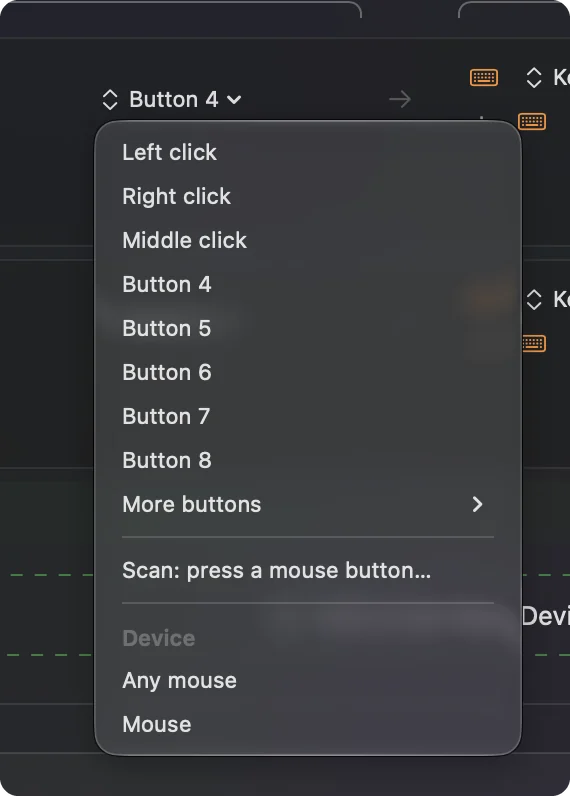
If the button already does something, such as going back in a browser, tick Block the button's own action in the row's Options.
Add Launchpad, Spotlight and desktops
- Launchpad. It is a System Function, next to Mission Control.
- Spotlight. It is a System Function too, which is handy on a controller.
- Next and previous desktop. Send Control Right Arrow and Control Left Arrow as keyboard shortcuts.
What it cannot do
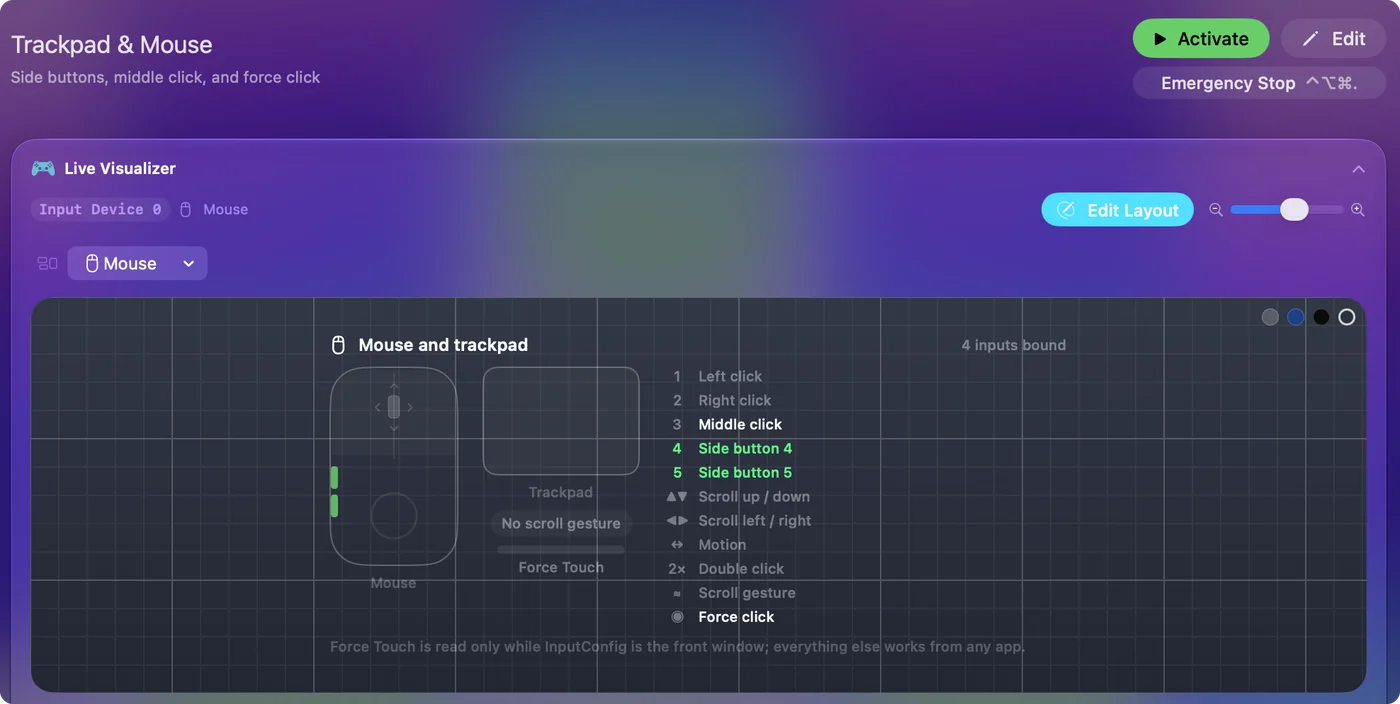
A Magic Mouse has no side buttons to bind. Buttons a mouse handles inside its own software, without telling the Mac, cannot be read by InputConfig or by macOS. The Mouse map in the Live Visualizer shows whether a press arrives.
The short version
- Built in. Desktop & Dock, Shortcuts, for the buttons macOS lists.
- Any button. A Mouse row with System Function, Mission Control.
Launchpad and Spotlight come from the same list.
Questions
Can I set a mouse button to Mission Control on a Mac?
Yes. System Settings, Desktop & Dock, Shortcuts lets you choose a mouse button for Mission Control. InputConfig can bind any button the Mac receives, and adds Launchpad and Spotlight.
How do I open Launchpad with a mouse button?
macOS has no mouse button setting for Launchpad. In InputConfig, bind the button to the Launchpad system function.
Why does my side button also go back in the browser?
The button keeps its own action unless you block it. In InputConfig, open the row's Options and tick Block the button's own action.
Related
Completely free. You don't have to make an account, there are no subscriptions, and nothing is locked. Optimized for Apple silicon. Open source on GitHub.
Updated