How to play games on a Mac with one hand
 InputConfig is completely free on the Mac App Store. You don't have to make an account, there are no subscriptions, and nothing is locked. Optimized for Apple silicon.
Yes, most Mac games can be played with one hand, once the controls are folded onto one device that fits it: a single Joy-Con, a full controller with chords and gyro aim, one stick for driving, a one-handed keypad, or a mouse with side buttons. The trick is a layout made for one hand, not a two-handed one squeezed into it.
For games that read a controller themselves, the game's own settings come first. For games that take a keyboard and mouse, InputConfig, the free Mac app I make, turns any of those devices into the keys and mouse movement the game expects. This page is about games. For everyday Mac use with one hand, see using a Mac with one hand.
On this page: 11 sections
- Steps
- Pick the setup by the kind of game
- Check whether the game reads the controller itself
- Use a single Joy-Con as the whole gamepad
- Fold a full controller into one hand
- Aim by tilting the controller
- Drive with one stick
- Use a keypad or a mouse instead
- Keep a stop within reach, and know the limits
- The short version
- Questions
Steps
- Find out whether the game reads a controller by itself or only a keyboard and mouse.
- Pick the device that sits best in your working hand: a Joy-Con, a full controller, a keypad or a mouse.
- In InputConfig, start from the game's layout in the Smart Preset Maker or a built-in preset.
- Bring every control within reach of one thumb with chords, holds and toggles.
- Put the emergency stop on one button you can reach with that hand.
Pick the setup by the kind of game
| Kind of game | One-hand setup | What makes it work |
|---|---|---|
| Shooters and anything that aims with a mouse | A DualSense held in one hand: the stick moves, tilting aims, a trigger fires | Gyro aim |
| Driving and racing | One stick on any controller | One-stick driving |
| Platformers and action games | A single Joy-Con held sideways | Chords for a second layer |
| Farming, puzzles and turn-based games | A Joy-Con or a mouse, a few keys | Hold and double tap |
| MMOs and strategy | A one-handed keypad or a mouse with a thumb grid | Spare keys with extra jobs |
Fast games that need two sticks at once are the hardest to fold onto one hand, and some will never feel the same. Choose the device for the game you play most, not for every game.
Check whether the game reads the controller itself
This decides everything else:
- It supports controllers on a Mac. The game reads the pad directly, and its own button settings may be enough. If you also run a preset that maps the same buttons, the game gets every press twice, so keep InputConfig off in that game, or give it rows only for buttons the game ignores.
- It takes only a keyboard and mouse. InputConfig is the whole answer here: every button, stick and tilt becomes a key, a click or mouse movement.
- It accepts only a gamepad. InputConfig sends keyboard and mouse events, not a virtual controller, so a game like that needs the real gamepad and its own remapping.
A one-hand layout is easiest to build for a game that plays from the keyboard.
Use a single Joy-Con as the whole gamepad
Held sideways, one Joy-Con has a stick, four face buttons, two buttons on the rail and a system button, all under one thumb. A Mac pairs each Joy-Con on its own over Bluetooth, as connecting Joy-Cons shows, and either one works, so use the one that sits best in your working hand.
- You: Bind each stick direction to a movement key with Scan, pushing the stick the way you want the character to go. Put jump, attack, dash and interact on the four face buttons.
- InputConfig: Records the direction the stick really sends, so the quarter turn of a sideways Joy-Con comes out right.
- Check: Push the stick in the game. The character walks the way you pushed.
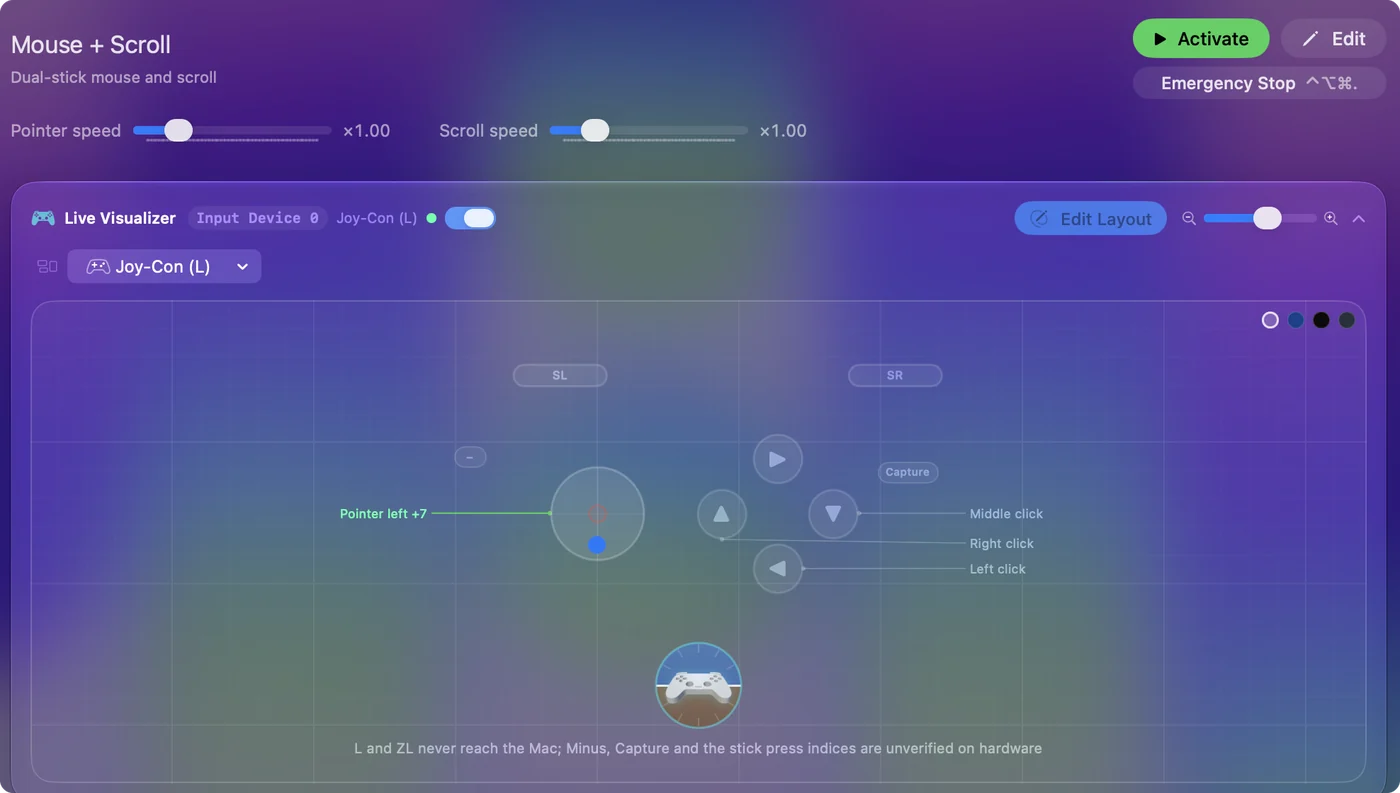
Then add a second layer with chords. On a face button's row, open Options and set While also holding, under Second control, to a rail button. Hold the rail button and the four face buttons become inventory, map, heal and pause. Four buttons and one held modifier give you eight game actions under one thumb.
Fold a full controller into one hand
A full-size controller can rest in your lap or on a cushion and be worked from above by one hand, which many people find steadier than holding it. Three options carry most of the load:
- Chords. Up to three held buttons can be required for a row, and a back paddle makes the best modifier because it has no job of its own.
- Toggle. One press holds a key down until the next press. Put W on a toggle and the character keeps walking forward while your thumb aims or jumps. The built-in Toggle Mode preset shows it.
- Turbo, hold and double tap. Turbo repeats a press while you hold the button, which spares a tired hand in games that ask for mashing. A hold or a double press gives a button a second and third job, and since 1.8 three quick presses can be a fourth.
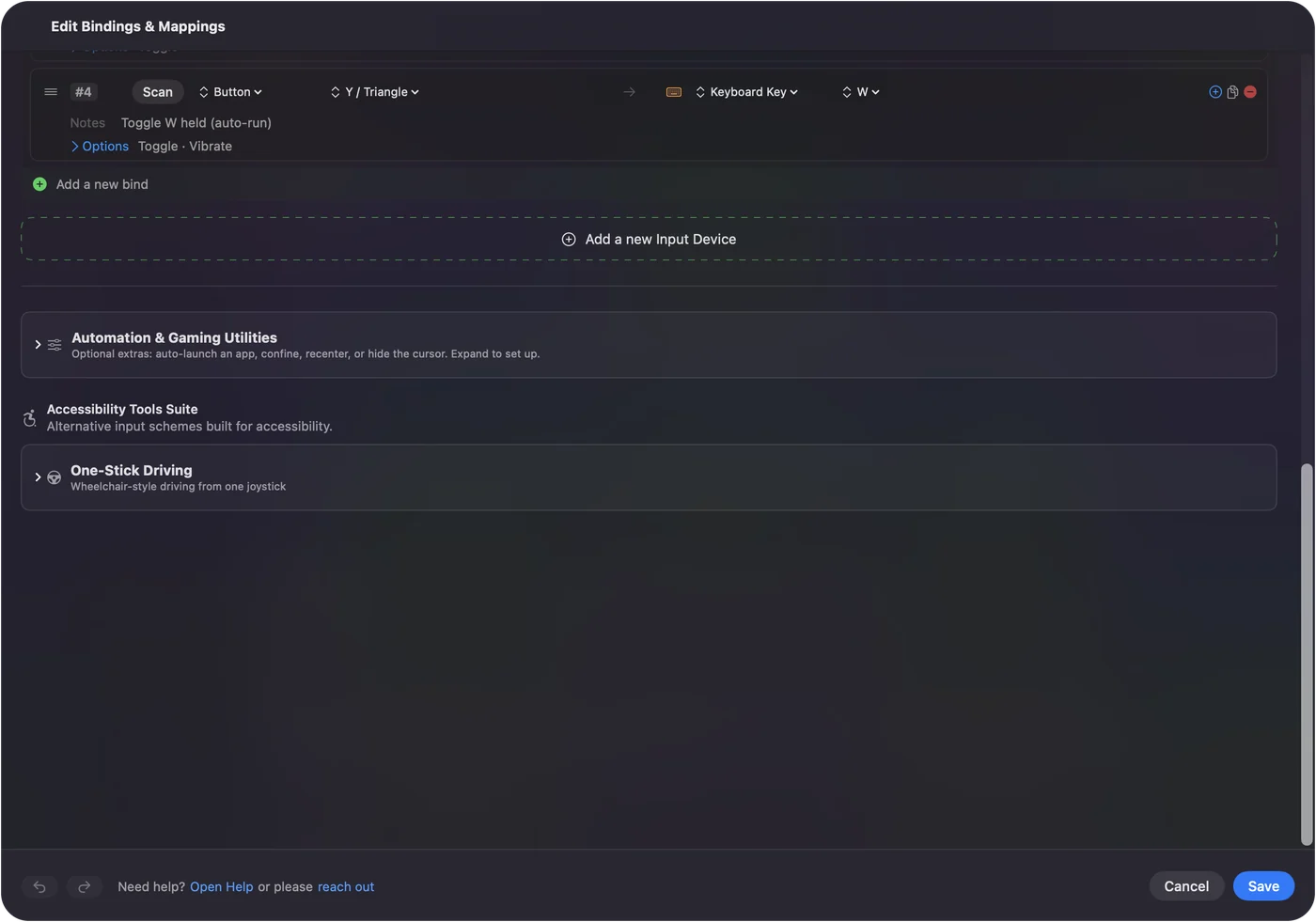
The PlayStation Access Controller is another route, made to rest on a table with swappable caps, and InputConfig reads every socket by name. See the Access Controller guide. A toggle on the movement key is the single change that frees a hand the most.
Aim by tilting the controller
With gyro aim, the thumb moves the character on the left stick, tilting the controller aims, and a finger on a trigger fires, so one hand covers a whole shooter. InputConfig reads motion from the DualSense, DualSense Edge, DualShock 4, Switch Pro Controller and Joy-Con, and turns the tilt into mouse movement, so it works in any game that aims with a mouse. Xbox controllers have no gyroscope.
- You: In the Smart Preset Maker, add gyro fine aim to the game's layout, and bind a button to the App Action Pause Motion While Held.
- InputConfig: Moves the aim with the controller's tilt, and stops it while the pause button is held, so you can bring your wrist back to a comfortable angle.
- Check: Tilt up and the aim goes up. Hold the pause button, level the controller, let go, and the aim stays where it was.
Gyro aim on a Mac covers speed and the other motion options. Tilting does the job the second stick used to do.
Drive with one stick
One-stick driving is a one-handed scheme by design. Left and right steer, forward accelerates, back brakes, and snapping the stick back twice shifts into reverse. Turn it on in a preset's editor under Accessibility Tools Suite, pick the stick, and set the accelerate and brake keys to the game's own.
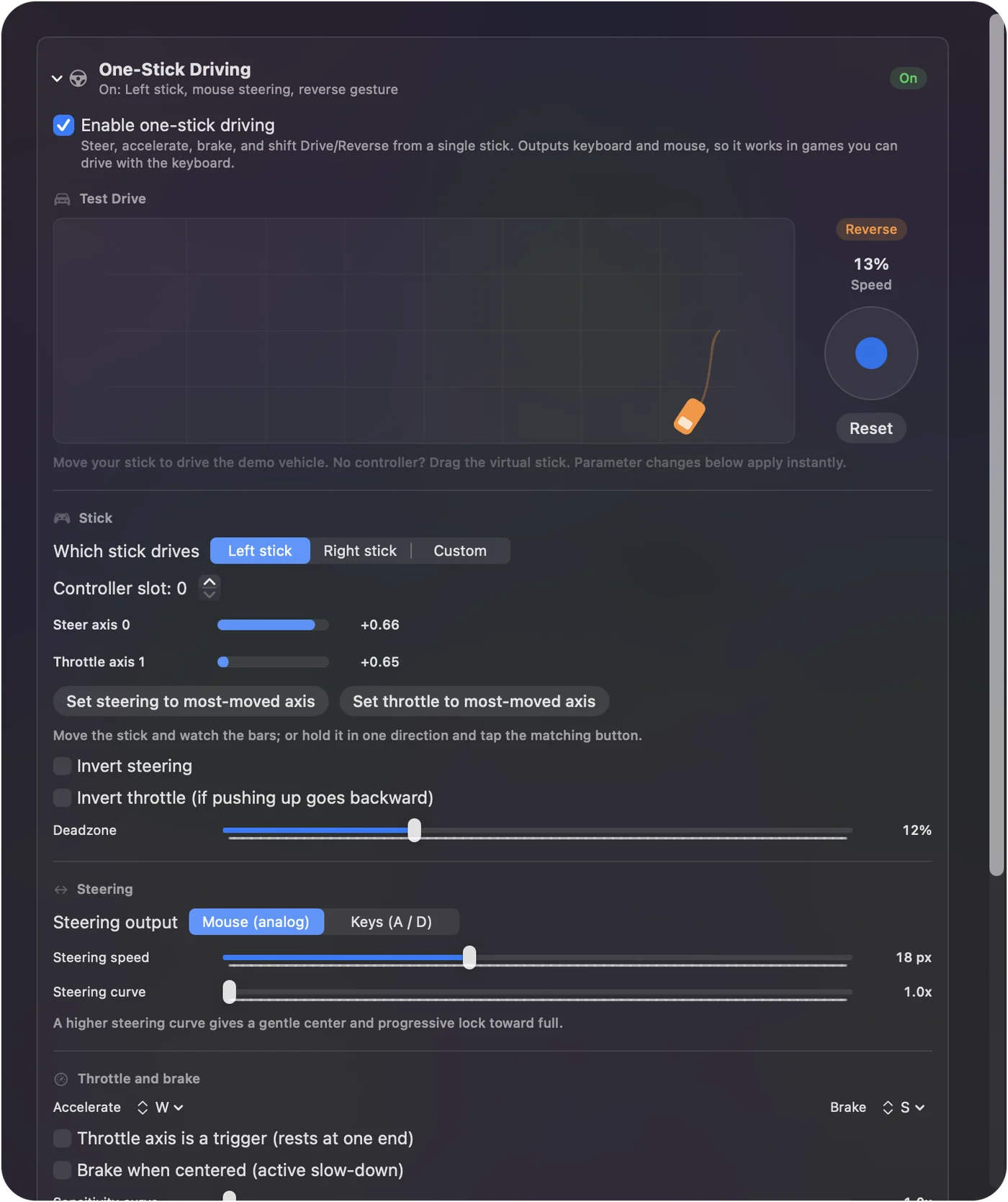
Pushing further holds the accelerate key a larger share of each cycle, which most games read as speed, so the car still has a throttle. The reverse snap's timing is adjustable for a slower hand. One-stick driving, set up properly has every setting.
Use a keypad or a mouse instead
- A one-handed keypad. It types keys on a Mac like any keyboard, so the game keys work as they are. Extra jobs go on the keys the game does not use: set those to F13 to F20 in the keypad's memory and bind them in InputConfig. The one-handed gaming keypad page covers Redragon, Azeron and others.
- A mouse with side buttons. The mouse aims and clicks, and its side buttons can send keys: a toggled W to walk, Shift to run, E and R for abilities. Turn on Block the button's own action on a side button's row so it stops also going back in a browser.
- A foot pedal. A pedal or a foot switch can take one job, such as walking forward, off the hand entirely. See foot pedal shortcuts.
InputConfig listens to the keyboard and does not block or remap a key, so a keypad key still types its own letter. That is why the extra jobs belong on spare keys.
Keep a stop within reach, and know the limits
- A one-button stop. The default emergency stop is a two-button hold. In Settings, General, Emergency Stop, pick one button and turn off With Start (Menu / Options / Plus) held too, or give a row the App Action Emergency Stop. A sideways Joy-Con has only Minus or only Plus, so do this before the first long session.
- No virtual controller. A game that only accepts a gamepad needs the real one.
- No macro on a hold. A hold can fire any output, but a row with a macro has no hold action, so a macro gets its own row.
- Not tested game by game. I have not tried every game with every layout here. Start from the game's layout in the Smart Preset Maker and adjust what does not fit your hand.
The short version
- Shooters. A DualSense in one hand with gyro aim and Pause Motion While Held.
- Driving. One-stick driving.
- Platformers and the rest. A sideways Joy-Con with chords, toggles and holds.
- MMOs. A keypad or a side button mouse with spare keys set to F13 to F20.
Put the movement on a toggle and the aim on tilt, and one hand has room for everything else.
Questions
Can I play Mac games with one hand?
Yes. A single Joy-Con with chords, a DualSense with gyro aim, one-stick driving, a one-handed keypad or a mouse with side buttons can each carry a game. InputConfig maps them to the keys and mouse movement a keyboard game expects.
What is the best one-handed controller for a Mac?
It depends on the game and the hand. A sideways Joy-Con is the smallest, a DualSense adds gyro aim, and the PlayStation Access Controller is made to rest on a table. Try the one you already own first.
Can I use a controller and a mouse together?
Yes. The Mac takes both at once, and InputConfig never switches the mouse off. In a game that takes keyboard and mouse, the mouse can aim while the controller sends the movement keys.
Does it work in games that only accept a gamepad?
No. InputConfig sends keyboard and mouse events, not a virtual controller, so a game that only accepts a gamepad needs the real gamepad and its own button settings.
Is it free?
Yes. InputConfig is free and open source on the Mac App Store, with no account and nothing locked. It needs macOS 14 or later.
Related
This page in other languages: Deutsch, Español, Français, Italiano, 日本語, 한국어, Polski, Português, Русский, ไทย, 繁體中文, 简体中文
Completely free. You don't have to make an account, there are no subscriptions, and nothing is locked. Optimized for Apple silicon. Open source on GitHub.
Updated