How do I use a Logitech G Pro X Superlight on a Mac?
 InputConfig is completely free on the Mac App Store. You don't have to make an account, there are no subscriptions, and nothing is locked. Optimized for Apple silicon.
It works as a mouse the moment you plug in the receiver, and for a lot of people that is all they need. The extras, which are DPI stages, polling rate, sensor calibration and onboard profiles, come from G HUB, Logitech's app for G series devices, which Logitech's support page says runs on macOS 12.0 or later. The Superlight has very few buttons, so the one thing I would add is a job for each side button. InputConfig is the free Mac app I make, and it does that for any button the Mac can see.
Logitech's G HUB page, which I read on October 21, 2026, lists the PRO X Superlight 2C among newly added devices. Logitech's Superlight 2 page, read the same day, describes a 60 gram wireless mouse with up to 8 kHz polling and sensor tuning in G HUB. Retailer listings I read give five buttons for the Superlight 2.
On this page: 11 sections
Steps
- Plug in the LIGHTSPEED receiver and check the pointer and clicks work.
- Install G HUB if you want DPI, polling or calibration, and save the settings to the mouse.
- Open InputConfig, add a row, press Scan and press a side button.
- Choose an output, such as back, a shortcut or Mission Control.
- Save and Activate the preset, then test it.
Know what works without software
The Superlight is a five button mouse on paper, with left, right, a wheel click and two side buttons. The pointer, clicks and wheel work with nothing installed. Its DPI stages, polling rate and sensor are set in the mouse, and the mouse remembers them. Wireless over LIGHTSPEED uses Logitech's own receiver, so it does not appear in Bluetooth settings the way an MX mouse does.
- The original Superlight. G HUB is Logitech's tool for it. A third party guide I read says G HUB supports the original and the Superlight 2, but I did not find a Logitech device list for macOS, so check your model when G HUB runs.
- The Superlight 2. Logitech's page says sensor calibration, including lift-off tolerance and X and Y axis tuning, happens in G HUB.
- Weight and polling. Logitech describes the Superlight 2 as 60 grams with up to 8 kHz polling over LIGHTSPEED.
For a mouse built around not having extras, the question is only what to do with the two side buttons.
Find out what each button sends
Press Scan in InputConfig and press each button. I expect the side buttons to scan as Button 4 and Button 5, the way most mice report them, but I have not tested a Superlight myself, so Scan to see.
| Button | What to expect | What to do |
|---|---|---|
| Left and right click | Standard clicks | InputConfig cannot change these |
| Wheel click | Middle click | Bind it, and block its old job if you wish |
| Two side buttons | Button 4 and Button 5, typically | Bind them to back and forward or anything else |
| DPI button, if your model has one | Handled inside the mouse | Nothing scans, so only G HUB changes DPI |
If a button scans, you can bind it. If nothing scans, it belongs to the mouse. The Superlight has nothing hidden except DPI, so most of what you see is what you can bind.
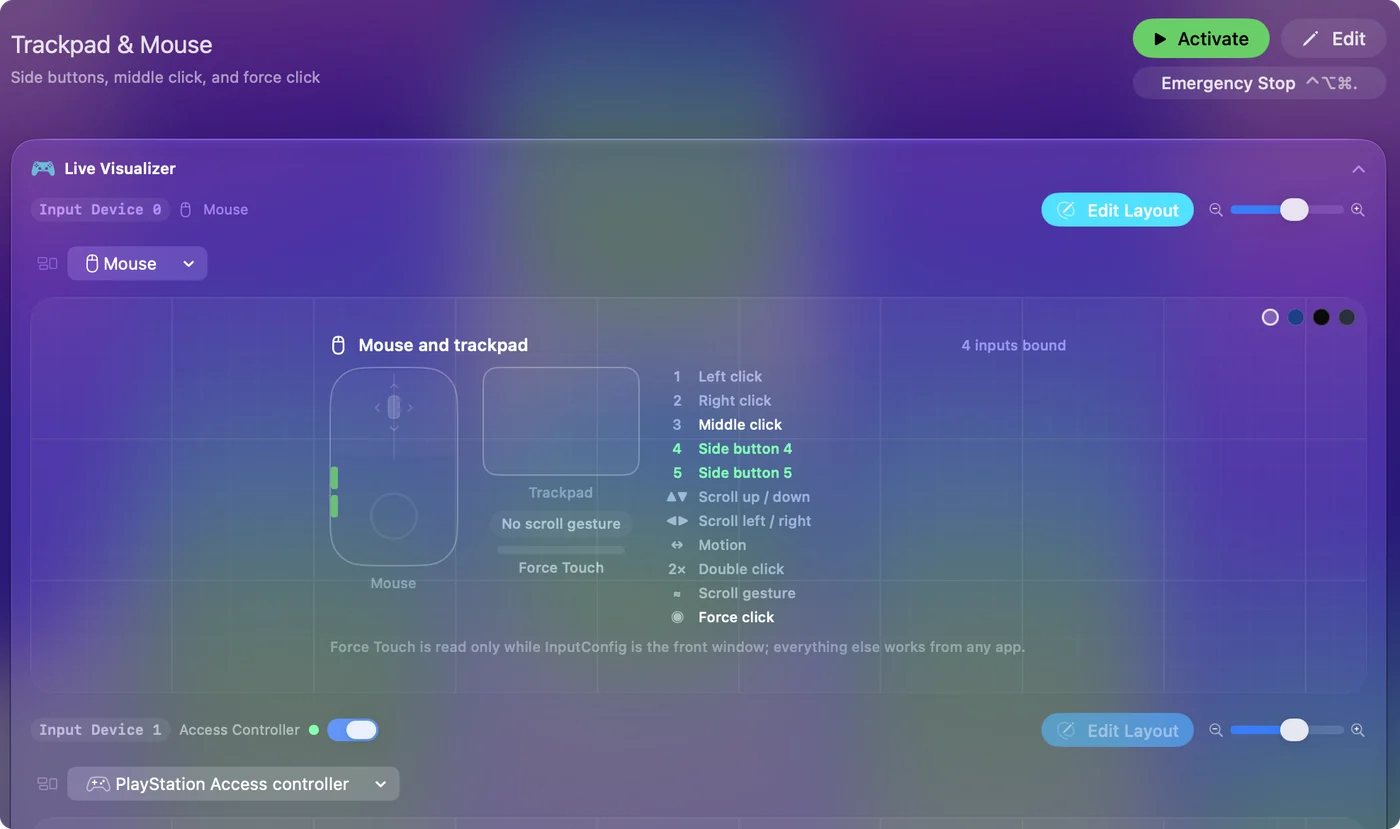
Bind the side buttons
- You: Add a row, set the device to This Mac's mouse or trackpad, press Scan and press the front side button.
- InputConfig: Names it Button 4 or Button 5 and offers the outputs.
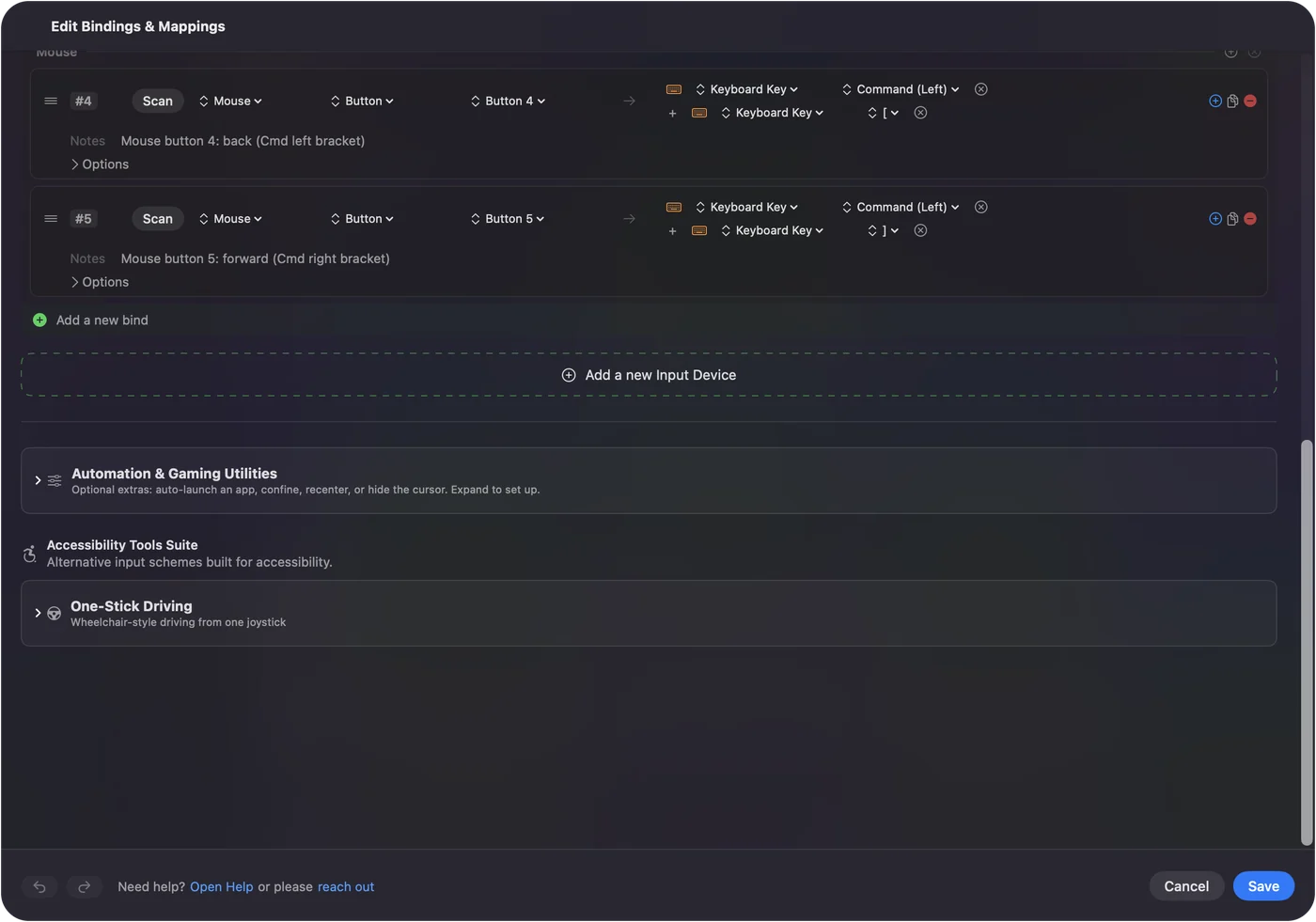
- Check: Pick Keyboard Key, add Command and the left bracket for Back, then Save and Activate. The button goes back in Safari.
The usual pairing is Command left bracket and Command right bracket for back and forward, which is what the built-in Trackpad & Mouse preset does. Many people playing a game on a Mac want something else, such as push-to-talk, a screenshot or a quick-save key. Mouse side buttons on a Mac has the full walk-through.
Use onboard profiles
Retailer listings describe onboard memory on the Superlight 2, with advanced features needing G HUB installed. So you set a profile once, save it to the mouse, and unplug G HUB. This suits a Mac, because it means the mouse keeps its DPI and polling settings even when G HUB is not running. If you set a side button to send a key in that profile, use F13 to F20, which no Mac app uses, and bind the key in InputConfig. Avoid F21 to F24, because macOS does not pass them to apps. InputConfig reads the key but cannot block it, so pick one nothing else reacts to.
I did not read a Logitech page that lists the number of onboard profiles for the Superlight, so I will not give one. G HUB shows how many it offers. F13 to F19 on a Mac has more on why those keys are safe.
Listings disagree about the Mac. Some name Windows only, and one retailer lists macOS 10.11 or later for the Superlight 2, so I trust Logitech's G HUB page for the app and not a seller. One forum user reported that saved profile values did not take effect after a restart until G HUB was opened again. That is a single report, but if your DPI looks wrong after a reboot, open G HUB once.
Make two buttons do more
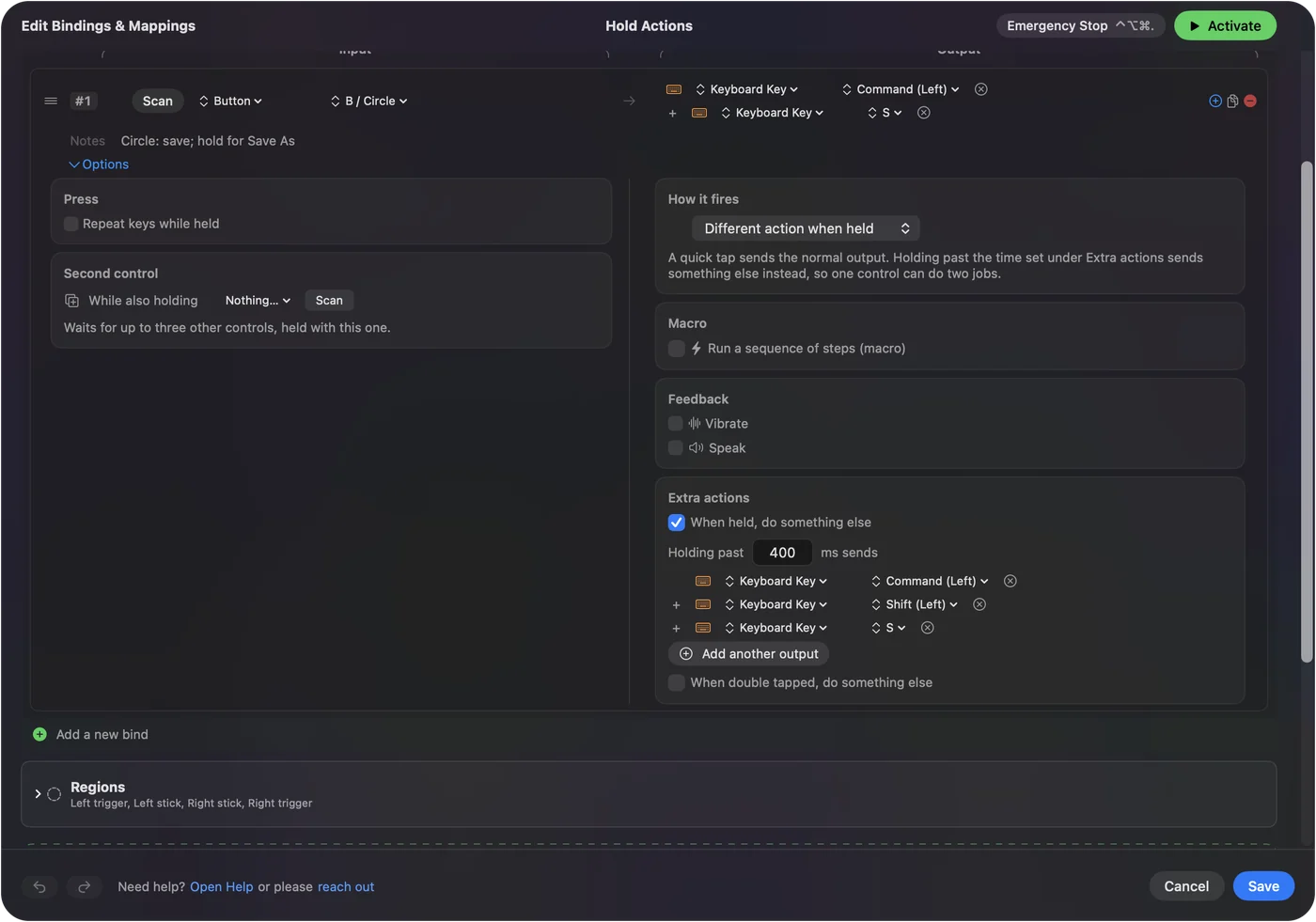
A mouse with two side buttons can still have six jobs, because each row has a hold action and a double tap action.
- Front button, tap. Back.
- Front button, double tap. Close the tab.
- Front button, hold. Mission Control.
- Rear button, tap. Forward.
- Rear button, double tap. Reopen the closed tab.
- Rear button, hold. Start Dictation.
Turn on Block the button's own action in each row's Press box so a browser does not also go back on its own. Two buttons with a tap, a hold and a double tap each give you six jobs without adding anything to the mouse.
Games on a Mac
Many esports players pick the Superlight and play games on a Mac less often, but they do. In a game that reads the mouse itself, a running preset can double a press, so test in the game before you commit. A per-app preset helps, since it only runs when that game is in front, and the emergency stop, Control Option Command period, turns everything off. Do not use InputConfig to change sensitivity, because it does not touch DPI. The mouse and G HUB handle that.
If it does not work
Climb this ladder, smallest step first:
- Replug the receiver. Use a port on the Mac directly, not a hub, and check the mouse is switched on.
- Try G HUB's fixes. G HUB not working on a Mac covers loading screens and a missing mouse.
- Quit G HUB and scan again. If it handles a button, the press may not reach macOS.
- Activate the preset. Rows only fire while it runs.
- Check Accessibility. InputConfig needs it.
What it cannot do
- Change DPI, polling or calibration. Only G HUB does that.
- Add buttons. It only gives the two side buttons and the wheel click new jobs.
- Tell two mice apart. Every mouse counts as one.
The short version
- It works. As a mouse, right away.
- G HUB. For DPI, polling, calibration and onboard memory.
- Side buttons. Bind them in InputConfig, with tap, hold and double tap.
Set the mouse in G HUB once, save it to the mouse, and use a mapper for what the side buttons do.
Questions
Does the Logitech G Pro X Superlight work on a Mac?
Yes, as a mouse with no software. G HUB adds DPI, polling and calibration and runs on macOS 12.0 or later per Logitech.
Is the Superlight 2 supported by G HUB on a Mac?
Logitech's G HUB page lists the PRO X Superlight 2C as newly added, and its Superlight 2 page describes sensor tuning in G HUB. Check your model in the app.
How do I remap the Superlight side buttons on a Mac?
Press Scan in InputConfig and press each side button. Then give each an output, such as back, forward or a shortcut.
Does the Superlight keep its settings without G HUB?
Retailer listings describe onboard memory, with advanced features needing G HUB. Set it up once and save to the mouse.
Can the Superlight DPI button be used on a Mac?
A DPI button works inside the mouse, so only G HUB or the mouse itself changes DPI.
Why did my Superlight settings reset on my Mac?
One forum user saw saved values apply only after reopening G HUB following a restart. Open G HUB once and check the profile is saved to the mouse.
Related
This page in other languages: العربية, Čeština, Dansk, Deutsch, Español, Suomi, Français, עברית, Magyar, Bahasa Indonesia, Italiano, 日本語, 한국어, Norsk, Nederlands, Polski, Português, ไทย, 繁體中文, 简体中文
Completely free. You don't have to make an account, there are no subscriptions, and nothing is locked. Optimized for Apple silicon. Open source on GitHub.
Updated