How do I use a Logitech G305 or G903 on a Mac?
 InputConfig is completely free on the Mac App Store. You don't have to make an account, there are no subscriptions, and nothing is locked. Optimized for Apple silicon.
Plug the Lightspeed receiver into the Mac and the mouse works as a mouse, with the pointer, clicks and wheel. The extra buttons and onboard memory are where it gets less clear, because these are older mice and G HUB's Mac page does not name them. InputConfig is the free Mac app I make, and it gives any button the Mac can see its own job, so you can map the buttons that arrive without G HUB.
I read Logitech's G HUB support page on October 21, 2026. It lists macOS 12.0, 13 and 14 and names newer devices, and it does not mention the G305, G703 or G903, so I cannot say G HUB supports them on a Mac. Retailer listings I read say the G305 has six programmable buttons and onboard memory for up to five profiles, the G703 has six, and the G903 has eleven. I did not read Logitech's own spec pages, because the addresses I tried returned 404.
On this page: 12 sections
Steps
- Plug the Lightspeed receiver into a USB port on the Mac, or use the cable on the G703 and G903, and check the pointer works.
- If you have a Windows PC, set buttons and profiles there and save them to the mouse's onboard memory.
- Open InputConfig, add a row, press Scan and press an extra button.
- Give each button that scans an output, and use F13 to F20 for buttons that send keys.
- Save and Activate, then add per-app presets if you want.
Know what each mouse has
- G305. A small wireless mouse that takes one AA battery, rated up to 250 hours in a listing I read, with 200 to 12,000 DPI. Listings say six programmable buttons.
- G703. Six programmable buttons per a retailer listing, and onboard memory for settings.
- G903. Eleven buttons in a comparison I read, and a review that mentions up to five user configurations in the mouse memory.
With only the receiver, a Mac shows the pointer, left and right click, the wheel click and whatever the mouse reports as back and forward. The buttons beyond that are what you set up. The mice remember what you saved, so a Windows PC borrowed for ten minutes can set them for good.
What G HUB and onboard memory mean for a Mac
Logitech's G HUB runs on macOS, and its support page lists macOS 12.0 or later. It did not list these three mice, so whether G HUB drives them on a Mac is a question to check on Logitech's site for your model. A TechRepublic walkthrough written for another Logitech mouse says G HUB can enable profiles stored in the mouse's onboard memory.
Onboard memory is the part that helps you either way. If a button's job is stored in the mouse, the mouse sends it on its own, whichever computer it is on. If you can set the buttons once and save them, you never depend on G HUB being compatible with your Mac.
Find out what each button sends
Press Scan in InputConfig and press each button, with any Logitech app quit.
| Button | How it reports | What to do |
|---|---|---|
| Left, right and wheel click | Standard clicks | Leave left and right alone |
| Side buttons | Most likely mouse buttons, Button 4 and up | Bind them |
| G903 extra buttons | Probably mouse buttons unless set to keys | Scan each |
| DPI buttons | Handled inside the mouse | Nothing scans |
| Profile or connection switch | Handled inside the mouse | Not an input for Mac apps |
I have not tested these three myself. Press Scan on each, and trust what the row shows. The mouse tester does the same in a browser.
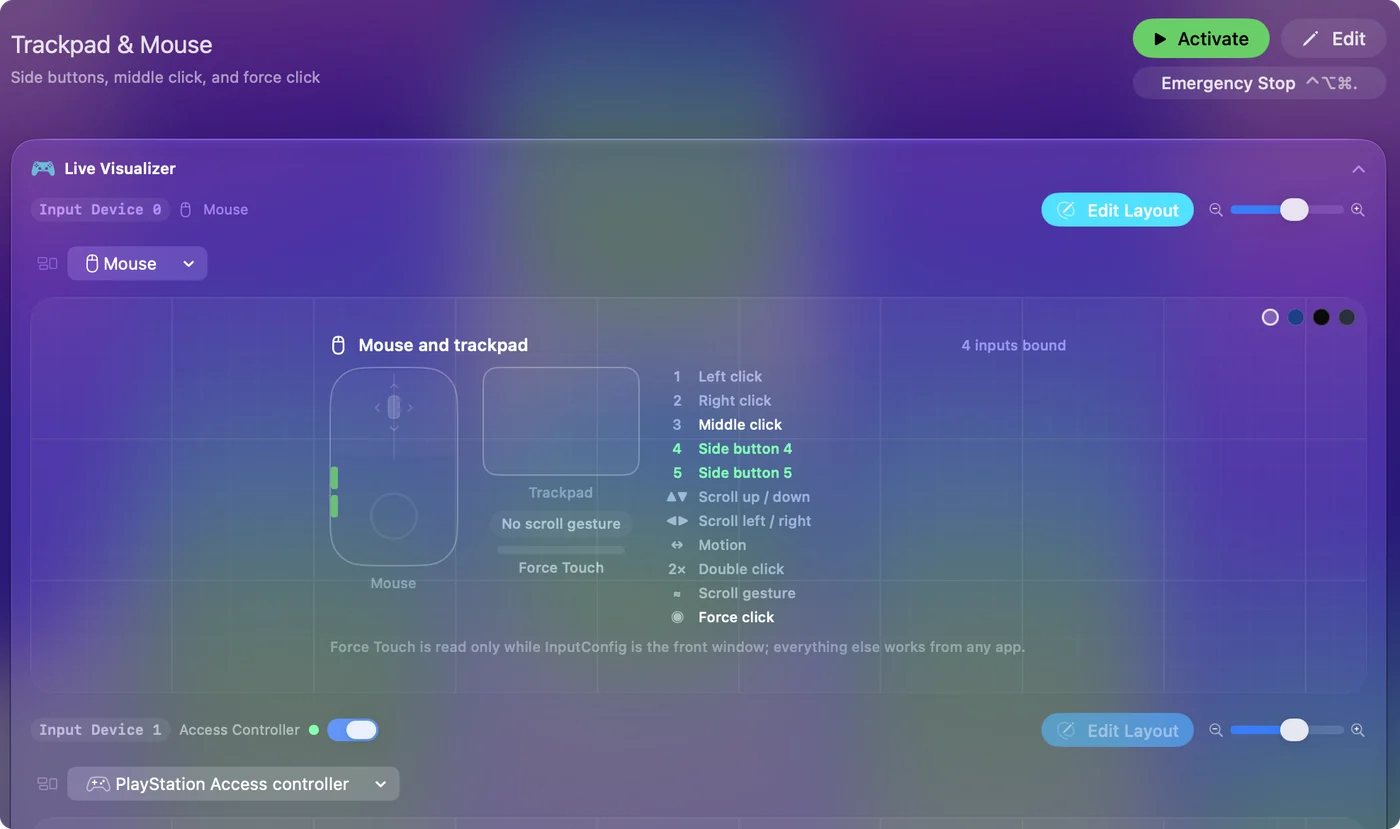
Bind the extra buttons
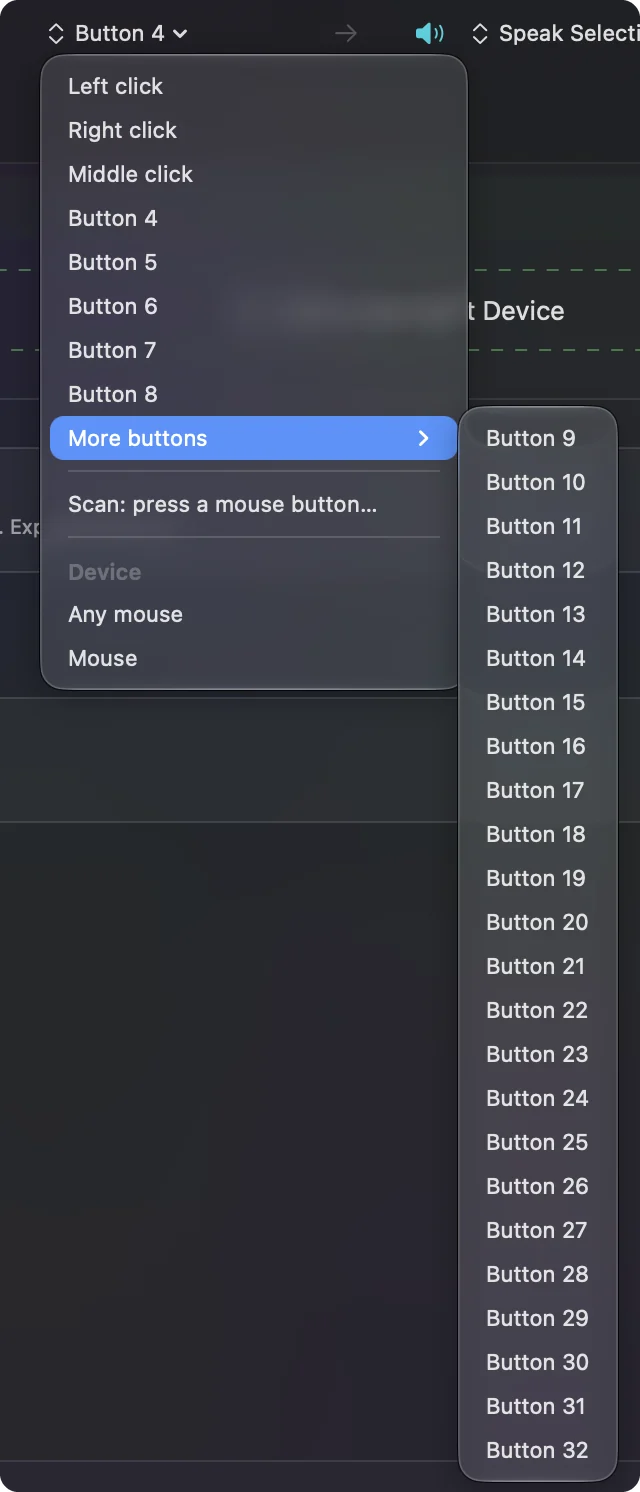
- You: Add a row, set the device to This Mac's mouse or trackpad, press Scan and press a side button.
- InputConfig: Names it, and More buttons holds Button 9 to Button 32 if your mouse reports that high.
- Check: Choose Mission Control, Save, Activate and press the button. Mission Control opens.
The G305 and G703 have few extra buttons, so use them for the two jobs you repeat most, such as back and forward or Mission Control and Start Dictation. The G903 has more to spare. How to map extra mouse buttons has the full steps.
Macros and multi-step jobs
A macro runs several steps from one press. In the row's Options, tick Run a sequence of steps (macro) and add key, shortcut and click steps, each with a wait and a hold time. A copy, wait and paste pair is a good start, or a screenshot followed by opening a folder. A row can also run a Siri Shortcut. Mouse macros on a Mac shows the timing.
Keep a lot in the mouse, and add holds
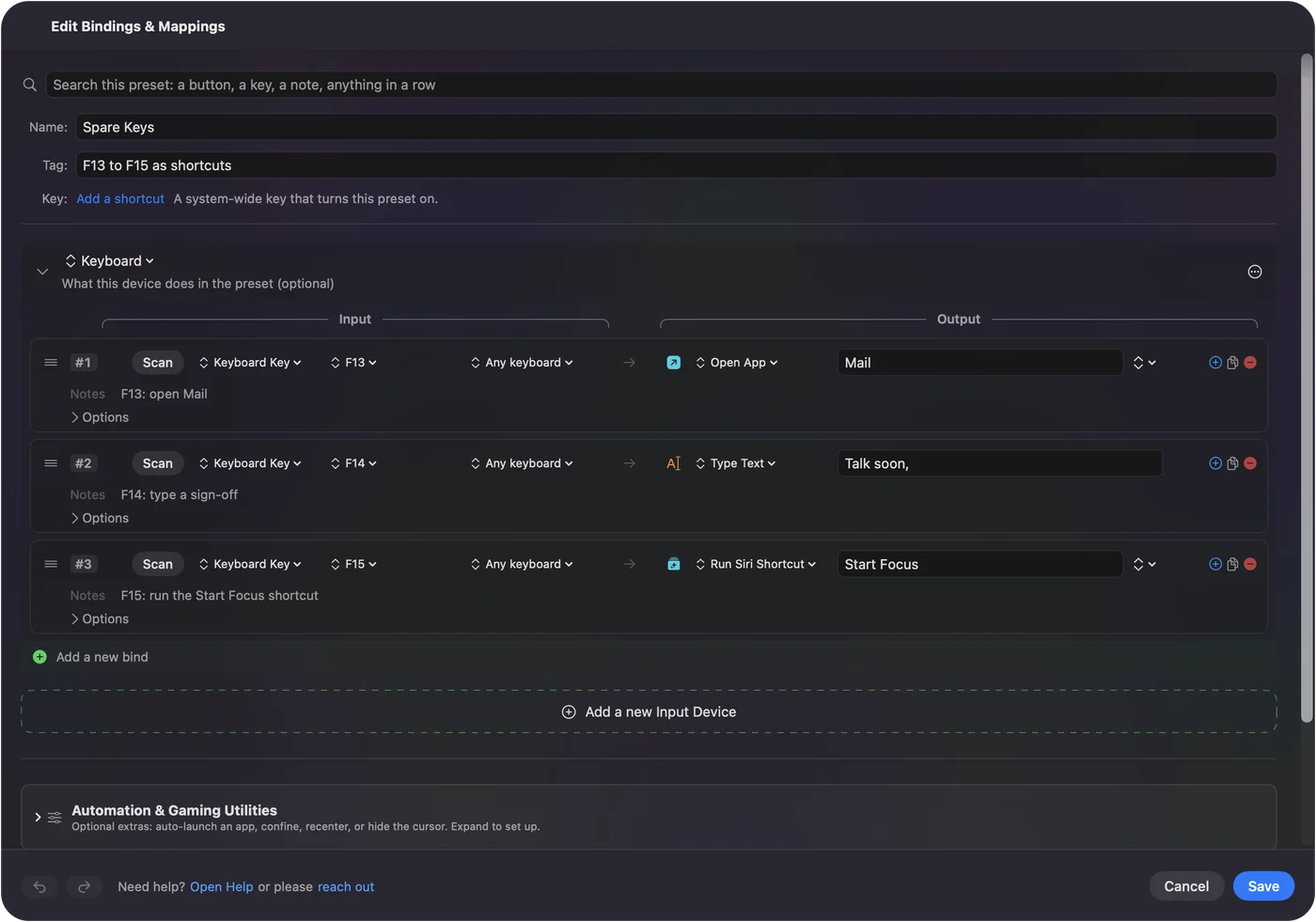
If a button sends a key from the mouse's onboard memory, set it to F13 through F20 and bind that key. F21 to F24 are not passed to apps by macOS. InputConfig listens to the keyboard and cannot block the original key, so pick keys no app uses. F13 to F19 on a Mac explains why.
Each row can have a hold action and a double tap action. A side button can go back on a tap, close the tab on a double tap and open Mission Control on a hold. Block the button's own action for the middle and side buttons, so a browser does not go back twice. For per-app layouts, list an app under Automation & Gaming Utilities and turn on Switch presets when the front app changes in Settings, Advanced. Only one preset runs at a time, and Control Option Command period is the emergency stop.
Ideas for these mice
- A travel mouse. The G305 runs on one AA battery and is small, so keep two bindings and nothing else.
- Wireless on a desk. The G903 suits a longer layout, with the extra buttons for app jumps and zoom.
- Plain browsing. Back, forward, close tab and reopen on four buttons.
If something is off
Climb this ladder, smallest step first:
- Plug the receiver in directly. Use a rear port, not a hub.
- Check the battery. The G305 runs on one AA, and a weak one makes the mouse stutter.
- Quit any Logitech app and scan again. It may hold a button.
- Activate the preset. Rows only fire while it runs.
- Check Accessibility. InputConfig needs it.
For a stuck Logitech app, see G HUB not working on a Mac.
What it cannot do
- Change DPI, polling or lighting. Logitech's software or the mouse's own buttons do that.
- Read DPI buttons. They send nothing to the Mac.
- Prove G HUB supports your model. The page I read did not list these three.
- Tell two mice apart. Every mouse counts as one.
The short version
- Receiver. Plug in and go.
- Memory. Save settings in the mouse if you can use another computer once.
- Buttons. Scan, bind, and use F13 to F20 for key-sending buttons.
These are older mice, so the safest setup is the one that lives in the mouse.
Questions
Does the Logitech G305 work on a Mac?
Yes, as a mouse over the Lightspeed receiver. Press Scan to see which extra buttons reach macOS.
Does G HUB support the G305 on Mac?
The G HUB page I read lists macOS 12.0 or later and did not name the G305. Check Logitech for your model.
How many buttons does the G903 have?
A comparison I read lists eleven, and the G703 six.
Does the G305 save settings to the mouse?
A listing says onboard memory holds up to five profiles. Set them on a computer that supports the software.
Does the G903 work on Mac?
It works as a mouse. The extra buttons depend on how they are set in the mouse.
Related
This page in other languages: العربية, Čeština, Dansk, Deutsch, Español, Suomi, Français, עברית, Magyar, Bahasa Indonesia, Italiano, 日本語, 한국어, Norsk, Nederlands, Polski, Português, ไทย, 繁體中文, 简体中文
Completely free. You don't have to make an account, there are no subscriptions, and nothing is locked. Optimized for Apple silicon. Open source on GitHub.
Updated