How to use a Mac with quadriplegia or limited hand use
 InputConfig is completely free on the Mac App Store. You don't have to make an account, there are no subscriptions, and nothing is locked. Optimized for Apple silicon.
Yes, a Mac can be run with little or no hand use, and most of the pieces are built into macOS: Voice Control for speech, the head pointer for pointing with your head, Switch Control, Dwell and an onscreen keyboard. The setup that works is built around the movement you can repeat reliably all day, whether that is your voice, your head, a puff of breath, your chin or one thumb.
I built InputConfig, a free Mac app, because my own hands do not work well. Its part is narrow: it turns any press or push you can make, on a switch, a sip and puff device, a joystick or a controller, into clicks, keys, commands and dictation. This page is practical, not medical. An occupational therapist or assistive technology specialist can help fit a setup to the person.
On this page: 11 sections
- Steps
- Start from the movement you can repeat all day
- Turn on what macOS already has
- Use a joystick as the pointer
- Turn one switch or one puff into three jobs
- Fire commands with the pointer alone
- Write without a keyboard
- Play games with limited hand use
- Plan for the lock screen, restarts and limits
- The short version
- Questions
Steps
- List the movements you can make reliably and for a long time: voice, head, chin, breath, a thumb or a finger.
- Turn on the macOS features that match: Voice Control, the head pointer, Dwell and the Accessibility Keyboard.
- Install InputConfig and have a helper or Voice Control make the one Accessibility permission click.
- Connect the switch, joystick or controller and give each control a press, a hold and a double press.
- Turn on the Accessibility Keyboard at the lock screen and plan for the login window after a restart.
Start from the movement you can repeat all day
Pointing, clicking and typing can each come from a different movement. Most people mix them, because a voice tires by the afternoon and a head pointer needs some way to click:
| Movement you have | To point | To click | To type |
|---|---|---|---|
| Clear speech | Voice Control, show numbers or show grid | Voice Control | Dictation |
| Head movement | The head pointer | A facial expression, Dwell, or a switch through InputConfig | The Accessibility Keyboard with Dwell, or dictation |
| Mouth or chin on a joystick | The joystick, in mouse mode or through InputConfig | A sip and puff, or a switch | Dictation and Type Text |
| A power wheelchair joystick | The chair in Bluetooth mouse mode | Dwell, or a switch through InputConfig | The Accessibility Keyboard, or dictation |
| One thumb or finger with short reach | A controller stick or the PlayStation Access Controller | Buttons with a press, hold and double press | Dictation and Type Text |
Pick the movement that is still reliable at the end of the day, not the one that works best in the morning.
Turn on what macOS already has
These cost nothing, and some of them work at the login window, which no app can:
- Voice Control. System Settings, Accessibility, Voice Control. Say what to click, say show numbers to click anything by its number, and dictate text in the same session.
- The head pointer. System Settings, Accessibility, Pointer Control. Apple's head pointer page, which I read on October 27, 2026, says the Mac's built-in or a connected camera follows your face or head, and that clicks can come from keys, switches or a facial expression such as a smile or an open mouth.
- Dwell. It clicks when the pointer rests in one place for a moment. Search for Dwell in System Settings.
- Switch Control. macOS's own way to step through the screen with one or more switches.
- The Accessibility Keyboard. A full keyboard on screen, clicked with whatever moves the pointer, or typed by resting on keys with Dwell.
InputConfig works alongside all of these and replaces none of them. Set up the built-ins first, then add a switch or joystick for whatever they leave out.
Use a joystick as the pointer
A joystick under the chin, in the mouth or under the hand you already use to drive is often the steadiest pointer:
- A power wheelchair joystick. Many chair control systems have a Bluetooth mouse mode. The Mac sees the chair as an ordinary mouse, so the pointer needs no app. Ask the dealer or seating clinic whether yours has it, as the wheelchair joystick page explains.
- A joystick mouse or a mouth joystick in mouse mode. It moves the pointer with no mapper, and InputConfig can still use its buttons and the pointer it moves.
- A joystick that reports as a game controller. InputConfig makes its stick the pointer, with a deadzone and a slow first stretch of travel so a small movement stays precise. The PlayStation Access Controller's stick works the same way, and since 1.8 InputConfig reads every one of its sockets by name.
- A QuadStick. Its maker lists the Mac as compatible, in mouse, keyboard and game controller modes. I have not tested one, and the QuadStick page says what should happen.
If a device already moves the pointer by itself, keep it that way and use InputConfig only for the clicks and commands.
Turn one switch or one puff into three jobs
Switch interfaces such as the AbleNet Hitch and Blue2, Pretorian, RJ Cooper and Tecla, and sip and puff devices such as the Origin Swifty, work with InputConfig in the mode that sends joystick buttons or F13 to F19. In a mode that sends Space or Enter, the key also reaches the app in front, because InputConfig listens alongside macOS, so prefer the joystick button or F13 to F19 mode. A 3.5 mm switch can also plug into the ports on the PlayStation Access Controller or the Xbox Adaptive Controller, where each switch is its own button.
- You: On the switch's row, set the press to Left click. In Options, under Extra actions, set the hold to Right click and the double press to Start Dictation. Make the hold time and the double press window longer for a slower movement.
- InputConfig: Tells the three apart by timing. With spoken feedback on, it says what each one did.
- Check: Press, hold and double press in turn, and listen for three different words.
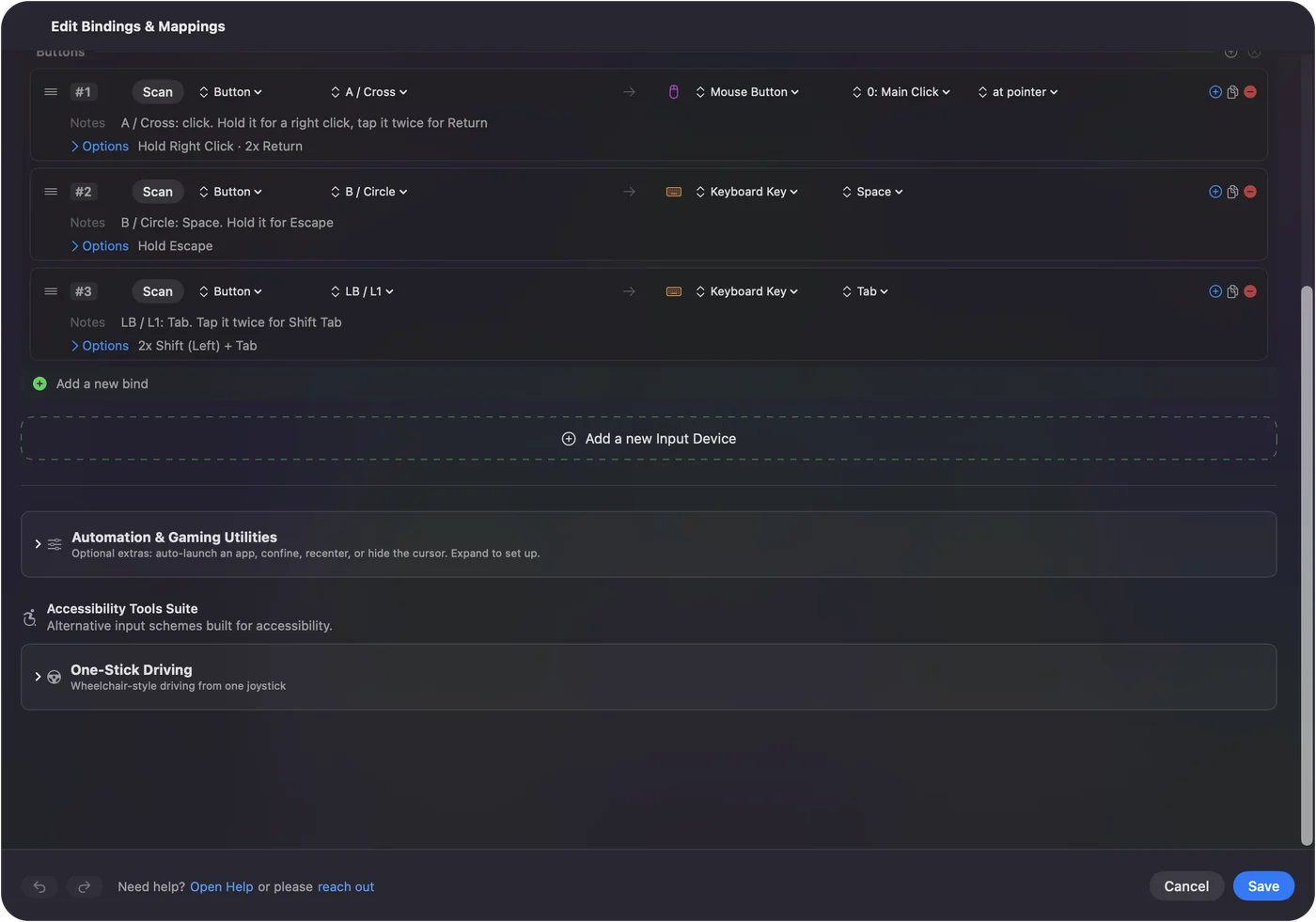
Since 1.8 a row can also do something else on three quick presses. The one to four switch guide has complete layouts. One reliable movement can do the work of three buttons.
Fire commands with the pointer alone
A screen region is an area of the screen that fires a command when the pointer moves into it, whatever moves the pointer: the head pointer, a wheelchair in mouse mode, a mouth joystick. A strip along the top edge can open Mission Control, a corner can start dictation, another can press Return or lock the screen.
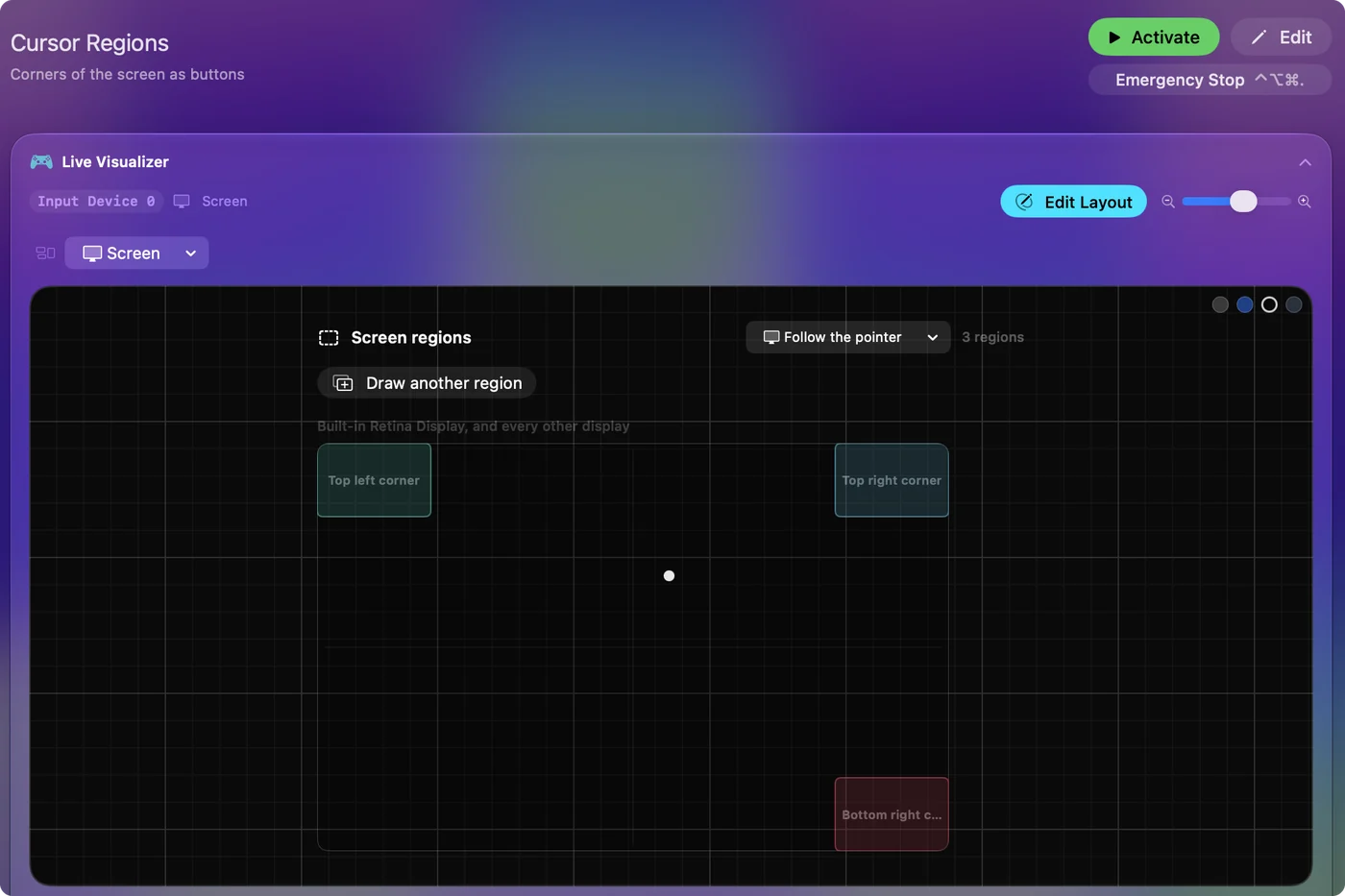
A preset can hold sixteen regions, and a preset made only of regions runs with nothing connected. Keep them small and tight to the edges, so everyday pointer travel does not cross them by accident. The built-in Cursor Regions preset is ready to try, and screen regions explains the rest. Every corner and edge of the screen is a free button for someone who can point but not press.
Write without a keyboard
- Dictation. Turn it on in System Settings, Keyboard, and start it from a switch, a region or a double press. It types into any text field.
- Type Text. One press types a whole string. Put your name, email address, home address and a sign-off on holds and double presses.
- The Accessibility Keyboard. For passwords, which should never be dictated, click them on the onscreen keyboard, or rest on each key with Dwell.
- Accessibility outputs. Zoom and Speak Selection can sit on a switch too, once their macOS settings are on.
Speak the sentences, press the phrases, and click only the passwords.
Play games with limited hand use
A few of InputConfig's tools exist for exactly this:
- One-stick driving. One stick drives a whole car the way a power wheelchair joystick does: left and right steer, forward accelerates, back brakes, and two snaps back shift into reverse. The timing of that snap is adjustable for a slow hand. See one-stick driving.
- Adaptive controllers. The PlayStation Access Controller and the Xbox Adaptive Controller pair with a Mac, and a game with controller support sees them directly. See adaptive controllers on a Mac.
- Games that only take keys. InputConfig turns sockets, switches and sticks into the keys and mouse movement the game expects.
InputConfig sends keyboard and mouse events, not a virtual controller, so a game that only accepts a gamepad needs the real gamepad. Start with a game that plays from the keyboard, because those are the ones InputConfig can fully reshape.
Plan for the lock screen, restarts and limits
- The lock screen. Turn on the Accessibility Keyboard, and Switch Control if you use it, in System Settings, Lock Screen, Accessibility Options. InputConfig keeps the pointer and clicks working when the Mac locks and blocks every key, so a switch can click your password in on the onscreen keyboard.
- After a restart. InputConfig starts after login, so the login window needs whatever already moves the pointer without it, or a helper. Turn on Launch at login and list your apps under Activate when these apps are in front so the preset starts by itself.
- A stop you can reach. Give a switch the App Action Emergency Stop. It turns the preset off and lets go of everything held.
- The first click. The Accessibility permission needs one click, from a helper or Voice Control.
- What it does not do. InputConfig does not track a head or eyes, has no onscreen keyboard of its own, and has not been tested with every chair, joystick or switch interface. Where a device's manual differs from this page, follow the manual.
The short version
- Built-ins first. Voice Control, the head pointer, Dwell, Switch Control and the Accessibility Keyboard.
- A pointer. The head pointer, a wheelchair in mouse mode, or a joystick.
- Clicks and commands. Switches and sip and puff through InputConfig, three jobs each, plus screen regions.
- Words. Dictation and Type Text, with the onscreen keyboard for passwords.
Build the setup around the movement that lasts all day, and add one piece at a time.
Questions
Can a person with quadriplegia use a Mac?
Yes. Voice Control, the head pointer, Dwell, Switch Control and the Accessibility Keyboard are built into macOS. A switch, sip and puff device or joystick, mapped in InputConfig, adds clicks, keys and commands. The right mix depends on the person, and an occupational therapist can help find it.
Can a wheelchair joystick move the pointer?
Often. Many power chair control systems have a Bluetooth mouse mode, and the Mac sees the chair as an ordinary mouse with no app needed. InputConfig can add clicks from a switch and commands from screen regions.
Does sip and puff work on a Mac?
Sip and puff devices such as the Origin Swifty work with InputConfig in the mode that sends joystick buttons or F13 to F19, where each sip or puff can be a click, a key or a command. A device in mouse mode moves the pointer by itself.
Can I play games on a Mac with limited hand use?
Yes. One-stick driving steers a car from one stick, adaptive controllers work in games that read controllers, and InputConfig turns switches into the keys a keyboard-only game expects. It cannot pretend to be a gamepad for games that require one.
Is any of this free?
Yes. The macOS features are built in, and InputConfig is free and open source on the Mac App Store, with no account. It needs macOS 14 or later.
Related
This page in other languages: Deutsch, Español, Français, Italiano, 日本語, 한국어, Polski, Português, Русский, ไทย, 繁體中文, 简体中文
Completely free. You don't have to make an account, there are no subscriptions, and nothing is locked. Optimized for Apple silicon. Open source on GitHub.
Updated