Built-in preset
Auto Clicker preset
Auto Clicker is the built-in InputConfig preset for clicking on a timer without building anything: activate it, press fn F6, and the left button clicks 10 times a second where the pointer is until you press fn F6 again. It suits anyone who needs the same click over and over, in a clicker game, a long run of the same button in an app, or a test, and anyone who would rather press once than a thousand times. It is new in InputConfig 1.6, sits in the Desktop & Productivity folder, and works from a controller, the keyboard, or a mouse's side button.
On a controller, pull the right trigger once to start and again to stop. Every row is an ordinary row, so each speed, button and stop is one setting you can change, and the preset is a starting point rather than a fixed tool.
 This preset ships inside InputConfig, free on the Mac App Store. macOS 14 or later, no account, no tracking, open source.
Right trigger starts and stops auto clicking; the left stick aims No controller: fn F6 and fn F7 start and stop, mouse button 4 clicks while held
On this page: 4 sections
Where it is in the app
It ships inside InputConfig: open the sidebar and look in its folder, or search for it. Activate it, or press Edit to see every row. It is also here as a file, identical apart from being inactive and ungrouped, for anyone who deleted theirs or wants it on another Mac.
Every binding
| Input | Sends | Options | Note |
|---|---|---|---|
| Left stick left | Mouse motion left (speed 14) | Move the pointer left | |
| Left stick right | Mouse motion right (speed 14) | Move the pointer right | |
| Left stick up | Mouse motion up (speed 14) | Move the pointer up | |
| Left stick down | Mouse motion down (speed 14) | Move the pointer down | |
| A / Cross | Left click | Click once | |
| RT / R2 (digital) | Left click | toggle; repeats 10/s; vibrate | Auto click 10 a second, on and off |
| LT / L2 (digital) | Right click | toggle; repeats 5/s; vibrate | Auto right click 5 a second, on and off |
| RB / R1 | Left click | repeats 20/s | Auto click 20 a second while held |
| Y / Triangle | Left click | toggle; repeats 10/s, stop after 100; vibrate | Auto click 100 times, then stop |
| X / Square | Left click | toggle; repeats 6.7/s, vary by 40 ms; vibrate | Auto click at a human pace (150 ms, give or take 40), on and off |
| Key: F6 | Left click | toggle; repeats 10/s | fn F6: auto click 10 a second, on and off |
| Key: F7 | Right click | toggle; repeats 5/s | fn F7: auto right click 5 a second, on and off |
| Mouse button 4 | Left click | repeats 15.2/s | Mouse button 4: auto click 15 a second while held |
13 rows. Button names are the Xbox / PlayStation pair the editor shows; a Switch Pro Controller fires by position. Options are the row settings that differ from the defaults.
Notes
Everything below uses the names the editor shows. If you only read two parts, read change the speed on one row and stop it, smallest step first.
Start it in two clicks
InputConfig needs the Accessibility permission before it can click for you, like every app that sends clicks. It asks the first time; if you said no, the menu bar icon turns orange while a running preset needs it, and rows start working the moment you allow it in System Settings, Privacy & Security, Accessibility.
- You: Open the Desktop & Productivity folder in the sidebar, select Auto Clicker, and press Activate. Point at something harmless, such as an empty part of the desktop, and press fn F6.
- InputConfig: Clicks the left button 10 times a second wherever the pointer is.
- Check: Press fn F6 again and the clicking stops. If nothing clicked at all, the Accessibility permission is the first thing to look at.
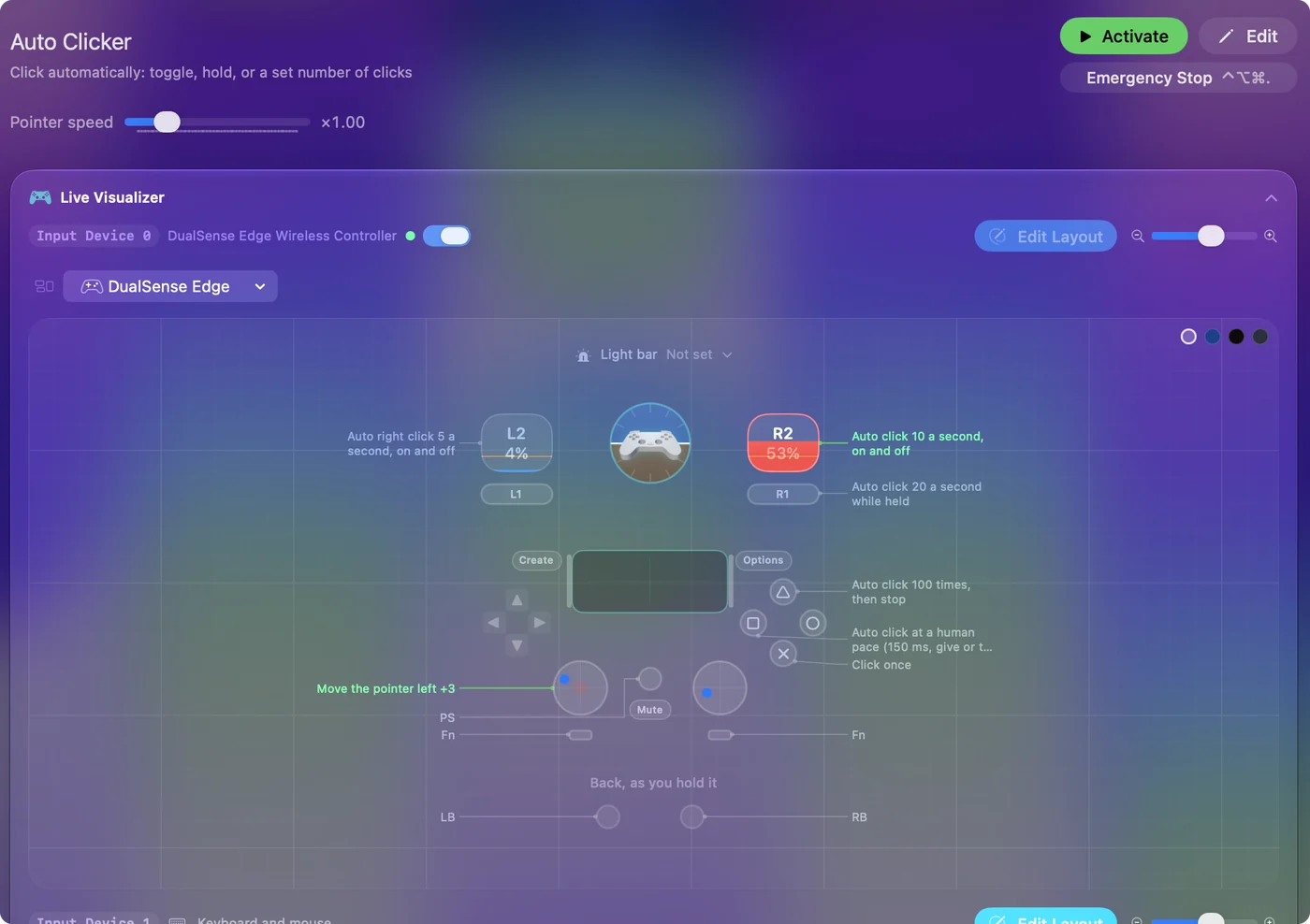
What each control does
The rows are grouped by job, not by device, so the same idea works from a pad, the keyboard or a mouse. Controller names are Xbox first, then PlayStation.
- Start and stop. The right trigger (RT, R2) and fn F6 each start left clicks at 10 a second, and the next press stops them. The left trigger (LT, L2) and fn F7 do the same with right clicks, at 5 a second. Your hands are free while a run goes.
- Only while held. The right bumper (RB, R1) clicks 20 times a second for as long as you hold it. A mouse's side button 4 clicks 15 times a second while held, and its own Back is held back meanwhile, so a browser does not also go back a page.
- A set number. Y (Triangle) clicks 100 times, 10 a second, and stops by itself after about 10 seconds. Press Y during the run to stop it early; the next press starts a fresh 100.
- A human pace. X (Square) starts and stops clicks 150 ms apart, give or take 40, so each gap lands somewhere between 110 and 190 ms. That averages about 6.7 clicks a second without a perfectly even rhythm.
- Aim without a mouse. The left stick moves the pointer and A (Cross) is a plain click. A stays down for as long as you hold it, so A and the left stick together drag.
- A buzz to confirm. On a controller that vibrates, such as a DualSense, the toggled rows (both triggers, Y and X) give a short buzz at 40 percent when a run starts, so you feel it begin without looking.
Every row, with its note, is in the table above under every binding.
Why fn F6 and not plain F6
On recent MacBooks and Apple keyboards, the top row sends what is printed on it unless you hold fn. Plain F6 there is the Focus or Do Not Disturb key, and macOS keeps that key to itself, so no app ever sees it. Held with fn, it is an ordinary F6, which InputConfig reads. F7 works the same way: alone it is a media key, and with fn it is F7.
- A keyboard with plain F keys. On many keyboards made for PCs the top row is F1 to F12 already, so F6 alone starts and stops the clicking.
- The Mac's own switch. System Settings, Keyboard, Keyboard Shortcuts, Function Keys makes F1 to F12 act as standard function keys, so F6 works without fn and you hold fn for brightness and volume instead.
- The key still does its job. InputConfig listens to the keyboard alongside macOS and cannot take a key away, so the front app also gets the F6. Most apps do nothing with it. If yours does, move the row to a key that does nothing, such as F13 to F19, or use the side button or a controller.
Every other choice of start key, with the reasons, is on the auto clicker hotkey page.
Change the speed on one row
Each speed lives in its own row, so changing one never touches the others. The right trigger row, or the fn F6 row without a controller, is the one most people change first. To keep the shipped preset as it is, right-click Auto Clicker in the sidebar, choose Duplicate, and change the copy; InputConfig keeps built-in presets you never changed up to date.
- You: Press Edit, find the row under the Auto click heading (or Keyboard, for fn F6), and open its Options. In the How it fires box, type a new number in Every.
- InputConfig: Shows the rate it works out to beside the field, such as (10.0 per second) for 100 ms.
- Check: Save, close the editor, and start a run. Opening the editor ends any run that was going, so always test with it closed.
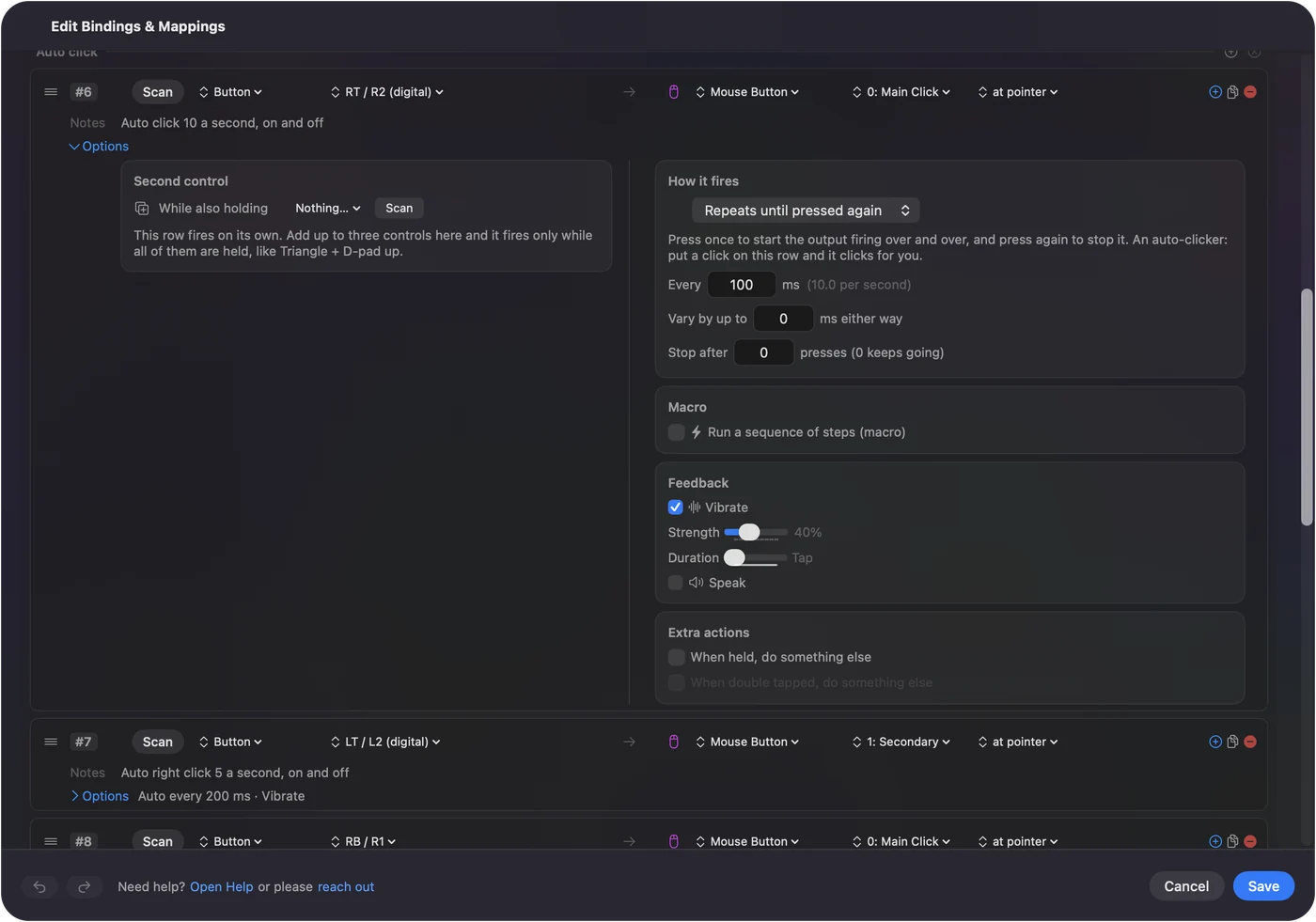
The same box holds everything else a run needs:
- Every. The gap between clicks, from 5 ms to 60,000 ms, a full minute. Divide 1000 by the gap for clicks per second: 50 ms is 20, 100 ms is 10, 250 ms is 4.
- Vary by up to. A random amount, plus or minus, added to each gap, up to 10,000 ms either way. A new gap is drawn after every click, so the average stays at Every. 0 keeps the clicks exact.
- Stop after. Ends the run after that many clicks, up to 100,000. 0 keeps going until you stop it.
- How it fires. Repeats until pressed again is the on and off kind, and Repeats while held clicks only while you hold the control. Switch a row between them in the same menu.
- Which button. The Mouse Button output's menu picks 0: Main Click (the left button), 1: Secondary (the right), 2: Middle, or a higher button.
Each click is held down for 40 percent of the gap, never longer than 80 ms, then let go, and every one goes out as a single click, so a fast run never turns into the double clicks that open files. The CPS calculator turns clicks per second into the Every value and back. The random interval page and the set number of clicks page go deeper on Vary by up to and Stop after.
Know the top speed
InputConfig sends at most one click each time it checks its controls, so the polling rate is the ceiling. That rate is in Settings, Advanced, Polling rate: 120 times a second on a power adapter and 60 on battery by default, and either can go up to 240. Every stops at 5 ms, so one row tops out at 200 a second. A 10 ms row on battery runs at about 60 clicks a second, not 100. Every row in this preset is 20 a second or slower, well under either ceiling, and some apps and games may not count clicks much faster than that anyway. The auto clicker CPS page explains the numbers.
Click at one spot instead of where the pointer is
- You: In the editor, open the small menu beside a row's click button, which reads at pointer, and choose At a fixed point: use the pointer's position now. Then move the pointer to the spot.
- InputConfig: Takes the pointer's position three seconds later, so you have time to get there, and the menu then reads at x, y, with X and Y fields beside it for exact numbers. From then on the pointer jumps to the spot before every click.
- Check: Close the editor, start a run, and watch the pointer land on your spot before each click. Choose Where the pointer is to go back.

Leave the mouse alone during a fixed-point run, because the pointer is moved for every click. If the point was on a display that is no longer connected, InputConfig skips the click and the activity log says so. One row clicks one spot; for two spots, give two rows their own points and their own triggers. The fixed point page has the rest.
Run it only while one app is in front
A preset can take over when an app comes to the front and hand back when you leave it, and switching presets ends any run. In Settings, Advanced, turn on Switch presets when the front app changes. Then open Auto Clicker in the editor, expand Automation & Gaming Utilities, and add the app under Activate when these apps are in front. The automatic switching page covers the details, including Steam games.
Before you use it in a game
Many online games forbid auto clickers in their rules, and some detect them and ban accounts. I will not promise that any game allows it or cannot tell, and Vary by up to is there for feel, not for hiding. Check the rules of the game, the server or the site first; a single-player game or your own world is your call. InputConfig sends its clicks through macOS at the same level a real mouse uses, and it does nothing to disguise them.
If the game reads the controller itself, a running preset doubles every press: the game sees A and also gets a click. Use the fn F6 or side button rows there, or deactivate the preset while you play with the pad.
Stop it, smallest step first
There is always a way out. Climb this ladder, smallest step first:
- Press it again, or let go. A trigger, fn F6, fn F7, Y or X stops its own run on the next press. The right bumper and the side button stop the moment you let go.
- Use the emergency stop. Press Control Option Command period from any app, hold Back and Start together for three seconds (View and Menu on an Xbox pad, Create and Options on a DualSense), or press Emergency Stop in the menu bar. It turns the preset off and lets go of every held button. All three are set in Settings, General, Emergency stop.
- Lock the Mac. Locking ends every run, and nothing starts clicking again by itself after you unlock.
Stop after keeps a long run from getting away in the first place, so I set it on any row I plan to leave running. The stop page and the emergency stop help cover every case. Learn the emergency stop before your first long run, because it works even while the clicking has the mouse.
What it cannot do
- Click faster than the polling rate. One click per check, and Every stops at 5 ms, so 200 a second at the very most.
- Click a chain of spots. Each row clicks where the pointer is or at its one fixed point. There is no recorded sequence of positions.
- Take a key away. fn F6 and fn F7 still reach the front app, as above.
- Click without permission. Without Accessibility, nothing clicks, which is how macOS protects every Mac from apps it has not been told to trust.
- Buzz on every pad. The start buzz needs a controller that can vibrate.
InputConfig is free on the Mac App Store for macOS 14 or later, open source under the MIT license, with no account and no network access. The optional tip jar adds no features.
What to do next
- Follow the whole guide. The auto clicker guide goes from install to a tuned, safe run in about 15 minutes.
- Build your own row. The free auto clicker for Mac page makes one from scratch, on any control.
- Start it from a controller. Auto clicking with a controller turns any button into a turbo button.
- Check it is safe. Is an auto clicker safe on a Mac covers the permission, where apps come from, and the rules.
Download
- Auto Clicker presetClick automatically: toggle, hold, or a set number of clicks 9 KB
To add a downloaded preset: drop the file on InputConfig's Dock icon, or click the … button next to any preset in the sidebar, choose Import Preset File, and pick the file. It lands in the sidebar, ready to activate or edit. Any launch target inside a preset file is cleared on import; add one yourself in the editor if you want it.
Related
Free. macOS 14 or later. No account, nothing leaves your Mac. Open source on GitHub.