Questions
How to auto click the same spot on a Mac
Yes, a Mac auto clicker can hit the same spot every time, wherever the mouse is. In InputConfig, open the menu beside a row's click, choose At a fixed point: use the pointer's position now, and move the pointer onto the spot. About three seconds later the app takes that position, and from then on every click from that row lands there.
Once a spot is set, X and Y fields beside it let you type or adjust the numbers, which helps anyone who cannot hold the pointer still. It works on any click row, including the rows of the built-in Auto Clicker preset, and the app is free on the Mac App Store. One row clicks one spot, so two spots take two rows.
On this page: 11 sections
Steps
- Install InputConfig from the Mac App Store and allow Accessibility access.
- Select the built-in Auto Clicker preset, or your own preset, and press Edit.
- On the click row you want, open the menu that reads at pointer and choose At a fixed point: use the pointer's position now.
- Move the pointer onto the spot within three seconds and keep it still.
- Check that the menu reads at and two numbers, with X and Y fields beside it, then save and close the editor.
- Start the row with its control, and every click lands on that spot.
Capture the spot
The spot comes from where the pointer really is, so you show InputConfig the place instead of measuring it.
Step 1: Make the spot reachable
- You: Before you open the editor, arrange the app you want clicked so the target is visible and not behind InputConfig's window.
- InputConfig: Opens its editor over its own window, which can cover the target if the two overlap.
- Check: With the editor open, you can still see the button or spot you want clicked.
Step 2: Take the position
- You: Beside the row's click button, open the menu that reads at pointer and choose At a fixed point: use the pointer's position now. Move the pointer onto the spot straight away and hold it still.
- InputConfig: Waits about three seconds, so you have time to get there, then stores where the pointer is. With VoiceOver on, it counts down out loud and reads the spot back.
- Check: The menu now reads at and two numbers, such as at 812, 440, and X and Y fields appear beside it. If the numbers look wrong, choose the same item again and redo it.

Arrange the window first, so the three seconds only have to cover a mouse move.
 InputConfig is free on the Mac App Store. macOS 14 or later, no account, no tracking, open source.
Type the spot instead
The X and Y fields take whole numbers in screen points. They suit anyone who cannot hold the pointer still on a target through the countdown, and they make small corrections easy.
- You: Set any fixed point first, so the fields appear, then type the numbers you want in X and Y.
- InputConfig: Uses the typed spot for every click from that row. Each field takes a whole number from minus 100,000 to 100,000.
- Check: The menu label changes to match, such as at 820, 436.
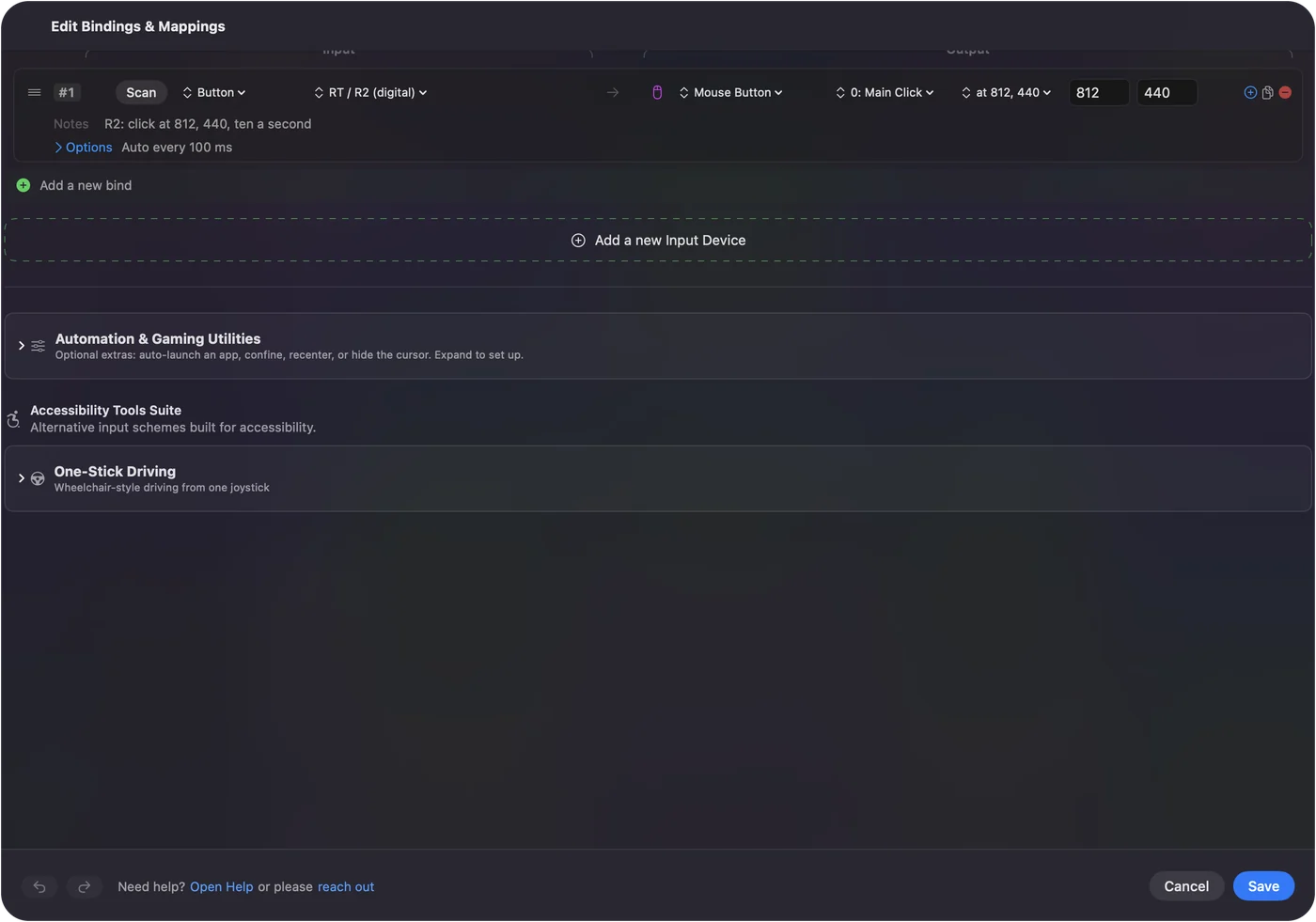
To find a spot's numbers, capture it once and read them, then nudge them a few points at a time. Capture to get close, then type to get exact.
Run it, and leave the mouse alone
During a run, InputConfig moves the pointer to the spot before every click, and the pointer stays there. If you move the mouse, the next click pulls it straight back, so the mouse is not yours for anything else until the run ends.
- Start it from a key or a controller. The pointer is busy, so a hotkey such as fn F6 or a controller trigger is easier than anything on screen. See auto clicker hotkeys.
- Set Stop after. A count in the row's Options ends the run by itself. See clicking a set number of times.
- Know the way out. Control Option Command period stops everything without touching the mouse.
A fixed-point run owns the pointer, so plan the way out before you start.
Read what the numbers mean
- Points from the top-left. X counts points from the left edge of the main display, the one with the menu bar, and Y counts down from its top edge.
- A second display. A display arranged to the left of the main one, or above it, gives negative numbers. That is normal.
- The screen, not the window. The spot is a place on the screen. If the app's window moves, scrolls or resizes, the target slides away from the spot and the clicks miss.
- A new resolution. Changing the display's scaling in System Settings moves things on screen, so capture the spot again afterward.
If the window moved, capture the spot again or fix the numbers.
Click two spots with two rows
Each Mouse Button output holds one spot, so two spots means two rows, each with its own control and its own fixed point. In the Auto Clicker preset, you could give the right trigger's row one spot and the top face button's row another.
- Run them one at a time. Two fixed-point runs at once both move the pointer before each of their clicks, so it jumps back and forth between the spots and is hard to stop with the mouse.
- A chain of spots in order. InputConfig has no list of points to click in turn. A macro can press keys and mouse buttons in a timed sequence, but its click steps land where the pointer is; they cannot move it to a point. For a recorded path of many clicks, an app built for recording clicks fits better.
One row, one spot: that is the whole model.
Go back to clicking where the pointer is
Open the same menu and choose Where the pointer is. The menu reads at pointer again, the X and Y fields go away, and the row clicks wherever the pointer sits, which is how the built-in preset's rows come out of the box.
If the clicks land in the wrong place
Climb this ladder, smallest step first:
- Capture it again, or type it. The pointer may have moved during the countdown. Choose the fixed-point item once more and hold still, or correct the X and Y fields.
- Put the window back. If the app's window moved or scrolled, the target is no longer under the spot.
- Check the display is there. If the spot is on a display that is now disconnected, InputConfig skips that click rather than clicking somewhere else, and the activity log says the fixed click point is off every screen. Turn on Show the activity log in Settings, Advanced to read it.
- Check the arrangement. Moving displays around in System Settings, Displays shifts every number, so capture the spot again.
- Bring the app forward. In many apps, the first click on a window behind others only brings that window to the front. Click it once yourself before the run.
A skipped click is on purpose, because a click in the wrong place is worse than none.
What it cannot do
- Follow a moving target. It clicks a place on the screen, not a button in a window, and it does not look at what is on screen.
- Click a sequence of spots. Each click output has one spot, and macro steps cannot move the pointer.
- Share the mouse. While a fixed-point run goes, the pointer keeps jumping back to the spot.
- Promise a game allows it. Some games forbid auto clickers in their rules and some detect them, wherever the clicks land.
The short version
- Capture. At a fixed point: use the pointer's position now, then hold the pointer on the spot for three seconds.
- Adjust. Type the exact numbers in X and Y.
- Run. Start it from a key or a controller and leave the mouse alone.
- Two spots. Two rows, run one at a time.
Set Stop after on a fixed-point run, because the pointer is not yours until it ends.
Questions
Can a Mac auto clicker click the same spot every time?
Yes. In InputConfig, choose At a fixed point: use the pointer's position now in the menu beside a click, move the pointer to the spot, and every click from that row lands there.
Can I type the coordinates?
Yes. Once a fixed point is set, X and Y fields appear beside the menu. Type whole numbers in points, counted from the top-left corner of the main display.
Can it click two different places?
Yes, with two rows, one spot each, each started by its own control. There is no single row that clicks a list of spots in turn.
What happens if I unplug the display the spot was on?
The click is skipped rather than landing somewhere else, and the activity log says so. Capture the spot again on a display that is connected.
Can I use the mouse while it clicks a fixed spot?
Not really. The pointer moves to the spot before every click, so it keeps jumping back until the run ends.
Related
Free. macOS 14 or later. No account, nothing leaves your Mac. Open source on GitHub.