Questions
OP Auto Clicker on a Mac
OP Auto Clicker started as a Windows app, and its site, opautoclicker.com, now also links a Mac App Store app named OP Auto Clicker, from a developer listed as Meridian Flow Ltd, and a macOS download hosted on SourceForge. Other Mac App Store apps use similar names from other developers. I have not tested any of them, and I cannot tell how the Mac versions relate to the original Windows program, so I make no claim either way. If you want the same settings in a free App Store app, InputConfig has each one under a slightly different name, mapped below. InputConfig is my app and has no connection to OP Auto Clicker.
On this page: 8 sections
Steps
- Install InputConfig from the Mac App Store and allow Accessibility access.
- Activate the built-in Auto Clicker preset from the Desktop & Productivity folder.
- Press fn F6 to start clicking 10 times a second where the pointer is, and fn F6 again to stop.
- For your own settings, duplicate the preset and open the copy with Edit.
- On the fn F6 row, set Every, Vary by up to and Stop after in Options, and pick where it clicks in the menu beside the click.
Map each OP Auto Clicker setting
OP Auto Clicker's site lists a cursor or fixed spot, a number of clicks or until stopped, left, right or middle, single, double or triple clicks, and changeable hotkeys. Here is where each one lives in InputConfig. A row's Options box, How it fires, holds the timing.
| OP Auto Clicker | InputConfig |
|---|---|
| Click interval | Every, in milliseconds, from 5 ms to 60,000 ms. One second is 1000. |
| Mouse button: left, right, middle | The click's button menu: 0: Main Click, 1: Secondary, 2: Middle. |
| Single click | Every click in a run is a single click. |
| Double or triple click | Not in a run. On a row left on Fires while held, Repeat 2 or 3 times per press sends a real double or triple click for each press. |
| Repeat a number of times | Stop after ... presses, up to 100,000. |
| Repeat until stopped | Stop after 0, which keeps going until you press again. |
| Current cursor location | Where the pointer is, in the menu beside the click. |
| Pick a location | At a fixed point: use the pointer's position now, taken three seconds after you choose it. |
| Start and stop hotkey | Any control you Scan: a key, a mouse button, a controller button or a MIDI pad. The preset uses fn F6. |
Two things InputConfig adds: Vary by up to, a random amount either way on each gap, and Repeats while held, which clicks only while the control is held down.
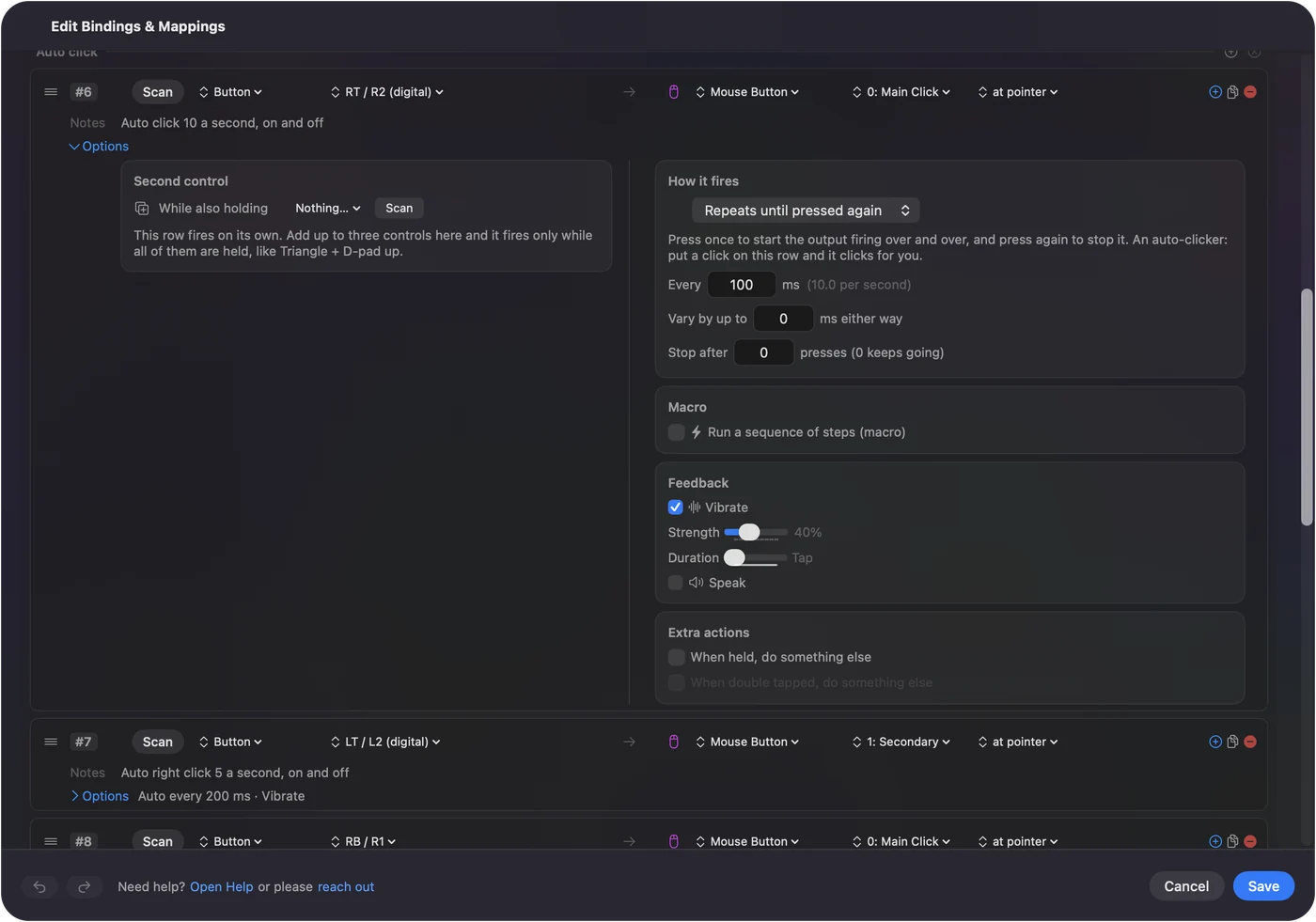
Every setting you used has a home; only the names change.
Set up your usual clicker
Start from a copy of the built-in preset, so the original stays as it shipped.
- You: Right-click Auto Clicker in the Desktop & Productivity folder, choose Duplicate, and open the copy with Edit. On the fn F6 row, open Options and set Every, Vary by up to and Stop after to the values you used before.
- InputConfig: Shows the rate beside Every, such as (10.0 per second) for 100 ms.
- Check: Close the editor, activate the copy, point at something harmless and press fn F6. It clicks at your pace, and fn F6 again stops it.
For a picked location, open the menu beside the click, choose At a fixed point: use the pointer's position now, and move the pointer to the spot within three seconds. The row then reads at x, y.

 InputConfig is free on the Mac App Store. macOS 14 or later, no account, no tracking, open source.
Know why the start key needs fn
Most auto clickers start and stop on F6. On a MacBook, the top-row F6 key is the Focus key, which macOS keeps to itself, so F6 alone never reaches any app. The preset listens for F6 itself, so hold fn and press F6. Better still, use a control that does nothing else:
- A mouse side button. Tick Block the button's own action on its row, and it stops also going Back in a browser.
- F13 to F19. On a full-size keyboard, nothing uses them.
- A controller button. The preset's right trigger starts and stops left clicks, with a buzz on pads that vibrate.
InputConfig listens to the keyboard and does not block or remap the key itself, so any key you pick still does its normal job, and every keyboard reports as one synthetic device id. More choices are on auto clicker hotkeys on a Mac.
Stop it, every time
Climb this ladder, smallest step first:
- Press the start control again. fn F6, if you kept the preset's key.
- Let Stop after end it. Set a count on long runs.
- Use the emergency stop. It is the emergency stop: Control Option Command period from any app, Back and Start held together for three seconds on a controller (View and Menu on an Xbox pad, Create and Options on a DualSense), or Emergency Stop in the menu bar.
- Lock the Mac. Every run stops, and none starts again by itself after you log back in.
What is different from OP Auto Clicker
- No double clicking in a run. A run sends single clicks on purpose, so it never opens files by accident. A double click comes from Repeat 2 on a one-press row.
- No interval in hours. Every goes up to 60,000 ms, one minute.
- A speed ceiling. At most one click per poll: 120 a second on a power adapter and 60 on battery by default, and 200 a second at most with Settings, Advanced, Polling rate at 240 Hz.
- The Accessibility permission. Like every Mac auto clicker, InputConfig needs it before it can click.
- macOS 14 or later. Apple silicon or Intel.
The short version
- On a Mac today. OP Auto Clicker's site links a Mac App Store app and a macOS download; I have not tested them.
- A free alternative. InputConfig's built-in Auto Clicker preset, fn F6 to start and stop.
- Your settings. Every, Vary by up to, Stop after, and the menu beside the click.
Hold fn with F6 on a MacBook, and the habit you brought from Windows works. For the wider field, see Mac auto clickers compared.
The Auto Clicker preset page lists every row with its settings, and the auto clicker guide covers setup to stop.
Questions
Is there an OP Auto Clicker for Mac?
OP Auto Clicker's site, opautoclicker.com, links a Mac App Store app named OP Auto Clicker and a macOS download on SourceForge. The original program is for Windows, and I have not tested the Mac versions.
What is a free alternative to OP Auto Clicker on a Mac?
InputConfig is free on the Mac App Store, with no paid features. Its built-in Auto Clicker preset starts and stops with fn F6, and each row has an interval, a random variation, a click count and a fixed point.
Can InputConfig double click like OP Auto Clicker?
Not during a run, which always sends single clicks. Set Repeat to 2 times per press on a row left on Fires while held, and each press sends a real double click.
Why does F6 not start the auto clicker on my MacBook?
On recent MacBooks, F6 is the Focus key and macOS keeps it to itself. Hold fn while you press F6.
Does it work on Apple silicon Macs?
Yes. InputConfig runs on any Mac with macOS 14 or later, Apple silicon or Intel.
Related
Free. macOS 14 or later. No account, nothing leaves your Mac. Open source on GitHub.