Questions
How to start and stop an auto clicker with a hotkey on a Mac
Yes, one key can start and stop an auto clicker on a Mac. In the built-in Auto Clicker preset in InputConfig, the free mapper I make, fn F6 starts left clicks 10 times a second and the next fn F6 stops them, and fn F7 does the same with right clicks. On a MacBook you hold fn because the top-row F6 is the Focus key, and macOS keeps that key to itself.
Any other key, a mouse side button or a controller button can be the hotkey instead. A key you bind still does its normal job, so the best hotkey is one that does nothing today.
On this page: 9 sections
Steps
- Install InputConfig from the Mac App Store and allow Accessibility access when it asks.
- In the sidebar, open Desktop & Productivity, click Auto Clicker and press Activate.
- Point at what you want clicked and press fn F6 to start left clicks.
- Press fn F6 again to stop, or use fn F7 for right clicks.
- To use a different key, press Edit, press Scan on the fn F6 row and press the new key.
Start and stop with the preset's fn F6 and fn F7
The Auto Clicker preset has a group of rows for people with no controller. All three run from the Mac's own keyboard and mouse:
| Press | What it does |
|---|---|
| fn F6 | Left clicks 10 times a second where the pointer is, until you press fn F6 again. |
| fn F7 | Right clicks 5 times a second, until you press fn F7 again. |
| Mouse button 4, held | Left clicks 15 times a second only while you hold it. The button's own Back is blocked while the preset runs. |
- You: Activate Auto Clicker, point at something harmless such as an empty part of the desktop, and press fn F6 once.
- InputConfig: Clicks the left button 10 times a second wherever the pointer sits, each one a single click.
- Check: Press fn F6 again and the clicking stops. If nothing happened at all, climb the ladder below.
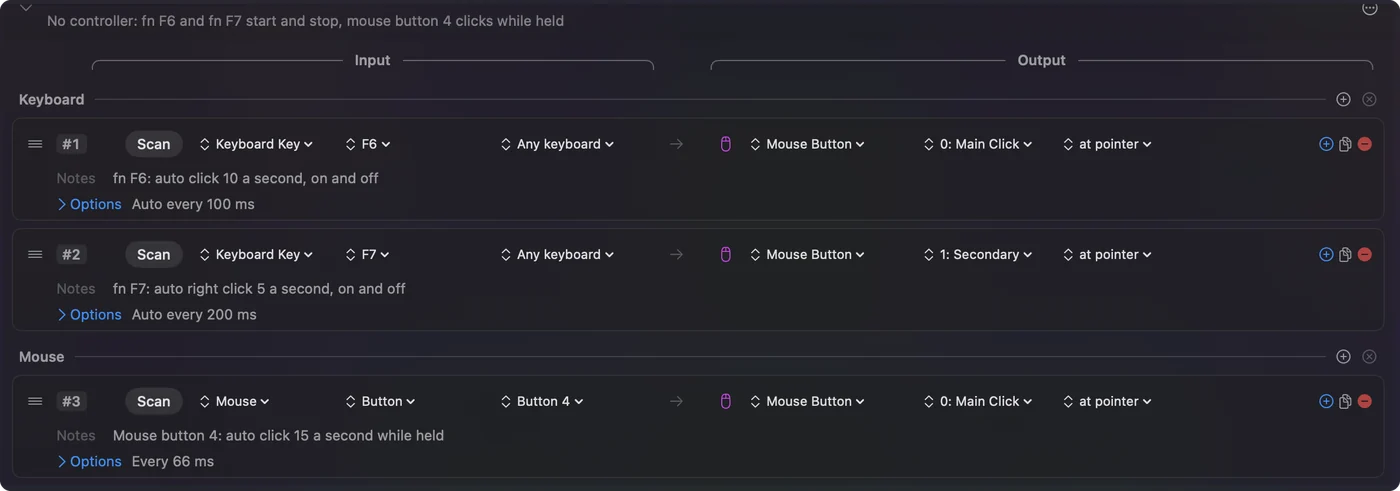
fn F6 is the whole hotkey: one press on, one press off.
 InputConfig is free on the Mac App Store. macOS 14 or later, no account, no tracking, open source.
Hold fn, because macOS keeps F6
Most auto clickers use F6 as their start key, and on a recent MacBook that key never reaches an app on its own. The top row does the job printed on it: F6 is Focus (Do Not Disturb) and F7 is the rewind key. macOS keeps Mission Control, Launchpad, Spotlight, Dictation and Focus to itself, and the media keys arrive as media keys, not as F6 or F7. Holding fn turns them back into plain function keys, which is why the preset's rows say fn F6 and fn F7.
- On a MacBook or an Apple keyboard. Hold fn, which shows a globe on newer keyboards, and press F6.
- If you would rather not hold fn. Turn on Use F1, F2, etc. keys as standard function keys in System Settings, Keyboard, Keyboard Shortcuts, Function Keys. Plain F6 then works, and you hold fn for brightness and volume instead.
- On a keyboard with nothing printed on its F keys. Plain F6 usually sends F6. The Live Visualizer tells you for sure, as the ladder below shows.
If an auto clicker's F6 does nothing on a MacBook, hold fn and try again before anything else.
Pick a hotkey that does nothing else
InputConfig listens to the keyboard alongside macOS and cannot take a key away, so the key you bind still types or still does its usual job. F6 suits most people because almost no Mac app uses it. These are better still:
- A mouse side button. Button 4 and Button 5 only go Back and Forward in a browser. Tick Block the button's own action on the row and apps stop seeing that button while the preset runs, so it starts the clicker and nothing else. See mouse side buttons on a Mac.
- F13 to F19. On a full-size keyboard, macOS and most apps ignore them. See which keyboards have F13 to F19.
- Right Option on a MacBook. Pressed on its own it types nothing. Skip it if you type accented letters with Option. See the right Command and Option keys.
- A controller button. It types nothing, and the preset already puts the auto clicker on the right trigger. See an auto clicker on a controller.
- A foot pedal. It leaves both hands free. Set the pedal to send F13 to F19 in its own software. See foot pedal shortcuts.
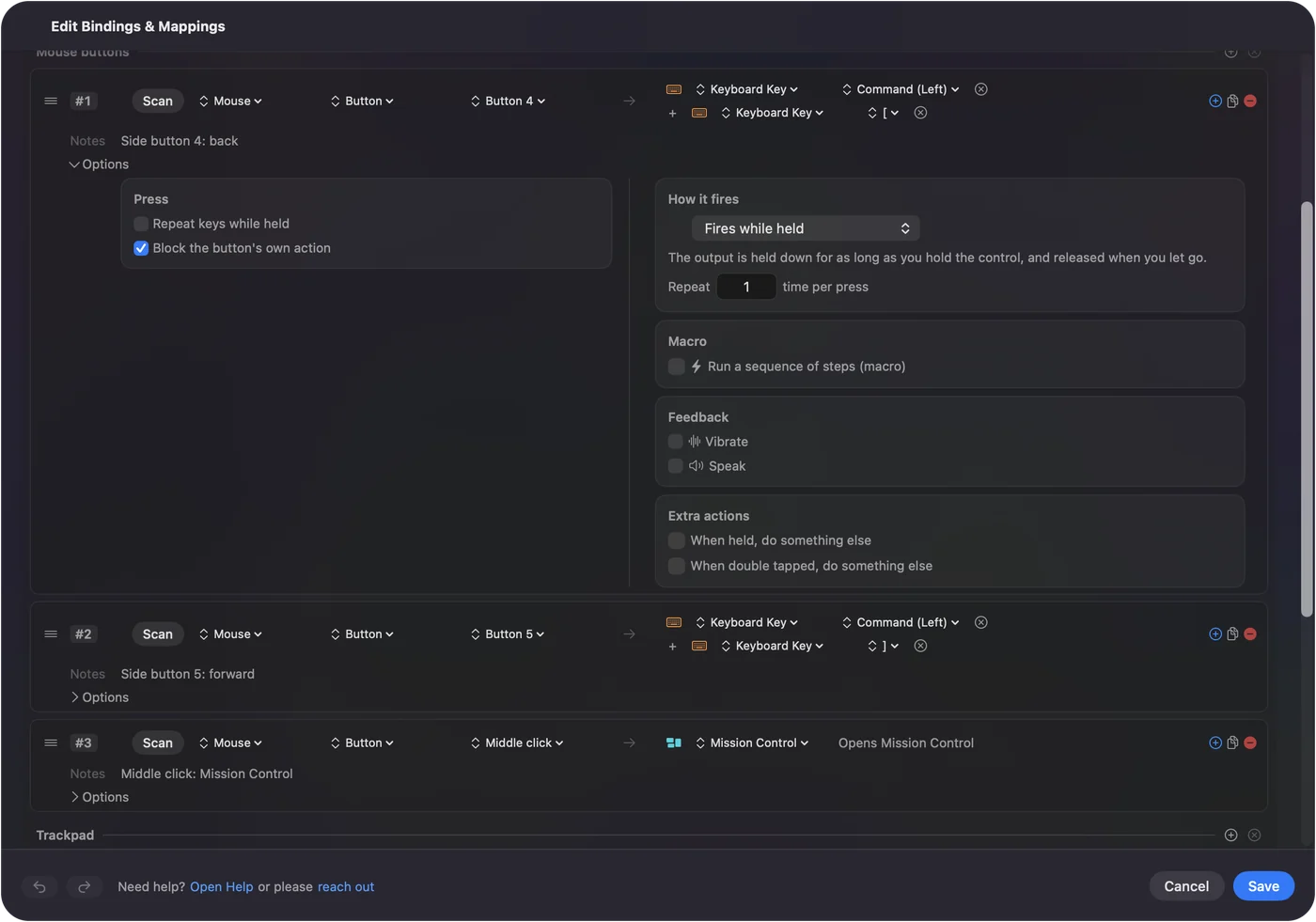
A letter key is the one bad choice, because it types its letter every time you start or stop.
Move the hotkey to another key
- You: Select Auto Clicker and press Edit. On the row whose note reads fn F6: auto click 10 a second, on and off, press Scan, then press the key or button you want.
- InputConfig: Puts the new key on that row. The click, the pace and the on and off behavior stay as they were.
- Check: The row now shows your key's name. Save, close the editor, and press the key twice: clicking starts, then stops.
Test with the editor closed. Opening the editor ends any run, so a test with it open tells you nothing.
To build the same thing from nothing, click Add a new bind, Scan your key, give the row a Mouse Button output, and set How it fires to Repeats until pressed again in its Options. Choose Repeats while held instead if you want clicks only while the key is down, like the side button row. Changing the hotkey never changes the clicking, only what starts it.
If the hotkey does nothing
Climb this ladder, smallest step first:
- Hold fn. On a MacBook, F6 and F7 without fn are Focus and rewind, and the row never hears them.
- Close the editor. Opening it ends any run, and while it is open InputConfig holds most outputs back, so test with it closed.
- Check the preset is active. The menu bar icon turns green while a preset runs, and the preset's button reads Deactivate rather than Activate.
- Check the permission. If the menu bar icon is orange, the running preset needs Accessibility. Turn InputConfig on in System Settings, Privacy & Security, Accessibility, and its rows start working the moment it is allowed. See the Accessibility permission.
- Watch the key arrive. Open the Live Visualizer, choose the Keyboard template and press the key. A key that lights there reaches InputConfig. A key that stays dark never does, so pick another.
- Move the hotkey off the keyboard. A side button with Block the button's own action, or a controller button, avoids every keyboard quirk.
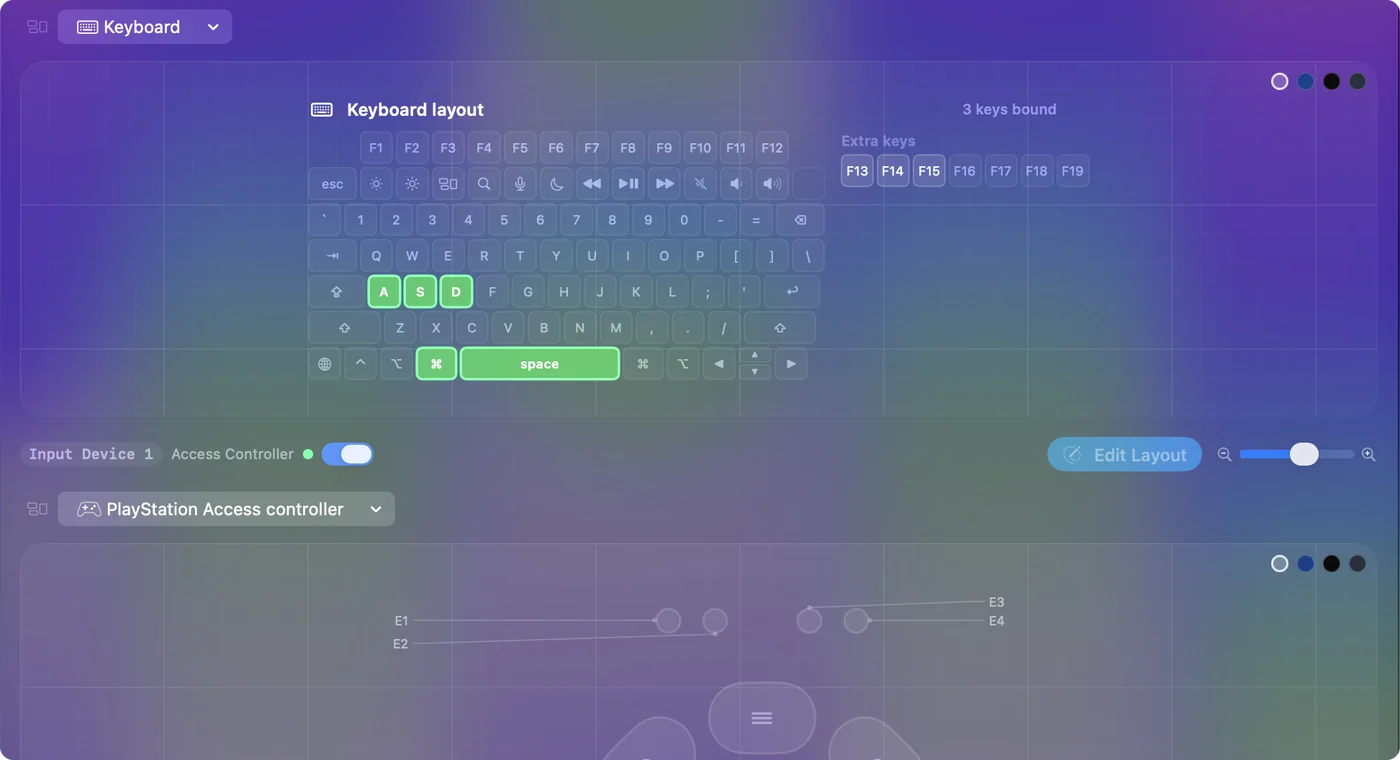
On a MacBook, try fn first, because it costs nothing.
What it cannot do
- Take a key away. A bound key still reaches the app in front. Only a middle or side mouse button can be held back, with Block the button's own action.
- Tell keyboards apart. Every keyboard reports to InputConfig as one keyboard, with one synthetic device id, so F6 on an external keyboard and F6 on the MacBook are the same hotkey.
- Hear keys macOS keeps. Focus, Mission Control, Launchpad, Spotlight and Dictation never reach an app, and neither do F21 to F24.
- Keep running through a lock. Locking the Mac or letting it sleep ends a run, and it does not start again after you unlock.
- Promise a game allows it. Some games forbid auto clickers in their rules and some detect them. Check the rules of whatever you use it in.
The short version
- The hotkey. fn F6 for left clicks and fn F7 for right clicks, in the built-in Auto Clicker preset.
- Why fn. On a MacBook, F6 alone is Focus, and macOS keeps it.
- A better trigger. A side button with Block the button's own action, F13 to F19, or a controller button.
- The way out. Press the hotkey again, or Control Option Command period to stop everything.
Pick a hotkey you never press by accident, and starting and stopping becomes one habit.
For the whole setup, from install to a tuned run, see the auto clicker guide for Mac.
Questions
Why does F6 not start my auto clicker on a MacBook?
On recent MacBooks the top-row F6 is the Focus key, and macOS never passes it to apps. Hold fn and press F6, or turn on standard function keys in System Settings, Keyboard, Keyboard Shortcuts, Function Keys.
Does the hotkey still type or do its normal job?
Yes. InputConfig listens to keys and cannot block them, so pick a key that does nothing on its own, such as F6, F13 or Right Option. A middle or side mouse button can be blocked with Block the button's own action.
Does the hotkey work while a game or another app is in front?
Yes. InputConfig hears the key whichever app is in front, and the clicks go to whatever is under the pointer.
Can a mouse button start and stop the auto clicker?
Yes. Any mouse button up to Button 32 can be the trigger. The built-in preset already clicks 15 times a second while you hold side button 4.
What is the hotkey to stop everything at once?
Control Option Command period, the emergency stop. It turns the running preset off and lets go of every key and mouse button InputConfig was holding.
Related
Free. macOS 14 or later. No account, nothing leaves your Mac. Open source on GitHub.