Questions
How to auto click a set number of times on a Mac
Yes, a Mac auto clicker can click a set number of times and then stop by itself. In InputConfig, set Stop after on a repeating click row to the count you want, anywhere up to 100,000, and the run ends when it gets there. The built-in Auto Clicker preset's top face button clicks 100 times, 10 a second, then stops.
For a handful of clicks from each press, such as 3 or 10, the Repeat field on a plain row is the simpler tool. Both are free, and both are below.
On this page: 10 sections
Steps
- Install InputConfig from the Mac App Store and allow Accessibility access.
- Activate the built-in Auto Clicker preset and press Y on a controller for 100 clicks.
- For your own count, open a click row's Options and set How it fires to Repeats until pressed again.
- Set Every to the gap between clicks and Stop after to the number of clicks.
- Close the editor and press the row's control once, and the run stops at the count.
Set Stop after on a repeating row
- You: In the row's Options, choose Repeats until pressed again, then type the count in Stop after.
- InputConfig: Counts every click it sends and ends the run at that number. The label beside the field reads presses, or presses (0 keeps going) while it is 0.
- Check: Start a run on something harmless. It stops by itself, and one more press of the control starts a fresh run from zero.
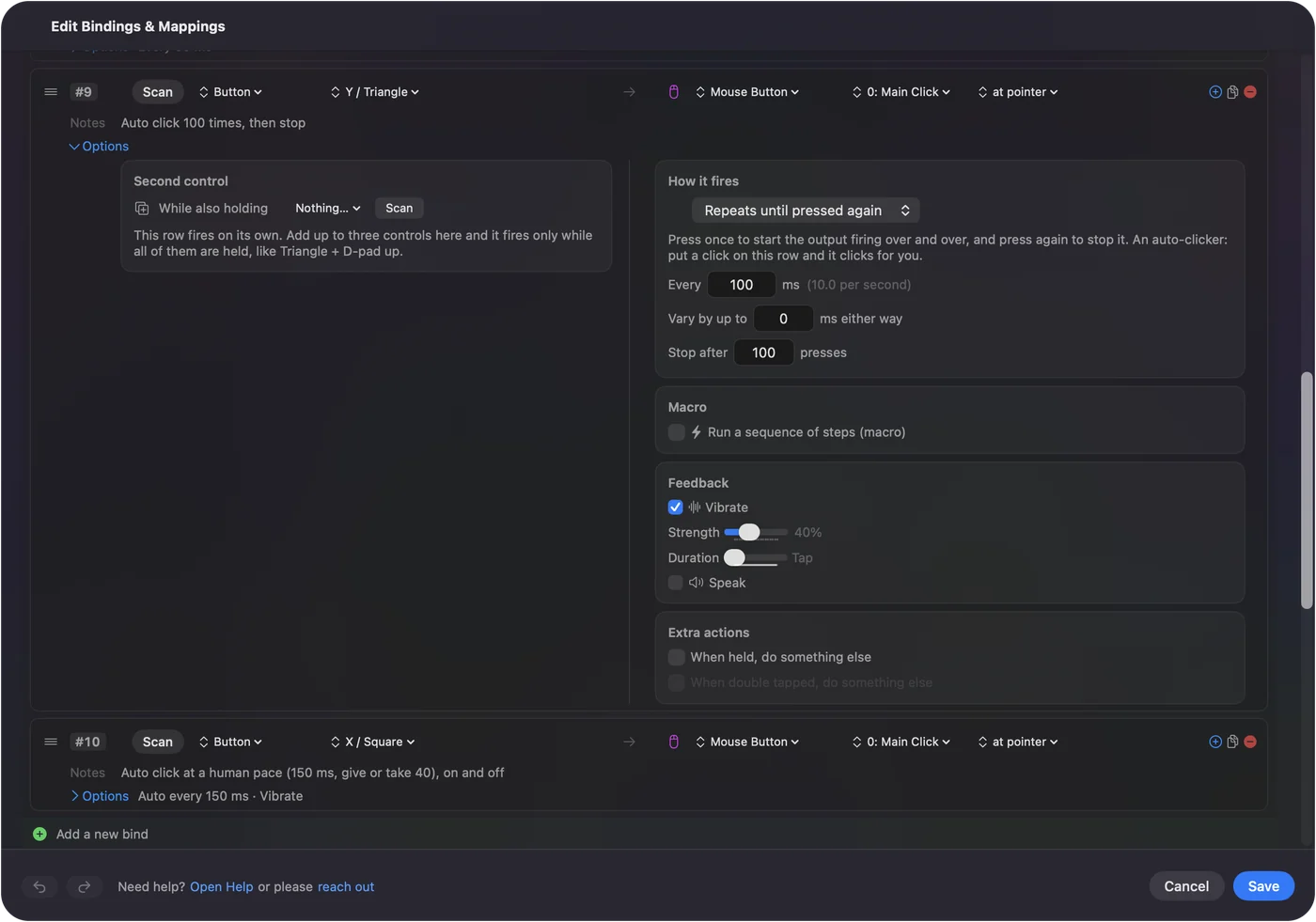
- Stop early. Press the control again at any point. The count starts over on the next run.
- With Repeats while held. Stop after works there too: the clicks stop at the count even if you keep holding, and letting go resets it.
- The range. 0 to 100,000, where 0 means no limit.
Stop after turns any auto clicker into one that ends on its own.
 InputConfig is free on the Mac App Store. macOS 14 or later, no account, no tracking, open source.
Work out how long a run takes
A run takes about the count times the gap. The one catch is speed: InputConfig sends at most one click each time it checks its controls, 120 times a second on a power adapter and 60 on battery by default, so a gap shorter than that runs at the cap.
| Stop after | Every | About how long |
|---|---|---|
| 100 | 100 ms | 10 seconds (the preset's 100-click row) |
| 500 | 50 ms | 25 seconds |
| 1,000 | 100 ms | 1 minute 40 seconds |
| 3,600 | 1,000 ms | 1 hour |
| 10,000 | 200 ms | 33 minutes |
| 100,000 | 5 ms | About 14 minutes on a power adapter and 28 on battery at the default polling rates, and 8 only at 240 Hz |
The last row is arithmetic from how the app schedules clicks, not a timed run. The CPS calculator does the sum for any count and gap. Count times gap is the length of the run, so set the count from the time you want.
Use Repeat for a few clicks per press
Repeat is a different tool for a different job. It lives on a row left on Fires while held, and each press of the control sends the click several times, then stops.
- You: On a click row set to Fires while held, type a number in Repeat. Once it is above 1, a Wait field appears for the milliseconds between repeats.
- InputConfig: Presses and releases the click that many times for each press, holding each one for 50 ms, with the Wait between them.
- Check: One press of the control gives exactly that many clicks. A second press while a run is still going does nothing until it finishes.
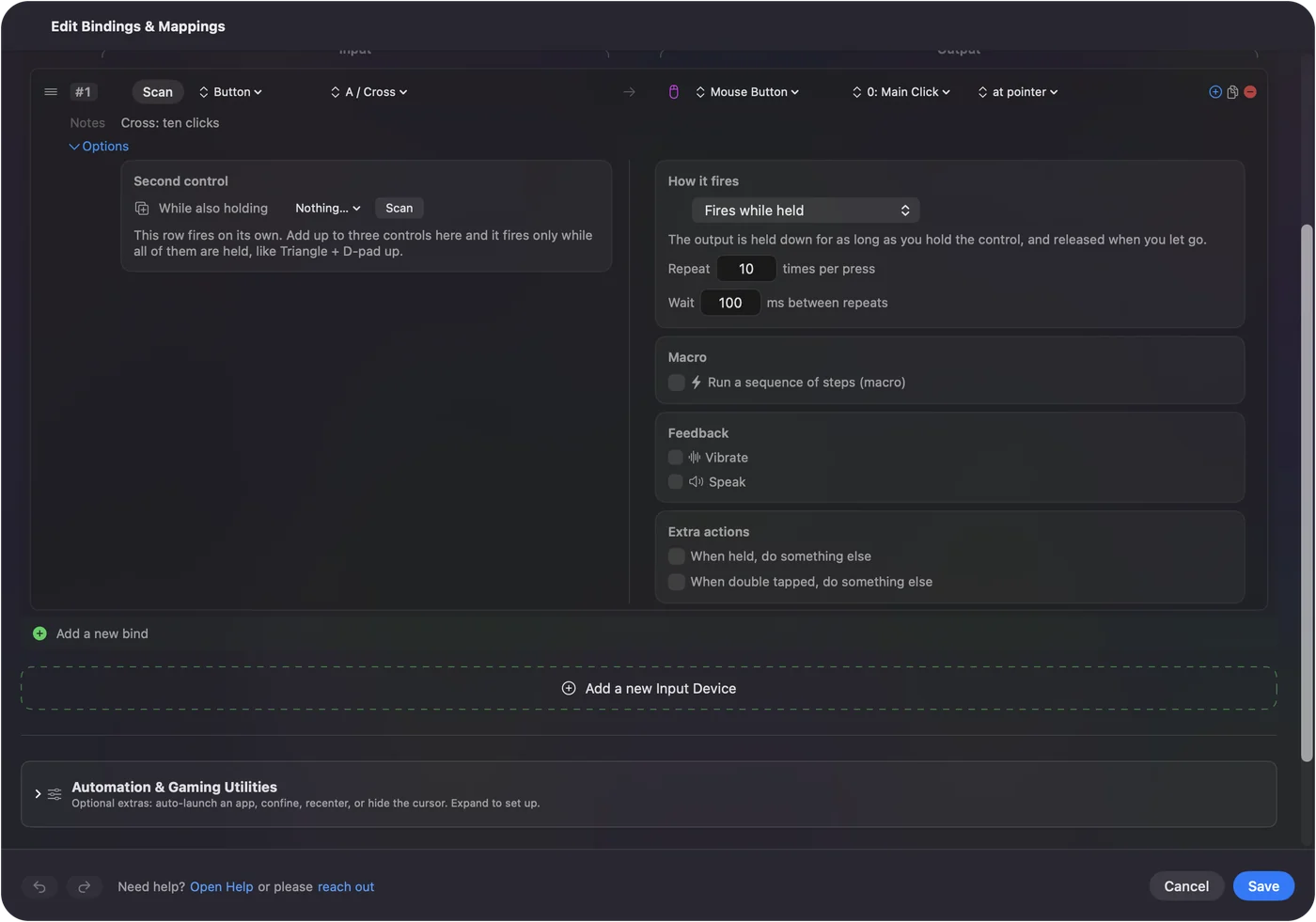
- The range. 1 to 100 times per press, with a Wait of 10 to 5,000 ms. It starts at 100 ms.
- 2 or 3 is special. A Repeat of 2 or 3 on a click goes out as a real double or triple click, so it opens files and selects words. 4 and up is a string of single clicks. See double clicks and auto clickers.
- How long it takes. About the count times 50 ms plus the Wait, so ten repeats with a 100 ms Wait take about a second and a half.
Use Repeat for a few clicks on every press, and Stop after for one long run.
Choose between Stop after and Repeat
| Stop after | Repeat | |
|---|---|---|
| Where it is | A row on Repeats until pressed again or Repeats while held | A row on Fires while held |
| How many | Up to 100,000 per run | Up to 100 per press |
| The gap | Every, 5 to 60,000 ms, with Vary by up to | Wait, 10 to 5,000 ms |
| Stopping early | Press the control again | The emergency stop, or deactivating the preset |
| Double clicks | Never: every click is a single click | 2 or 3 is a real double or triple click |
Make Stop after a habit
A count is the cheapest safety net an auto clicker has. If you walk away, doze off over an idle game, or point it at the wrong window, the run still ends.
- Long runs. Set a count that matches the time you mean, from the table above.
- Fixed-point runs. The pointer is busy until the run ends, so a count gives it back. See clicking the same spot.
- Everything else. Press the control again, or use the emergency stop, Control Option Command period. Every way to stop a run is on its own page.
A run with a count can never get away from you.
If the count comes out wrong
Climb this ladder, smallest step first:
- Check you did not stop it. A second press of the control ends a run early, and the next run starts from zero.
- Keep holding, or switch modes. On a Repeats while held row, letting go ends the run and resets the count. Choose Repeats until pressed again if you want your hands free.
- Keep the Mac awake and the editor closed. Locking the Mac, sleep, opening the preset editor, or switching presets ends a run, and it does not pick up where it left off.
- Check the display. A click aimed at a fixed point on a disconnected display is skipped but still counted, so the app gets fewer clicks than the count.
- Slow down. If the app in front cannot keep up with very fast clicks, it may act on fewer of them. Try a longer Every.
The count is what InputConfig sent, not what the app noticed.
What it cannot do
- Run for a set time. There is no minutes field; set the count from count times gap.
- Count across rows. Each row keeps its own count.
- Remember a count between runs. Every new run starts at zero.
- Go past the limits. Stop after tops out at 100,000 and Repeat at 100 per press.
The short version
- One long run. Repeats until pressed again, Every for the pace, Stop after for the count.
- A few clicks per press. Fires while held, with Repeat and Wait.
- Ready-made. The top face button in the Auto Clicker preset: 100 clicks, 10 a second.
Decide how long you want it to run, divide by the gap, and type that count.
Stop after is Step 6 of the auto clicker guide, alongside every other setting.
Questions
How do I make an auto clicker click 100 times on a Mac?
In InputConfig, set a click row to Repeats until pressed again and type 100 in Stop after. The built-in Auto Clicker preset's Y button already does 100 clicks at 10 a second.
Can I make it run for a set number of minutes?
Not directly. A run takes about Stop after times Every, so 600 clicks at 100 ms is one minute.
What is the most clicks it can count?
Stop after goes up to 100,000 clicks per run. Repeat sends up to 100 clicks per press.
Does pressing the control again reset the count?
Yes. Pressing it again stops the run, and the next run starts from zero.
What is the difference between Repeat and Stop after?
Repeat sends a few clicks from every press on a normal row. Stop after ends a long repeating run at a count.
Related
Free. macOS 14 or later. No account, nothing leaves your Mac. Open source on GitHub.