Questions
How fast an auto clicker can click on a Mac, in CPS and milliseconds
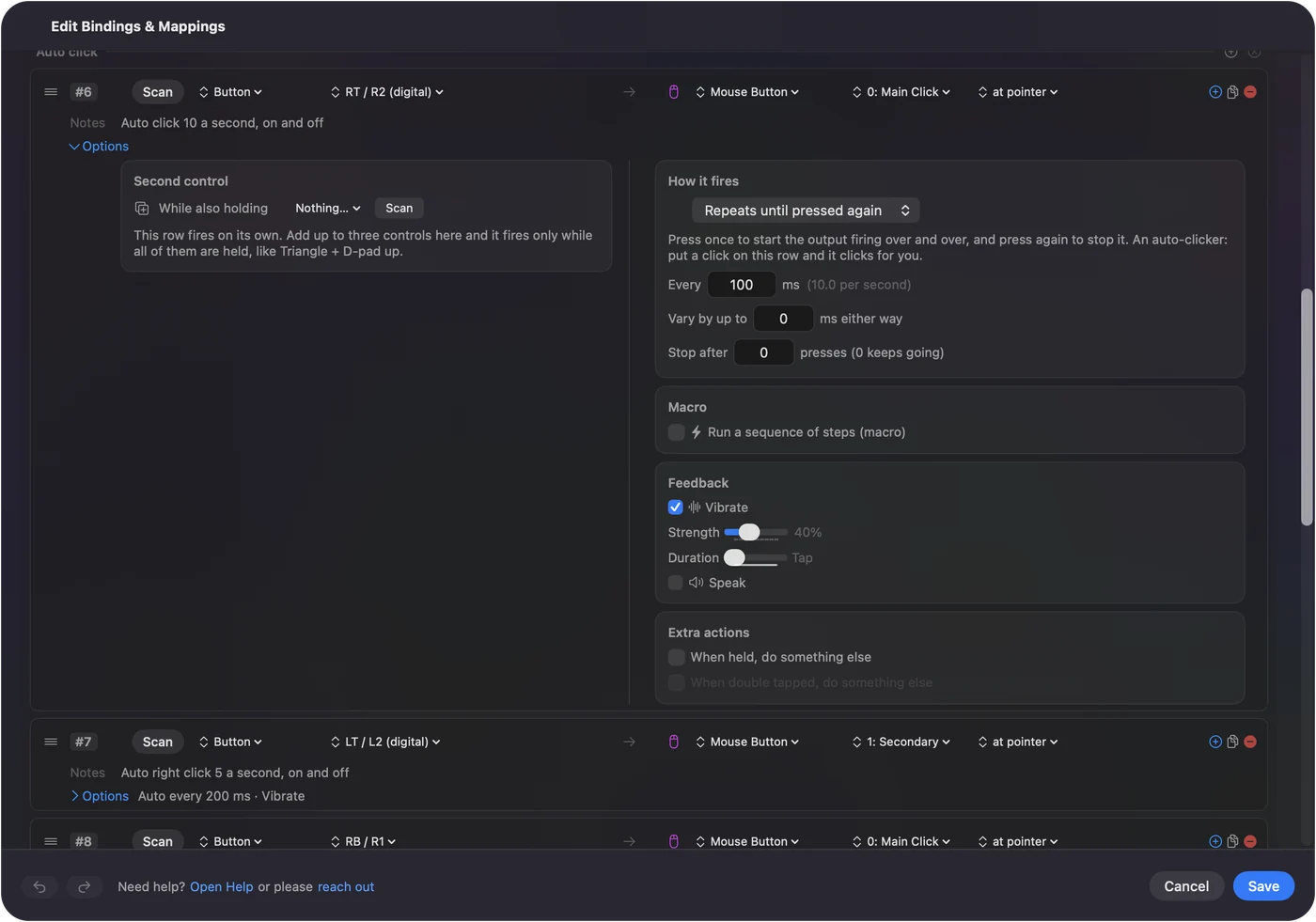
Clicks per second and milliseconds convert with one sum: 1,000 divided by one gives the other, so 10 CPS is a 100 ms gap and 20 CPS is 50 ms. In InputConfig, the free auto clicker I make, you type the gap in Every, from 5 ms up, and the row shows the rate beside it.
The real top speed is the polling rate. InputConfig sends at most one click from a row each time it checks its controls, which by default is 120 times a second on a power adapter and 60 on battery, so that is the ceiling until you change it. Most jobs need far less, somewhere between 5 and 20.
On this page: 10 sections
Steps
- Divide 1,000 by the clicks per second you want to get the gap in milliseconds.
- Type that gap in Every in the click row's Options.
- Check the rate shown beside Every, such as (10.0 per second).
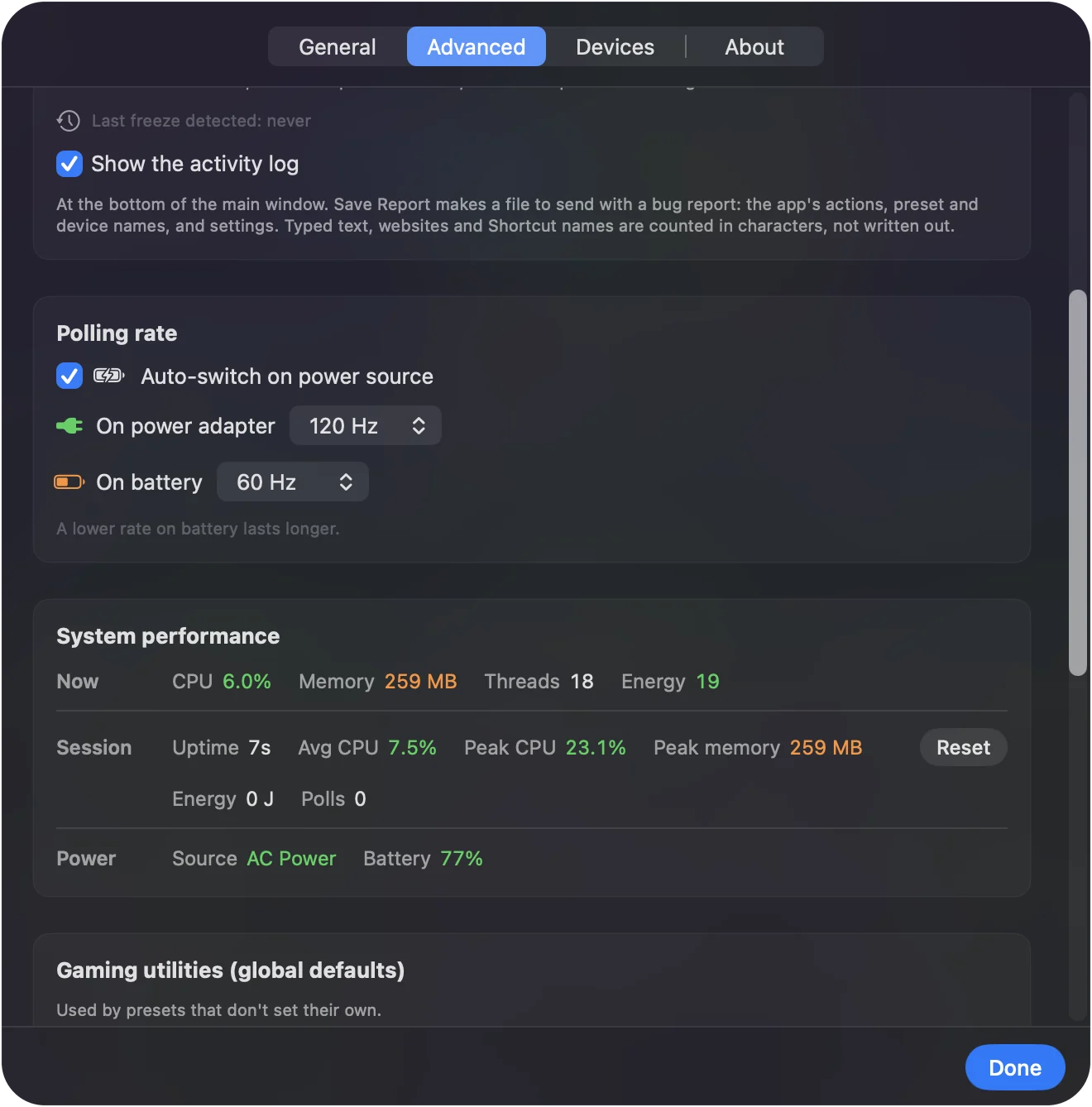
- Look up Settings, Advanced, Polling rate for the rate on a power adapter and on battery.
- Keep the pace at or under that polling rate, and start the run.
Convert CPS to milliseconds
Every in InputConfig is the gap between clicks in milliseconds. Divide 1,000 by the gap for clicks per second, or by the clicks per second for the gap.
| Clicks per second | Every (ms) | Clicks per minute |
|---|---|---|
| 1 | 1,000 | 60 |
| 2 | 500 | 120 |
| 5 | 200 | 300 |
| 6.7 | 150 | 400 |
| 10 | 100 | 600 |
| 15 | 66 | About 900 |
| 20 | 50 | 1,200 |
| 25 | 40 | 1,500 |
| 50 | 20 | 3,000 |
| 100 | 10 | 6,000 |
The CPS calculator converts any number and has a click test for your own speed. CPS times milliseconds is always 1,000.
 InputConfig is free on the Mac App Store. macOS 14 or later, no account, no tracking, open source.
Know the real ceiling: the polling rate
InputConfig checks its controls on a steady beat, the polling rate, and sends at most one click from a row on each check. Below that ceiling the average follows Every, because each click is timed from when the last one was due, not from when it went out.
- The default. Settings, Advanced, Polling rate has Auto-switch on power source turned on: 120 Hz on a power adapter and 60 Hz on battery. The choices are 60, 120, 180 and 240 Hz.
- What it is right now. The menu bar's status line reads Engine running 120 Hz, or whatever rate is in use.
- The floor. Every cannot go below 5 ms, which is 200 a second on paper.
| Every | On paper | 120 Hz, power adapter | 60 Hz, battery |
|---|---|---|---|
| 100 ms | 10 a second | 10 | 10 |
| 66 ms | 15.2 a second | 15.2 | 15.2 |
| 50 ms | 20 a second | 20 | 20 |
| 20 ms | 50 a second | 50 | 50 |
| 10 ms | 100 a second | 100 | 60 |
| 5 ms | 200 a second | 120 | 60 |
Single gaps are less even than the average. Each click lands on a check, so at Every 10 ms on 120 Hz the gaps alternate between about 8 and 17 ms and come out at 10 on average. The fastest any row can go is 200 a second, with Every at 5 ms and the polling rate at 240 Hz. At 180 Hz the ceiling is 180.
All of this is arithmetic from how the app schedules clicks. I have not counted clicks with a meter, so treat the table as close, not exact. The polling rate, not the smallest gap, is the real top speed.
Pick a speed for the job
These are my choices, not measurements, and the built-in Auto Clicker preset uses the same range:
- 1 a second or slower. A slow idle game, or a page that wants a click now and then.
- 5 to 10 a second. Most clicker games and repeated clicks in an app. The preset's triggers run at 5 and 10, and its human-pace row at about 6.7.
- 15 to 20 a second. Short bursts while you hold a button. The preset's side button row runs at 15 and its bumper at 20.
- More than 20 a second. Rarely useful. Many apps and games act on far fewer, and very fast clicks may not all count.
For an uneven pace around any of these, add a random interval. Start at 10 a second and change it only if the job asks.
Know why very fast clicks may not count
InputConfig sends the clicks; the app in front decides what to do with them, and I cannot see inside any particular game.
- Frames. A game that looks at the mouse once per frame cannot act on more clicks than it draws frames.
- Very short presses. Each click is held for 40 percent of Every, at most 80 ms. At 5 ms that is a 2 ms press, and an app that only checks whether the button is down now and then can miss one that short.
- Limits on purpose. Some games cap or ignore clicks above a pace, and some treat any auto clicking as against their rules.
That is reasoning, not a test of any one game. If the count in the app falls behind, slow down before you speed up.
Raise the ceiling, if you need to
- You: Open Settings, Advanced, Polling rate and set On power adapter, or On battery, to 180 or 240 Hz.
- InputConfig: Checks its controls that many times a second from then on, which costs a little more CPU and battery.
- Check: The menu bar's status line reads Engine running 240 Hz. A row with Every at 5 ms now averages up to 200 a second.
Raise the polling rate only for rows faster than the ceiling you have now.
If the clicks are slower than the number says
Climb this ladder, smallest step first:
- Check the power source. On battery the default is 60 Hz, which caps every row at 60 a second.
- Look at Vary by up to. A spread larger than the gap gets clipped at the short end, so the run comes out slower than Every.
- Raise the polling rate. See the section above.
- Give the Mac a moment. If the Mac is busy and InputConfig falls behind, it makes up at most one late click, so a long stall costs clicks.
- Ask the app. If InputConfig is sending the clicks and the app still counts fewer, the limit is in the app.
What it cannot do
- Go past 200 a second. The 5 ms floor sets that, and only at 240 Hz.
- Show what the app counted. The rate beside Every is the arithmetic of the gap; there is no live clicks-per-second readout.
- Take CPS as the setting. Every is in milliseconds. The rate beside it is how you read CPS.
- Promise a speed is allowed. No pace makes an auto clicker acceptable in a game that forbids one.
The short version
- The sum. CPS is 1,000 divided by the gap in milliseconds.
- The ceiling. The polling rate: 120 on a power adapter and 60 on battery by default, 200 at most.
- The pace. 5 to 20 a second covers almost every job.
Type the gap, read the rate beside it, and remember the polling rate has the last word.
Speed is one part of the auto clicker guide, which also covers the limit, the fixed point and the stop.
Questions
How many milliseconds is 20 CPS?
50 ms. Divide 1,000 by the clicks per second: 1,000 divided by 20 is 50.
What is the fastest an auto clicker can click on a Mac?
For InputConfig, 200 clicks a second, with Every at 5 ms and the polling rate at 240 Hz in Settings, Advanced. How many of those the app in front acts on is up to that app.
Why is my auto clicker slower on battery?
InputConfig checks its controls 60 times a second on battery by default, and at most one click goes out per check. Set a higher battery rate in Settings, Advanced, Polling rate.
Can I type clicks per second instead of milliseconds?
No. Every takes milliseconds, and the row shows the rate it works out to beside it, such as 10.0 per second for 100 ms.
How many CPS is 100 ms?
10 clicks a second, or 600 a minute.
Related
Free. macOS 14 or later. No account, nothing leaves your Mac. Open source on GitHub.