Settings
 InputConfig is completely free on the Mac App Store. You don't have to make an account, there are no subscriptions, and nothing is locked. Optimized for Apple silicon.
Settings holds InputConfig's app-wide choices in four tabs: General, Advanced, Devices and About. Open it from the gear at the top right of the window or from the menu bar icon. Most people only ever need two things here: the permission status and the emergency stop.
On this page: 7 sections
General
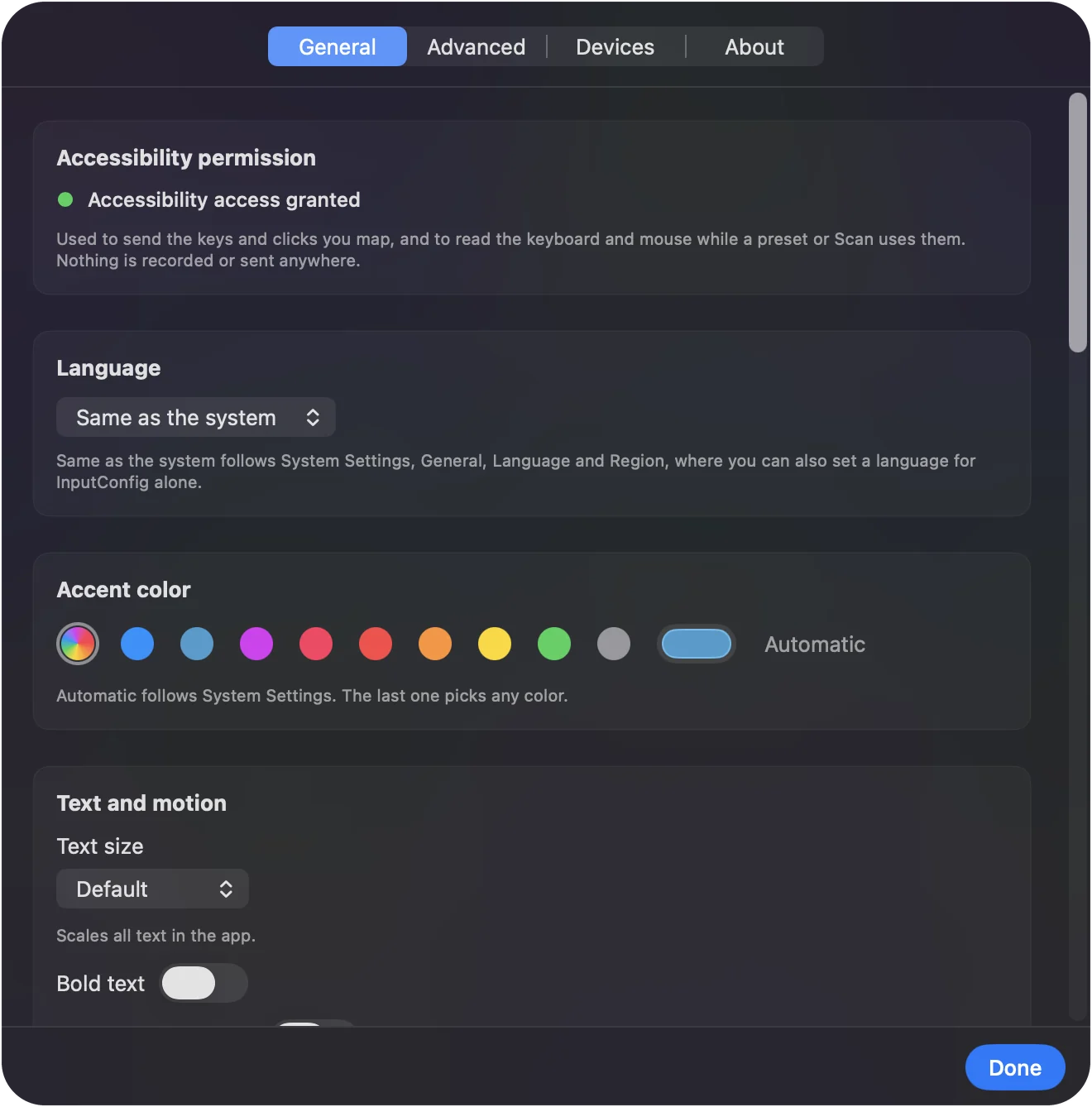
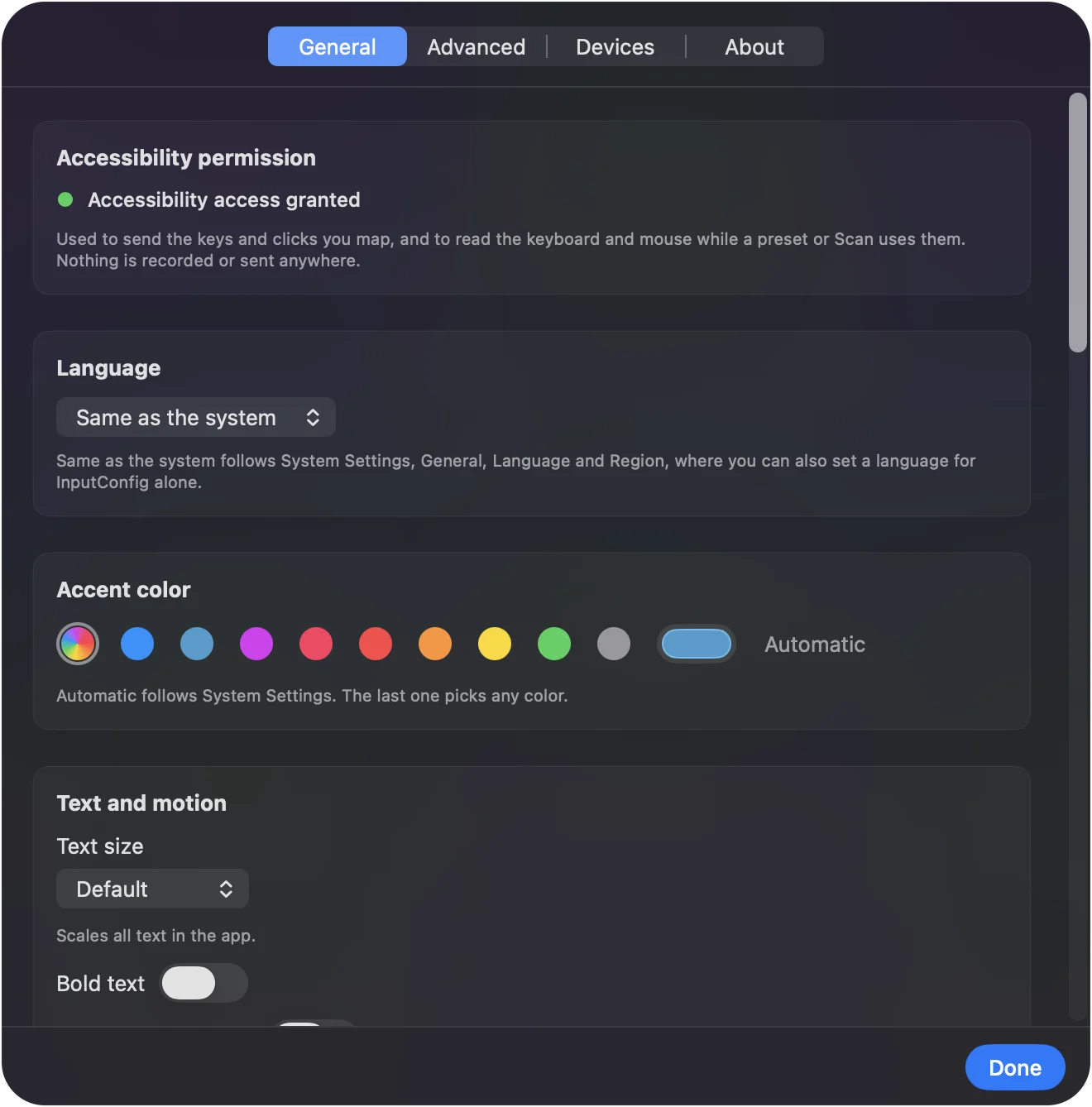
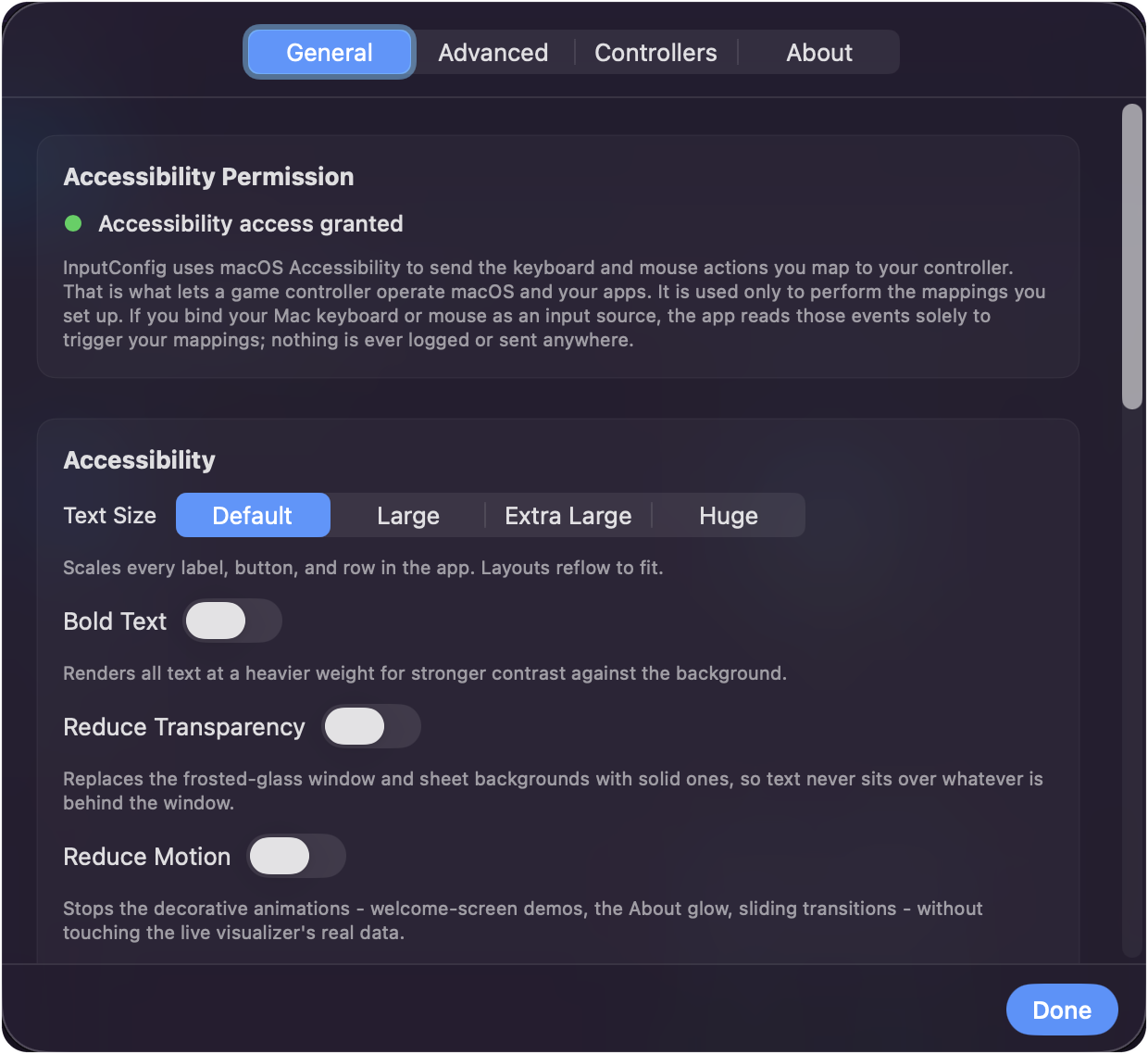
- Accessibility. Whether macOS has granted the permission, with a button to the right pane of System Settings.
- Accent color. Automatic follows System Settings, and the last swatch picks any color.
- Text and motion. Text size runs from Small to Largest, with bold text, higher contrast text, reduce transparency and reduce motion. Higher contrast text brightens hints and status lines, and turns on with the Mac's Increase Contrast. These apply to this app only.
- Scan. How long Scan waits for a press: 10, 20 or 40 seconds, 1 minute, or until canceled. 20 seconds is the default, and a timeout is said aloud.
- Emergency stop. The keyboard shortcut, and the controller hold: Back and Start together by default, or one button you pick, held one to five seconds. See emergency stop.
- Spoken feedback voice. The system voice, or any installed voice, with Preview.
- Launch at login. macOS needs you to allow InputConfig in Login Items first.
- Dock and menu bar. Show the app in either or both; one of them always stays on so you can reach the app. Pick the menu bar glyph, which turns green while a preset runs.
- Global shortcut. Toggles the most recent preset from anywhere. If another app owns it, the switch turns off.
Check the Accessibility line first whenever presets do nothing.
Advanced
- Polling rate. 60, 120, 180 or 240 Hz. 120 is the default; 180 and 240 are for aiming and cost a little CPU. A separate rate for battery and mains switches the moment the power source changes.
- Automatic preset switching. Switch presets when the front app changes, the global switch for auto-switch by app.
- Restore active preset after a crash. InputConfig asks before starting it again, and starts it by itself after 20 seconds with no answer (1 minute with VoiceOver or Switch Control on).
- Detect freezes and save diagnostics. After 15 seconds frozen, the active preset is saved, so a force quit loses nothing.
- Show the activity log. At the bottom of the main window. Save Report makes a file to send with a bug report.
- Data and storage. Reveal Data Folder, Export Backup, Restore from Backup, Restore Built-in Presets, which puts back any built-in preset you deleted, and Check Older Presets Again, which moves rows recorded on a controller before 1.6 to the controls 1.6 reads. See where your data lives.
- Reset Settings to Default. Presets, folders and backups stay, and so do statistics and motion calibration.
120 Hz suits almost everyone; go higher only for aiming.
Devices
Every connected device is listed: each controller with its slot number and its physical buttons, each with the button number a row uses. Raw HID controllers appear here too, marked as detected over raw HID, and Refresh looks for controllers again. Face button names sets the letters for pads other than PlayStation, Switch, Stadia, GameCube and Steam controllers (the GameCube controller and the 2026 Steam Controller are experimental), including the many that report themselves as Xbox pads, and Positions puts North, South, East and West on every pad. InputConfig, Devices in the menu bar lists everything the Mac can see, with a tick on what the app reads; tick a device to connect it by hand. Only the names change, never the presets.
About
Version and build, View Changelog for every version, the tip jar, and why the app exists. The same release notes are on the What's new page. Settings, About is where to read your version number.
The Accessibility permission
Accessibility is the main permission InputConfig asks macOS for, because macOS only delivers keystrokes, clicks and pointer movement from an app that has it. Game controllers and MIDI devices are read without any permission, and your Mac's keyboard and mouse are read through Accessibility. Two other permissions come up only in special cases:
- Input Monitoring. Only for a controller that also presents itself as a keyboard, such as some arcade sticks and macro pads. The Devices menu item for such a pad opens that pane of System Settings, and the pad is read when InputConfig comes back to the front after you allow it.
- Bluetooth. macOS may ask only when you use Disconnect on a Bluetooth controller's entry at the top of the sidebar.
What the permission allows, and how to judge any app that asks for it.
If presets do nothing in other apps, climb this ladder:
- Check Settings, General. It shows whether the permission is granted.
- Open System Settings. The button there opens Privacy & Security, Accessibility. Switch InputConfig on.
- Remove it and add it again. If it is on and presets still do nothing, remove it with the minus button, add it again, and relaunch.
Accessibility is the one permission every setup needs. Bluetooth is asked for only when you disconnect a wireless controller from the app, and Input Monitoring only for a controller that also acts as a keyboard.
The short version
- General. Permission status, emergency stop, text size, Dock and menu bar.
- Advanced. Polling rate, auto-switch, crash recovery, backups.
- Devices. What is connected, and face button names.
Set the emergency stop the way you like it, and leave the rest at the defaults until you need them.
Questions
Which polling rate for games?
120 or 240 for aiming with a stick or gyro. Desktop use is fine at 60.
Does menu-bar-only mode still allow the editor?
Click the icon and open the window from the popover.
Does InputConfig need Input Monitoring?
Only for a controller that also presents itself as a keyboard, such as some arcade sticks and macro pads; the Devices menu item for such a pad opens the setting. Accessibility is the main permission. Game controllers and MIDI devices are read without either permission, and your Mac's keyboard and mouse are read through Accessibility.
How do I see which version of InputConfig I have?
Open Settings, About. It shows the version and build number, and View Changelog lists what changed in every version. The current release is described on the What's new page.
Related
Completely free. You don't have to make an account, there are no subscriptions, and nothing is locked. Optimized for Apple silicon. Open source on GitHub.
Updated