Questions
How to stop an auto clicker on a Mac
To stop an auto clicker on a Mac, press the control that started it once more. If it keeps going, press Control Option Command period: in InputConfig that emergency stop turns the running preset off and lets go of every key and button, from any app. Locking the Mac stops it too.
For a different auto clicker app, use its own stop key, then quit it, with Force Quit (Option Command Escape) as the last resort. Every way out is below, smallest first.
On this page: 11 sections
Steps
- Press the key, button or trigger that started the clicking once more.
- If it keeps clicking, press Control Option Command period.
- On a controller, hold View and Menu together for three seconds.
- Or click the InputConfig icon in the menu bar and press Emergency Stop.
- As a last step, lock the Mac with Control Command Q.
Climb the ladder, smallest step first
Each rung stops more than the one before it. Climb this ladder, smallest step first:
- Press it again. A row on Repeats until pressed again stops on the next press of the same control.
- Let go. A row on Repeats while held stops the moment you release it.
- Wait for the count. A row with Stop after ends by itself at its number.
- Press the emergency stop chord. Control Option Command period, from any app.
- Hold it on the controller. View and Menu together for three seconds, Create and Options on a PlayStation pad, Minus and Plus on a Switch pad.
- Use the menu bar. Click the InputConfig icon and press Emergency Stop.
- Lock the Mac. Control Command Q. Locking ends every run, and none starts again after you unlock.
The emergency stop works from any app, so it is the one to remember.
 InputConfig is free on the Mac App Store. macOS 14 or later, no account, no tracking, open source.
Use the emergency stop
- You: Press Control Option Command period, or hold the controller buttons for three seconds.
- InputConfig: Turns the running preset off and lets go of every key, mouse button and note it was holding. On the controller hold, the pad buzzes a second in, so you know it is coming.
- Check: The Mac plays the Funk sound, the clicking stops, and the preset shows Activate again.
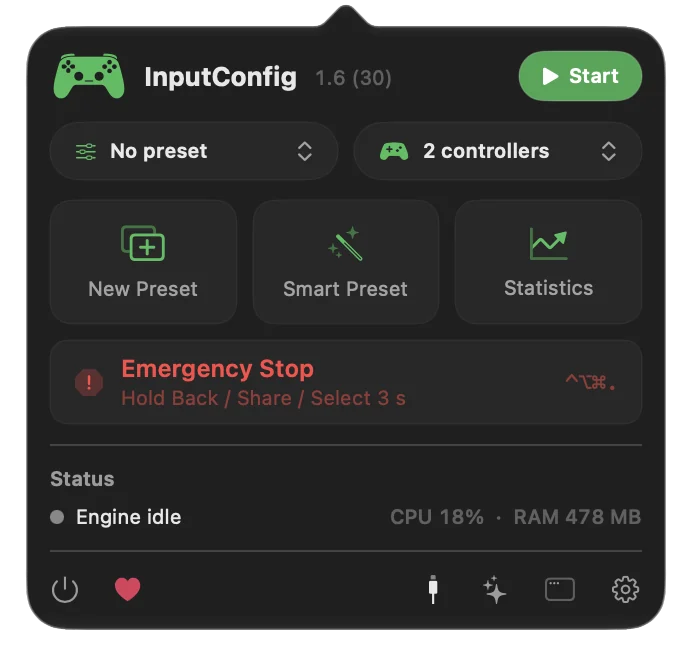
It deletes nothing: the preset is untouched and can be activated again. Settings, General, Emergency stop holds the chord, the controller button and the hold time, from one to five seconds. More on the emergency stop page. Stopping is always safe to try.
Know what else ends a run
A run also ends on its own when any of these happen, and it never starts again by itself afterward:
- The Mac locks or sleeps. Including switching to another user.
- You open the preset editor. Opening it ends any run.
- You deactivate the preset or switch to another. By hand, or by itself when per-app switching moves you out of the app the preset is listed for.
- The run reaches its Stop after count. See clicking a set number of times.
There is also Pause / Resume Outputs, an App Action you can put on any control, which holds every output back until you press it again. After an unlock or a restart, nothing clicks until you start it.
Stop it when the pointer is busy
A run aimed at a fixed point moves the pointer to its spot before every click, so reaching the menu bar with the mouse is a fight. Do not try.
- Use the keyboard. Control Option Command period needs no pointer.
- Use the controller. Pull the trigger again, or hold the emergency stop buttons.
- Lock the Mac. Control Command Q needs no pointer either.
When the pointer is not yours, stop with the keyboard or the controller.
Stop a different auto clicker app
The emergency stop only stops InputConfig. For another auto clicker, work through this list in order:
- Its own hotkey. Most use F6. On a MacBook, F6 alone is the Focus key, so hold fn and press F6.
- Quit it. Bring it to the front and press Command Q, or right click its Dock icon and choose Quit.
- Force Quit. Press Option Command Escape, choose the app, and click Force Quit.
- Activity Monitor. If it has no window, find it in Activity Monitor, select it and use the stop button.
Whether locking the Mac stops another app's clicking depends on that app. Every Mac app can be force quit, and an auto clicker is no exception.
Set it up so it never runs away
- Give long runs a count. Stop after ends the run even if you walk away.
- Use a trigger you never press by accident. A side button with Block the button's own action, F13 to F19, or a controller trigger. See picking a hotkey.
- Tie the preset to one app. List the game under Activate when these apps are in front and turn on Switch presets when the front app changes in Settings, Advanced. Leaving the game switches the preset, and the run ends with it.
- Learn one stop. Control Option Command period, or the controller hold.
A count and a trigger you never press by accident prevent almost every runaway.
If the emergency stop does nothing
Climb this ladder, smallest step first:
- Use the controller hold. A full-screen game can swallow system shortcuts. The controller hold runs inside InputConfig's own polling, so it keeps working.
- Check who owns the chord. Only one app can register a system-wide shortcut. Settings, General, Emergency stop says when another app holds it; record a different chord there.
- Use the menu bar. Click the InputConfig icon and press Emergency Stop.
- Lock the Mac. Control Command Q ends every run.
- Force Quit InputConfig. Option Command Escape. When it opens again it may ask before starting the preset again; answer it, because with no answer it starts the preset by itself after 20 seconds.
The controller hold keeps working even when the keyboard chord cannot get through.
What it cannot do
- Stop other apps. The emergency stop halts InputConfig only.
- Undo clicks already sent. It stops what comes next; anything already clicked stays clicked.
- Stop with the keyboard if the chord is off. The chord can be switched off in Settings, General. The controller hold and the menu bar still work.
The short version
- First. Press the control that started it.
- Then. Control Option Command period, or hold View and Menu for three seconds.
- Last. Lock the Mac with Control Command Q.
- Another app. Its own hotkey, Command Q, then Force Quit with Option Command Escape.
Learn the chord today, before you ever need it.
The Auto Clicker preset page shows which of its rows stop on a second press and which stop when you let go, and the auto clicker guide has the same ladder with every setting around it.
Questions
How do I stop an auto clicker on a Mac?
Press the control that started it once more. In InputConfig, Control Option Command period stops everything at once, from any app.
My auto clicker will not stop. What now?
Press Control Option Command period, hold View and Menu on the controller for three seconds, or lock the Mac with Control Command Q. For another app, Force Quit it with Option Command Escape.
Does locking the Mac stop InputConfig's auto clicker?
Yes. Locking or sleeping ends every run, and none starts again after you unlock.
Will the auto clicker start again after I unlock?
No. You start a new run yourself with its control.
Does the emergency stop delete my preset?
No. It turns the preset off and lets go of everything held; the preset is untouched and can be activated again.
Related
Free. macOS 14 or later. No account, nothing leaves your Mac. Open source on GitHub.