Is there TinyTask for Mac?
 InputConfig is completely free on the Mac App Store. You don't have to make an account, there are no subscriptions, and nothing is locked. Optimized for Apple silicon.
No. TinyTask is a Windows app, and there is no Mac version. Its own site, tinytask.net, which I read on October 27, 2026, offers tinytask.exe, a zip of that file, and a setup file it calls a standard Windows installation file, and it names no Mac download. A page that offers TinyTask for Mac is not from TinyTask.
The Mac has its own free recorder: Automator, which comes with macOS, records your clicks and keystrokes as a Watch Me Do action and plays them back. If you would rather build the task than record it, InputConfig, the free Mac app I make, runs a timed list of key presses and clicks from one key or button. It does not record, and this page says plainly where each one fits.
On this page: 10 sections
- Steps
- See what TinyTask does, and what matches it on a Mac
- Record clicks and keys for free with Automator
- Build the macro instead of recording it
- Repeat one click with an auto clicker
- If the replay clicks in the wrong place
- Skip TinyTask for Mac downloads
- What InputConfig cannot do
- The short version
- Questions
Steps
- Open Automator, make a new workflow, click Record and do the task once.
- Stop the recording, then add a Loop action after it if the task should repeat.
- For a task that must survive windows moving, build it in InputConfig instead: bind a key, tick Run a sequence of steps (macro) and add each key or click.
- For one click repeated, choose Repeats until pressed again and put a Mouse Button output on the row.
- Stop anything that runs away with Control Option Command period.
See what TinyTask does, and what matches it on a Mac
TinyTask is tiny on purpose: its site says the program is 36 KB and free for personal use. You press record, do something, and press play. Its support page lists Ctrl Alt Shift R to start and end a recording and Ctrl Shift Alt P to end a playback, with Pause, Break and Scroll Lock as emergency stops. It can also compile a recording into its own .exe file, and it works with the apps visible in front. On a Mac the same jobs split across a few tools:
| TinyTask job | On a Mac |
|---|---|
| Record clicks and keys, then play them | Automator, Record, saved as Watch Me Do |
| Play it again and again | Automator's Loop action, or Repeat on an InputConfig macro row |
| Start playback from a hotkey | An InputConfig row on any key, side button or controller button |
| Click one spot over and over | An auto clicker, such as InputConfig's Repeats until pressed again |
| Turn a recording into a program | Automator can save a workflow as an app |
| Emergency stop | InputConfig: Control Option Command period |
Nothing on a Mac is one 36 KB file, but free tools cover every TinyTask job.
Record clicks and keys for free with Automator
Automator is in the Applications folder on every Mac. Its Record button watches what you do and saves it as a Watch Me Do action, the nearest thing to TinyTask on a Mac.
- You: Open Automator, choose New Document, then Workflow. Click Record in the toolbar, do the task once, and click the stop button in the small recording window.
- macOS: Adds a Watch Me Do action to the workflow with every click and key you made as an event you can delete or reorder.
- Check: Put the windows back where they were and click Run. Each step should land where you clicked.
Automator needs Accessibility access to record and to play, in System Settings, Privacy & Security, Accessibility. To repeat the recording, add the Loop action after it. Apple's guide to the Loop action, which I read on October 27, 2026, says it can loop a set number of times or for a set time, and it can stop and ask whether to go on. A recording replays positions on the screen, so keep every window where it was when you recorded. Macro recorders for Mac compares Automator with the paid recorders.
Build the macro instead of recording it
A recorded click lands on a spot. A key press lands on whatever has focus, wherever its window is. That is why I build InputConfig macros from steps instead of recording them: a macro made of shortcuts keeps working after a window moves. A macro is a list of steps, and each step is an output with how long to wait before it fires and how long to hold it.
- You: In a preset, click Add a new bind, press Scan and press a key nothing uses, such as F13, or a mouse side button. Open the row's Options, tick Run a sequence of steps (macro), and click Add another step for each key or click.
- InputConfig: Plays the steps in order on each press. A step can Tap a key, Hold down a key while later steps run, Release it, or click a mouse button, each with its own Wait and hold time in milliseconds.
- Check: Click Save and Activate, put the cursor somewhere safe such as an empty note, and press the key.
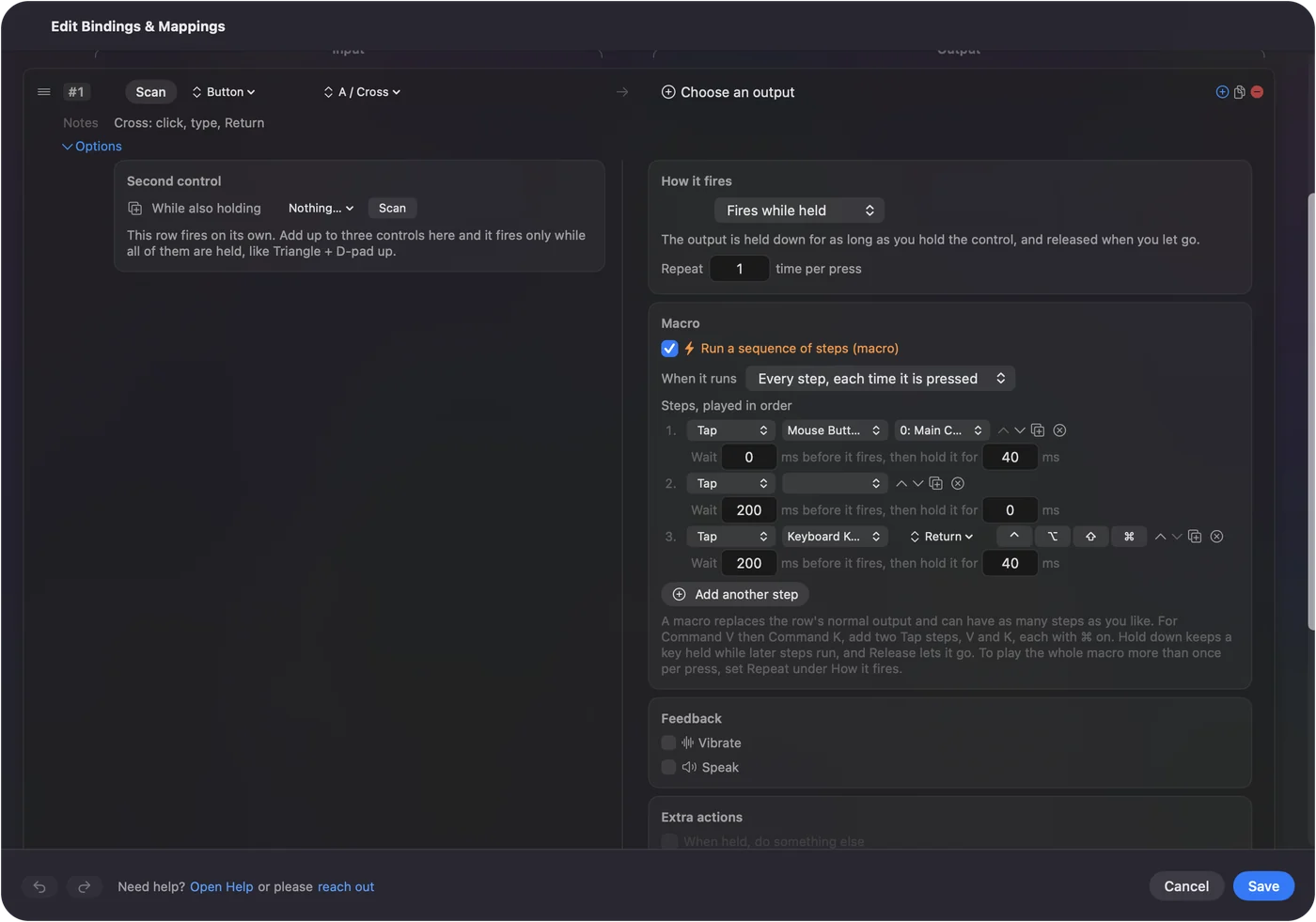
- Several passes per press. Repeat, under How it fires, plays the whole macro more than once per press.
- Typed sentences and apps. Steps are keys and mouse buttons, so put Type Text or a System Function such as Open App on the row beside the macro, as a stacked output.
- A stop on release. When it runs: Only while held ends the macro the moment you let go.
If you do the task the same way every time, build it once and it survives a window moving. How to make a macro on a Mac walks through a full one.
Repeat one click with an auto clicker
Plenty of people searching for TinyTask want one click repeated, in a game or a web form. That is an auto clicker, and it needs no recording.
- You: On a row, choose Repeats until pressed again and put a Mouse Button output on it. Set Every to the gap you want.
- InputConfig: One press starts clicks at that gap, and the next press, or the Stop after limit, ends them. Vary by up to adds a random plus or minus to each gap.
- Check: Press once and clicks start. Press again and they stop.
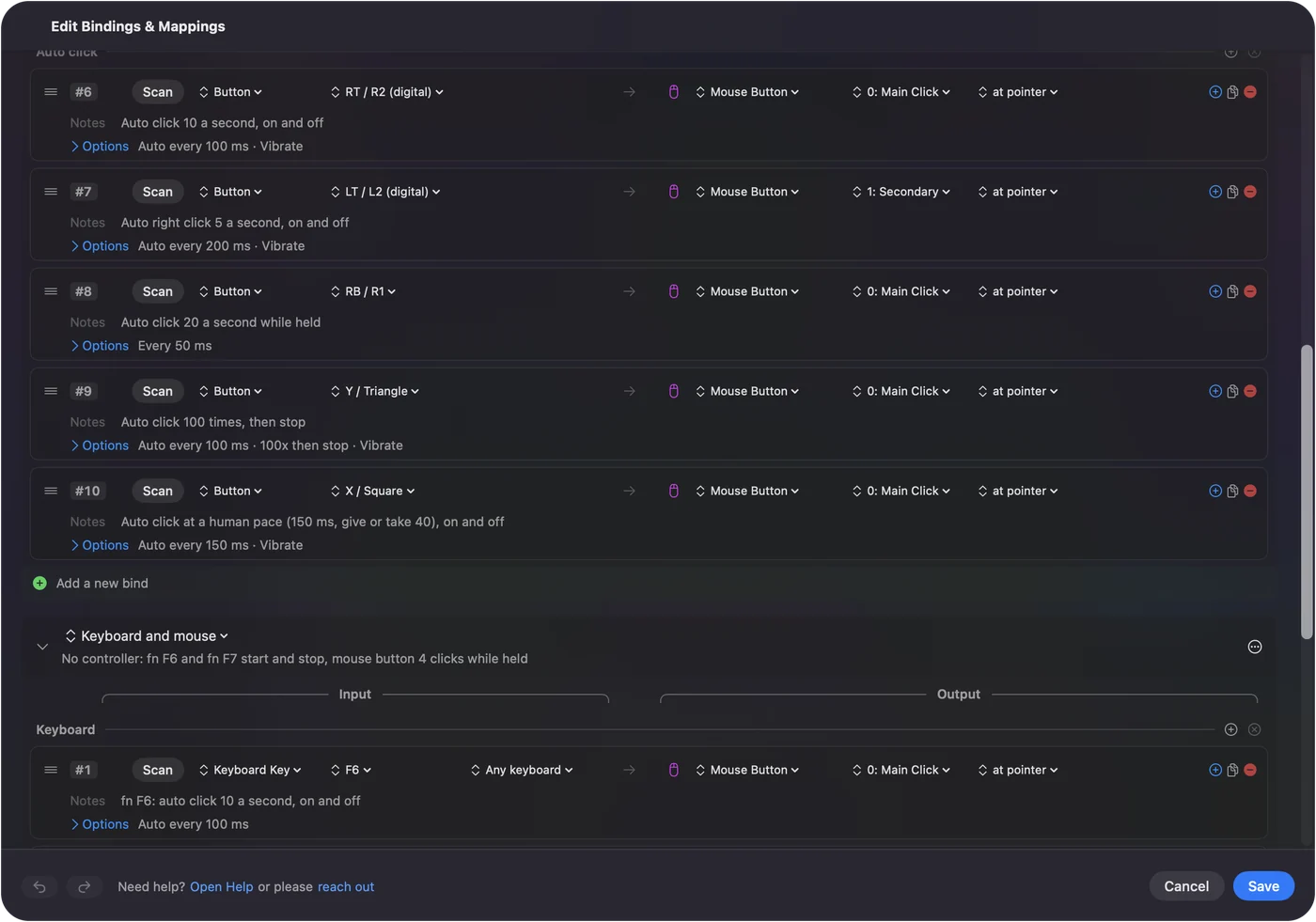
The built-in Auto Clicker preset starts and stops from fn F6 and fn F7 with no controller. For one spot clicked again and again, an auto clicker beats a recording. The free auto clicker for Mac page has the full setup.
If the replay clicks in the wrong place
Climb this ladder, smallest step first:
- Put the windows back. A recorded click goes to a screen position, so a moved or resized window gets the click somewhere else.
- Add a wait. A step that fires before an app is ready misses. Switching apps needs a few hundred milliseconds.
- Check the permission. The app that plays the steps needs Accessibility access.
- Swap clicks for shortcuts. Command S finds Save wherever the button is.
- Stop it. In InputConfig, Control Option Command period releases every key and button the app is holding and ends any repeat.
The more of a task you do with keys, the less it cares where things are on screen.
Skip TinyTask for Mac downloads
TinyTask's site lists Windows files only, so a download sold or offered as TinyTask for Mac is somebody else's file. I would not run it. A Windows .exe will not open on macOS anyway. You could run the real TinyTask inside Windows in a virtual machine, but then it records inside that Windows, not your Mac apps.
- Get Mac apps from the Mac App Store or the maker's own site. InputConfig is on the Mac App Store, and its source is public on GitHub.
- Grant Accessibility only to apps you trust. A recorder or clicker needs it, and that permission lets an app press keys for you.
If the download page is not tinytask.net, it is not TinyTask.
What InputConfig cannot do
- Record. It has no record button for clicks and keys. You build the steps, and Record a gesture in InputConfig is for stick gestures, not mouse paths.
- Replay a mouse path. It clicks at the pointer or at a fixed point, and it does not trace a recorded drag.
- See the screen. It does not look for a button or a color before it clicks.
- Run every output as a step. Macro steps are keys and mouse buttons, so Type Text and System Functions sit beside the macro.
- Make an .exe or an app. A macro lives in a preset, and the preset can be shared as a file.
The short version
- No TinyTask for Mac. Its site offers Windows files only.
- Free recorder. Automator's Record button, with the Loop action to repeat.
- A built macro on one key. InputConfig, free, step by step with waits.
- One click repeated. An auto clicker with Repeats until pressed again.
Record once in Automator to see the task work, then build it in InputConfig if it has to run every day.
Questions
Does TinyTask work on a Mac?
No. TinyTask's own site offers only Windows files: tinytask.exe, a zip of it and a Windows setup file. On a Mac, Automator's Record button does the same recording job for free.
What is a task recorder, and is there one for Mac?
A task recorder saves your clicks and keystrokes and plays them back. Automator, which comes with macOS, records them as a Watch Me Do action, and its Loop action repeats them.
Is there a free TinyTask alternative for Mac?
Automator is free and built in for recording. InputConfig is a free Mac app that runs a built macro of timed keys and clicks from one key or button, and it has an auto clicker for repeated clicks.
Can InputConfig record my mouse movements?
No. InputConfig does not record. You build a macro from key and click steps, each with its own wait and hold time, and clicks land at the pointer or at a fixed point.
Is a TinyTask download for Mac safe?
TinyTask's site lists no Mac version, so a file offered as TinyTask for Mac comes from someone else. I would not install it. Use Automator or an app from the Mac App Store instead.
Related
This page in other languages: Deutsch, Español, Français, Italiano, 日本語, 한국어, Polski, Português, Русский, ไทย, 繁體中文, 简体中文
Completely free. You don't have to make an account, there are no subscriptions, and nothing is locked. Optimized for Apple silicon. Open source on GitHub.
Updated