Questions
Is an auto clicker safe on a Mac?
An auto clicker is safe on a Mac when it comes from a source you can trust, and the clicks it sends do nothing a mouse could not do. Whether it is allowed is a separate question, and only the game or site you use it in can answer that one. This page takes the three questions in order: is the app safe, is a run safe for your Mac, and is it allowed. I make InputConfig, a free auto clicker on the Mac App Store, so I say exactly what it does, and I say where my view stops.
On this page: 9 sections
Steps
- Get the auto clicker from the Mac App Store or its maker's own page, never from a download portal or a cracked-software site.
- Grant the Accessibility permission only to the one auto clicker you keep.
- Learn its stop before the first run; in InputConfig it is Control Option Command period.
- Set Stop after on long runs so a run ends by itself.
- Read the rules of the game or site before you use it there.
Check where the app comes from
Where an auto clicker comes from matters more than what it promises. Climb this ladder from the safest source down, and stop before the last rung:
- The Mac App Store. Apple reviews the app, and it runs in Apple's sandbox, which limits what it can reach.
- The maker's own page, notarized. Apple has checked the download for known malware, and macOS opens it without a warning.
- A GitHub release you can read. Open source means anyone can check the code, but many of these apps are not notarized, so macOS asks you to approve them in System Settings, Privacy & Security, with Open Anyway. Do that only when you trust the maker.
- Download portals and cracked-software sites. Avoid them. They repackage apps, and some bundle extras you did not ask for.
If installing an auto clicker means telling macOS to ignore a warning, that warning is the safety check you are skipping.
Know what the Accessibility permission grants
Every Mac auto clicker asks for Accessibility, because macOS only delivers clicks made by an app that has it. That is normal, and it is also powerful:
- It can send. Clicks, keystrokes and pointer movement, into any app.
- It can watch. Keyboard and mouse events while you use other apps, which is how a global start key works.
- You can take it back. Switch the app off in System Settings, Privacy & Security, Accessibility at any time.
Some auto clickers also ask for Input Monitoring, so they can read a stop key. That is not a bad sign on its own. The full explanation is on the Accessibility permission page. The question is not whether an auto clicker has the permission, but whether you trust that app with it.
What InputConfig does with it
- It comes from the Mac App Store. Sandboxed, and the store build has no permission to use the network, so nothing it sees can leave the Mac.
- It asks for one permission. Accessibility. It never asks for Input Monitoring for a game controller or for your Mac's own keyboard and mouse.
- It listens only when a preset asks. Your keyboard and mouse are watched only while a running preset uses one of their keys or buttons, or while Scan or the Live Visualizer is using them.
- It has no account. No sign-in and no analytics.
- Its source is public. On GitHub, under the MIT license, so all of the above can be checked.
- It is free. No in-app purchase adds a feature. The tip jar adds nothing.
 InputConfig is free on the Mac App Store. macOS 14 or later, no account, no tracking, open source.
Keep a run safe for your Mac
Auto clicking cannot harm the Mac itself. The risk is what it clicks on: a delete button, a Buy button, or a dialog that opens mid-run. Test every new row like this:
- You: Close the editor, point at an empty part of the desktop, and press your start control once.
- InputConfig: Clicks at the pace you set, where the pointer is or at the row's fixed point.
- Check: Press the control again and the clicking stops. Only then point it at the real target.
Then keep these ways out in mind:
- Stop after. In the row's Options, a count that ends the run by itself.
- The emergency stop. It is the emergency stop: Control Option Command period from any app, Back and Start held together for three seconds on a controller (View and Menu on an Xbox pad, Create and Options on a DualSense), or Emergency Stop in the menu bar.
- Locking the Mac. Every run stops, and none starts again by itself after you log back in.
- Switching presets. Deactivating the preset, or switching to another, ends the run.
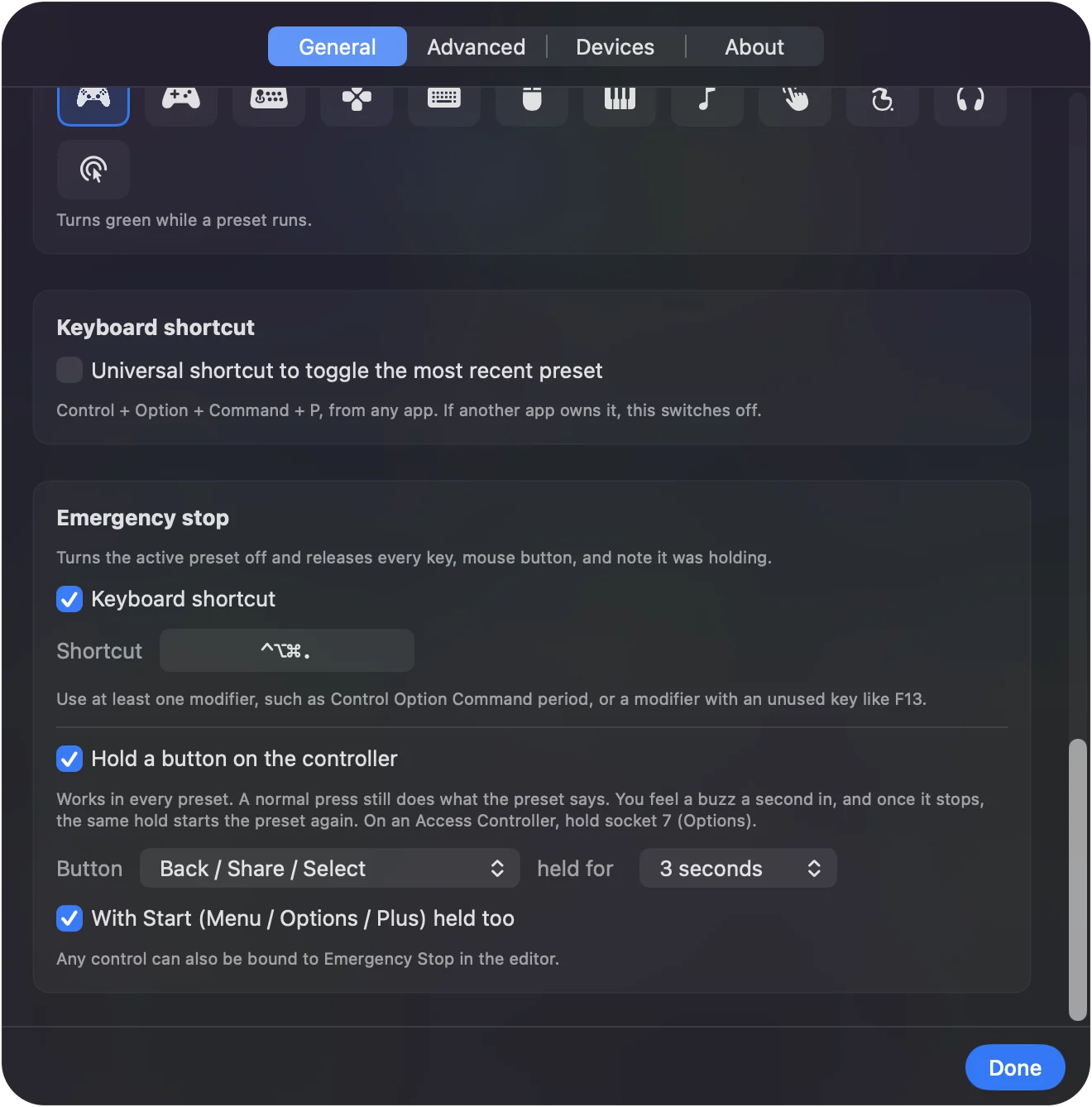
The safest auto clicker is the one you know how to stop before you start it.
Check whether it is allowed
The app cannot answer this one. It depends on where you click:
- Your own work and single-player games. Your call.
- Online games. Many forbid auto clickers, and some detect them. Roblox's Community Standards forbid exploits that give an unfair advantage and automation that runs disruptive tasks, and each experience can add rules of its own. Hypixel's rules for Minecraft forbid auto clickers at any speed.
- Websites. Automated clicking on ads, polls, votes or giveaways can break a site's terms. Read them first.
- Work software. Your employer's policy decides, not the app.
Varying the gap with Vary by up to makes a run feel less mechanical. It is not a way to hide one, and I will not promise that any setting is undetectable or allowed. The rules of the place you click in decide whether auto clicking is allowed, not the app.
What I cannot promise
- Other apps. I can say what InputConfig does. I cannot vouch for another maker's app, only for the checks above.
- Detection. Games change how they detect automation without notice. A setting that went unnoticed yesterday can be flagged tomorrow.
- Your account. If a game bans auto clicking and you use one, the risk is yours, whatever app you use.
The short version
- Is the app safe. Yes, from the Mac App Store or a maker you trust, with only the Accessibility permission.
- Is a run safe. Yes, if you test on an empty spot, set Stop after, and know the emergency stop.
- Is it allowed. It depends on the game or site. Read its rules first.
Trust the source, know the stop, read the rules. For a side-by-side look at the apps themselves, see Mac auto clickers compared.
To set one up with a limit and a stop from the first run, follow the auto clicker guide, which starts from the built-in Auto Clicker preset.
Questions
Is an auto clicker a virus?
No, an auto clicker is an ordinary app that sends clicks. The risk is the download: get one from the Mac App Store or its maker's own page, and avoid download portals and cracked-software sites.
Can you get banned for using an auto clicker?
Yes, in games that forbid them. Many online games ban auto clickers in their rules and some detect them; Hypixel forbids them at any speed. Read the rules of the game first.
Is auto clicking cheating?
It depends on the game. In a single-player game or your own work it is your call. In an online game whose rules forbid automation, it counts as cheating there.
Is InputConfig safe to use as an auto clicker?
InputConfig is on the Mac App Store, sandboxed with no network access, open source under the MIT license, and has no account. It asks only for the Accessibility permission, which every Mac auto clicker needs.
Why does an auto clicker need Accessibility access on a Mac?
Because macOS only delivers clicks and keystrokes created by an app that has the Accessibility permission. You can switch it off again in System Settings, Privacy & Security, Accessibility.
Related
Free. macOS 14 or later. No account, nothing leaves your Mac. Open source on GitHub.