How to save and send SysEx files on a Mac
 InputConfig is completely free on the Mac App Store. You don't have to make an account, there are no subscriptions, and nothing is locked. Optimized for Apple silicon.
The free SysEx librarian for a Mac is SysEx Librarian by Snoize: it records the System Exclusive dump a synth sends, keeps each one as a .syx file, and plays those files back to the synth. Its page, which I read on October 27, 2026, lists version 1.5.2 from October 21, 2023, for macOS 10.14.6 or later, free to use and open source under the BSD license. For a quick look without installing anything, a browser SysEx tool in Chrome, Edge or Firefox does the reading and sending.
I make InputConfig, a free Mac app for MIDI controllers, and I want to be clear up front: it does not send or receive SysEx. It works with notes, knobs, pitch bend and patch changes, and the last part of this page says where it fits beside a librarian.
On this page: 10 sections
Steps
- Connect the synth and check that it is online in Audio MIDI Setup, in the MIDI Studio window.
- Install SysEx Librarian from snoize.com and open it.
- Press Record Many, start the dump on the synth, and press Done when it finishes.
- Check the message count and size against the synth's manual, then keep a second copy of the file.
- To restore, choose the synth's port in the Destination menu, select the file and press Play.
Know what a SysEx librarian does
Patches, drum kits and global settings live inside the synth. Most makers let you send them out as System Exclusive messages, a bulk dump, and a librarian is the app that catches that dump on the computer and sends it back later. Snoize describes its app as a way for a Mac to talk to MIDI devices with System Exclusive messages, and says the most common use is backing up patch data, with jobs such as firmware updates beside it.
- Record. The synth sends its dump and the librarian saves it to a file.
- Keep a library. SysEx Librarian lists every file with its maker, how many messages it holds and its size, a bit like a music library.
- Send. Pick a file and a destination port, and the librarian plays the messages back to the synth.
A .syx file is the raw messages saved one after another, each starting with F0 and ending with F7. SysEx Librarian also reads SysEx from a standard MIDI file, the kind ending in .mid. A librarian moves the data and does not edit it, so the synth is still where you change a sound. What SysEx is explains the message format byte by byte.
Check the synth in MIDI Studio first
Snoize's own documentation puts it bluntly: the app depends entirely on your MIDI interface and its driver. So before blaming the librarian, make sure the Mac itself can reach the synth.
- You: Open Audio MIDI Setup, choose Window, Show MIDI Studio, and find the synth or the MIDI interface it is plugged into.
- macOS: Shows every MIDI device it knows. A dimmed icon is known but unreachable.
- Check: Click Test MIDI Setup and play a key on the synth. The arrow on its icon lights. If it stays dark, fix the cable or the interface before you try a dump.
If MIDI Studio cannot hear the synth play a note, no librarian will hear its dump. Audio MIDI Setup on a Mac covers that window in full.
Save a dump and send it back
These steps use the button names from SysEx Librarian's built-in documentation. Every synth starts its dump in its own way, so keep the manual open for that part.
Step 1: Record the dump
- You: Press Record Many, then start the bulk dump from the synth's own menu.
- SysEx Librarian: Listens on every MIDI input at once, so you do not pick a port, and keeps recording until you press Done. Record One stops by itself after a single message.
- Check: A new file appears in the list, saved by default in a folder named SysEx Librarian inside Documents.
Step 2: Check what arrived
- You: Read the # Msgs and Size columns for the new file, then press Contents to see the messages.
- SysEx Librarian: Opens a window listing each message, with its data in hex and ASCII.
- Check: If the manual gives a size or a message count for a full dump, they should match. A short file means part of the dump never arrived.
Step 3: Send it back
- You: Choose the port the synth is on in the Destination menu in the toolbar, select the file and press Play. Add a file you downloaded with the Add button, or drag it into the list.
- SysEx Librarian: Sends the messages and shows how many have gone.
- Check: The synth shows that it received data, often with a message on its screen, and the restored patches play as before.
Pick the port named after your interface, such as Port 1. The destination called Act as a source for other programs sends to other apps on the Mac, not to the synth.
Use a browser tool when you cannot install an app
On a borrowed or managed Mac, the MIDI SysEx monitor on this site reads incoming System Exclusive messages as hex and can send an Identity Request or a .syx file, right in the browser. It needs Chrome, Edge or Firefox, because Safari has no Web MIDI.
- The extra permission. A browser asks separately before a page may use SysEx, because SysEx can rewrite a device. Allow it only on a page you trust.
- The Identity Request. It is the universal message F0 7E 7F 06 01 F7, which asks every device to report its maker, model and version. A reply proves the round trip works before you send anything bigger.
- The limits. A tab is fine for checking a connection and for a small file. For a library you return to, a dedicated app is easier.
Send an Identity Request first, because an answer proves both directions of the cable work.
If a dump fails or the synth ignores it
MIDI has almost no error checking, which Snoize points out too: the app cannot tell a correct message from one damaged on the way. Climb this ladder, smallest step first:
- Set the synth to receive. Many synths ignore incoming SysEx until a receive setting is on or memory protect is off. The manual names the setting for your model.
- Match the device number. Some makers put a device ID inside the message, and the synth ignores a dump addressed to another ID.
- Slow the sending down. In SysEx Librarian's preferences, Pause between played messages defaults to 150 milliseconds. Raise it for an older synth that needs time to store each message.
- Turn down the transmit speed. The same preferences have Transmit Speed, which Snoize suggests setting on the device you added in Audio MIDI Setup, and Transmit buffer size, which it suggests lowering to 256 or less when data is not received properly.
- Update or swap the interface. Snoize says MIDI interfaces can have bugs with SysEx in particular. Get the maker's latest driver, or try another interface or a direct USB cable if the synth has one.
A dump that records but never ends may be cut off by SysEx receive timeout, one second by default. A slower send fixes more failed restores than anything else on this list.
Know when not to send SysEx
- A file for another model. Send only files made for your exact synth. The wrong data can overwrite patches.
- Firmware without the maker's steps. Firmware is the riskiest SysEx there is, because the wrong file or a transfer that stops partway can interrupt the update. Follow the maker's instructions to the letter, and use their tool if they name one.
- A dump with no backup. Before you load someone else's patch bank, record your own first. I would record it twice and keep both copies, because a damaged dump looks just like a good one.
- A job a knob can do. Changing a filter, a volume or a patch needs no SysEx at all, because Control Change and Program Change already do it.
Back up what is on the synth before anything new goes onto it.
What InputConfig does instead
InputConfig binds notes, Control Change, pitch bend, aftertouch, Program Change and Start, Continue and Stop as inputs, and sends notes, Control Change, pitch bend, Program Change and the transport through a virtual MIDI port named InputConfig. SysEx is not part of either list, so it cannot record a dump, store a .syx file or send one.
Where it helps is the everyday control around the librarian: the knobs, pads and pedals you play once the patches are back. A pad or a controller button can send a fixed Control Change or a Program Change, a knob can become a shortcut, and a Program Change from the synth can switch a whole layout on the Mac.
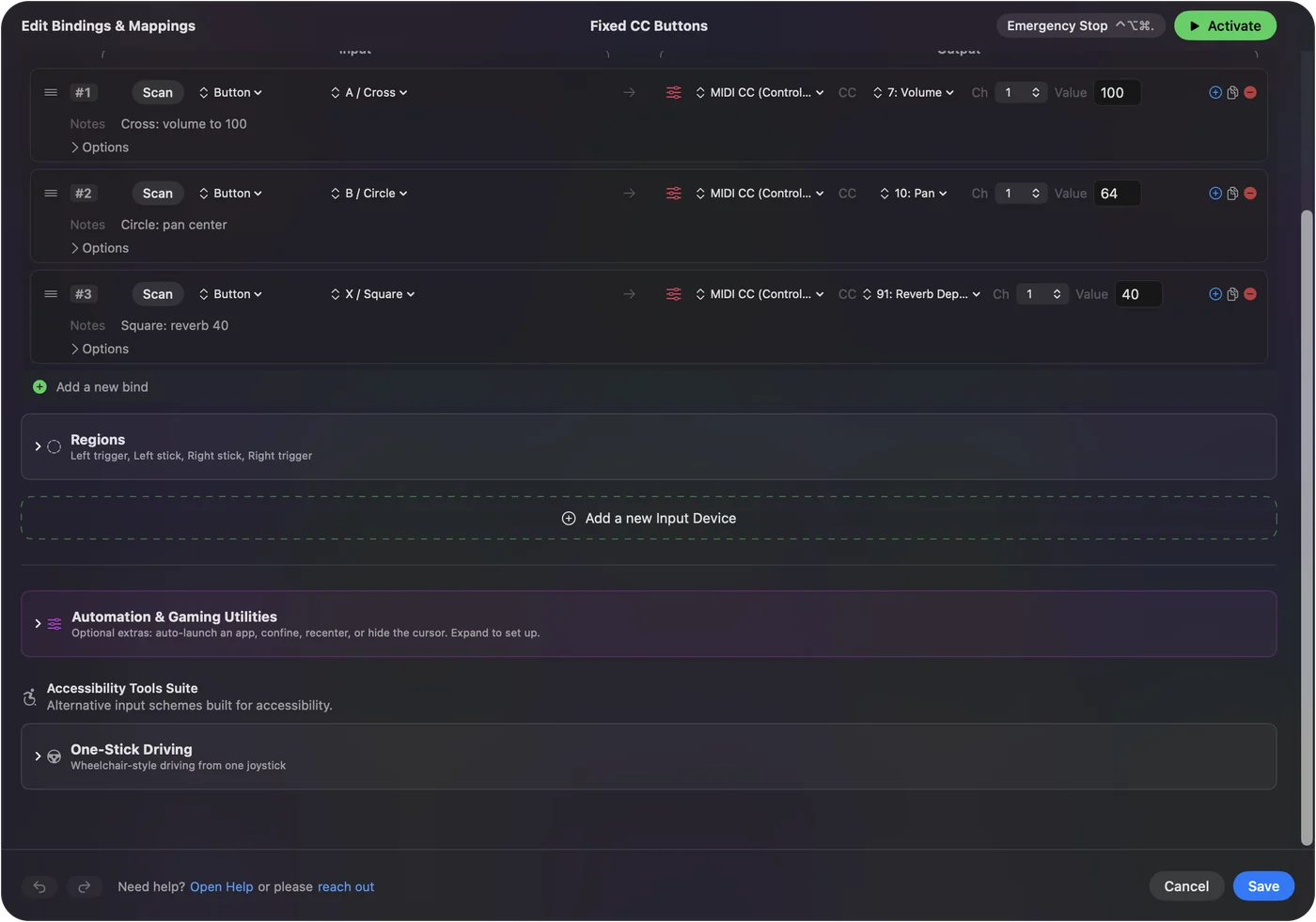
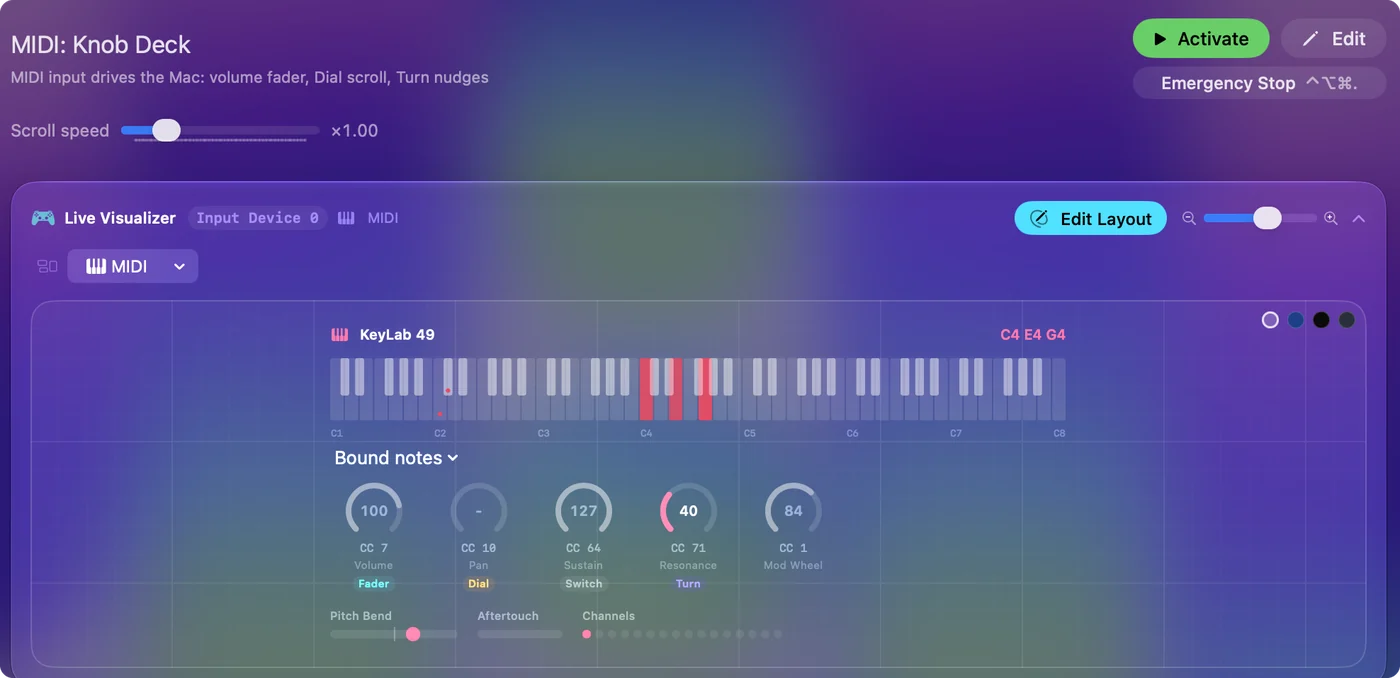
Use a librarian for the dump, and a mapper for the knobs you play every day. The MIDI messages cheat sheet lists every standard message, and MIDI monitors for Mac compares the ways to watch the traffic.
The short version
- The free app. SysEx Librarian by Snoize records dumps, keeps a library of .syx files and plays them back.
- The first check. MIDI Studio's Test MIDI Setup proves the Mac hears the synth.
- The usual fix. Turn on the synth's receive setting, then slow the sending down.
- InputConfig. It does not do SysEx. It handles the notes, knobs and patch changes around it.
Record your own backup before you load anything onto a synth.
Questions
Is there a free SysEx librarian for Mac?
Yes. SysEx Librarian by Snoize is free and open source. Version 1.5.2, from October 2023, runs on macOS 10.14.6 or later, according to its page.
What is a .syx file?
A file that holds one or more raw System Exclusive messages, each from F0 to F7, such as a synth's patch bank or a firmware update.
Why does my SysEx dump fail?
Usually the synth is not set to receive, the device ID does not match, or the messages arrive too fast. Turn on the receive setting, then raise the pause between messages or lower the transmit speed.
Can InputConfig send or receive SysEx?
No. InputConfig works with notes, Control Change, pitch bend, aftertouch, Program Change and the transport messages. Use SysEx Librarian or a browser SysEx tool for dumps.
Do I need SysEx to change a knob on my synth?
Usually not. Most knobs and patch changes use Control Change and Program Change, which any MIDI app or mapper can send. SysEx is for dumps, firmware and settings with no CC number.
Related
This page in other languages: Deutsch, Español, Français, Italiano, 日本語, 한국어, Polski, Português, Русский, ไทย, 繁體中文, 简体中文
Completely free. You don't have to make an account, there are no subscriptions, and nothing is locked. Optimized for Apple silicon. Open source on GitHub.
Updated