MIDI SysEx monitor and sender
 InputConfig is completely free on the Mac App Store.
Watch the System Exclusive messages a synth or controller sends, as hex with their length and the maker they belong to, and send SysEx back: a pasted message, the standard Identity Request, or a whole .syx file with a pause between messages. Everything runs in this page, and nothing is uploaded. It needs a browser with Web MIDI, and the page tells you below whether yours has it.
When you press the button, the browser asks whether this site may use your MIDI devices. Because the request includes System Exclusive, which can change a device's settings, the question may be worded more strongly than it is for plain MIDI. Firefox asks you to add a site permission. Nothing is asked until you press it.
Monitor incoming SysEx
The list shows the newest 300 entries, and the files hold everything captured from the input you picked. Clock and active sensing are left out of the other messages, because they arrive many times a second. The capture lives in this tab only, so save it before you close the page.
Send SysEx
Send a .syx file
What this tool does
It is a small SysEx utility that lives in a browser tab. The monitor shows every System Exclusive message that arrives, with the time, the port, its length in bytes, and the maker its ID belongs to, and it can save the capture as a .syx file or as text. The sender checks a pasted message from F0 to F7 before it goes out, asks devices who they are with the Identity Request, and plays a .syx file back with a pause between messages. Everything stays in the page: no upload, no account, nothing saved after you close the tab.
Allow MIDI and SysEx access
- Connect the device by USB, or through a MIDI interface, before you press the button.
- Press Allow MIDI and SysEx.
- Allow the browser's prompt. Because SysEx can change a device's settings, the prompt may sound stronger than the one for plain MIDI.
- Read the status line: it counts the inputs and outputs the page can see.
If you refused by mistake, open the browser's site settings for this page, allow MIDI devices, reload, and press the button again. The page asks only when you press the button, never on its own.
Receive a dump and read it
- Pick the device's input, or leave All inputs.
- Start the dump on the device. Most synths have a bulk dump or data transmit page in their utility or system menu.
- Watch the count. When it stops climbing, the dump is done.
- Press Save as .syx to keep a file you can send back later, or Save as text to read it or share it.
Each entry says which maker its ID belongs to. A one byte ID such as 41 is Roland, and an ID that starts with 00 is three bytes long, such as 00 20 29 for Novation. The maker ID is the second byte, right after F0.
| ID (hex) | Maker or meaning |
|---|---|
| 01 | Sequential |
| 04 | Moog |
| 40 | Kawai |
| 41 | Roland |
| 42 | Korg |
| 43 | Yamaha |
| 44 | Casio |
| 47 | Akai |
| 00 20 29 | Novation |
| 00 20 32 | Behringer |
| 00 20 3C | Elektron |
| 00 20 6B | Arturia |
| 7D | Non-commercial, for development and education |
| 7E | Universal Non-realtime: Identity Request and Reply, General MIDI On, sample dumps |
| 7F | Universal Realtime: Master Volume, MIDI Time Code, MIDI Machine Control |
The page also knows Lexicon (06), Kurzweil (07), Ensoniq (0F), Oberheim (10), E-mu (18), Waldorf (3E) and Access Music (00 20 33). Any other ID is shown as its bytes, so you can look it up in the device's manual.
Send an Identity Request
The Identity Request, F0 7E 7F 06 01 F7, asks every device on a port to say what it is. Pick the device's output and press Send Device Inquiry. A device that answers sends an Identity Reply, and the page reads it for you:
| Bytes (hex) | Meaning |
|---|---|
| F0 7E | Start of a Universal Non-realtime message |
| dd | The device ID of the device that answered |
| 06 02 | Identity Reply |
| mm, or 00 mm mm | Maker ID, one byte or three |
| ff ff | Family code, low byte first |
| nn nn | Model number within the family, low byte first |
| vv vv vv vv | Software version |
| F7 | End |
The family and model codes mean whatever the maker says they mean, so the page shows them as bytes. A reply proves the cable, the port and the device's SysEx setting all work in both directions.
Send a .syx file
- Press Allow MIDI and SysEx, and pick the device's output.
- Choose the .syx file. The page checks that it is made of complete F0 to F7 messages and says how many there are and which maker they are for.
- Set the pause between messages. 100 milliseconds suits most devices. If the device's manual names a longer gap, or messages go missing, raise it.
- Press Send file and wait until it says every message was sent. Stop halts it between messages.
A device needs time to write each message to its memory, and the pause gives it that time.
Safety: back up first
- Save a dump before you send one. Sending a patch or a settings dump overwrites what is in the device, and a backup is the only way back.
- Send only what was made for that model. A device ignores another maker's ID, but a file for a sibling model with the same ID may be read in ways the maker never meant.
- Use the maker's own updater for firmware. An interrupted firmware transfer can leave a device that needs its recovery mode, and the maker's tool knows the timing and the checks.
- Let a transfer finish. Do not unplug the cable or close the tab while a file is sending.
What this tool is not
It is not a librarian: it does not name, sort or store patches between visits. It is not an editor either: it does not know any maker's parameter map, so it shows a message's bytes and its maker, not what each byte sets. It does not ask a device for a dump on its own, apart from the Identity Request you send. For everyday notes, knobs and pedals, the MIDI tester is the better page, and the MIDI message decoder reads any pasted bytes. What is MIDI SysEx explains the format.
If nothing shows up
Climb this ladder, smallest step first:
- Read the status line. It says whether the browser has Web MIDI, whether you allowed SysEx, and how many inputs and outputs it found.
- Turn on SysEx on the device. Many synths ignore or never send SysEx until a setting such as SysEx receive, Rx SysEx or Device ID is set in their system menu.
- Match the device ID. Some makers address a message to one device ID, and a device set to another ID ignores it.
- Check that the Mac sees it. Open Audio MIDI Setup, then Window, Show MIDI Studio. A device missing there is a cable, hub or power problem, not a page one. Audio MIDI Setup on a Mac has the steps.
SysEx and InputConfig
InputConfig, the free Mac app I make, does not send or receive SysEx. It maps notes, CC, pitch bend, aftertouch, Program Change and the transport messages coming in from a MIDI device to keyboard shortcuts, clicks and more, and it sends notes, CC, pitch bend, Program Change and transport out from a controller or a key. Use this page for SysEx, and InputConfig for the notes and knobs. MIDI to keystroke on a Mac and MIDI output have the steps.
How this fits with InputConfig
InputConfig does not send or receive SysEx. It maps notes, CC, pitch bend, aftertouch, Program Change and transport. These pages read and send MIDI in the browser. In InputConfig, MIDI is also an input: a note, a pad or a knob becomes a key, a shortcut, a click or the volume, in any app on the Mac.
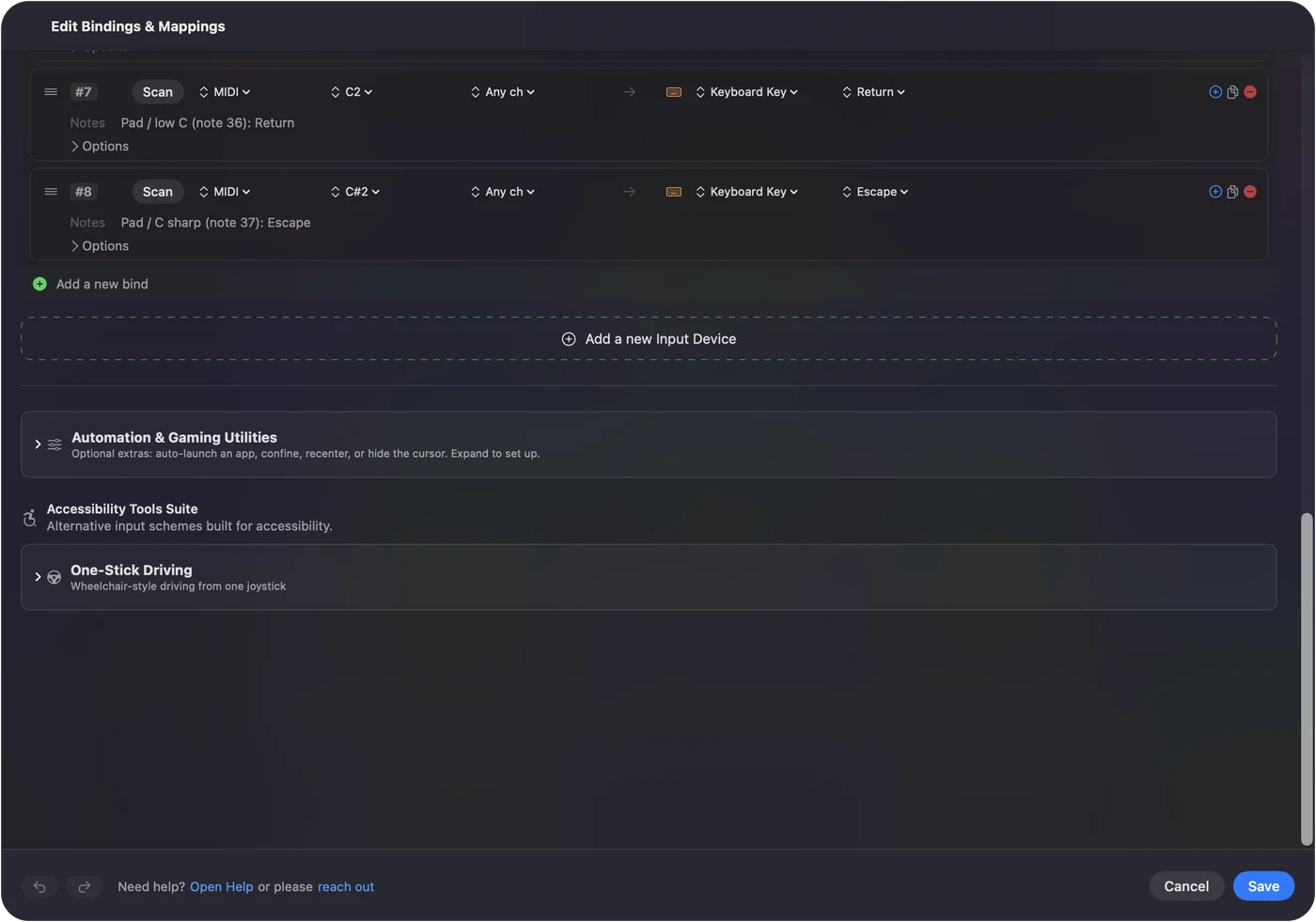
MIDI devices as input shows it step by step. InputConfig is free on the Mac App Store.
More midi tools
Questions
Why does the browser ask for SysEx permission?
System Exclusive messages can rewrite a device's sounds and settings, so browsers keep them behind a stronger permission than plain notes and knobs. This page asks for it only when you press Allow MIDI and SysEx, and only because receiving and sending SysEx is its whole job.
Does it work in Safari?
Only if your Safari offers Web MIDI to pages. The page checks when it loads and says what it found. If it reports no Web MIDI, open it in Chrome, Edge or Firefox instead.
How do I save a dump as .syx?
Press Allow MIDI and SysEx, start the dump on the device, wait until the count stops climbing, then press Save as .syx. The file holds every SysEx message shown, back to back, exactly as the device sent them.
Can sending SysEx damage a synth?
A message meant for the device can overwrite its patches or settings, which is why you save a backup first. An interrupted firmware transfer can leave a device needing its recovery mode, so use the maker's own updater for firmware. A device ignores SysEx that carries another maker's ID.
Does InputConfig send or read SysEx?
No. InputConfig maps notes, CC, pitch bend, aftertouch, Program Change and the transport messages, and System Exclusive is not among them. This page is a separate browser tool for SysEx.
Why does my device not answer the Identity Request?
Not every device answers one. Check that the request goes to the port the device listens on, that the device's SysEx receive setting is on, and that its reply comes back on an input this page can see. Some devices only answer on their own USB port, not on a DIN port of an interface.
What is a .syx file?
Raw System Exclusive bytes saved one message after another, each starting with F0 and ending with F7, with nothing added. A librarian, an editor or this page can send it back to the device it came from.
Related
Completely free. You don't have to make an account, there are no subscriptions, and nothing is locked. Optimized for Apple silicon. Open source on GitHub.
Updated