How to check and change a mouse's polling rate on a Mac
 InputConfig is completely free on the Mac App Store. You don't have to make an account, there are no subscriptions, and nothing is locked. Optimized for Apple silicon.
macOS has no polling rate setting. The rate is set in the mouse itself, from the maker's own app or a button on the mouse, and a mouse with neither runs at whatever rate its maker chose. To see what reaches your Mac, the free mouse polling rate test counts it in a browser in about 20 seconds.
I make InputConfig, a free Mac app for mice, keyboards and controllers. It does not change a mouse's polling rate. It has a setting called Polling rate of its own, and that is a different thing, explained further down.
On this page: 11 sections
Steps
- Open the mouse polling rate test in Chrome or another Chromium browser.
- Move the mouse in quick, wide circles inside the box for a few seconds without stopping.
- Read the number and the highest so far, and compare it with 125, 500 or 1000 Hz.
- Change the rate in the maker's app or with the mouse's own button, if it has one, then run the test again.
- Leave InputConfig's own Polling rate at its default unless you aim with a stick or gyro.
Know what polling rate means
Polling rate, also called report rate, is how many times a second the mouse tells the computer where it is and which buttons are down. The arithmetic is simple:
| Rate | Time between reports |
|---|---|
| 125 Hz | 8 ms |
| 500 Hz | 2 ms |
| 1000 Hz | 1 ms |
A higher rate gives smaller steps between pointer positions. A steady rate matters as much as a high one, because a mouse that jumps between rates feels uneven. For desktop work almost any rate is fine, and the number matters mostly for fast aiming.
Test it on a Mac in 20 seconds
- Open the mouse polling rate test and put the pointer in the box.
- Move the mouse in quick, wide circles for a few seconds, without stopping.
- Read the number, which counts the position updates that reached the page in the last second, and Highest so far, the best second of the run.
Keep moving the whole time. A pause drops the count, because a still mouse sends nothing new.
Run it in Chrome, Edge or another Chromium browser, which pass along every report the mouse sends. Some browsers count about one update per screen frame, whatever the mouse sends. Compare runs in the same browser, not single readings.
Read the number
| You see about | What it most likely means |
|---|---|
| 900 to 1000 | The mouse is at 1000 Hz and the browser passes every report |
| 450 to 500 | The mouse is at 500 Hz |
| 110 to 125 | The mouse is at 125 Hz, or the browser counts per frame on a 120 Hz screen |
| About 60 | The browser counts one update per frame on a 60 Hz screen |
Look at Pointer events the page received. When it matches the main number, the browser is not passing on every report, and the reading tells you about the screen, not the mouse. MacBook Pro displays with ProMotion refresh at up to 120 Hz, so a per-frame browser can read near 120 there. The test can read lower than the true rate, never higher. A reading near your screen's refresh rate is the browser, not the mouse.
Change the rate where the mouse keeps it
System Settings, Mouse has tracking speed, scrolling and the secondary click, and nothing for the report rate. So the change happens in the mouse:
- The maker's app. Gaming mice from makers with a Mac app set the rate there, and many keep it in onboard memory afterward. See Razer Synapse on a Mac and gaming mice on a Mac for which apps run on macOS.
- A button or switch on the mouse. Some mice change the rate with a button underneath, and the manual says which press does what.
- A web app. A few makers set the rate from a web page in a Chromium browser.
- An Apple mouse. The Magic Mouse has no rate setting at all.
I have not checked every brand's app, so read your mouse's own support page for where its rate lives. Change it once, run the test again, and keep the setting that reads steadiest.
Compare Bluetooth, the receiver and a cable
A mouse that connects three ways can report at different rates on each. Makers that print a high rate on the box usually name the receiver or the cable it applies to, so check the spec page for yours, then measure:
- Test on Bluetooth. Run the test and note Highest so far.
- Test on the receiver. Plug it straight into the Mac, not a hub, and run it again.
- Test on the cable. If the mouse has one, run it a third time.
- Check power saving. Some mice drop their rate on low battery or in a saving mode set in their app.
Measure each connection, because the spec sheet and your Mac can disagree.
InputConfig's polling rate is a different setting
InputConfig has Settings, Advanced, Polling rate. It sets how often InputConfig itself checks its inputs and sends what a preset produces, such as a stick moving the pointer or an auto clicker's clicks. It never reaches the mouse, and the mouse's own rate stays exactly as it was.
- The choices. 60, 120, 180 or 240 Hz.
- The defaults. With Auto-switch on power source on, as it is out of the box, it runs at 120 Hz on a power adapter and 60 Hz on battery.
- When to raise it. 180 and 240 are for aiming with a stick or gyro, and they cost a little CPU. Desktop use is fine at 60.
- What it caps. InputConfig sends at most one auto click or turbo repeat per poll.
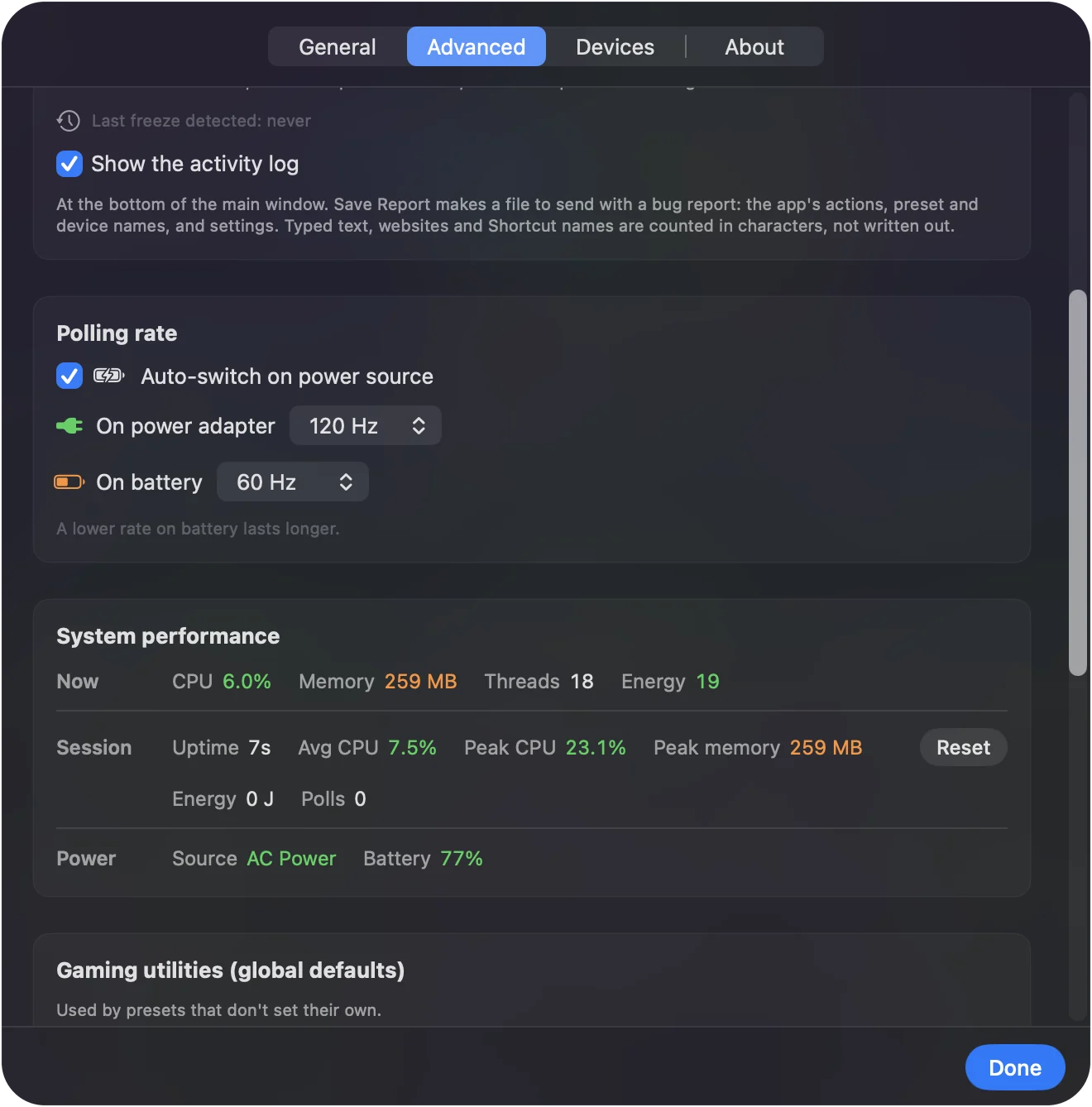
The mouse's rate is set in the mouse, and InputConfig's rate is set in InputConfig.
Watch clicks live in InputConfig
The polling test counts reports. InputConfig's Live Visualizer shows what each one carries: pick the Mouse template and it draws the mouse and the trackpad and lights clicks, Button 4 and Button 5, scrolling in four directions, motion and double clicks as they arrive, with no preset running.
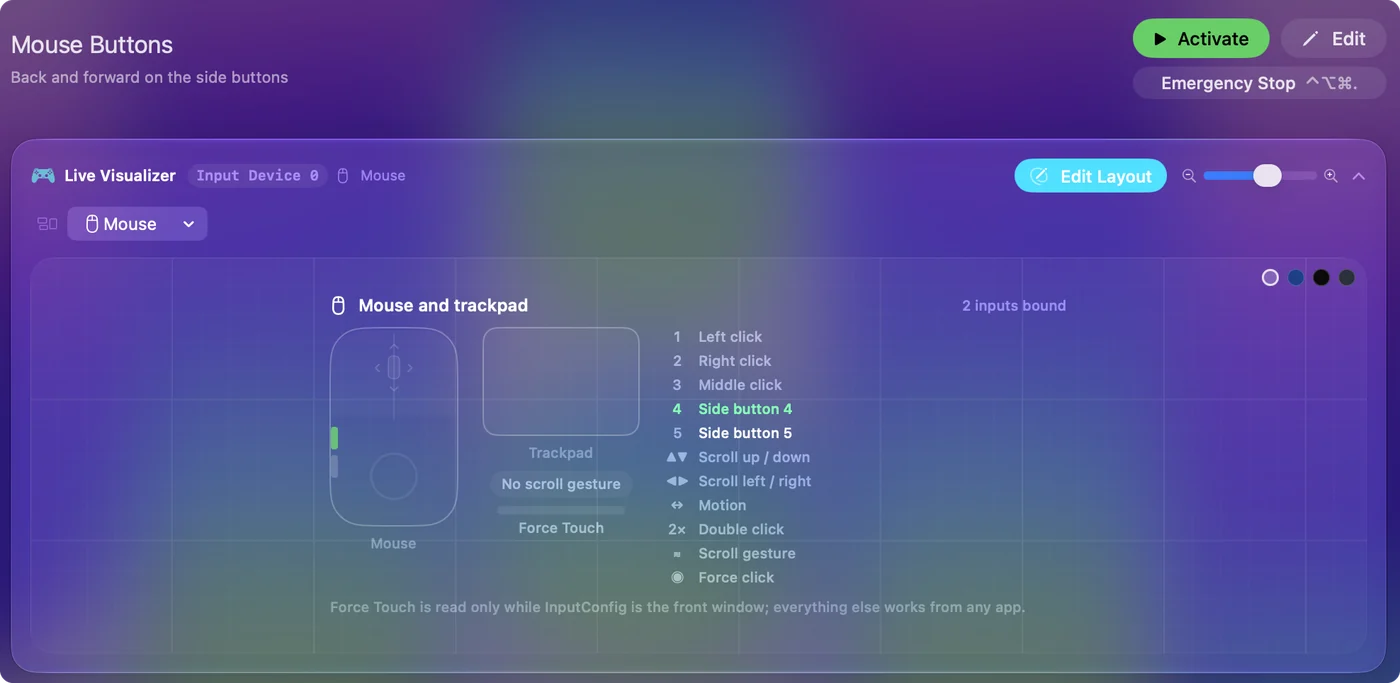
It does not measure Hz, and InputConfig does not change DPI, the polling rate, acceleration or scroll feel. What it does is give the buttons jobs, for example side buttons for back and forward. Use the test for the rate and the Live Visualizer for the buttons. The mouse tester checks every button in a browser too.
If the number looks wrong
Climb this ladder, smallest step first:
- Move faster. Slow circles undercount.
- Switch browser. Try a Chromium browser if you used one that counts per frame.
- Plug in directly. A hub or a long extension can slow reports.
- Check the maker's app. The rate may have reset, or a saving mode may be on.
- Quit heavy apps. A busy Mac can deliver reports to the browser late.
Change one thing per run, so you know which change moved the number.
The short version
- No macOS setting. The rate lives in the mouse.
- Check it. The free polling rate test, in a Chromium browser, with fast circles.
- Change it. The maker's app or the mouse's own button, then test again.
- Two different settings. InputConfig's Polling rate is its own, for sticks, gyro and repeats.
Measure first, change the mouse second, and leave InputConfig at 120 Hz unless you aim with a stick. The controller polling rate test does the same check for a gamepad.
Questions
How do I check my mouse polling rate on a Mac?
Open a browser polling rate test, such as the free one on inputconfig.com, and move the mouse in quick circles inside the box. In a Chromium browser the number comes close to the mouse's rate.
Can macOS change a mouse's polling rate?
No. System Settings has no polling rate setting. The rate is set in the mouse, from the maker's app or a button on the mouse, if the mouse lets you change it at all.
Why does the test read lower than 1000 Hz?
The browser may count one update per screen frame, the mouse may not be moving fast enough, or the Mac may combine reports before the page sees them. A reading near 60 or 120 usually means the browser, not the mouse.
Does Bluetooth lower the polling rate?
It can. Many mice report at a different rate over Bluetooth than over their receiver or cable, so run the test once on each connection and compare.
Is InputConfig's polling rate the mouse's polling rate?
No. InputConfig's Polling rate, in Settings, Advanced, sets how often the app itself checks inputs and sends a preset's output, at 60 to 240 Hz. It never changes what the mouse reports.
Related
This page in other languages: Deutsch, Español, Français, Italiano, 日本語, 한국어, Polski, Português, Русский, ไทย, 繁體中文, 简体中文
Completely free. You don't have to make an account, there are no subscriptions, and nothing is locked. Optimized for Apple silicon. Open source on GitHub.
Updated