Why Game Mode is not working on a Mac, and how to fix it
 InputConfig is completely free on the Mac App Store. You don't have to make an account, there are no subscriptions, and nothing is locked. Optimized for Apple silicon.
Game Mode only runs while a game is full screen on a Mac with Apple silicon and macOS Sonoma 14 or later, so a game in a window, an Intel Mac or an older macOS is the usual reason it is missing. The other common reason is that it was turned off for that game once: Apple's Use Game Mode page, which I read on October 27, 2026, says it then stays off for that game until you turn it back on. There is no Game Mode switch in System Settings. It follows the game.
If you play with a controller mapped to keys through InputConfig, the free Mac app I make, the last part of this page covers how the two work together.
On this page: 11 sections
- Steps
- Check the three things it needs
- Put the game in full screen, not a big window
- Turn it back on for one game
- Why the switch is missing or grayed out
- Keep Game Mode off
- Know what it does to the battery
- Use Game Mode with a mapped controller
- If the game still lags with Game Mode on
- The short version
- Questions
Steps
- Check the Mac has Apple silicon and macOS Sonoma 14 or later in Apple menu, About This Mac.
- Put the game in full screen, with its own setting or the green button at the top left of its window.
- Look for the Game icon in the menu bar. If it is there, Game Mode is running.
- On macOS Tahoe 26, click the Game icon or press Command-Esc, click Settings, and switch Game Mode for that game.
- On Sonoma or Sequoia, click the Game menu in the menu bar and choose Turn Game Mode On or Turn Game Mode Off.
Check the three things it needs
Apple's page names the requirements, and missing any one of them means no Game Mode at all:
- Apple silicon. An M1 or later. Apple menu, About This Mac shows the chip. Intel Macs do not get Game Mode.
- macOS Sonoma 14 or later. The same window shows the version.
- A game in macOS full screen. Apple says the game has to support macOS full-screen mode, and the green window button enters it.
The Game icon in the menu bar is the test: if it is not there, Game Mode is not running for that game.
Put the game in full screen, not a big window
Game Mode turns on when the game enters full screen and ends when you quit the game. A window stretched to fill the display is still a window. If the game's own display setting offers more than one kind of full screen, try each and watch for the Game icon. Pressing the green button at the top left of the game's window is the surest way into macOS full screen.
Turn it back on for one game
This is the fix when a game that used to feel smooth now does not. Apple says a game you turned Game Mode off for keeps it off, even after you quit and reopen it.
- macOS Tahoe 26 and later. With the game full screen, click the Game icon in the menu bar or press Command-Esc to open Game Overlay, click its Settings button, then click Game Mode.
- macOS Sonoma 14 and Sequoia 15. Click the Game menu in the menu bar and choose Turn Game Mode On.
Both steps work only while the game is still full screen, and they apply to that one game. Off for one game never means off for all of them, and on for one never means on for the rest.
Why the switch is missing or grayed out
Apple's page does not mention a grayed out switch, so here is what its rules mean in practice:
- The game is not full screen. Apple says you switch Game Mode while the game is in full screen. In a window there is nothing to switch.
- The Mac is an Intel Mac. There is no Game menu or Game icon to find.
- macOS does not treat the app as a game. An Apple engineer on Apple's developer forums wrote in October 2024 that macOS decides from the category the developer gives the app. An app that is not filed as a game may never get it.
- The game runs inside a launcher. An Apple engineer wrote in June 2025 that when a launcher opens the game in a new window through Java, Game Mode seems unlikely to carry over to it. Apple has not listed which launchers do get it, so the Game icon is still the test.
Keep Game Mode off
It turns itself on with full screen, so the way to keep it off is to turn it off once per game: Game Overlay on Tahoe, or the Game menu on Sonoma and Sequoia. Apple says the game then remembers that. Apple's page lists no switch that turns it off for every game at once. Playing in a window also keeps it off, because it only runs in full screen.
Know what it does to the battery
Apple's page does not say. It says Game Mode gives the game first call on the CPU and GPU, cuts back background tasks, and doubles the Bluetooth sampling rate for controllers and AirPods. I have not measured what that costs on battery, so I would not turn it off for battery life alone without trying the same game both ways.
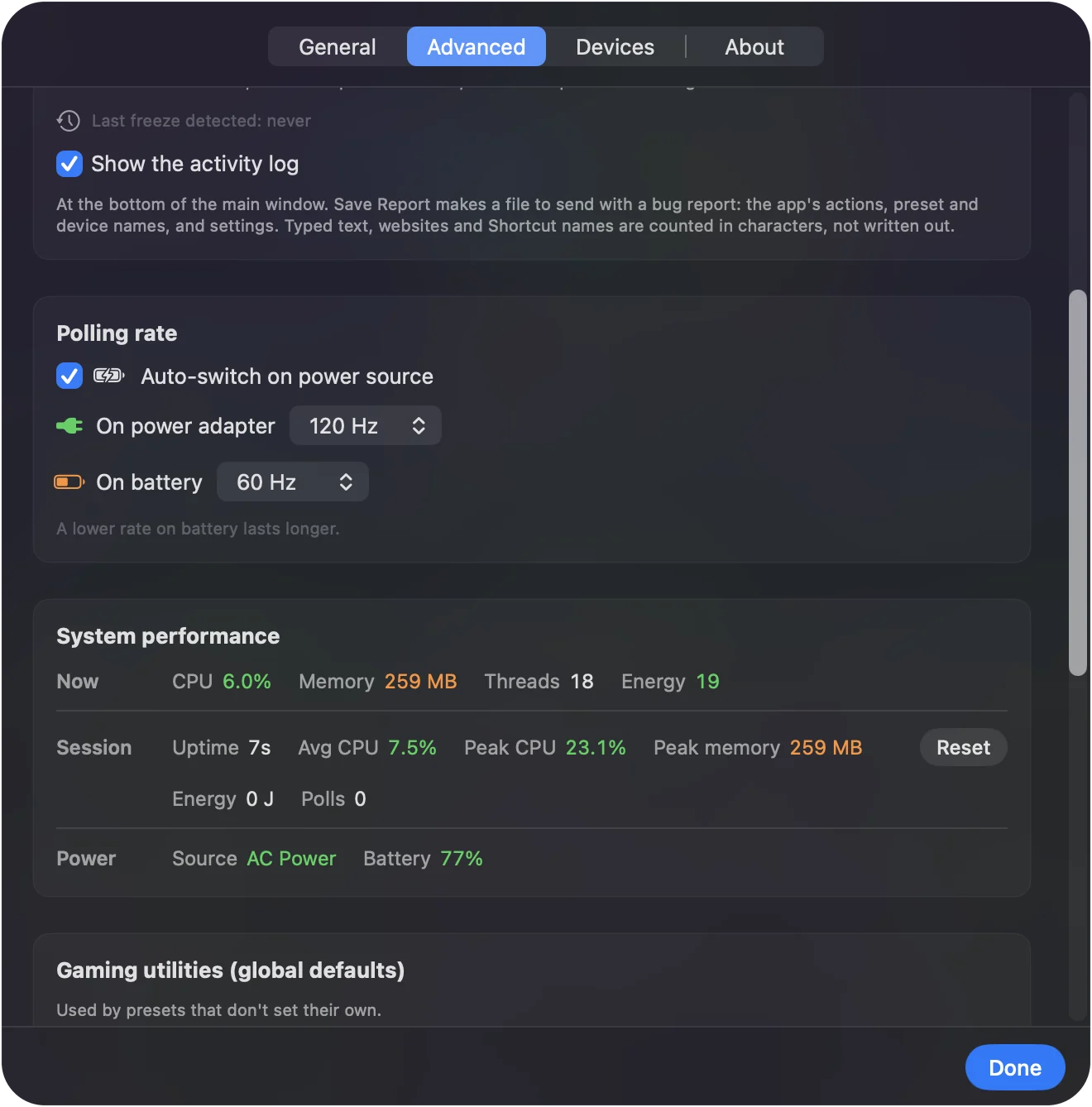
The one battery setting I can speak for is InputConfig's own. In Settings, Advanced, Polling rate, the app can read the controller at one rate on the power adapter and another on battery, and it switches the moment you unplug. 120 Hz is the default. A lower battery rate lasts longer, and 180 or 240 is for aiming.
Use Game Mode with a mapped controller
Game Mode and InputConfig do not get in each other's way, but three things are worth knowing.
- Polling. InputConfig reads the controller at its own rate, which Game Mode does not change. The doubled Bluetooth sampling is Apple's side of the trip.
- The Home button. With Game Mode on, macOS can keep a press of the Home or PS button for itself, so I would not put anything important on it.
- The emergency stop. A full-screen game can swallow system shortcuts, including Control Option Command period. Holding Back and Start together for three seconds runs inside InputConfig's own polling, so it still stops the preset.
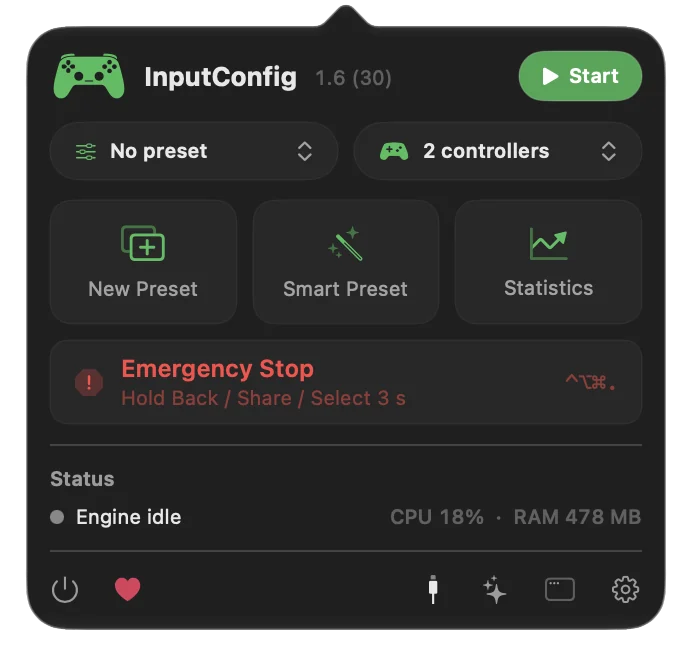
If the game is the only place you want the layout, list it under Automation & Gaming Utilities, in Activate when these apps are in front, and the preset runs only while the game is in front. Hold Back and Start for three seconds when a full-screen game ignores the keyboard shortcut.
If the game still lags with Game Mode on
Climb this ladder, smallest step first:
- Look for the Game icon. If it is missing, Game Mode is not running, whatever you set before.
- Use a cable. For a controller that sends input over USB, a cable takes Bluetooth out of the question.
- Compare with it off. Turn Game Mode off for that game, play a minute, and turn it back on.
- Check the polling rate. If you map the controller with InputConfig, raise the battery rate in Settings, Advanced.
- Read the lag page. Controller input lag on a Mac covers interference, streaming and Steam Input.
The short version
- It needs three things. Apple silicon, Sonoma 14 or later, and the game in full screen.
- It remembers. Turned off for a game, it stays off for that game until you turn it on.
- No global switch. Game Overlay on Tahoe and the Game menu on Sonoma and Sequoia work one game at a time.
Go full screen and look for the Game icon before you change anything else. The background on what Game Mode does is on Game Mode on a Mac.
Questions
Why is Game Mode not working on my Mac?
Game Mode needs a Mac with Apple silicon, macOS Sonoma 14 or later, and the game in macOS full screen. If all three are true, it may have been turned off for that game, and Apple says it then stays off until you turn it back on.
Why can't I find Game Mode in System Settings?
There is no Game Mode switch in System Settings. It follows the game: full screen turns it on, and the Game icon or Game menu in the menu bar switches it for that game.
Does Game Mode work on an Intel Mac?
No. Apple lists a Mac with Apple silicon as a requirement, so an Intel Mac has no Game Mode.
Does Game Mode drain the battery?
Apple's page does not say, and I have not measured it. Apple says it gives the game priority on the CPU and GPU and doubles the Bluetooth sampling rate.
Can I turn Game Mode off for every game?
Apple's page lists no switch for that. Turn it off once in each game, from Game Overlay on Tahoe or the Game menu on Sonoma and Sequoia, and that game remembers it.
Related
This page in other languages: Deutsch, Español, Français, Italiano, 日本語, 한국어, Polski, Português, Русский, ไทย, 繁體中文, 简体中文
Completely free. You don't have to make an account, there are no subscriptions, and nothing is locked. Optimized for Apple silicon. Open source on GitHub.
Updated