What to do when your MacBook keyboard does not work at the login screen
 InputConfig is completely free on the Mac App Store. You don't have to make an account, there are no subscriptions, and nothing is locked. Optimized for Apple silicon.
Plug in a USB keyboard you have used with this Mac before, and if that fails, click your password on the onscreen keyboard with the trackpad. A MacBook's trackpad usually keeps working when the keys stop, so the pointer is rarely the problem. The catch is that the onscreen keyboard only shows at login if it was turned on beforehand.
Once you are in, find out why the keys stopped, and keep working from a controller with InputConfig, the free Mac app I make, while the keyboard is sorted out. InputConfig starts after login, so it cannot help at the login window itself, and I say exactly where it does help below.
On this page: 11 sections
- Steps
- Work out which kind of dead it is
- Plug in another keyboard
- Get a Bluetooth keyboard back
- Click your password on the onscreen keyboard
- Turn off Mouse Keys and Slow Keys
- Test the keyboard once you are in, and when to call Apple
- Keep working from a controller meanwhile
- What InputConfig cannot do
- The short version
- Questions
Steps
- Connect the charger, in case a low battery alert is hiding behind the login window.
- Plug in a USB keyboard this Mac has used before, straight into the Mac.
- If no keyboard types, click your password on the Accessibility Keyboard with the trackpad, if it was turned on in Lock Screen, Accessibility Options.
- Once you are in, check that Slow Keys and Mouse Keys are off.
- Test every key in a keyboard tester, and book a repair if the built-in keys still fail.
Work out which kind of dead it is
| What happens | Likely cause | Start with |
|---|---|---|
| No key works, the trackpad does | A battery alert, a setting, or the keyboard itself | The charger, then a USB keyboard |
| Some keys work, others do nothing | Slow Keys, Mouse Keys, or worn keys | The accessibility settings below |
| Letters move the pointer instead of typing | Mouse Keys is on | Turn Mouse Keys off |
| The password is refused, not ignored | Caps Lock, or another keyboard layout | Check Caps Lock, then the input source after login |
| A Bluetooth keyboard is dead, the built-in one is fine | Pairing, power or Bluetooth | Turn it off and on, or connect its cable |
| Nothing responds, pointer included | The Mac is frozen | Hold the power button to shut it down, then start it again |
Whether the trackpad still moves the pointer tells you most of what you need.
Plug in another keyboard
Apple's page on a Mac that does not respond to key presses, which I read on October 27, 2026, starts with power and a second keyboard. Climb this ladder, smallest step first:
- Connect the charger. Apple says a laptop whose keys do nothing may be showing a low battery alert you cannot see.
- Plug in a keyboard you have used before. Plug it straight into the Mac, with an adapter if it has a USB-A plug.
- Expect a question with a new one. Apple's page on allowing accessories to connect (published April 30, 2026) says Mac laptops with Apple silicon may ask you to approve a new accessory, and that a locked Mac has to be unlocked first. A keyboard this Mac has already allowed is the better bet.
- Try another port. Apple suggests another port, and another keyboard, to tell a bad port from a bad keyboard.
The same page adds that if the Mac has been locked for three days or more, it may ask to be unlocked before it uses a keyboard it allowed before. A wired keyboard from a drawer is the fastest way past the login window.
Get a Bluetooth keyboard back
A Bluetooth keyboard that is already paired can usually type at the login window once it is on and charged, and if it does not, a wired keyboard is the way in. Apple's list is short: check that it is switched on and charged, that Bluetooth is on, then disconnect and reconnect it.
- A Magic Keyboard. Apple's connection page (published December 8, 2025) says to connect it with its cable for about a minute. That charges it and pairs it with the Mac.
- Another brand. Pairing a new one happens in System Settings, Bluetooth, which means being logged in first. At the login window, use a keyboard that was paired before, or a wired one.
A Magic Keyboard on its cable is a wired keyboard, which is the easiest kind to get past a login window with.
Click your password on the onscreen keyboard
macOS can show its Accessibility Keyboard at the login window, and the trackpad clicks it one key at a time. It has to be turned on beforehand, in System Settings, Lock Screen, Accessibility Options, which Apple's login window page says applies to every user on the Mac.
- You: At the login window, look for the onscreen keyboard and click your password with the trackpad, then click Return.
- macOS: Types each key you click into the password field.
- Check: If no onscreen keyboard appears, it was not turned on. Apple says Accessibility Shortcuts work at the login window, and on a MacBook with Touch ID the shortcut is three quick presses of Touch ID, so try that and look for the Accessibility Keyboard in the panel.
Option Command F5 opens the same panel, but it needs working keys. Once you are in, turn the lock screen keyboard on so the next time is easy, as the onscreen keyboard page shows. The onscreen keyboard is the one route that needs no working key at all, so set it up before you need it.
Turn off Mouse Keys and Slow Keys
Two accessibility settings make a healthy keyboard look broken, and Apple lists both:
- Mouse Keys. When it is on, some letter keys move the pointer instead of typing. Turn it off in System Settings, Accessibility, Pointer Control, or press Option Command F5 and deselect it in the Accessibility Shortcuts panel.
- Slow Keys. When it is on, a key only types after a longer press, so quick typing seems to do nothing. Turn it off in System Settings, Accessibility, Keyboard.
- Caps Lock and the layout. Apple notes that Caps Lock has a small delay before it turns on, and that the Input menu in the menu bar switches the keyboard layout. A password typed on the wrong layout is refused, not ignored.
The Mouse Keys and Slow Keys pages go further. If some keys type and others do not, check these two settings before you book a repair.
Test the keyboard once you are in, and when to call Apple
With a spare keyboard or the onscreen keyboard getting you in, find out what really failed:
- You: Open the Mac keyboard tester and press every key on the built-in keyboard.
- The tester: Lights each key the Mac receives.
- Check: Keys that never light are not reaching the Mac. If a different keyboard works and the built-in one does not, the keyboard needs service.
Apple's advice for a keyboard that still fails is to contact Apple or an Apple Authorized Service Provider, and to avoid untrained repairs and parts that are not genuine. A laptop keyboard that types the wrong letters or nothing at all after the settings are checked is a hardware problem. A test that lights every key but the broken ones is what to show the repair desk.
Keep working from a controller meanwhile
A repair can take days. Once you are logged in, a game controller can carry the keys you need most. Plug a DualSense or another controller in by cable, install InputConfig, allow its Accessibility permission, and activate the built-in Desktop Navigation preset:
- The pointer and clicks. The left stick moves the pointer, the right stick scrolls, and the triggers click.
- The keys. The D-pad sends the arrow keys, Start / Options presses Return, B / Circle undoes, X / Square cuts and Y / Triangle pastes.
- Words. Put Start Dictation on a spare button, and your email and sign-off on Type Text rows.
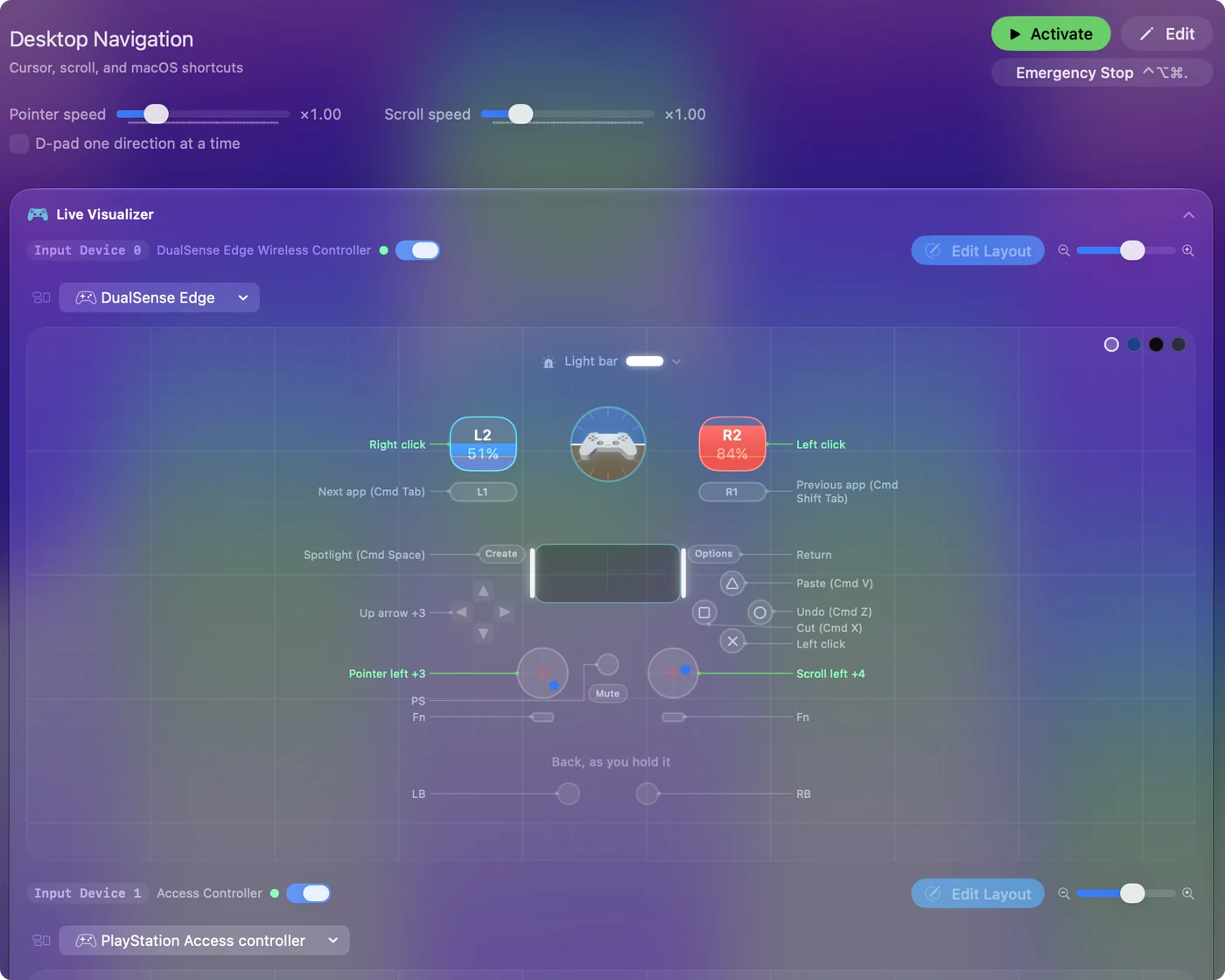
When the Mac locks, InputConfig keeps the controller's pointer and clicks working, so it can click the Accessibility Keyboard, and it blocks every key, so nothing types into the password field by itself. After a restart it is not running yet. The controller covers the days between the failure and the repair, not the login window after a restart.
What InputConfig cannot do
- Fix the keyboard. A key that sends nothing cannot be read by any app, so InputConfig has nothing to work with.
- Run at the login window. It starts after you log in, so the password after a restart comes from a keyboard, the onscreen keyboard or Touch ID.
- Silence a stuck key. It listens to the keyboard alongside macOS and does not block or remap a key, so a key that repeats by itself keeps repeating.
- Type your password. It blocks key and text outputs at the lock screen and stores no passwords.
The short version
- Right now. The charger, then a USB keyboard this Mac has used before.
- With no keyboard. The trackpad on the Accessibility Keyboard, if Lock Screen, Accessibility Options has it on, or three presses of Touch ID for the shortcuts panel.
- Once in. Turn off Mouse Keys and Slow Keys, test every key, and book a repair if keys still fail.
- Until the repair. A controller with Desktop Navigation.
Turn on the lock screen keyboard today, so a dead keyboard never locks you out again.
Questions
Why is my keyboard not working at the login screen?
Common causes are a low battery alert you cannot see, Mouse Keys or Slow Keys turned on, a Bluetooth keyboard that is off or uncharged, or a keyboard fault. Connect the charger and plug in a USB keyboard first to tell them apart.
Can I type my password without a keyboard?
Yes, if the Accessibility Keyboard was turned on in System Settings, Lock Screen, Accessibility Options. Click the password on it with the trackpad. On a MacBook with Touch ID, three quick presses of Touch ID open the Accessibility Shortcuts panel.
Does a Bluetooth keyboard work at login after a restart?
A keyboard that is already paired, switched on and charged usually does. Pairing a new one needs System Settings, Bluetooth, so at the login window use a paired or wired keyboard, or a Magic Keyboard on its cable.
Can InputConfig fix a broken keyboard?
No. It cannot read a key that sends nothing and it does not run at the login window. After login it can put the pointer, the arrow keys, Return and dictation on a game controller until the keyboard is repaired.
What if USB keyboards fail too?
Try another port and another keyboard. If every keyboard fails on this Mac and works on another one, Apple says the Mac may need service, from Apple or an Apple Authorized Service Provider.
Related
This page in other languages: Deutsch, Español, Français, Italiano, 日本語, 한국어, Polski, Português, Русский, ไทย, 繁體中文, 简体中文
Completely free. You don't have to make an account, there are no subscriptions, and nothing is locked. Optimized for Apple silicon. Open source on GitHub.
Updated