How to set up and log in to a Mac mini without a keyboard or mouse
 InputConfig is completely free on the Mac App Store. You don't have to make an account, there are no subscriptions, and nothing is locked. Optimized for Apple silicon.
You can run a Mac mini day to day with no keyboard or mouse, but not from the very first minute. Apple's setup steps expect a keyboard and a mouse or trackpad, plugged in or paired, and the password after a restart has to come from something that points or types. Once you are in, macOS can show an onscreen keyboard at the login window and the lock screen, and a game controller can be the pointer and the keys.
That last part is InputConfig, the free Mac app I make. A Mac mini has no built-in keyboard or trackpad, so every moment below matters more than it does on a MacBook.
On this page: 11 sections
- Steps
- Know which moments need a keyboard
- Get through first setup with borrowed hardware
- Turn on the lock screen keyboard while you can still type
- Run the Mac mini from a controller once you are in
- Make it start by itself after a restart
- Reach it from another Mac with Screen Sharing
- Reset or recover it, and why that needs a keyboard
- What InputConfig cannot do
- The short version
- Questions
Steps
- For first setup, plug in any USB keyboard and mouse, or switch on the Magic accessories that came with the Mac mini.
- Once you are logged in, open System Settings, Lock Screen, Accessibility Options and turn on the Accessibility Keyboard.
- Install InputConfig, allow the Accessibility permission, plug a controller in by cable and activate Desktop Navigation.
- In InputConfig, turn on Launch at login and list your apps under Activate when these apps are in front.
- Test a restart while the borrowed keyboard is still on the desk.
Know which moments need a keyboard
A Mac mini asks for typing at four moments, and each has a different answer:
| Moment | What it asks for | What works with no keyboard |
|---|---|---|
| First setup | Your name, a password, the Wi-Fi password | Nothing reliable. Borrow a keyboard and mouse. |
| Login window after a restart | Your password | The Accessibility Keyboard, if you turned it on beforehand, clicked with a mouse, a trackpad or a joystick mouse |
| Lock screen after sleep | Your password, or Touch ID on a keyboard that has it | The Accessibility Keyboard, clicked with any pointer, a controller through InputConfig included |
| Logged in | Everything else | A controller with InputConfig, dictation and Type Text |
| Recovery | Clicks, and often a user's login password | Nothing from InputConfig. Plan on a keyboard and mouse. |
The lock screen and the hours after login are the easy part, and first setup and Recovery are the parts that still want real hardware.
Get through first setup with borrowed hardware
Apple's Set up your Mac mini page, which I read on October 27, 2026, says to connect the keyboard and mouse or trackpad with the cables that came with them, then walks through Setup Assistant, which asks for the Wi-Fi password and for your name and a new password for the computer account. Apple's page on setting up a Magic Keyboard, Magic Mouse or Magic Trackpad (published April 9, 2026) adds that accessories that came with a new Mac should already be paired, and that connecting one by its USB cable pairs it automatically.
- Any USB keyboard and mouse. A cheap wired pair needs no pairing at all, which makes it the safest choice for setup.
- A Magic Keyboard or Trackpad. Plug it in by its cable once and it pairs, then it can go wireless.
- The Accessibility step. Setup Assistant shows accessibility options for vision, hearing, mobility, speech and cognition, and you can skip it and set things up later.
- An iPhone or iPad. Apple lists setting up a Mac with one. Its page does not say that this removes the need to type on the Mac, so I would not count on it.
InputConfig cannot help here, because nothing is installed yet. Ask someone to bring a keyboard and mouse for the first setup, and keep them until you have tested a restart.
Turn on the lock screen keyboard while you can still type
macOS can put its onscreen keyboard, the Accessibility Keyboard, on the login window and the lock screen. Apple's page on accessibility options in the login window, which I read on October 27, 2026 in its macOS 27 version, gives the path and says the setting applies to the login window for every user on the Mac.
- You: Open System Settings, click Lock Screen, then Accessibility Options. Turn on Accessibility Keyboard, and enter an administrator password if macOS asks.
- macOS: Shows a keyboard you can click at the login window and the lock screen. VoiceOver, Zoom and Switch Control can be turned on there too.
- Check: Lock the Mac and look for the keyboard. Then restart once and check that it is there after the restart as well, because on a Mac with FileVault the first screen after a restart comes before macOS has fully started.
Apple also says anyone at the login window can use Accessibility Shortcuts to switch options on for a moment. On a Mac mini that means Option Command F5 on a keyboard, or three quick presses of Touch ID on a Magic Keyboard with Touch ID, as Apple's Accessibility Shortcuts page lists them. Both need a keyboard, which is why the setting above matters. More detail is on the onscreen keyboard at login page. This setting cannot be turned on from the lock screen itself, so do it today.
Run the Mac mini from a controller once you are in
After login, a game controller can do the pointer, the clicks and the twenty keys a Mac cannot live without.
Step 1: Allow the one permission
- You: Install InputConfig from the Mac App Store and switch it on in System Settings, Privacy & Security, Accessibility.
- macOS: Needs one click for this, so do it while the borrowed mouse is there, or have a helper or Voice Control make it.
- Check: The InputConfig switch in that list is on.
Step 2: Connect the controller by cable
- You: Plug a DualSense or another controller in with a USB-C cable.
- macOS: Reads it with no Bluetooth pairing, which matters when there is nothing to click the Bluetooth settings with.
- Check: The controller appears at the top of InputConfig's sidebar.
Step 3: Activate Desktop Navigation
- You: In the sidebar, open Desktop & Productivity, click Desktop Navigation and click Activate.
- InputConfig: The left stick moves the pointer and the right stick scrolls. The right trigger is left click and the left trigger is right click. The bumpers switch apps, the D-pad sends the arrow keys, Back / Share opens Spotlight and Start / Options presses Return.
- Check: Push the stick and click something. To stop, hold Back and Start together for three seconds.
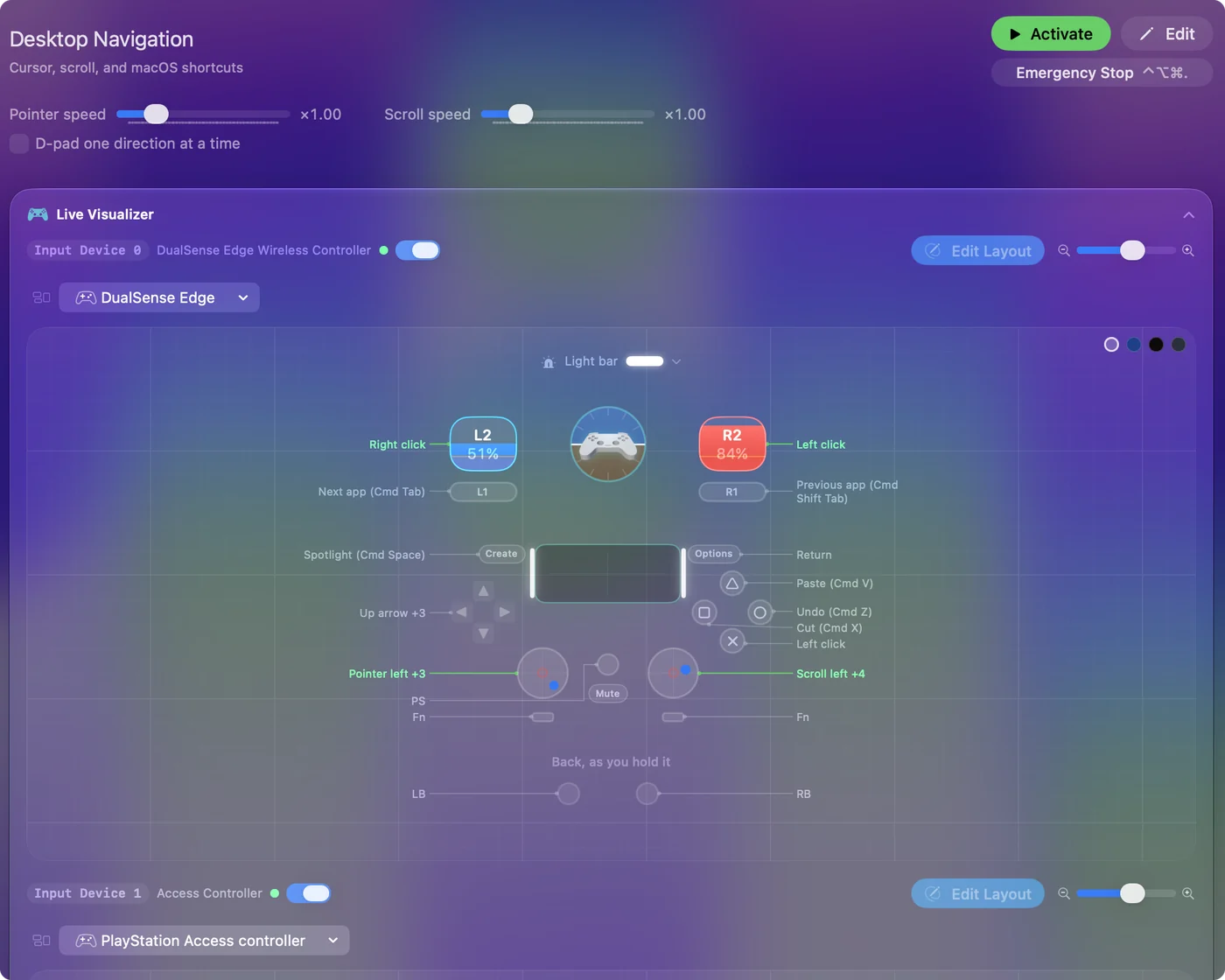
For words, bind Start Dictation to a spare button, put your email and address on Type Text rows, and click anything else on the Accessibility Keyboard with the stick. Typing with a game controller has the details, and a Mac mini under a TV has its own page on remotes that work from the couch. A cable for the first connection saves you from needing a pointer to pair Bluetooth.
Make it start by itself after a restart
InputConfig starts after you log in, and when it starts no preset is running. Two settings close that gap:
- Launch at login. In InputConfig's Settings, General. macOS asks you to allow InputConfig in Login Items first.
- Automatic switching. In the preset's editor, list the apps you use under Automation & Gaming Utilities, Activate when these apps are in front, then turn on Switch presets when the front app changes in Settings, Advanced. The preset starts whenever one of those apps comes to the front.
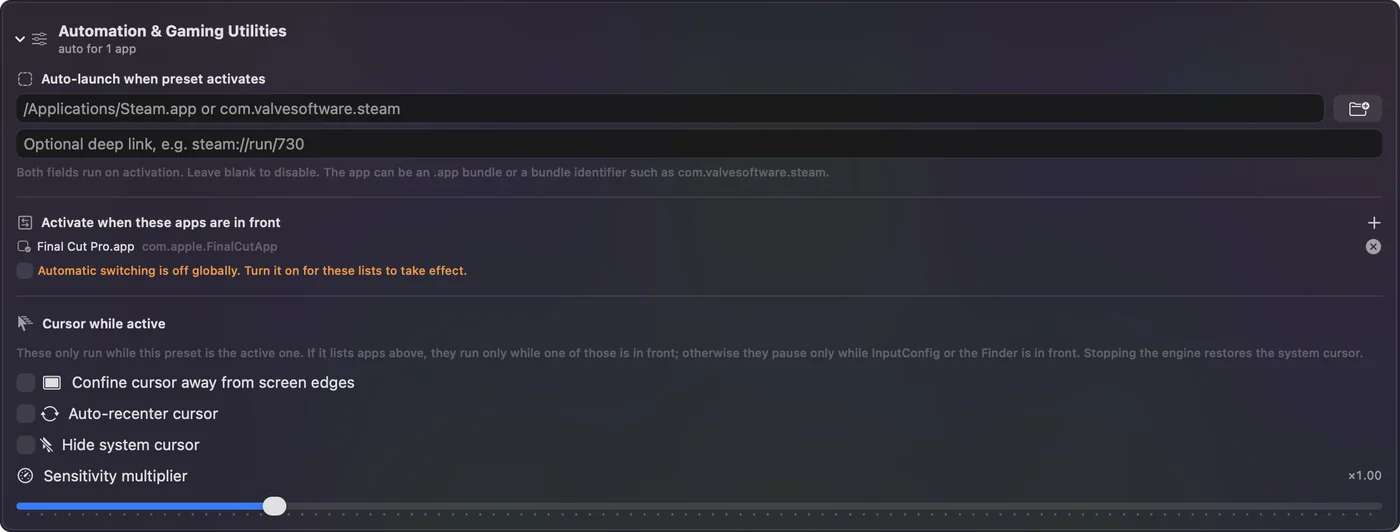
The password at the login window after a restart still comes before InputConfig. Something that the Mac sees as a mouse has to click the Accessibility Keyboard there: a Magic Trackpad kept on the shelf, an ordinary mouse, a joystick mouse, or a helper. After a lock, the controller can do it, because InputConfig keeps the pointer and clicks working at the lock screen. Keep one small trackpad near the Mac mini for the password after a restart.
Reach it from another Mac with Screen Sharing
If you have a second Mac, Screen Sharing lets it see and control this one over your network. Apple's Screen Sharing page, which I read on October 27, 2026, gives the steps:
- Open System Settings, click General, then Sharing.
- If Remote Management is on, turn it off, since only one of the two can be on.
- Click the Info button next to Screen Sharing and turn it on.
- Under Allow access for, choose All users or only the people you add, and click Done.
Apple's page does not say whether Screen Sharing reaches the login window after a restart, so test that once while the borrowed keyboard is still there. Screen Sharing has to be turned on from the Mac mini itself, so it belongs in the first evening of setup.
Reset or recover it, and why that needs a keyboard
On a Mac mini with Apple silicon, starting Recovery needs no keyboard. Apple's macOS Recovery page (published June 5, 2026, read October 27, 2026) says to shut the Mac down, then press and hold the power button until Loading startup options appears, click Options and click Continue. Apple's setup guide for the current model puts the power button on the bottom of the Mac mini.
What comes next does need hardware. Apple says Recovery may ask you to pick the startup disk and a user, and to enter that user's login password, before its utilities appear. InputConfig does not run there, because Recovery is not your normal macOS. For a reset or a reinstall, borrow the keyboard and mouse again.
What InputConfig cannot do
- Run before login. It starts after you log in, so it cannot help at Setup Assistant, the login window after a restart, or Recovery.
- Type your password. At the lock screen it keeps the pointer, clicks and scrolling working and blocks every key and text output on purpose, so no button, macro or Type Text row can type into the password field. It does not store passwords.
- Pair Bluetooth for you. Pairing still happens in System Settings, Bluetooth, so the first connection is easiest by cable.
- Grant its own permission. The Accessibility switch needs one click from a mouse, a helper or Voice Control.
The short version
- First setup. Borrow any USB keyboard and mouse, or plug in Magic accessories by cable.
- Login and lock screen. Turn on the Accessibility Keyboard in Lock Screen, Accessibility Options, and click it with a pointer.
- Every day after that. A controller with Desktop Navigation, dictation and Type Text, set to start by itself.
- Restarts and Recovery. Keep a small trackpad within reach, and borrow a keyboard for Recovery.
Do one test restart before you hand the keyboard back.
Questions
Can I set up a Mac mini with no keyboard?
Not reliably. Apple's setup steps expect a keyboard and a mouse or trackpad, plugged in or paired, because Setup Assistant asks for your name, a password and the Wi-Fi password. Borrow any USB keyboard and mouse for setup.
Can I log in to a Mac mini with a controller?
After a lock, yes. With the Accessibility Keyboard turned on in System Settings, Lock Screen, Accessibility Options, InputConfig keeps the controller's pointer and clicks working, so you can click your password in. After a restart InputConfig is not running yet, so the login window needs a mouse, a trackpad or a helper.
Does it still work after a restart?
Once you are logged in, it can. Turn on Launch at login in InputConfig and list your apps under Activate when these apps are in front, so the preset starts by itself. The password at the login window still comes first.
Can I reset a Mac mini without a keyboard?
You can start Recovery on an Apple silicon Mac mini by holding the power button, but Recovery then needs clicks and often a user's login password. InputConfig does not run there, so plan on a keyboard and mouse.
Can InputConfig type my password?
No. It blocks every key and text output at the lock screen and does not store passwords. You click the password on the Accessibility Keyboard, or use Touch ID on a Magic Keyboard that has it.
Related
This page in other languages: Deutsch, Español, Français, Italiano, 日本語, 한국어, Polski, Português, Русский, ไทย, 繁體中文, 简体中文
Completely free. You don't have to make an account, there are no subscriptions, and nothing is locked. Optimized for Apple silicon. Open source on GitHub.
Updated