How to eat in Minecraft on a Mac without a mouse
 InputConfig is completely free on the Mac App Store. You don't have to make an account, there are no subscriptions, and nothing is locked. Optimized for Apple silicon.
Pick the food in your hotbar, then press the trackpad down with two fingers and keep it pressed until your character finishes eating. Eating is Use Item, the right mouse button, and it has to be held: the Minecraft Wiki's Food page, which I read on October 27, 2026, says most food takes 32 game ticks, 1.6 seconds. If holding a click is hard, Java 1.21.9 and later can set Use Item/Place Block to Toggle, so one press starts eating. With a controller, InputConfig, the free Mac app I make, eats when you hold the left trigger.
This is Java Edition, the Minecraft that runs on a Mac. The controls come from the wiki's Minecraft Wiki's Controls page and Options page, read the same day.
On this page: 10 sections
Steps
- Open System Settings, Trackpad, and set Secondary click to Click or Tap with Two Fingers.
- In Minecraft, press the number key for the hotbar slot that holds your food.
- Aim at the ground or the sky, not at a chest or a door.
- Press the trackpad down with two fingers and keep it pressed for about two seconds, until the food is eaten.
- To eat without holding, set Use Item/Place Block to Toggle in Options, Controls, or hold the left trigger of a controller with InputConfig's Minecraft preset.
Put the food in your hand first
You can only eat what is in the selected hotbar slot. Press 1 to 9 to pick a slot, or slide two fingers on the trackpad to scroll through the hotbar. If the food is in your backpack, press E, move it into the bottom row, and press E again to close the inventory.
Keep one hotbar slot for food and you never have to look for it when the hunger bar drops.
Hold a two-finger click on the trackpad
- You: With Secondary click set to Click or Tap with Two Fingers, press the trackpad down with two fingers and keep pressing.
- macOS: Holds the right mouse button for as long as the pad stays pressed.
- Check: The food moves toward your character's face and the hunger bar fills when it finishes. If you let go early, nothing is eaten and you start again.
A two-finger tap is too short to eat, because a tap is a press and an instant release. Press the pad until it clicks, and hold it there. The wiki gives the times: 1.6 seconds for most food, half that for dried kelp, and 2 seconds for a honey bottle.
A Magic Mouse is the same idea: press its right side and hold. Eating is the one common action that needs the right button held, so press, do not tap.
Eat with one press using Toggle
The wiki's Options page says Java 1.21.9 made Attack/Destroy and Use Item/Place Block toggleable in Options, Controls, beside the older Sneak and Sprint toggles. On Toggle, one press starts using the item and the next press stops.
- You: Open Options, Controls, and change Use Item/Place Block from Hold to Toggle.
- Minecraft: Treats one right click as a held one, until you click again.
- Check: With food in hand, click once with two fingers and take your fingers away. Your character eats with no finger on the pad. Click again to stop.
The catch is that the same setting covers placing blocks and opening chests, which are quick presses. I would turn Toggle on when holding a click is the hard part for your hands, and leave it on Hold otherwise.
Bind Use Item to a key you can hold
Holding a key is easier than holding a click for many people. In Options, Controls, Key Binds, click Use Item/Place Block and press a key near W, A, S and D that you do not use. Hold that key to eat, and your other hand stays free on the trackpad to look around. The same key now places blocks and opens chests too, since they are the same action. Placing blocks without a mouse has more on choosing the key.
Eat with a controller trigger
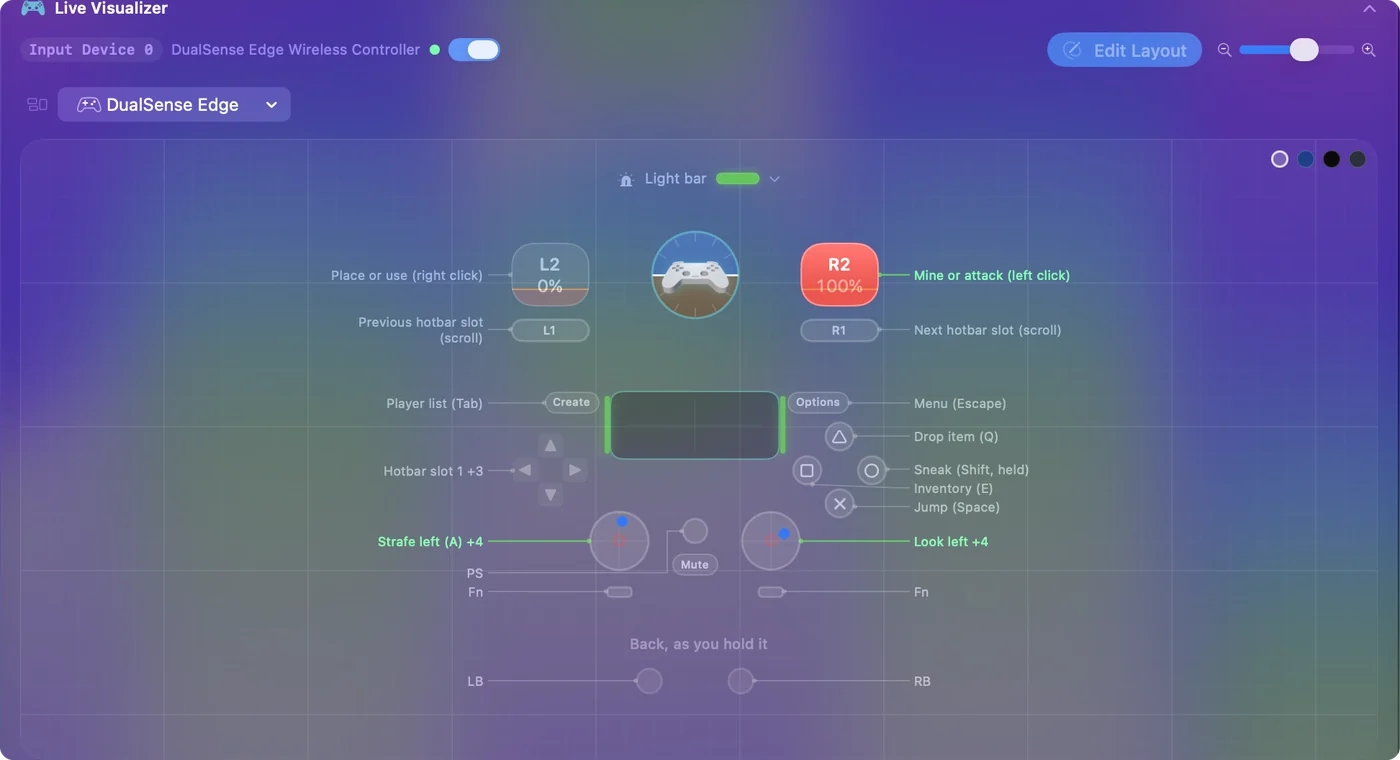
Java Edition reads no controller, so InputConfig sends the mouse and keys for it. In the built-in Minecraft preset the left trigger is the right mouse button, set to Fires while held: the button stays down while you hold the trigger.
- You: Pair the controller, click Minecraft in InputConfig's sidebar, click Activate, then pick the food with the D-pad or the bumpers.
- InputConfig: Holds the right button down for as long as the left trigger is pulled.
- Check: Hold the left trigger and your character eats. Let go early and it stops.
If even that hold is too much, a row can toggle the button instead. The app's help lists held mouse buttons among the things Toggle is for, and one press holds the button until the next press.
- You: Add a row on a button the preset leaves free, such as the touchpad press on a PlayStation pad or a back paddle. Choose Mouse Button, 1: Secondary, open Options, and set How it fires to Toggles on and off.
- InputConfig: Presses the right button on the first press and lets go on the second.
- Check: Press once with food in hand and put the controller down. The eating carries on. Press again and it stops.
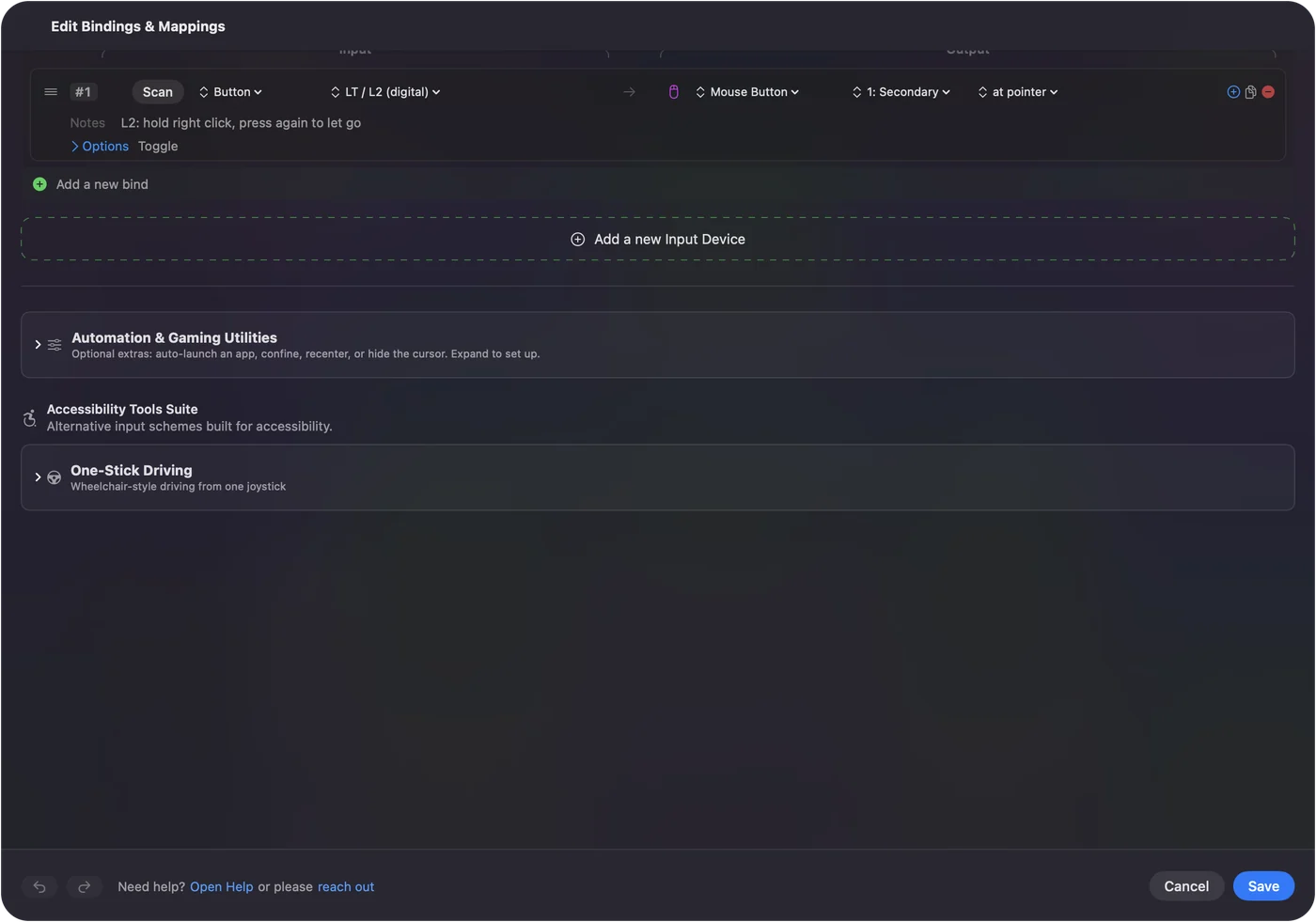
I would put the toggle on a spare button and leave the left trigger as it is, so quick placing keeps working.
If you cannot eat
Climb this ladder, smallest step first:
- Check the hunger bar. The wiki says that in Survival you cannot eat with a full hunger bar. Chorus fruit, golden apples, enchanted golden apples, honey bottles and suspicious stew are the exceptions.
- Check the slot. The selected hotbar slot must hold the food.
- Look away from blocks. Use Item also works chests, doors and other blocks, so aim at the ground or the sky.
- Hold longer. A tap or a short press is not enough. Keep holding until the food is gone.
- Use one toggle. With the game's Toggle on, do not also toggle the button in InputConfig, or presses cancel each other out. Pick one.
- Check the preset. It must be running, with InputConfig switched on in System Settings, Privacy & Security, Accessibility.
If a toggled button is ever left held, press it again, or press Control Option Command period, which lets go of every key and button InputConfig holds.
What it cannot do
- Eat when you are hungry. InputConfig cannot see the hunger bar, so it has no way to eat for you on its own.
- Read a force click in the game. Pressure and Deep Press on the trackpad work only while InputConfig's window is in front.
- Speak for a server. A held or toggled button is fine in your own world. Some servers have rules about automation, which the Minecraft auto clicker page covers.
The short version
- Trackpad. Select the food and hold a two-finger click.
- No holding. Set Use Item/Place Block to Toggle in Options, Controls.
- Keyboard. Bind Use Item/Place Block to a key and hold the key.
- Controller. Hold the left trigger in InputConfig's Minecraft preset, or toggle the right button on a spare button.
Eating is holding the right button, so the best route is whichever hold is easiest for your hands. The rest of mouse-free play is on Minecraft on a Mac without a mouse.
Questions
How do you eat in Minecraft on a laptop without a mouse?
Select the food in your hotbar, then hold the trackpad's right click: on a MacBook, press the pad down with two fingers and keep it pressed for about two seconds. Secondary click must be set to Click or Tap with Two Fingers in System Settings, Trackpad.
How do you eat in Minecraft with a trackpad?
Hold a two-finger click, not a tap. Most food takes 1.6 seconds according to the Minecraft Wiki, and letting go early cancels the bite.
Why can't I eat in Minecraft on my Mac?
In Survival you cannot eat with a full hunger bar, except chorus fruit, golden apples, honey bottles and suspicious stew. Also check the food is in the selected slot and that you are not aiming at a chest or door.
Do I have to hold the button to eat?
By default, yes. Since Java 1.21.9 you can set Use Item/Place Block to Toggle in Options, Controls, so one press starts eating and the next stops it.
Can I eat with a controller on a Mac?
Yes. InputConfig's built-in Minecraft preset holds the right mouse button while you hold the left trigger, and a row set to Toggles on and off can hold it with one press.
Related
This page in other languages: Deutsch, Español, Français, Italiano, 日本語, 한국어, Polski, Português, Русский, ไทย, 繁體中文, 简体中文
Completely free. You don't have to make an account, there are no subscriptions, and nothing is locked. Optimized for Apple silicon. Open source on GitHub.
Updated