Does the Logitech G920 work on a Mac?
 InputConfig is completely free on the Mac App Store. You don't have to make an account, there are no subscriptions, and nothing is locked. Optimized for Apple silicon.
Yes, through Apple's racing wheel support. Apple named the G920 when it added racing wheel support in macOS 13 Ventura, so a Mac game written for that support can drive with it, wheel, pedals and shifter included. The G920 is an Xbox wheel with no mode switch, and it never shows up as an ordinary USB device, so apps that read USB devices directly do not see it.
For games that ignore it, InputConfig, the free Mac app I make, reads the G920 through the same Apple support and turns the wheel, pedals and buttons into the keys and mouse movement a keyboard racer expects. Logitech itself lists Xbox and Windows for this wheel, not a Mac, and nothing on this page needs Logitech's software.
On this page: 10 sections
Steps
- Plug the pedals, and the shifter if you have one, into the wheel base.
- Connect the power adapter, then the USB cable, straight into the Mac or a plain USB-C adapter.
- Open the game's controls screen and see whether it steers with the wheel.
- If not, open an InputConfig preset and turn on One-Stick Driving with Steer axis 0 and Throttle axis 5.
- Lower the deadzone to a few percent, then put the brake and the buttons on rows of their own with Scan.
Know what the Mac sees
Logitech sells this rim and base in two versions. The G29 is for PlayStation and PC, and the G920 is for Xbox and PC. Logitech's G920 and G29 page, which I read on October 27, 2026, lists the Xbox version for Xbox Series X|S, Xbox One and PC, with 900 degrees of rotation, dual-motor force feedback, a powered USB port, and Windows 11 back to Windows 7. It does not list macOS.
| Wheel | Hub buttons | How the Mac reads it |
|---|---|---|
| G920 | A, B, X, Y, View, Menu, the Xbox button | Through Apple's racing wheel support only, since Xbox mode is not a standard USB device |
| G923 for Xbox and PC | The same, plus plus and minus, a dial and Enter | The same way as the G920 |
| G29 and G923 for PlayStation and PC | Cross, Circle, Square, Triangle, Share, Options, PS | As a plain USB device, read in full, and the G29 by Apple's support too |
- Not under Game Controllers. A wheel never appears in System Settings, Game Controllers, which lists gamepads. System Information, USB is where to see that the Mac has it.
- One app at a time. Apple's developer documentation says only one app receives a wheel's input at a time, which matters once InputConfig is in the picture, below.
The Xbox buttons on the hub tell you this wheel goes through Apple's support or not at all.
Connect it
- You: Plug the pedal unit, and the Driving Force Shifter if you have one, into the back of the wheel base. Connect the power adapter, then the USB cable, with a plain USB-C to USB-A adapter on a MacBook rather than a hub.
- macOS: Finds the wheel with no driver to install.
- Check: Hold Option, open the Apple menu, choose System Information, and look under USB. The wheel is listed if the cable and the power are fine.
Connect the power adapter every time. Logitech's page asks for a powered USB port and lists the adapter in the box. There is no switch to set: unlike the G29, the G920 has only its Xbox mode.
Try the game's own wheel support first
A Mac game written for Apple's racing wheel support can read the G920 directly, with every pedal on its own axis. That is the best result you can get on a Mac, so check it before you map anything.
- You: Quit InputConfig, or deactivate any preset that reads the wheel, then open the game's controls screen and turn the wheel.
- The game: Lists the wheel and shows the steering move, if it supports it.
- Check: If the car steers, you are done. If the game lists nothing, map the wheel to keys below.
Most of the sims people buy a wheel for, iRacing and Assetto Corsa among them, have no Mac version and reach a Mac only by streaming or a Windows wrapper, where the wheel is up to that setup. Racing wheels on a Mac has more on which games read wheels.
Know what InputConfig reads on a G920
InputConfig reads the G920 and the G923 for Xbox through Apple's racing wheel support, and numbers them like a G29, so wheel presets made on a G29 work on them unchanged:
- Steering. Axis 0, across the wheel's 900 degrees.
- Pedals. Clutch on axis 1, brake on axis 4 and gas on axis 5, each 0 with your foot off and 1 on the floor.
- Buttons. By the names on the hub: A, B, X, Y, View, Menu, the Xbox button, LSB and RSB, the D-pad, and the left and right paddles.
- The shifter. Gear 1 to Gear 6 and Reverse, each a button of its own.
Two things to know before you rely on it. InputConfig holds the wheel only while a preset, the editor or the Live Visualizer reads it, and lets go after, so a game can have it back. And the wheel's drawing in the Live Visualizer is hidden as experimental. The app's help guide names the G29 and the G923 and not the G920, so these G920 details come from the app's release notes rather than from a test I can point to. Press every control with Scan before you build a layout you depend on.
Drive a keyboard game with it
For a game that steers from the keyboard or the mouse, One-Stick Driving gives you a real throttle from the gas pedal: it pulses the accelerate key, holding it longer in each pulse the further you press.
Step 1: Point One-Stick Driving at the wheel
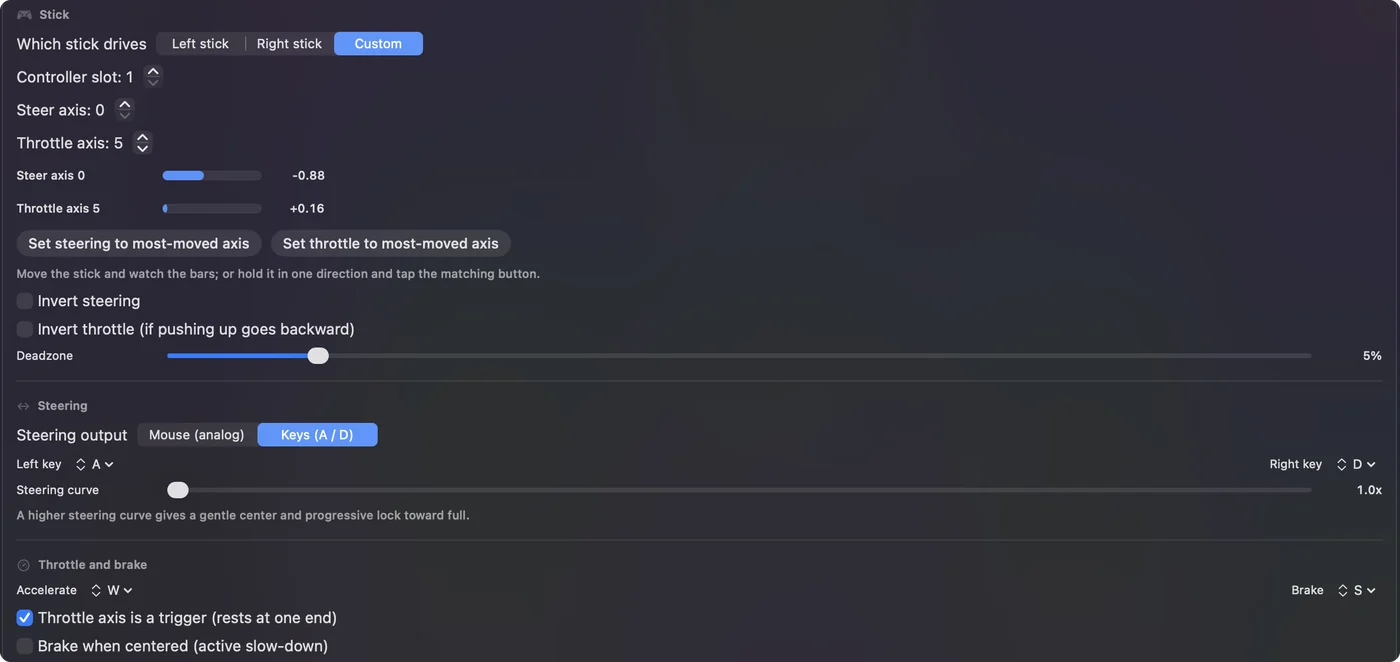
- You: Open a preset and, under Accessibility Tools Suite, switch on One-Stick Driving. Set Which stick drives to Custom and the controller slot to the wheel's. Set Steer axis to 0 and Throttle axis to 5, and turn on Throttle axis is a trigger (rests at one end).
- InputConfig: Shows a live bar for steering and one for throttle.
- Check: Turn the wheel and press the gas pedal, and both bars follow.
Step 2: Lower the deadzone and pick the steering
- You: Bring Deadzone down to a few percent. Choose Mouse (analog) for games that steer from the mouse, or Keys (A / D).
- InputConfig: Moves the mouse in proportion to the wheel, or pulses A and D so a small turn gives a gentle steer.
- Check: The car steers within the first few degrees. The 12 percent default is measured on the whole half turn, about 54 degrees each way on a 900 degree wheel.
Step 3: Add the brake and the buttons
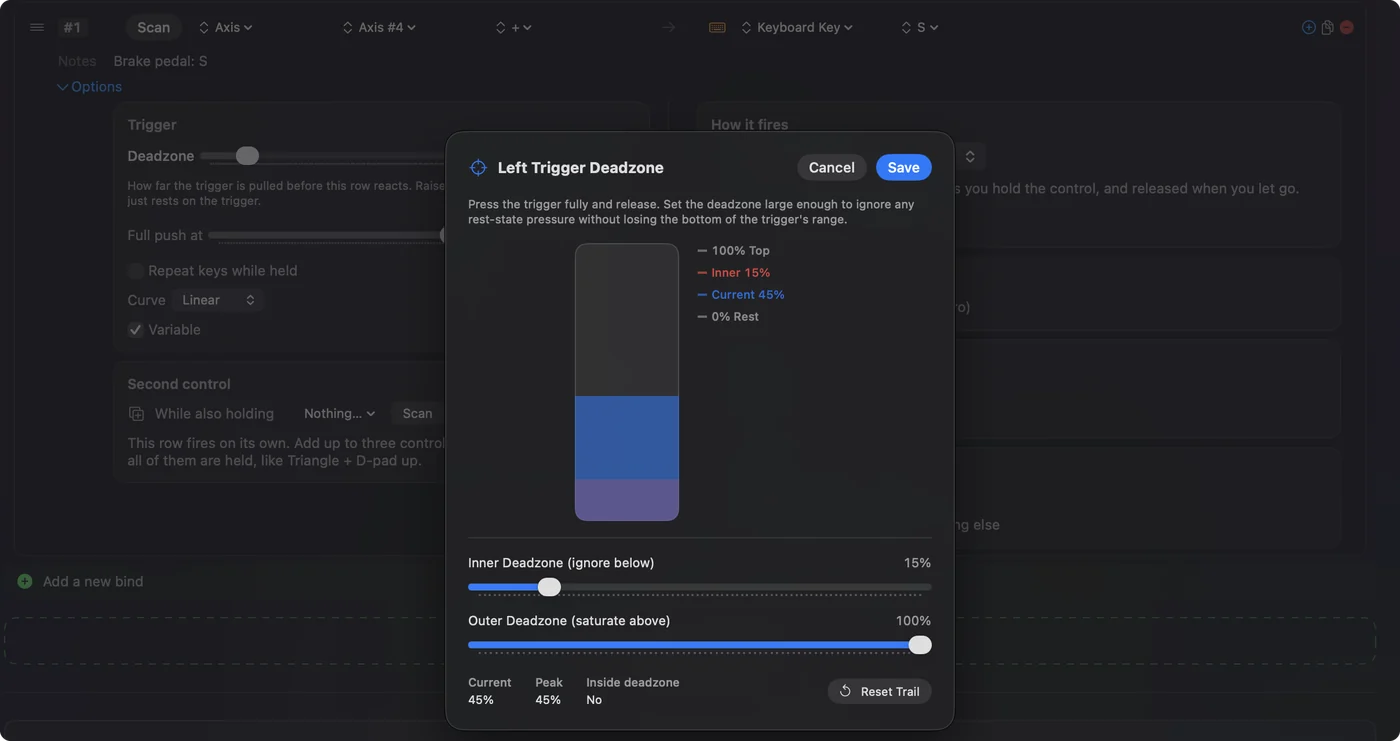
- You: Add a row, press Scan, push the brake pedal, and send the game's brake key, usually S. Do the same for the paddles, the gears and any hub button: shift up and down, handbrake, look back, reset.
- InputConfig: Fills each row with the control you pressed.
- Check: Each pedal and button types its key in a text field before you open the game.
Add the game to the preset's apps under Automation & Gaming Utilities and turn on automatic switching in Settings, Advanced, and the layout starts whenever the game is in front. Racing wheel pedals as keys has more jobs for the clutch pedal and the paddles.
If the wheel does nothing
Climb this ladder, smallest step first:
- Check the power. The adapter goes in before the USB cable, as Logitech's page asks for a powered connection.
- Check the port. Straight into the Mac or a plain adapter, not a hub.
- Check System Information. If the wheel is not under USB, the cable or the power is the problem, not a game or an app.
- Let go of it in other apps. Only one app gets the wheel at a time. Quit a game that has it, or deactivate the InputConfig preset, whichever one you are not using.
- Lower the deadzone. If it responds but steers late, the default deadzone is wide on a 900 degree wheel.
- Follow the full checklist. Racing wheel not working on a Mac goes through every other cause.
What it cannot do
- Force feedback. InputConfig does not drive it. With the wheel mapped to keys, the motors stay quiet and the rim turns freely apart from its own spring. Only a game that drives the wheel itself can use them.
- Change the wheel's mode. The G920 has only its Xbox mode, so there is no setting that turns it into a plain USB wheel.
- Make a game see a wheel. InputConfig sends keys and mouse movement, not a virtual wheel.
Logitech's own app, G HUB, is for rotation, force feedback strength and firmware. Logitech's support article Does G HUB work with Mac and Windows, which I read on October 27, 2026, says it is compatible with recent versions of Windows and macOS, and does not name the G920 or Apple silicon. I could not confirm that G HUB for Mac supports this wheel, and nothing here needs it.
The short version
- Connect. Pedals into the base, power adapter, then USB straight into the Mac.
- Try the game. A Mac game written for Apple's racing wheel support reads the G920 itself.
- Map the rest. One-Stick Driving with Steer axis 0 and Throttle axis 5, a low deadzone, and Scan for the brake and buttons.
- Buying for a Mac. The G29 reads two ways, as a plain USB device and through Apple's support, and InputConfig draws it in the Live Visualizer, so I would pick it over the G920.
Check the game's own controls screen first, and map the wheel to keys only where the game ignores it.
Questions
Does the Logitech G920 work on a Mac?
Through Apple's racing wheel support, added in macOS 13, which names the G920. Mac games written for that support read it, and InputConfig reads it through the same support to turn it into keys. Logitech does not list macOS for it.
Is there a G920 driver for macOS?
No driver is needed. macOS reads it through its own racing wheel support, and Logitech's page for the wheel lists Windows and Xbox, not macOS.
Does the G920's force feedback work on a Mac?
Only in a game that drives the wheel itself. InputConfig sends keys and mouse movement and does not drive force feedback.
G920 or G29 for a Mac?
I would pick the G29. The Mac reads it as a plain USB device and through Apple's racing wheel support, and InputConfig reads it in full with a drawing in the Live Visualizer. The G920 reaches a Mac only through Apple's support.
Does G HUB run on Apple silicon?
Logitech's support article says G HUB is compatible with recent versions of macOS and does not mention Apple silicon or the G920. Nothing in InputConfig needs G HUB.
Related
This page in other languages: Deutsch, Español, Français, Italiano, 日本語, 한국어, Polski, Português, Русский, ไทย, 繁體中文, 简体中文
Completely free. You don't have to make an account, there are no subscriptions, and nothing is locked. Optimized for Apple silicon. Open source on GitHub.
Updated